

Manage customer database
This guide explains how to access and navigate your customer database, search and filter profiles, download customer data, and delete or edit individual profiles.
Access the customer database
To open your customer database:
-
Go to Data and Assets > Customers. This displays the full list of all customer profiles in your project.
-
To customize which attributes are visible and searchable in this list view, click the cog wheel icon in the top-right corner of the table. Note that the search function only searches through attributes that are visible in the current list view.
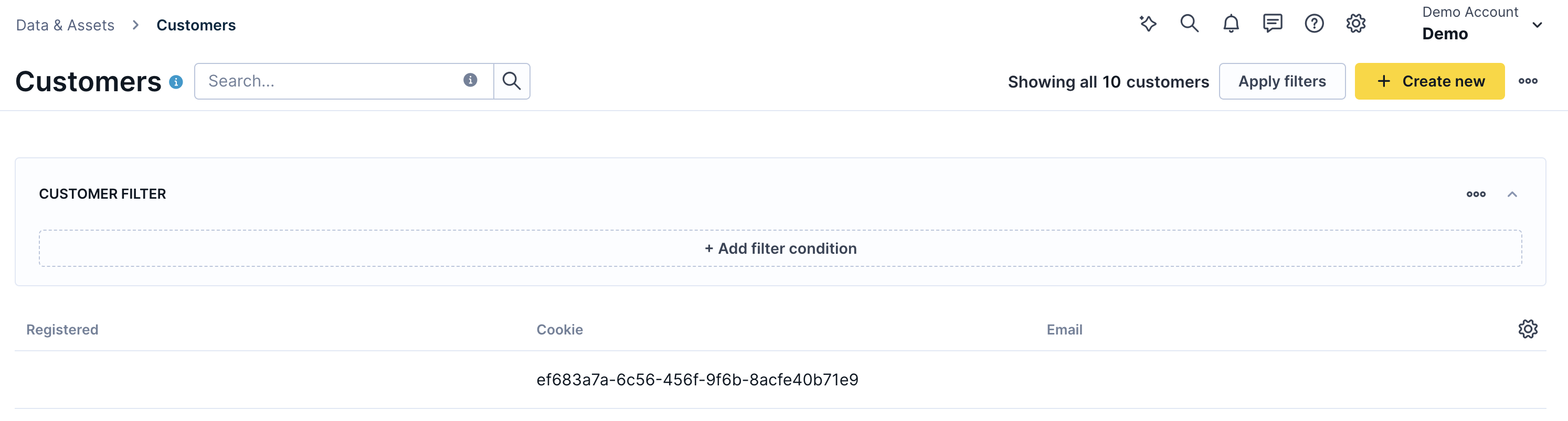
Customer database list view
Search and filter customers
To find a specific customer, use the search field at the top of the list. For more advanced filtering, use the customer and event filter.
Click + Add filter condition to filter by:
- Funnel steps or customer attributes.
- Event attributes.
- Additional filter conditions.
To narrow results by segmentation, click + Add filter condition, select the Customer tab, choose a segmentation, and click Apply filters.
Download customer data
Download all customers
- Go to Data and Assets > Customers.
- Click the three-dot icon in the top-right corner.
- Select Download customer data.
- Choose the attributes you want to include in the export.
The data is exported as a CSV file. All customer identifiers are automatically included and aren't available in the attribute selection.
To open the CSV as a Microsoft Excel spreadsheet, follow this formatting guide. To preview CSV files, use Notepad++ on Windows or Sublime Text on Mac.
Download customers for a specific segmentation
- Go to Data and Assets > Customers.
- Click + Add filter condition and select the Customer tab.
- Choose the segmentation you want to filter by and click Apply filters.
- Click the three-dot icon in the top-right corner.
- Select Download customer data.
Only data matching your applied filters is exported.
Delete customers
Delete multiple customers
- Go to Data and Assets > Customers.
- Click the three-dot icon in the top-right corner.
- Select Delete all customers.
This action deletes all customers currently displayed in the list. Apply filters before deleting if you want to limit the scope.
Delete a single customer
- Hover over the row for the customer you want to delete.
- Click the Edit button that appears, then open its drop-down menu.
- Select Delete.
Edit a customer profile
Edit attribute values
- Open a customer profile by clicking on it in the list.
- Go to the Properties and events tab.
- Hover over the attribute value you want to edit.
- Click the edit icon that appears and update the value.
Delete a customer attribute value
To clear an attribute value for a specific customer, hover over the attribute in the Properties and events tab and click the delete icon. This removes the value for that customer only.
To remove an attribute from the entire project, go to the Data manager.
Updated 3 months ago