

Import vouchers
Vouchers are text codes customers use to redeem discounts or special offers in your online store. You can share these codes through your campaigns—either using the same code for every customer or sending unique codes to each one.
The Vouchers feature lets you load a pool of voucher codes, insert them into campaigns, and track their usage.
Learn how to prepare your data, run the import, and verify the results.
Prerequisites
-
Read the Imports article to understand how imports work, what sources are available, and how to monitor import progress.
-
Prepare a pre-generated list of unique voucher codes in a single column with a header row.
-
Voucher pool names must use a single word with no spaces. Spaces in the pool name cause errors. Use descriptive names for easy identification. For example,
10%Discount,100EURoff, or a campaign name. -
Before using vouchers for the first time, track voucher usage during purchases in Project settings > Mapping > Vouchers. Learn how in Set up voucher tracking.
Choose a voucher pool
-
To start an import, go to Data & Assets > Imports > + New import > Vouchers.
-
Choose an existing voucher pool to add new codes to, or create a new one by entering a name.
Choose a data source
Select the source your voucher data is coming from. You can import vouchers from multiple data sources, and all standard import sources are supported. For details on each, see Data sources.
Click Preview to verify the delimiter and encoding settings, then click Next.
Assign the code ID
Drag the blue code box to assign the code ID to the column containing your voucher codes. You can only import one column containing voucher codes.
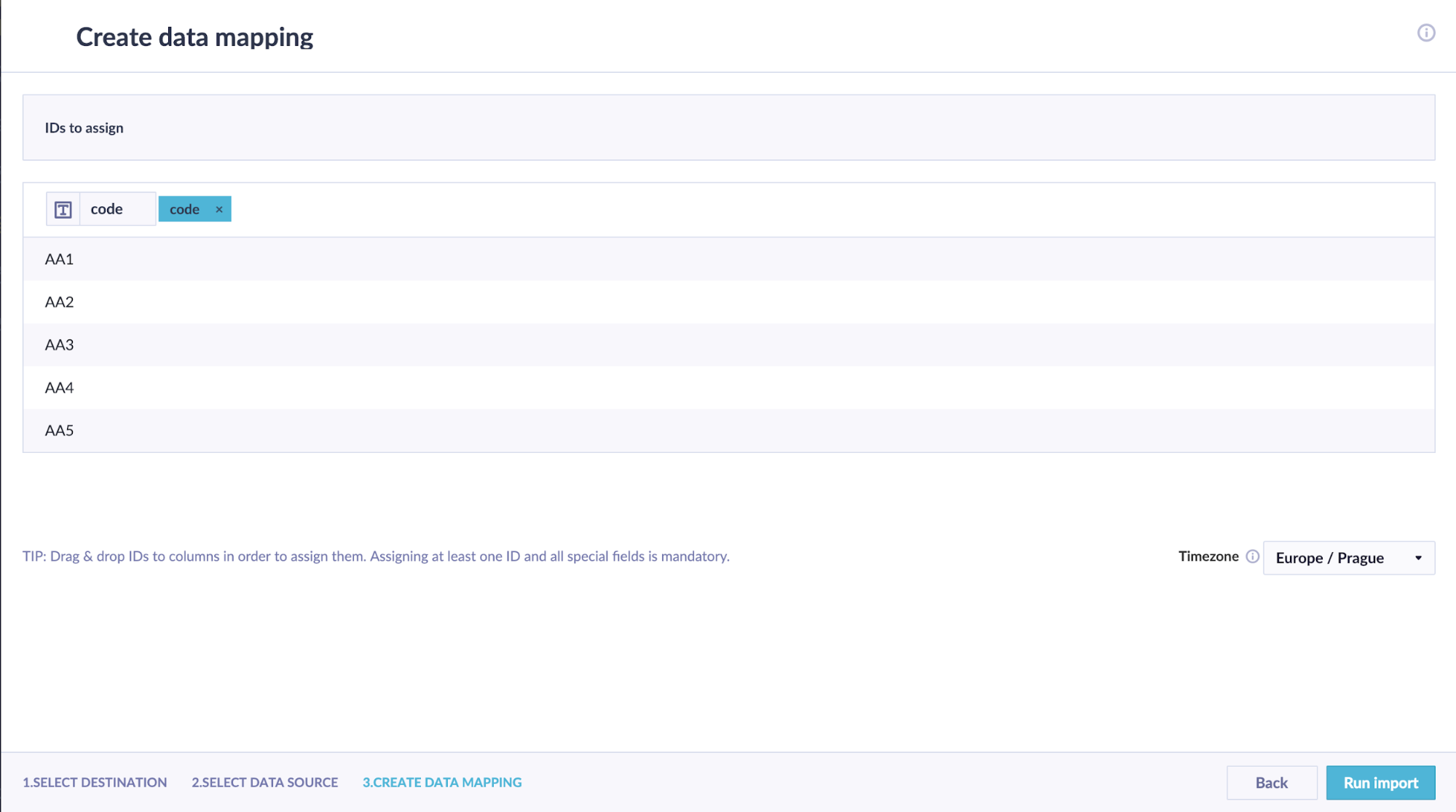
Drag the blue code ID box to the column containing your voucher codes before running the import.
Schedule a repeated import (optional)
If you're importing from a dynamic source—URL, Database, or Bloomreach app—you can schedule a repeated import. For details, see Schedule a repeated import.
Run the import
Click Run Import. Go to Data & Assets > Imports to review the import and confirm all rows were imported correctly.
You can view all imported voucher pools in Data & Assets > Vouchers.
Limitations
-
Voucher codes must be unique within a pool. If a code already exists in the pool, it's ignored during import.
-
You can't import the same code into multiple voucher pools.
If you run out of vouchers
When a voucher pool runs out of codes, campaigns that assign vouchers from it fail or don't display. Learn what happens for each campaign type in Vouchers.
Updated 25 days ago