

Create a general catalog
This guide helps you create and view a general catalog with Data hub integration.
Steps to create a catalog
-
Navigate to Data & Assets > Catalogs.
-
On the Catalogs page, click + New catalog.
-
Under Catalog type, choose General. If you choose Product, manage product data with Item collections.
-
Enter a display name for your catalog. For example, marketing_assets. The system automatically generates a unique identifier. You can modify the identifier, but can't change it after it's created. The identifier references the catalog in Jinja templates and throughout the system.
-
Add an optional description for your catalog.
-
Click Add catalog to create the catalog.
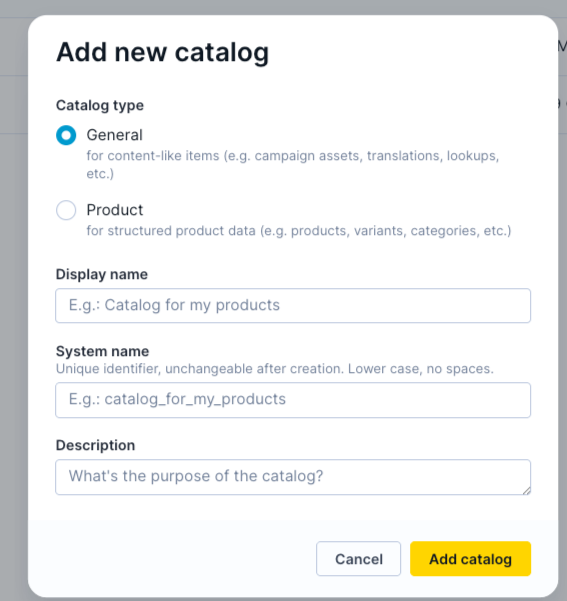
Under Catalog type, choose General
View catalog details and usage
View the following details about the catalog:
- Display name: Change the display name of the catalog.
- Catalog info: Click the info icon to view:
- The unique catalog identifier.
- Last updated timestamp.
- Description (view or modify).
- Show usages: Nested under the more options dropdown, this option shows where a catalog is used across Bloomreach. This indicates where a campaign, scenario, or recommendation is using a catalog. This can't show all usages, particularly if a dynamic catalog reference is created and accessed via the Jinja template.

View where catalog is used across Bloomreach
Updated 9 days ago