

Export and automate Loomi BigQuery data
Move Loomi BigQuery data into your own systems on a schedule. Monitor data loads to know when new data is ready, then use scheduled queries to export or recalculate it in your own BigQuery project.
Monitor data loads
To enable monitoring of the load process, there's a table _system_load_log in each dataset. The main benefit of _system_load_log table is that it can act as a trigger for further data exports from your Loomi BigQuery dataset. The common use case is to wait until you see an update in _system_load_log and then export new and updated data to another system. If you need to know how fresh are newly exported data in case of events, use max(ingest_timestamp).
For example, to find out the last time the session_start event type was loaded, run the following query:
SELECT tabs, timestamp
FROM `gcloudltds.exp_4970734e_9ed3_11e8_b57b_0a580a205e7b_views._system_load_log`
CROSS JOIN unnest(tables) as tabs
WHERE tabs in('session_start')
ORDER BY 2 DESC
LIMIT 1
And here's a bit more complex example how to display last 4 table updates that weren't updated in last 3 days. It can be used for example to display event tables that weren't tracked into Marketing app for some period of time.
SELECT
  loaded_table_name,
  ARRAY_AGG(timestamp ORDER BY timestamp DESC LIMIT 4) as latest_updates -- limit to only X  latest update timestamps for each table
FROM `gcloudltds.exp_c1f2061a_e5e6_11e9_89c3_0698de85a3d7_views._system_load_log`
LEFT JOIN UNNEST(tables) AS loaded_table_name
GROUP BY loaded_table_name
HAVING EXISTS (
  SELECT 1
  FROM UNNEST(latest_updates) AS table_timestamp WITH OFFSET AS offset
  WHERE offset = 0 and DATETIME(table_timestamp) < DATETIME_SUB(CURRENT_DATETIME(), INTERVAL 3 DAY) -- show only table names where the latest update timestamp is older than 3 days
)
ORDER BY loaded_table_name ASC
Best practices
Because unexpected delays in data processing may occur (especially during seasonal peaks), you shouldn't rely on a specific time for new data to be exported and available in Loomi BigQuery.
Instead, you should monitor the _system_load_log table and trigger dependent queries and scripts processing only after there's a log entry that data has been successfully exported to Loomi BigQuery. If you run scripts on a fixed time, it may happen that the data isn't exported to Loomi BigQuery yet and it'll run on an empty dataset.
Export or recalculate data with scheduled queries
With the Loomi BigQuery, you can periodically run simple or calculate complex queries and store the results in another table within your BigQuery. Afterward, you can access and manipulate these results or use a BI tool, such as Tableau, to report on the data within this table.
The prerequisites for this are:
- You must have your own Google Cloud Platform (GCP) project with BigQuery enabled.
- You must have the BigQuery Data Transfer API enabled.
- As a person configuring this, you must have
write accessto the BQ andread accessto Loomi BigQuery.
To configure scheduled queries, follow this guide:
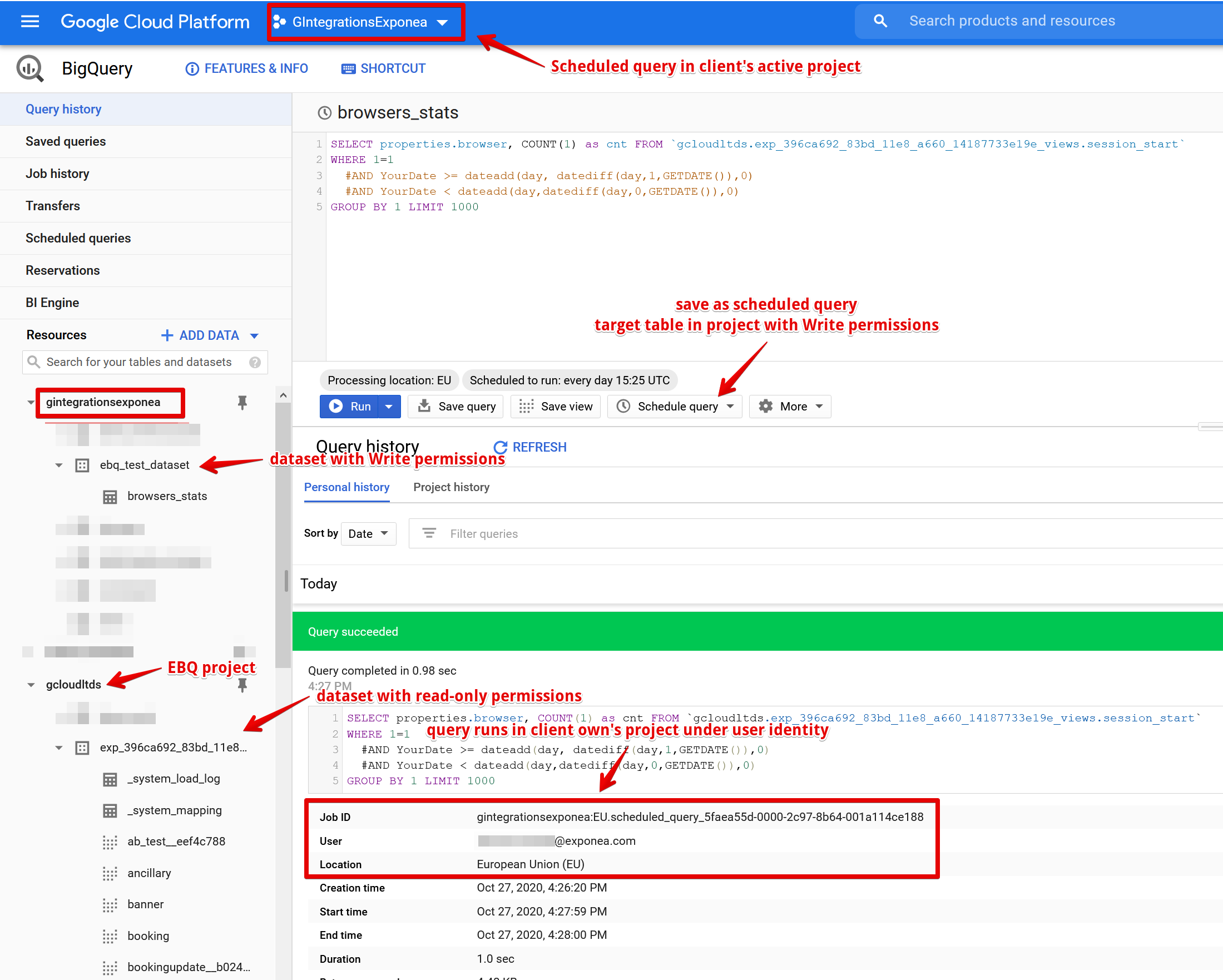
- Open the relevant GCP and ensure that the active project is the desired GCP project and not GCloudLTDS (Loomi BigQuery).
- Create a new dataset in the BQ at the same location as Loomi BigQuery (EU).
- Create a new Scheduled query, as shown in the image below.
For exporting use case, we recommend querying the raw_properties fields in customers_properties and event tables, as these are always the same data type, independent of Marketing app Data Management settings.
More resources can be found on the official Google BigQuery documentation:
Updated 20 days ago