

Preview recommendations results
After you save your recommendation, the Test tab lets you preview the recommendation's output using real data before deploying. Use it to confirm that filters, pins, blocks, and customer preferences behave as expected—and to check results as a specific customer or for a reference item.
To monitor performance after deployment, see Evaluate using recommendations dashboard.
Open the preview
The Test tab displays a preview of the recommendations engine output. By default, 25 items are displayed.
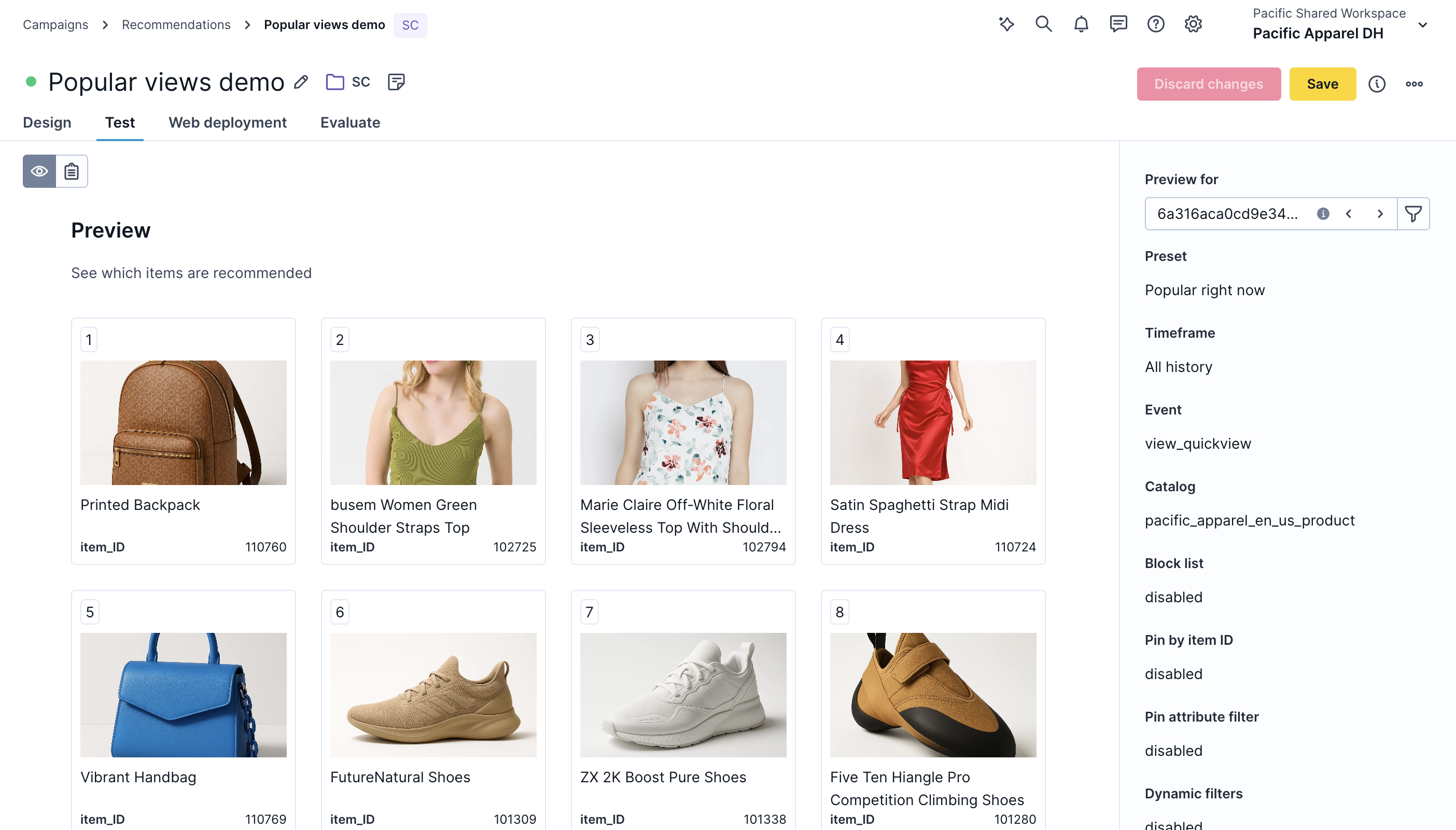
Switch between visual and list modes using the toggle at the top left—visual mode shows product images, list mode shows catalog attributes. To include images in the preview, label your catalog columns during import—see catalog documentation.
| Field | Description |
|---|---|
| Product grid | Shows the first 10 positions the engine returns. Each position displays the item selected and a pin badge if the position is pinned. |
| Preview for | Filter to a specific customer. The preview updates to show personalized results for that customer. |
| Based on item | Enter an item ID to use as the reference item for item-context results. For the Popular in category template, fill in the category names or IDs that correspond to the category identifier in the template settings. |
| Preset | Name of the recommendation template currently applied to the preview. |
| Catalog | The catalog the recommendation is drawing from. |
| Block list | Shows whether the block list is active and how many items were excluded. |
| Pin by item ID | Shows whether each pinned item is in the result. Disabled if the item is out of stock or excluded by a filter. |
| Pin by attribute filter | Shows whether the attribute condition matched items in the recall set. Disabled if no items match. |
| Dynamic filters | Shows whether dynamic filters returned matching items. Disabled if the reference item or customer property is missing—the unfiltered fallback set is shown instead. |
| Customer preferences | Shows whether customer preferences are active and influencing the sort order. |
The preview reflects the current configuration in real time—change a filter or add a pin, then refresh to see the result.
Enabled vs. disabled pin states
Pin badges have two states:
- Enabled: The pinned item or attribute match is in its assigned position.
- Disabled: The pin is configured but can't be applied right now. Common reasons:
- The pinned item is out of stock.
- The pinned item was removed from the catalog.
- No items match the attribute filter condition.
- There aren't enough items in the recall set to reach the pinned position, and fallback is disabled.
When a pin is deactivated, the engine fills the position from the recall set instead. The pin returns to active when the underlying condition is met again—for example, when the pinned item returns to stock.
Preview through single customer view
Preview recommendations for a specific customer directly from their profile.
- Go to Data & Assets > Customers > Customer profile.
- Open the customer's profile.
- In the Overview tab, scroll to the Recommendations section at the bottom right.
Single customer view display
To display the single customer view correctly, label your catalog columns during import. The preview searches for the properties image or picture.
If neither is found as an exact match, it searches for any property with image or picture in the name (for example, additional images). The same applies to price, title, or name for the name, and link or url for the URL.
Updated 2 months ago