

Configure template: Template-specific fields
Every template has mandatory fields that must be configured otherwise the recommendation can't be saved. Each template uses a different subset—refer to your template's page to see which fields apply. Where a field appears in multiple templates, its meaning is consistent.
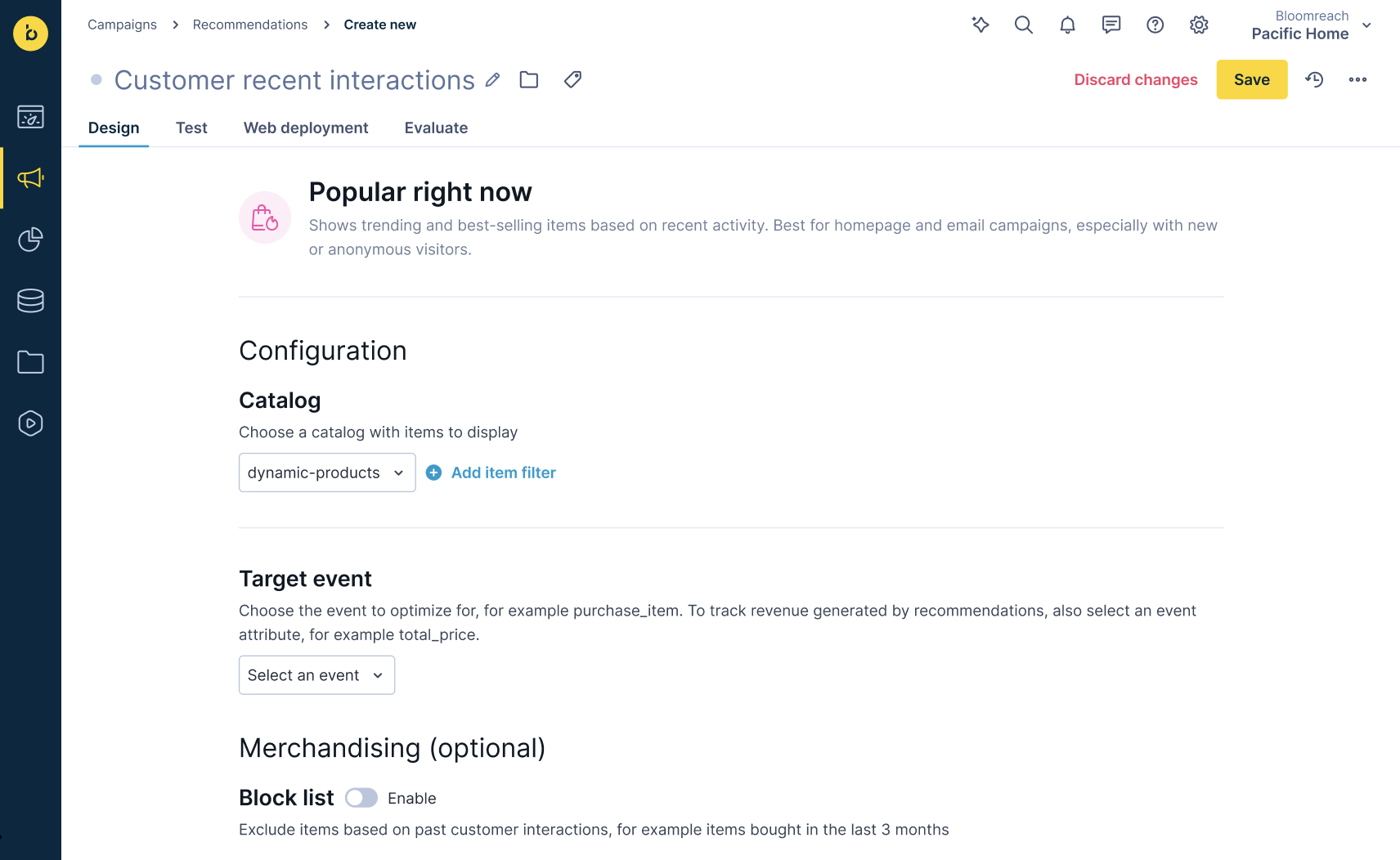
Catalog setup
The inventory of items the engine selects from. Each recommendation operates on a single catalog. Catalog setup happens at the project level—see Catalogs.
When you select a catalog, you also choose which columns are filterable and configure any filter conditions you want applied. Catalog filter conditions narrow the item pool before the engine selects items—affecting both what the engine learns from and what it can recommend.

Filter syntax
Define an item filter using this pattern by selecting:
- Catalog: for example,
products - Attribute: for example,
category - Operator: for example,
equals - Value: for example,
shoes
Combine conditions
You can combine multiple conditions:
- AND between attribute conditions—both must be true:
products:category=shoes AND products:price<100 - OR within an attribute—match any of several values:
products:category=(shoes OR boots) - Complex patterns—group conditions with parentheses:
products:(category=shoes OR category=boots) AND price<100
Nested conditions like (category=A AND price>10) OR (category=B AND price>20) aren't supported.
Event fields
Event fields tell the engine which tracked events to use as input—for popularity, customer activity, or model training. Each template uses one or more, depending on its algorithm. Pick from your account's tracked event list.
| Field | What it does | Applies to |
|---|---|---|
| Customer interaction event | The event the engine reads to detect a customer's recent activity. Pick from your tracked event list. | Recently viewed |
| Detail view event | The event that signals an item detail view. The engine uses view sequences to learn co-view patterns. | Customers who viewed this item also viewed |
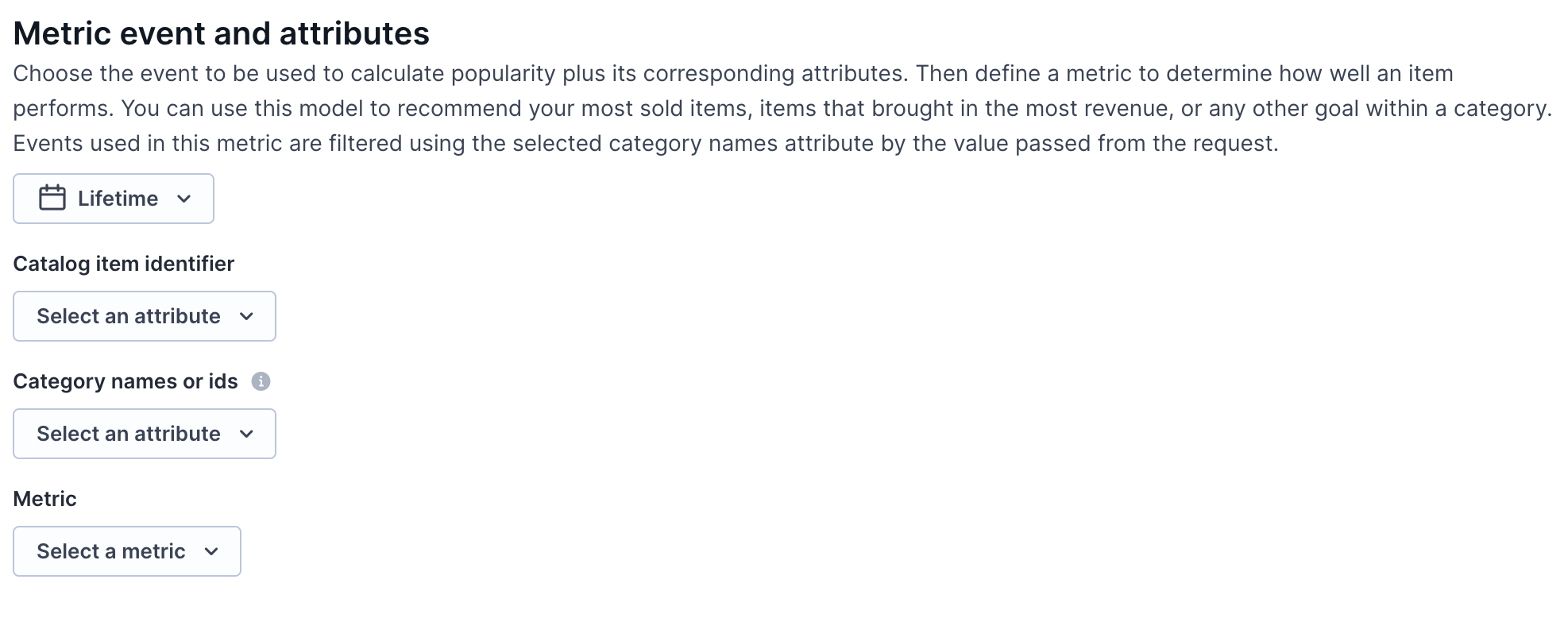
| Metric event | The event the engine aggregates to compute popularity. For example, choose purchase to sort items by purchase count. | Popular right now |
| Metric event and attributes | The event the engine aggregates to sort items within a category, plus the catalog attributes that define how performance is measured. Choose an event (for example, purchase_item or view_item) and set a metric — such as number of purchases or total revenue — to determine item sort order. Events are filtered by the category names attribute using the value passed in the request. | Popular in category |
| Purchase item event | The event that signals a completed purchase. The engine uses purchase history to learn co-purchase patterns. | Customers who bought this item also bought |
| Required events | The three events the engine requires to compute similarity between customers: Detail view event (item detail page visits), Add to cart event (cart additions), and Purchase event (completed purchases). Without these, the engine can't generate recommendations. | Personalized for you (History-based) |
| Target event | The event the engine optimizes for. For example, choose purchase to maximize purchase likelihood. | Personalized homepage, Personalized product page |
Optional events
The Personalized for you (History-based) template also supports the configuration of Optional events. These are additional events the engine can incorporate for more signals. The engine uses them if available but doesn't require them.
Time and date fields
These fields tell the engine how far back to look when training and which catalog column carries date information.

| Field | What it does | Applies to |
|---|---|---|
| Learning window | Sets how far back the engine looks at events when training. A larger window gives more data but increases training time. | Customers who bought this item also bought, Customers who viewed this item also viewed, Personalized for you (History-based), Popular right now, Popular in category, Recently viewed |
| Date added | A picker for the catalog column where each item's added-date is stored. The engine sorts by this to surface new items first. | New items |
Note
Personalized for you (Journey-based) considers the last 15 interactions. This template requires at least one interaction in the past 90 days to return personalized items.
Exact match attributes
Catalog attributes that must match exactly between the reference item and a candidate. For example, set brand and category_level_1 to only return items in the same brand and top-level category. Common values: brand, category_level_1, color, size, gender.
This configuration is optional.
Applies to: Similar attributes, Similar descriptions.

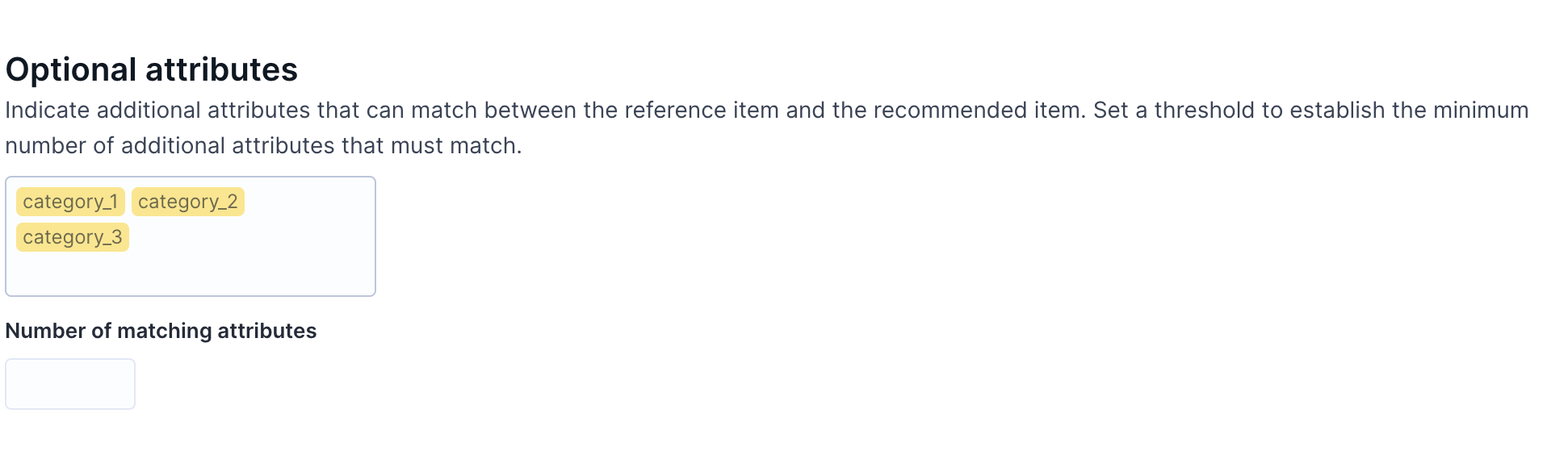
Optional attributes
Catalog attributes the engine prefers but doesn't strictly require. Set the overlap value to specify the minimum number of optional attributes that must match. For example:
- If the number of matching attributes is
1, the item qualifies if it matches just one optional attribute. - Items with no match on any optional attribute are excluded.
NoteSetting these conditions too strictly can negatively affect model performance. If you're seeing too few results, reduce the overlap value or remove some optional attributes.
Applies to: Similar attributes, Similar descriptions.
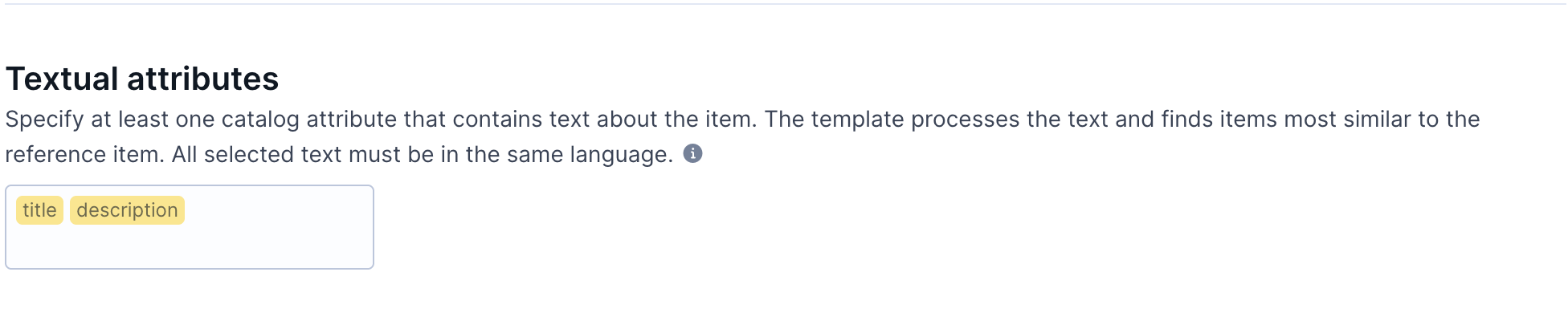
Textual attributes
Catalog attributes containing free-form text the engine analyzes for similarity. Works best with longer text blocks rather than short tags. Common values: title, description, name, keywords.
Applies to: Similar descriptions.
Model selection
These fields apply only to the Personalized for you (History-based) and Combined templates.
Personalization type
Selects how recommendations are personalized. Two options are available:
- History-based: Generates recommendations based on each customer's long-term browsing and purchase history.
- Journey-based: Predicts recommendations based on each customer's journey—the sequence of items they viewed and the order they viewed them in. Available with Recommendations+.
Applies to: Personalized for you (History-based), Personalized for you (Journey-based).
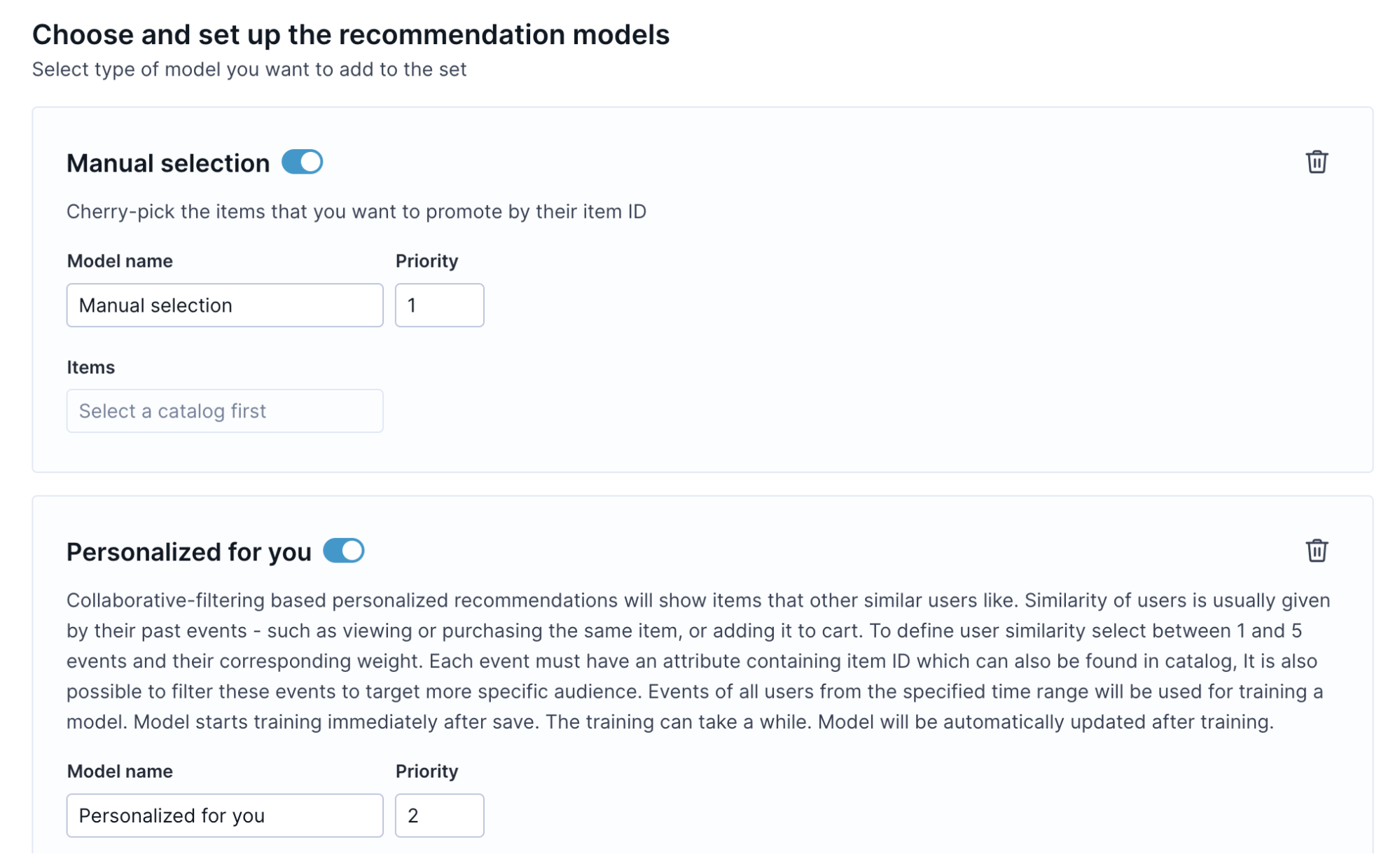
Select Combined template recommendation models
Select which engines to combine in the Combined template, assign each a priority, and configure each engine's required fields. Available engines:
- Chosen by metric
- Manual selection
- New items
- Recently viewed
- Personalized for you (History-based)
- Similar attributes
- Similar descriptions
Applies to: Combined.
Weight parameter for Personalized for you
When using Personalized for you inside the Combined template, you can add as many events as you want, each with its own weight. Weight is a positive number representing how strongly an event signals user preference.
Recommended weight settings:
| Event | Suggested weight | Rationale |
|---|---|---|
view_item | 1 | Lowest intent—just browsing. Broad but weak signal. |
add_to_cart | 5 | Much stronger than a view. Clear intent to buy. |
purchase | 10–20 | Strongest signal. Real preference. |
In implicit feedback models, the system infers preference and assigns a confidence level. An event with weight: 3 makes the model three times more confident than weight: 1.
Select combination strategy
Define how the Combined template combines results from its engines:
| Strategy | Behavior |
|---|---|
| Best performing template | The system picks the best-performing model after it receives at least 1,000 views (Recommendations.action = view), the system automatically switches to the best-performing engine based on click rate. |
| Combined results | Results from all engines are mixed together. |
| Priority order | Engines are used in priority order. The system starts with priority 1 and moves to the next only if there aren't enough results. Useful for setting up fallback models. |
A common pattern is to use Manual selection at the lowest priority as a fallback—it kicks in only when other engines don't return enough results.
NoteEach engine added to a Combined template increases API response time. Keep the number of engines to what your use case genuinely requires.
Applies to: Combined.
Updated about 2 months ago