

Parameters
Parameters let you filter and interact with data across dashboards, analyses, and definitions. When you apply a parameter, the filter works at all levels of the underlying analyses — including conditions inside aggregates nested within expressions.
Parameters are based on dynamic attributes. Instead of requiring an exact static value in a condition, a parameter acts as a placeholder. Anyone viewing the analysis in read or preview mode can then supply the static value. To see which analyses support parameters, see Analyses.
How to provide a static value
There are two ways to provide a static value for a parameter:
- Manually: Enter the value on the Preview screen for a specific report. Use this method for ad hoc analysis.
- Automatically: Bloomreach populates values such as
campaign_id,banner_id,experiment_id, orsurvey_idwhen the dashboard is selected in the Evaluate tab of a campaign. This applies only when the dashboard is viewed from a campaign's Evaluate tab.
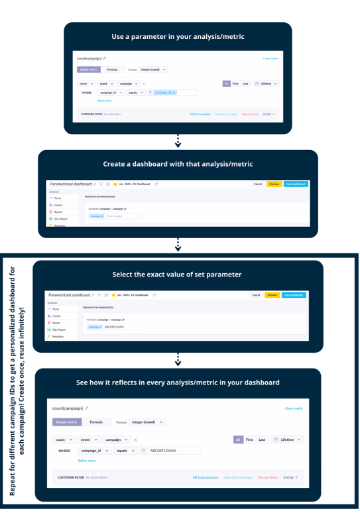
The four steps of setting up and reusing a parameter across an analysis and dashboard.
Set up parameters
- Open your report in Edit mode.
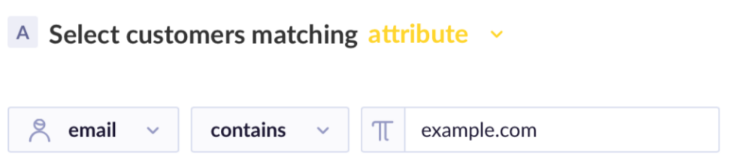
A report open in Edit mode with a static value in a filter field.
- Locate any field that currently uses a static value — for example,
example.com. - Replace the static value with a dynamic parameter using the format
[[parameter_name]]. For example,[[email_domain]]. - Once you close the brackets, the input field turns blue, confirming that the parameter was accepted.
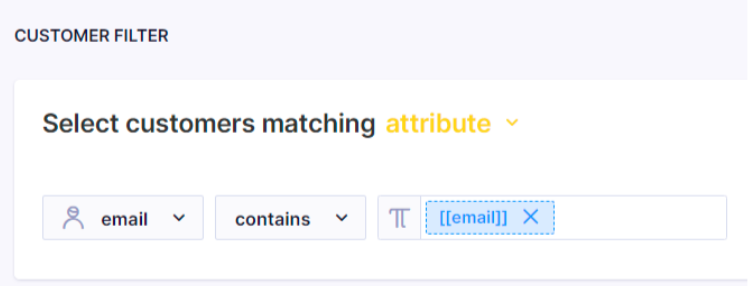
A blue input field confirming that a dynamic parameter has been accepted.
- A new parameter control appears at the bottom of your analysis. Use it to enter a static value and verify the analysis calculates correctly.
- Test different values and confirm the report displays correctly using the Preview or Refresh button.
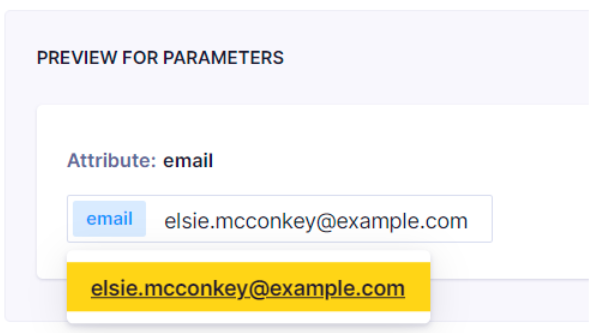
The parameter control at the bottom of an analysis with a test value.
If your analysis is part of another analysis—for example, a metric used in a report or a report used in a dashboard—the parameters also appear in read mode for the top-level analysis. This lets users specify values and interact with the displayed data.
You can use the same parameter name across multiple event attributes. Define the logic in brackets—for example, [[example]]. When you use the same parameter name in different events, the same value applies to all of them.
When multiple parameters share the same name, entering a value once applies it across the entire dashboard.
Use parameters
Once you've set up your parameters, you can use them in several ways:
- Filter data by a specific value in an aggregate condition.
- Specify
campaign_id,campaign_name,banner_id, and similar values across multiple funnel steps or in a running aggregate within an expression. - Change the attribution window of a report that uses multiple underlying analyses.
Parameter limitations
- You can only specify one value per parameter control.
- The API doesn't support analyses that use dynamic attributes.
- Jinja can't be used in the same places as parameters, such as in filter conditions.
- Analyses that use parameters can't be downloaded as CSV. To export the data, remove parameters and replace them with static filter values before downloading.
- RegEx isn't supported inside parameters.
- Analyses that use parameters can't be accessed through a Jinja reference.
Updated 12 days ago