

Azure Storage for exports
Export your Bloomreach data to Azure Storage for centralised analysis. Combine it with data from ecommerce platforms, inventory systems, ad spend, and more—all in one place.
This integration supports both Azure Blob Storage and Azure Data Lake Gen2 storage accounts. Data Lake Gen2 is a layer built on top of Blob Storage with additional big data analytics features. For more details on Data Lake Gen2, refer to the Azure documentation.
Need to import data instead?This integration exports data only. To import data from Azure Storage, use the separate Azure Storage integration for Imports.
Prerequisites
You'll need:
- An Azure Storage account.
- A destination container. It must already exist before you start exporting.
- An authentication method: Shared Access Token (SAS) or OAuth2.
Authentication methods
Both methods work for exports — choose whichever fits your setup.
| Method | What you need |
|---|---|
| Shared Access Token (SAS) | Blob SAS token with Write permission |
| OAuth2 | Application (client) ID, directory (tenant) ID, client secret |
NoteIf your Azure storage account uses network rules to restrict access by IP, add Bloomreach's outbound IPs to your allowed IP list in the Azure Portal under Networking > Firewalls and virtual networks. Find your outbound IPs in Project settings > Security or Workspace settings > Security. See Outbound IP addresses for details.
Set up with Shared Access Token
Get your storage details
- Sign in to Azure Portal.
- Go to your storage account and copy the account name.
- Go to Data storage > Containers, open your target container, and copy its name.
Generate SAS token
- In your storage account menu, go to Settings > Shared access tokens.
- Set Signing method to Account key.
- Enable Write permission.
- Copy the Blob SAS token.
Required permissionsThe service account performing file read requests is required to have the ‘Write’ permission.
Complete integration setup
- In the Bloomreach app, go to Data & Assets > Integrations > Add new integration.
- Enter your storage account name, container name, and SAS token.
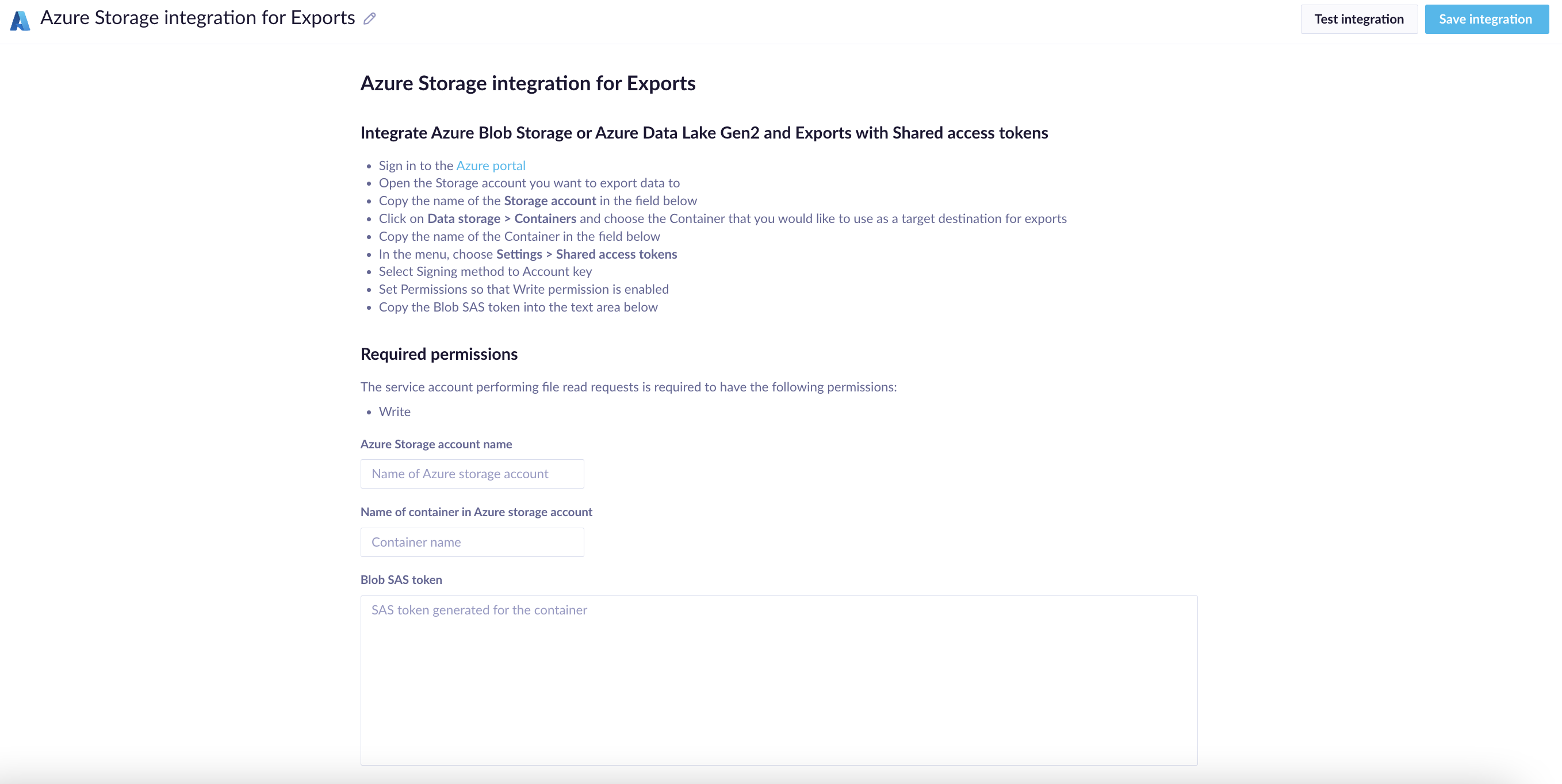
The SAS integration setup form in Bloomreach.
ImportantSAS tokens expire. Exports fail when the token expires. Set a reminder to renew it before that happens.
Set up with OAuth2
Get your storage details
- Sign in to Azure Portal.
- Go to your storage account and container for exports.
- Copy the storage account name and container name.
Register your app
- In the Azure Portal, go to App registrations and register a new application.
- Copy the Application (client) ID and Directory (tenant) ID.
- In Certificates & Secrets, create a new client secret, and copy its value.
Set permissions
In your storage account's Access Control (IAM), assign Storage Blob Data Contributor role to your registered app. A custom role works too, as long as it includes write permissions to Blob Storage.
Connect in Bloomreach
- Go to Data & Assets > Integrations > Add new integration.
- Enter all your authentication details.
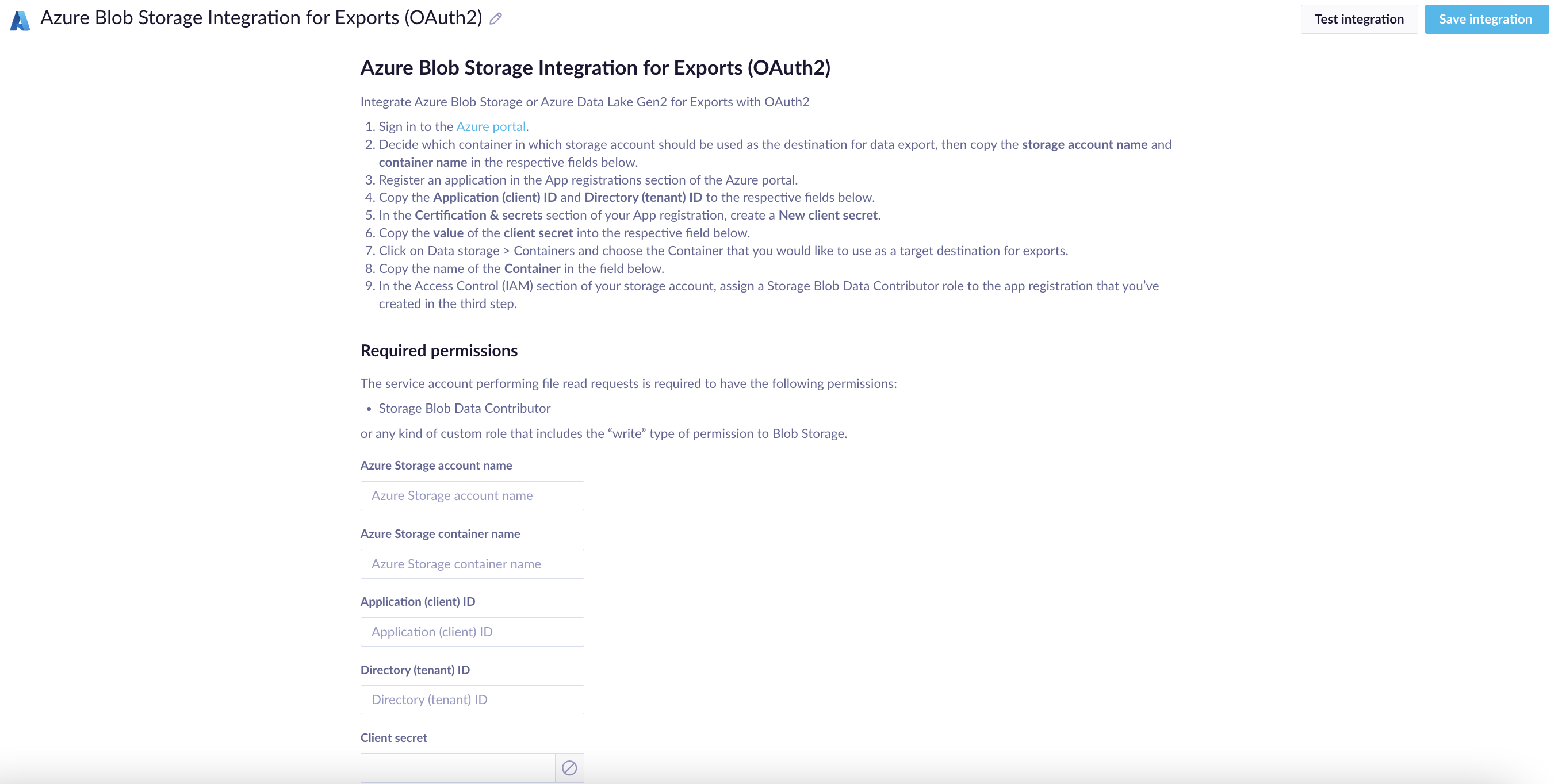
The OAuth2 integration setup form in Bloomreach.
Start exporting
Once your integration's set up, you can specify exactly where Bloomreach exports your files — this works the same way as SFTP or Google Cloud Storage exports.
See Data exports for more on available options and features.
Limitations
Exports are limited to approximately 48.8 GB per file.
Updated about 23 hours ago