

Unified user groups management
If you want to add more security and further refine what exactly specific users with their roles can edit within Bloomreach, you can assign users to access groups. This might be the case if you have multiple teams, agencies, or users working within some set of scenarios as there can be unintentional changes to scenarios from other users. Access groups solve this issue as they lock the edit access only for users who are assigned to those groups.
For unified login projectsThe Account Admin role is now called Workspace Admin. If your account uses unified login, replace references to Account Admin with Workspace Admin throughout this guide.
Groups can be managed by an Account Admin. One user can be a member of several groups.
The owner (or creator) of a definition and an Account Admin can always edit the list of groups. It's also possible to change owners.
NoteCurrently, this feature supports scenarios, segmentations, reports, custom rows, and dashboards.
Group creation
Create a group
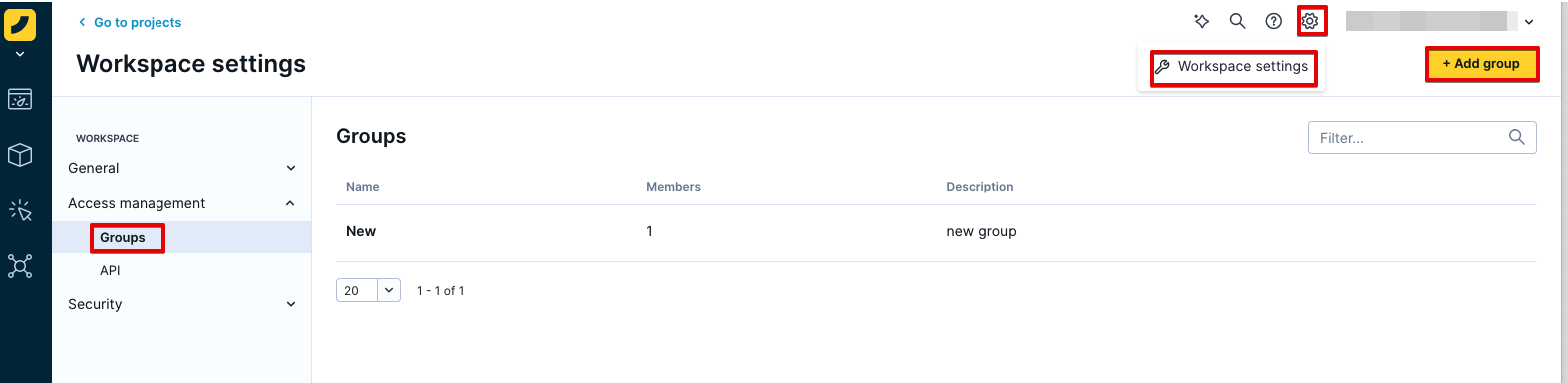
Go to the Workspace settings > Access management > Groups and click Add group.
Add group members
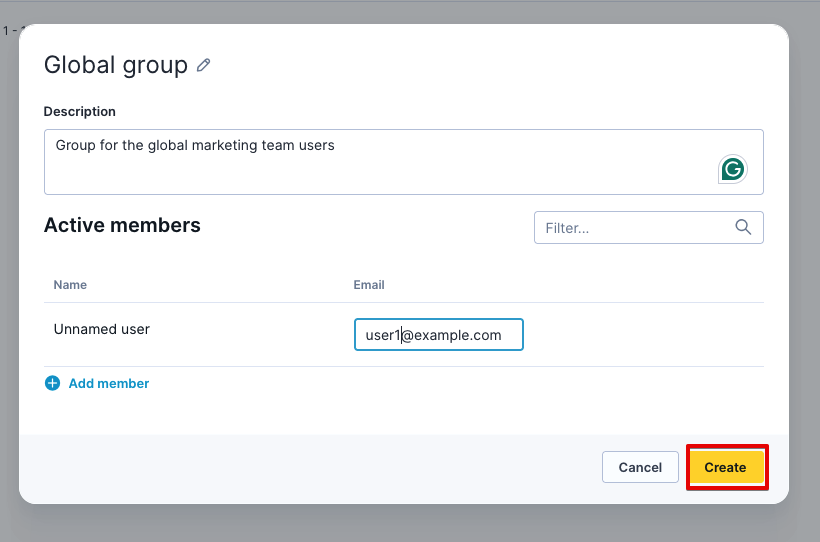
After you click on the + Add member . Enter the emails of a user you wish to add to the group and click Create. Repeat for all users you want to add.
Edit group members
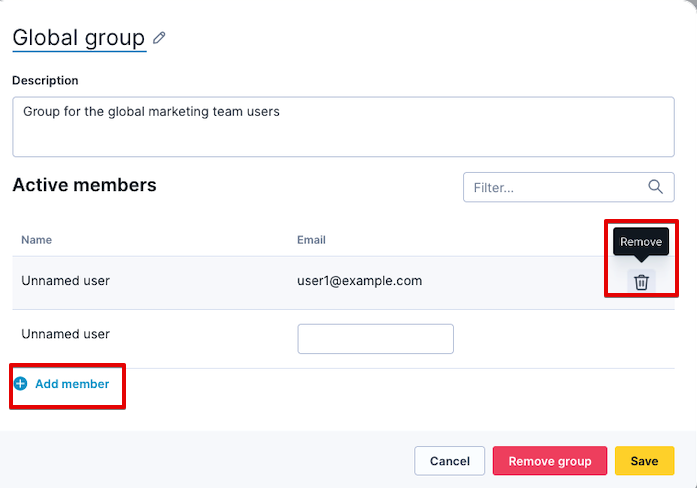
Edit your group by adding new members or removing existing members.
Restrict access
Open the list of segmentations/scenarios
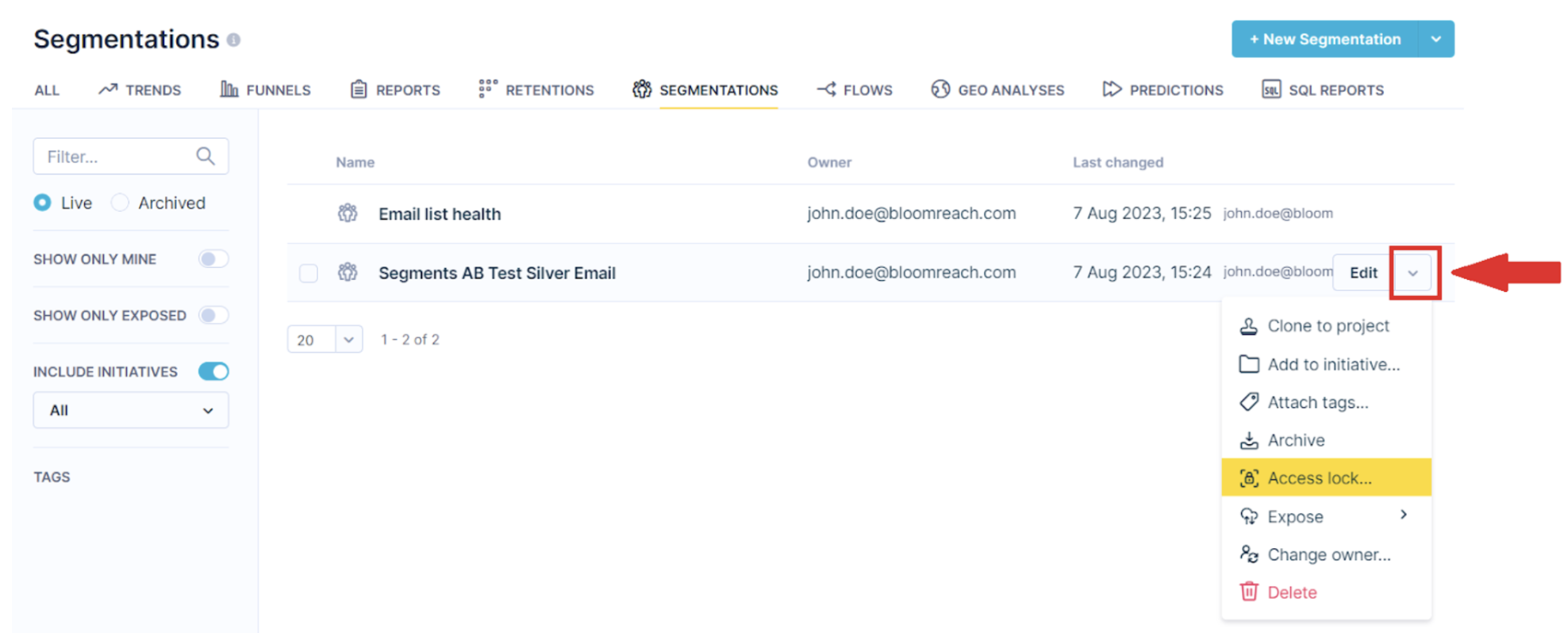
When you want to restrict access to a certain segmentation, for example, navigate to the list of all segmentations. Expand the Edit menu next to the item where you want to restrict access and choose Access lock.
Select the access group
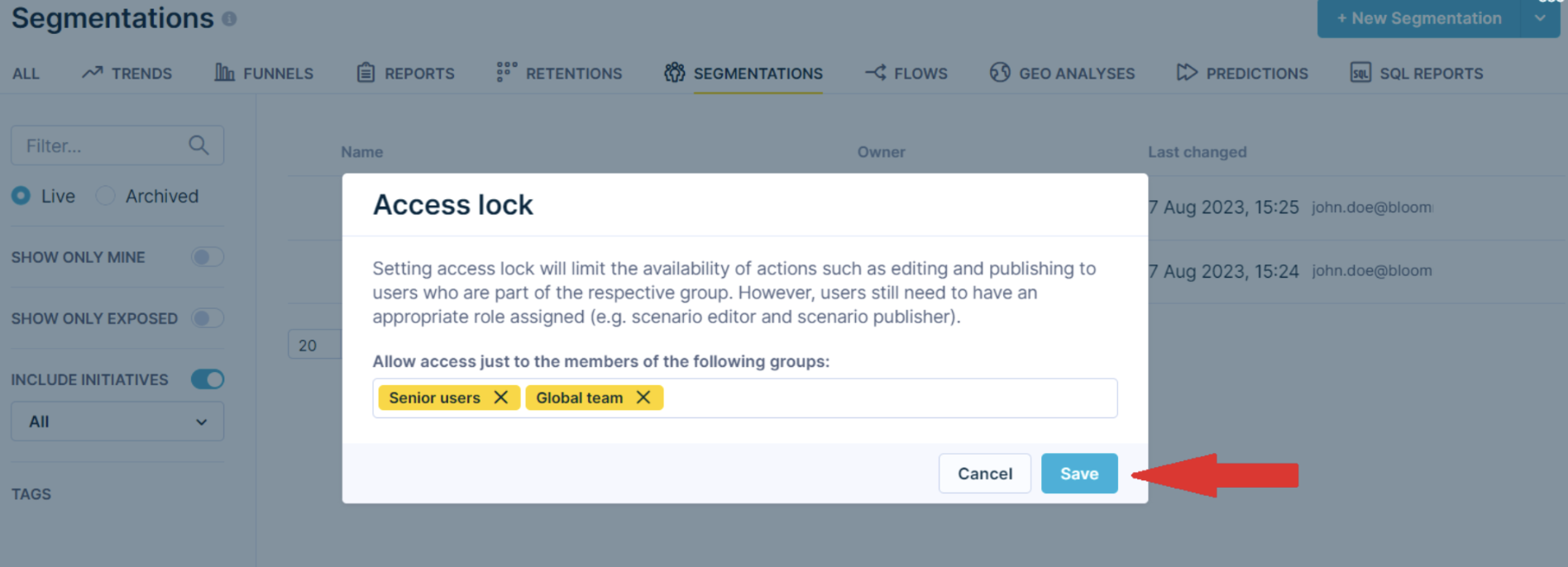
In a new window, you can select the groups that will have access to that segmentation.
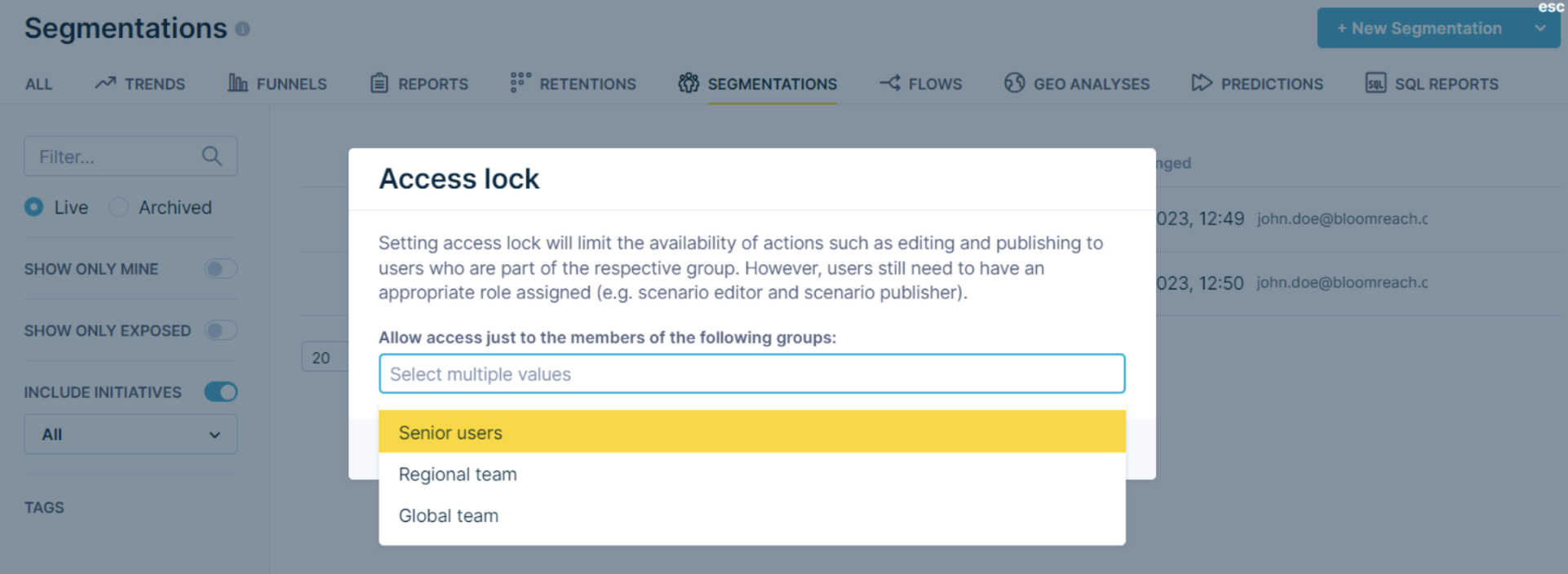
You can select one or more groups and Save the settings.
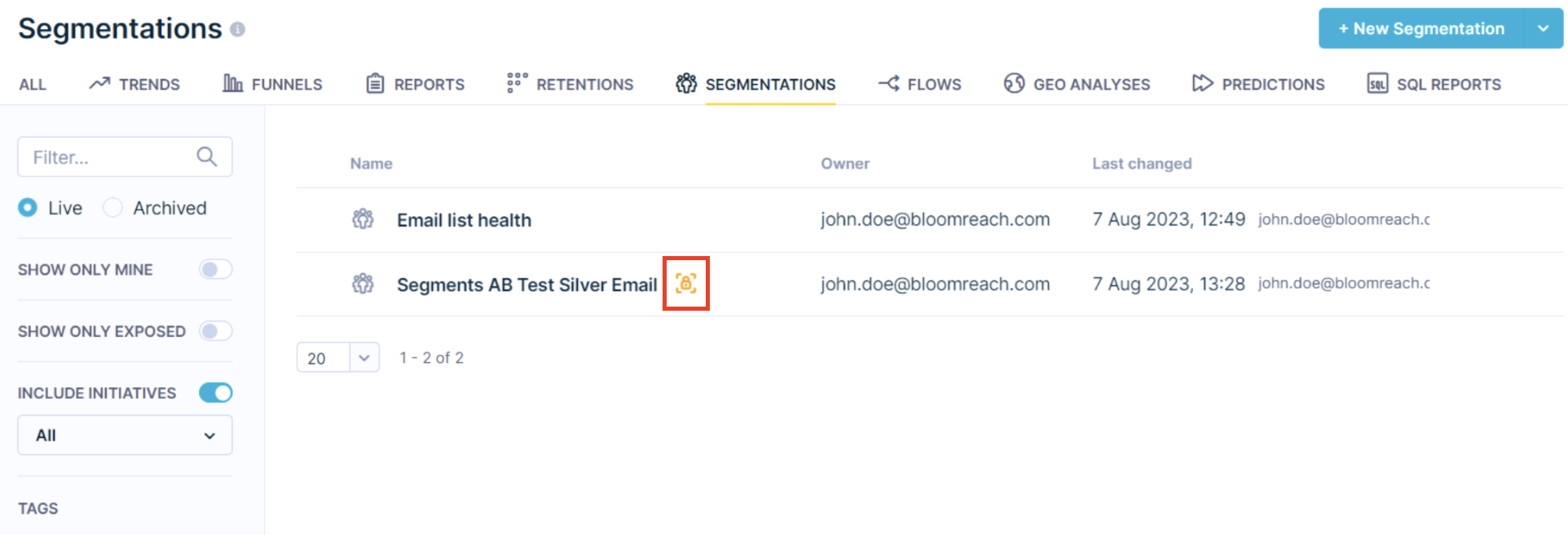
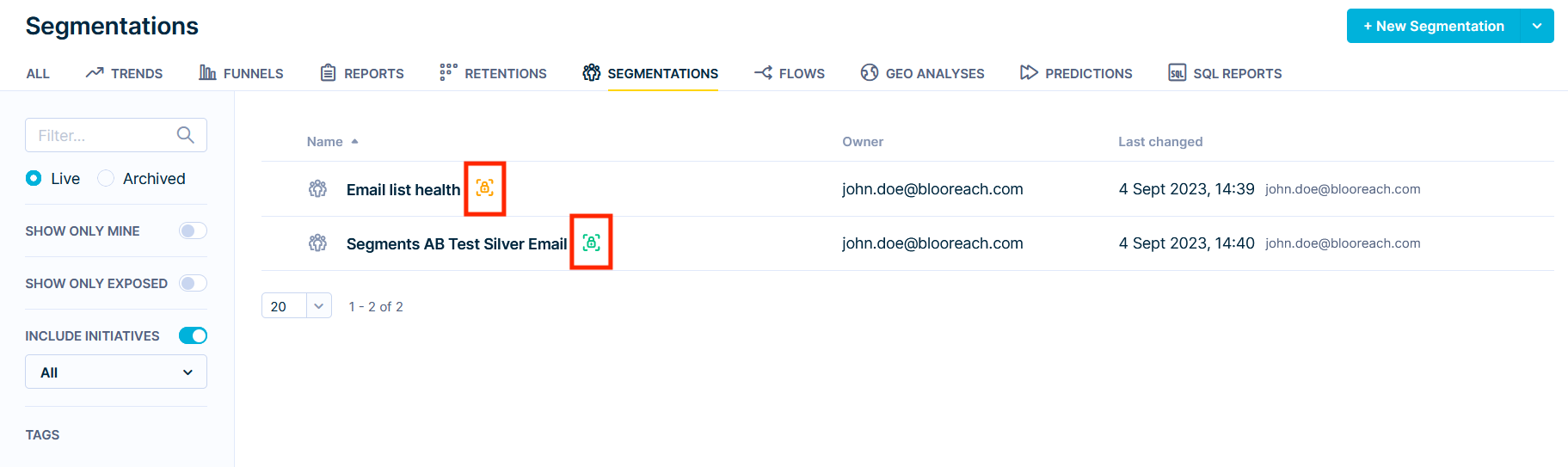
A new lock icon will appear next to the name of the locked definition.
Bulk access restriction
It is also possible to restrict access as a bulk action for several resources at once.
You need to select the segmentations you wish to restrict access to and click on the Access lock... icon from the menu.
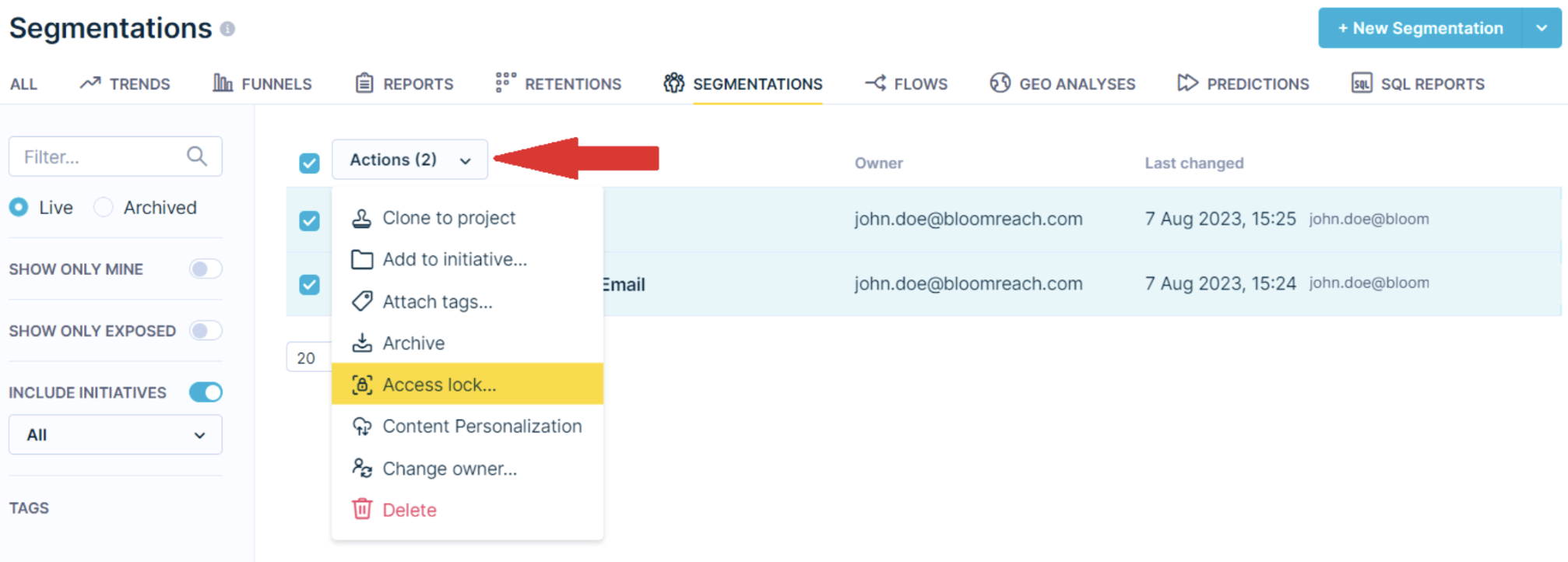
When bulk action is used all previously assigned groups will be overwritten with a new set of groups.
Appropriate rolesIt isn't enough to be a member of the group to have edit access. Users also need to have an appropriate role, for example, Scenarios Editor or Scenarios Publisher, to have edit or publish permissions.
Edit access
You can see whether you have edit access to a specific locked segmentation by checking the color of the icon next to the segmentation name. If you can edit that specific segmentation, the icon is green. I you do not have the edit access, the icon is orange.
Owner change
The Owner and Account Admin always have access and are able to edit even locked definitions. For this reason, it is possible to change the owner and assign it to another user.
NoteOnly an Account Admin can change owner.
Go to the list of segmentations/scenarios
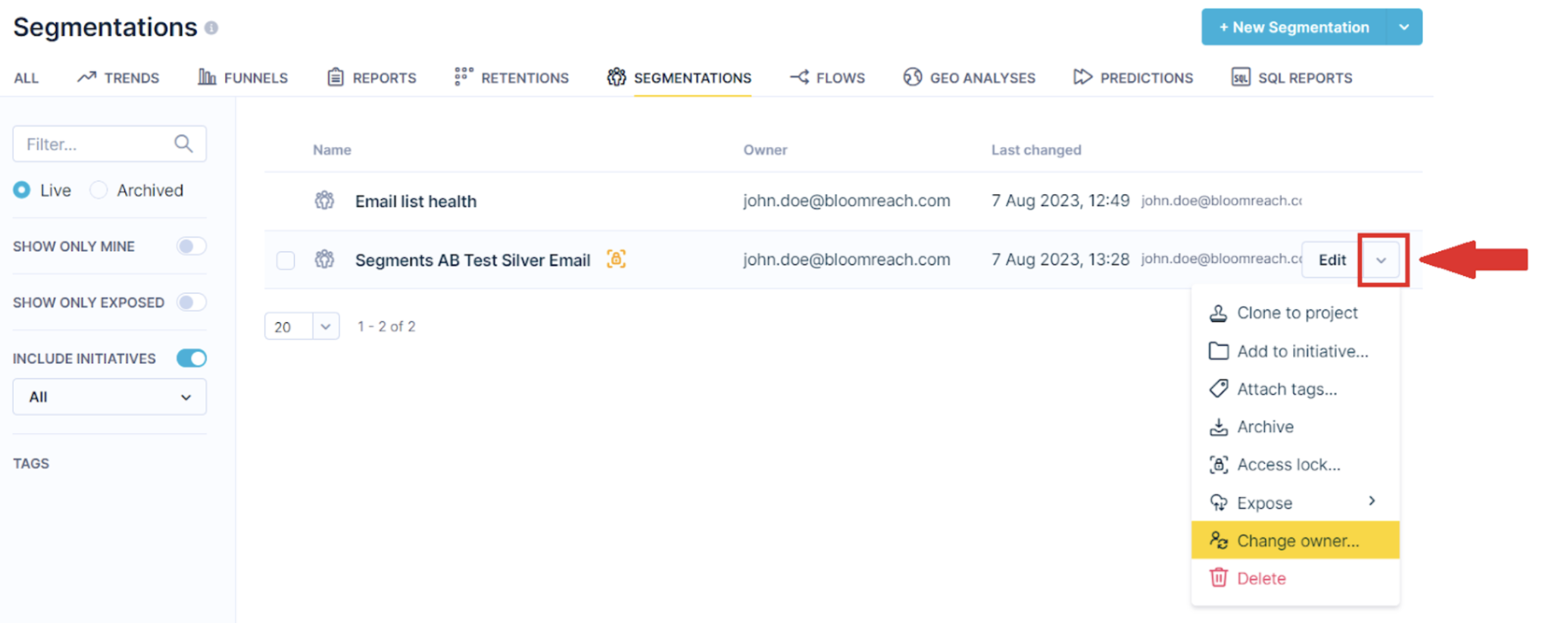
When you want to change the owner of a certain segmentation, for example, navigate to the list of all segmentations. Expand the Edit menu next to the item where you want to make a change. From the menu, choose Change owner….
Change the owner
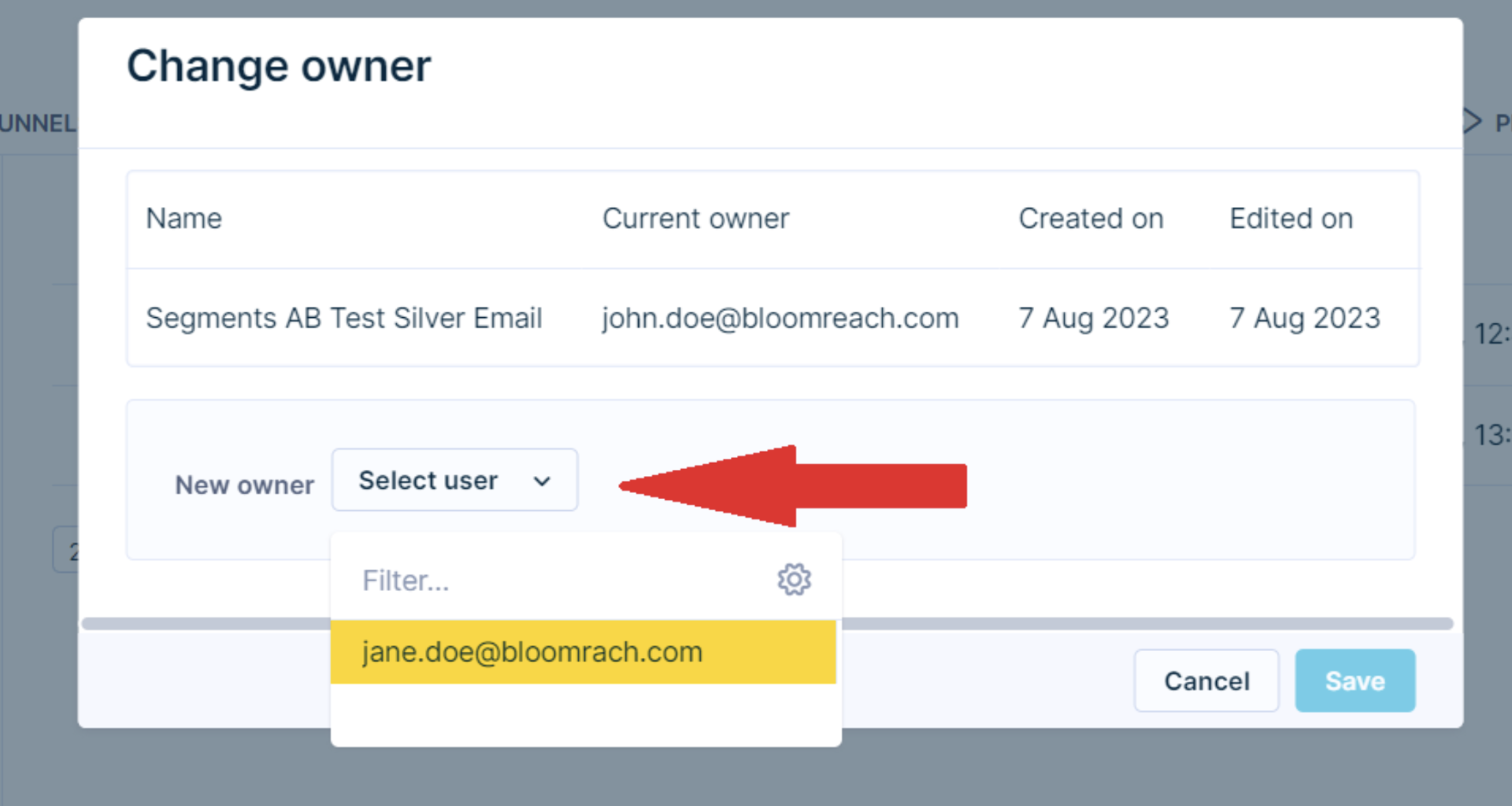
A new window opens where you can choose a new owner from the drop-down menu.
Bulk owner change
It is also possible to change owners as a bulk action for several resources at once.
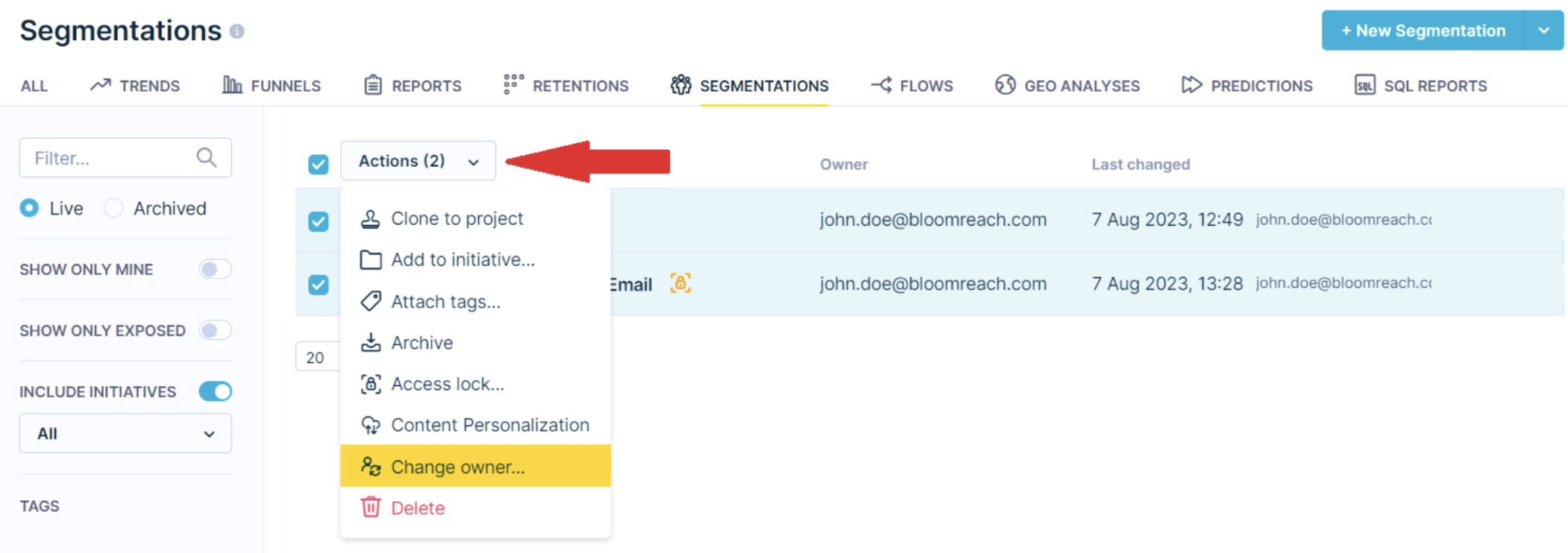
You need to select the segmentations you wish to change the owner for and click on the Change owner... icon from the menu.
Limitations
- There are a maximum of 50 groups per account.
- There are a maximum of 50 users per group.
- There are a maximum of 10 groups per definition.
- Only the Account Admin can change the owner.
- Only the Account Admin can list and edit members of a group.
- If there is a change in, for example, an aggregate or a definition that is used in a scenario, this change would be applied.
Updated 3 months ago