

Time zones
Sending messages at the right time matters. Send a campaign at 9 AM in New York? Perfect timing for their morning routine. Send at 9 AM in Los Angeles? You wake people up at 6 AM. Result: unsubscribes and spam complaints.
Customer profile time zones solve this by letting Bloomreach automatically identify and respect each customer's local time. Map your customer data to standardized time zones and let features respect each customer's local time.
Benefits
-
Compliance: Meet regulations that require respecting local time (like Texas SB 140 for SMS silent hours).
-
Better customer experience: Features automatically respect each customer's local time.
-
Reduced complexity: No need for complex segmentation or scenario logic per feature.
-
Configure once, use everywhere: Set up time zones once in Project settings and enable them across features like silent hours. No need to rebuild the logic for each campaign.
When to use time zones
Use customer profile time zones when you:
-
Have customers across multiple time zones (especially in the US and Canada).
-
Need features to respect per-customer local time.
-
Want to avoid complex scenario logic for handling different time zones.
Use a single time zone when:
-
All your customers are in the same region.
-
You're comfortable using conservative time windows that work across multiple time zones.
ImportantUse a single time zone in the US? You'll either narrow your send window significantly or risk violating quiet-hour regulations in some regions.
Before you start
You need:
-
Customer time zone data stored in either:
-
Customer properties (like a
timezoneattribute) -
Segmentation (like a
Targetregionsegmentation)
-
-
Knowledge of which time zones your customers are in.
Configure customer profile time zones
Step 1: Select the time zone source
Choose where customer time zone data comes from.
-
In Project settings, go to Campaigns.
-
Under Campaigns, go to General > Time zones.
-
To select your source, click Select an attribute:
-
Customer properties: Use a customer property that stores time zone data.
-
Segmentations: Use a segment that defines customer’s time zones.
-
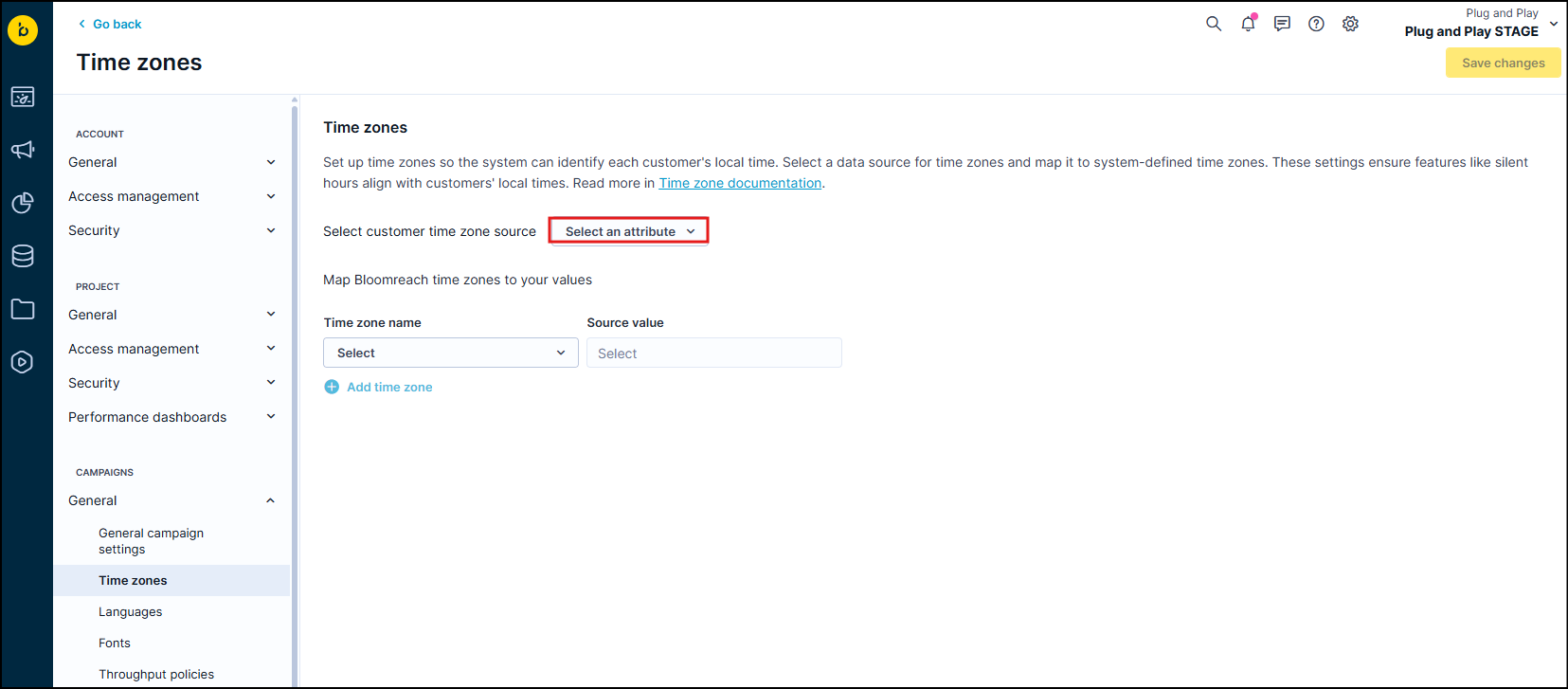
When to use each option:
-
Customer properties: You have a dedicated time zone field in customer profiles (like
timezone). -
Segmentations: Time zones are determined by location data or other customer properties and event attributes (like
countryattributesession_startlocation data).
Technical details
-
You can select any customer property type (string, integer, array), but string properties work best for time zone data.
-
Once an active or running scenario uses silent hours with customer profile time zones, you can't disable this time zone setting until those scenarios stop running.
-
You can change to a different property or segmentation at any time.
Step 2: Map time zone values
Once you select a property or segment, map the source values to Bloomreach time zones.
-
Select a Bloomreach time zone from the dropdown
- Bloomreach time zones follow standard formats like
(GMT+1:00) Europe / Prague.
- Bloomreach time zones follow standard formats like
-
Under Source value:
-
Select existing values from the dropdown. Existing values are values already tracked under the source attribute or names of the segments of the source segmentation
-
Add source values manually
-
-
Click Save changes.
-
To add more time zones, click Add time zone.
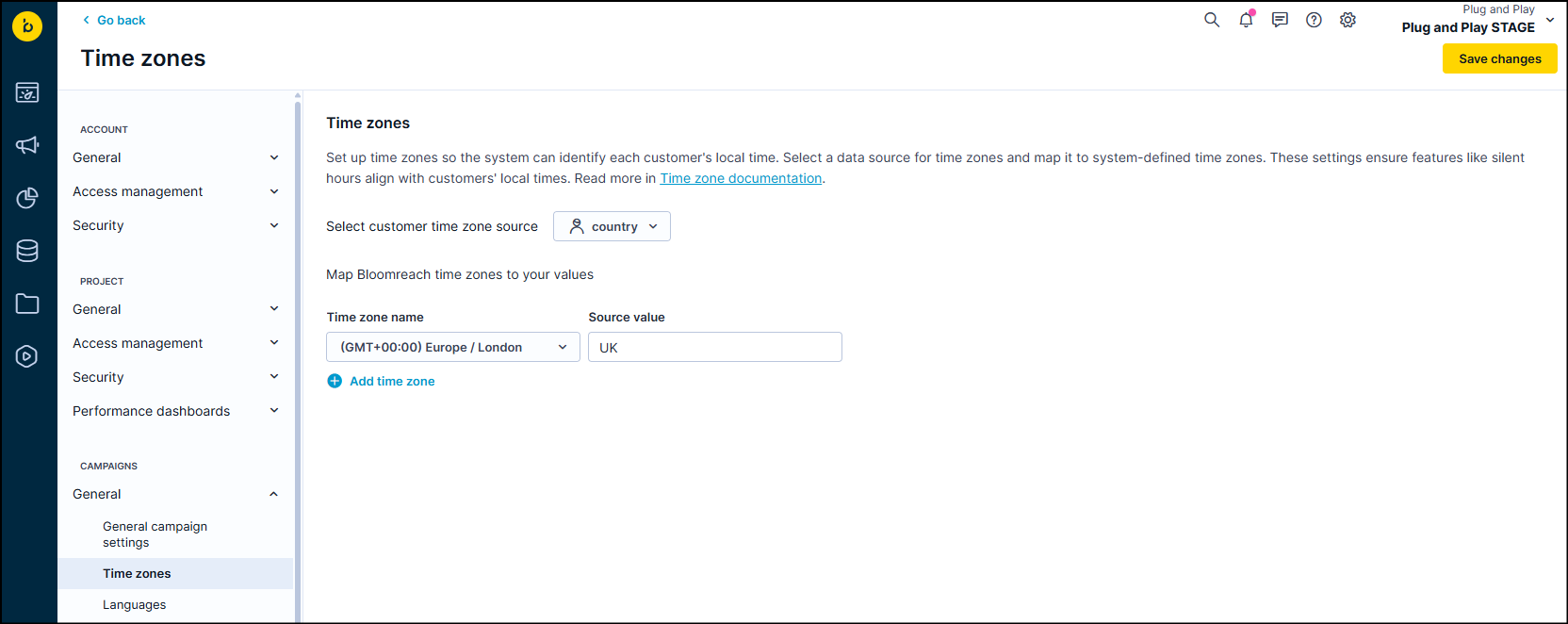
You can create up to 100 time zone mappings.
Mapping rules
Map multiple source values to the same Bloomreach time zone.
-
Source value: US_Eastern → Bloomreach time zone:
(GMT-05:00) America / New_York -
Source value: Canada_Eastern → Bloomreach time zone:
(GMT-05:00) America / New_York -
Source value: East_Coast → Bloomreach time zone:
(GMT-05:00) America / New_York
You can't map the same source value to multiple time zones.
- Source value:
Northeast→ Can’t map to both(GMT-05:00) America / New_Yorkand(GMT-06:00) America / Chicago
Each source value must map to exactly one Bloomreach time zone, or the source value isn't mapped to any system time zone
If you see "Already mapped": This source value is already used in a mapping. Choose a different source value or update the existing mapping.
How customer time zones are resolved
If the source property or segmentation value isn't empty for a given customer and the source value is mapped to a system time zone in the settings, Bloomreach uses the mapped time zone.
When the source property or segmentation is empty for a given customer profile or the source value isn't mapped to any system time zone, the time zone for that profile will not be specified.
Each feature handles unspecified time zones differently. For example, for silent hours, the default time zone will be used.
Use time zone segmentation templates
Bloomreach provides pre-built segmentation templates for common time zone groupings. Use templates when you want a quick start for common geographic markets and standard time zone groupings work for your business.
Available templates:
-
US template: Covers all US time zones
-
EU template: Covers European time zones
-
US + EU template: Covers US and European time zones
How to access and apply templates
Templates provide best-practice time zone groupings based on common geographic markets.
Templates or custom setup?
Use templates when:
-
You want a quick start for common geographic markets.
-
Standard time zone groupings work for your business.
Use custom setup when:
-
You have specific customer properties to work with.
-
You need custom time zone groupings based on your business needs.
Time zones in features
Once you've configured customer profile time zones, enable them in features that support per-customer local time.
Example: Silent hours
Silent hours can use customer profile time zones to apply quiet hours based on each customer's local time instead of using one fixed time zone for all customers.
See Silent hours for detailed steps on enabling customer profile time zones for silent hours.
Test time zone setup
Test that customer profile time zones work correctly before using them in live campaigns.
-
Create a test scenario that features a customer profile time zone (such as silent hours).
-
Add test customers from different time zones.
-
Run the scenario and verify the feature respects each customer's local time.
-
Check the scenario execution log for timing.
Troubleshooting
Customer has no time zone data
What happens: Features use the default time zone for this customer.
How to fix:
-
Check that your customer property or segment includes time zone data.
-
Verify your mapping includes all possible source values.
Time zone value isn't mapped
What happens: Features use the default time zone even though the customer has time zone data.
How to fix:
- In Project settings, go to Campaigns.
- Under Campaigns, go to General > Time zones.
- Add the missing source value to your mapping
Feature doesn't respect customer time zones
What happens: A feature doesn't use per-customer time zones even though enabled.
How to fix:
-
Verify customer profile time zones are set in Project settings.
-
Check that customers' time zone data is correct in their profiles.
-
Review your time zone mapping in Project settings under Campaigns > General > Time zones.
Can't disable customer profile time zones
What happens: You can't disable or unset the time zone source when you have active or running scenarios with customer profile time zones enabled.
How to fix:
-
Check the error message - it points to the specific scenarios using customer profile time zones.
-
Stop or complete those scenarios.
-
Once no scenarios are running with this feature, you can unset the time zone source.
Updated 3 months ago