

Product expiration reminder


Use case description
Prevent customers from running out of essential items by automatically reminding them when purchased products approach their expiration date. This automated omnichannel campaign targets customers who buy perishable goods like groceries or cosmetics, sending timely reminders across mobile push notifications, email, and SMS. By combining catalog data with event-triggered automation, you can drive repeat purchases and improve customer retention while demonstrating care for product freshness.
Key features
- Automated expiration tracking based on purchase events and catalog data.
- Flexible expiration date calculation using either event attributes or catalog columns.
- Intelligent omnichannel fallback logic (push → email → SMS).
- Consent-aware targeting that respects customer communication preferences.
- Purchase recency checks to avoid redundant messaging.
- Customizable channel priority based on your setup and engagement data.
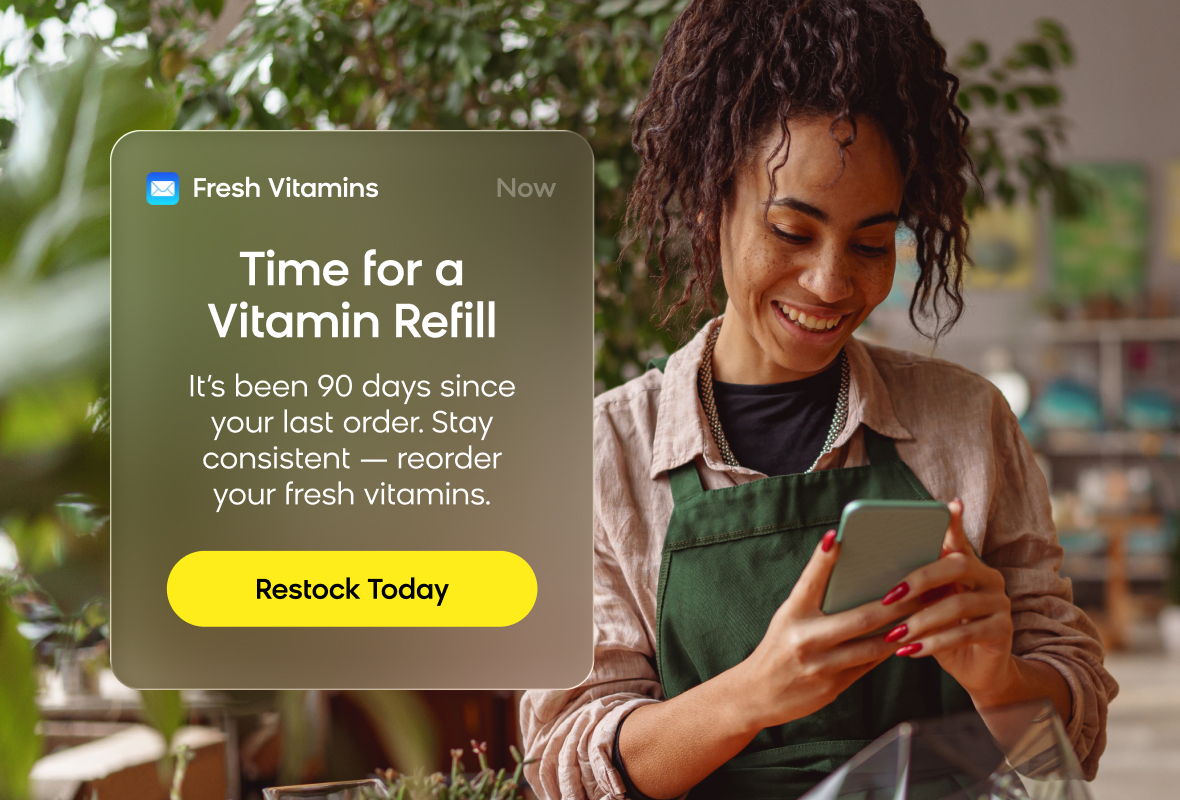
Use case items
- Evaluation dashboard: Track campaign performance metrics and conversion outcomes
- Expiration reminder scenario: Pre-built automation with purchase tracking and omnichannel reminder flows
- Catalog attribute: Global days_until_expiration field for expiration tracking
How it works
The campaign has two triggers. The purchase_item trigger saves products with expiration periods into the customer profile. This newly created event triggers communication later when the product is about to expire and the customer hasn't bought a new one in the meantime.
First flow checks if the expiration date comes directly from the purchase_item event or needs to be calculated using the catalog's days_until_expiration column. When customers and their purchased products match all conditions, the system creates an expiration_reminder event with these attributes:
product_idvariant_idoriginal_purchase_dateexpiration_date
Second flow is triggered by the expiration_reminder event. The scenario checks if the customer consented to any communication channels and verifies they haven't repurchased the product. Then it chooses a channel where customers can be reached.
You can change the order of the individual channels. The predefined order is based on estimated difficulty of setup and potential engagement. The push channel has an email follow-up in case the push doesn't convert customers. Customers who don't respond to push or email will be targeted by SMS.
How to deploy the use case
Meet the requirements
Check if the data in your project meets the requirements. The Use Case Center lists requirements for each use case during the deployment process.
Prerequisites
Before deploying this use case, ensure you have:
- Product catalog configured with
days_until_expirationattribute for products with expiration dates. purchase_itemevent tracking implemented.- Communication channels configured (mobile push, email, SMS).
- Customer consent management active across all channels.
Adjust the purchase tracking flow
In the first flow, adjust the product category filter to specify which products have an expiration period. Connect the trigger to the flow before launching the use case live.
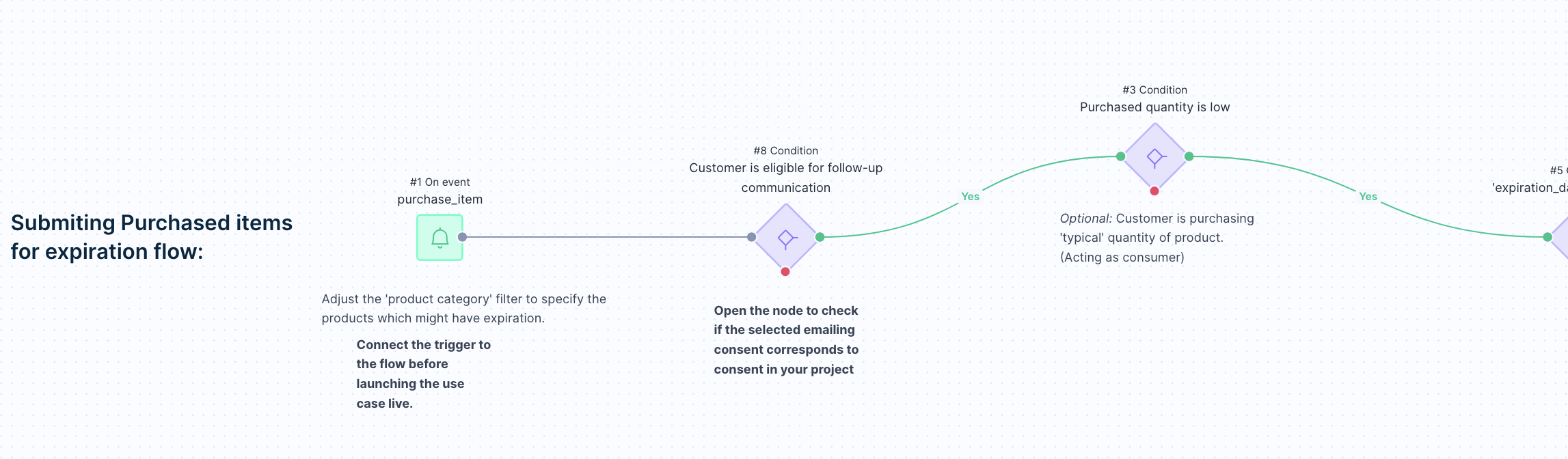
Review your catalog to verify the days_until_expiration field is set. If it's named differently, adjust the field name in the Jinja snippet and in the scenario email, SMS, and push nodes.
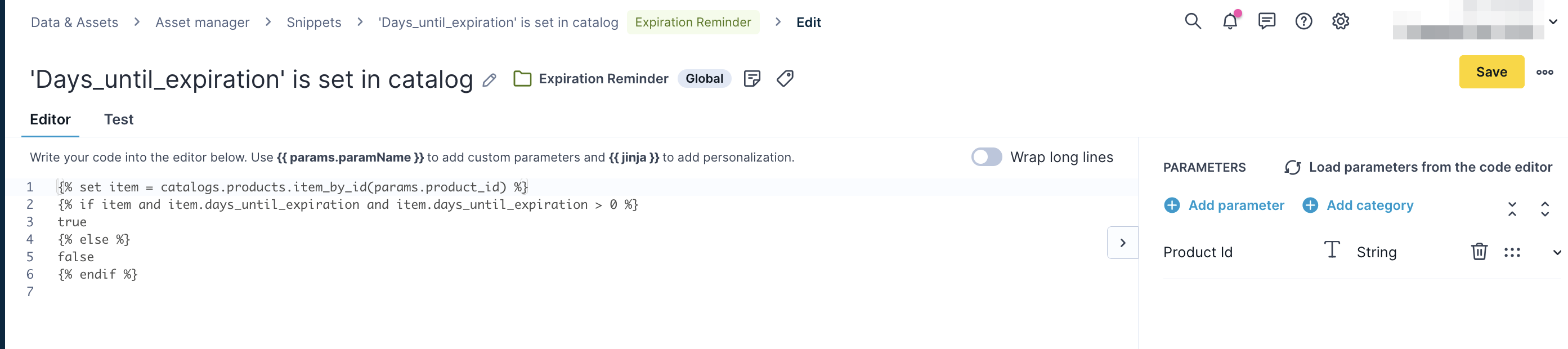
In the first flow, adjust the product category filter to specify which products have expiration dates. This prevents the flow from processing non-perishable items.
Configure the expiration reminder flow
Open the consent verification nodes to check if the selected consent categories correspond to the consent in your project for:
- Push notification consent
- Email consent
- SMS consent
Verify customer attribute references for mobile push ID, email address, and phone number.
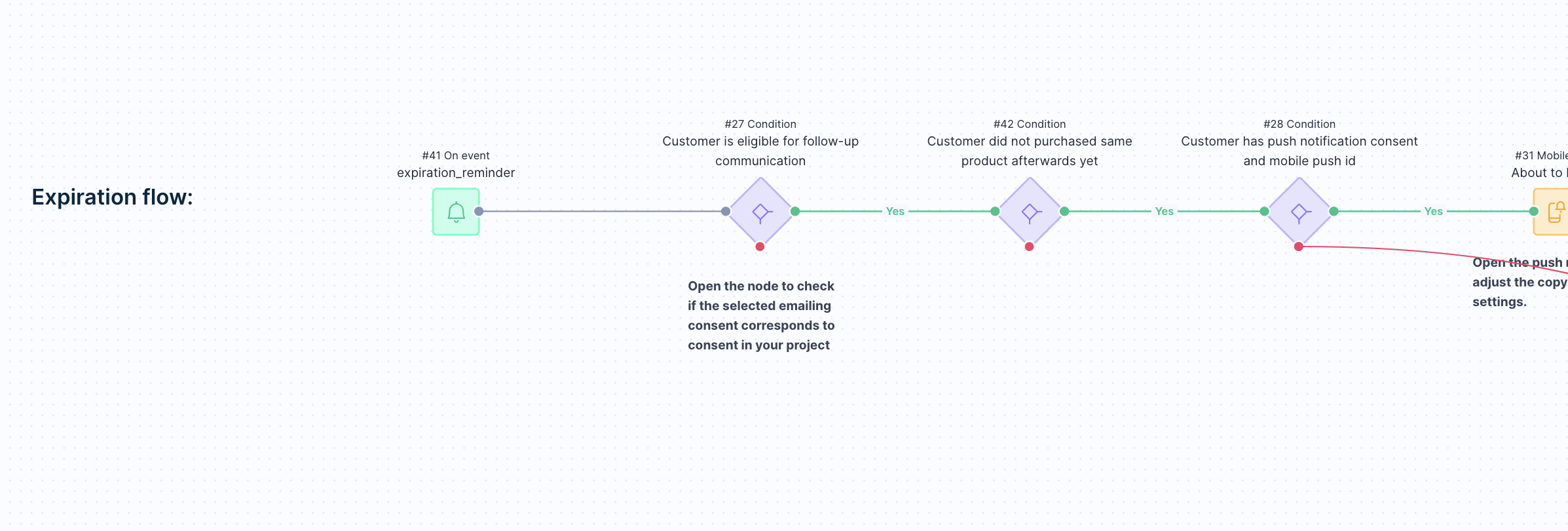
Customize channel order
You can change the order of the individual channels by rearranging the conditional nodes and channel actions to match your priorities.
Design and customize messages
Open each communication node to customize content. Change the settings, design, and copy to reflect your company's brand identity:
- Set up your mobile push notifications.
- Customize the email node.
- Personalize SMS.
Verify that consent categories match your project settings for each channel.
Test and run the use case
Test the scenario in your use case, or learn more about how to test individual use case items:
- Test your mobile push notifications.
- Study email testing.
Once the testing is over, launch the campaign.
Evaluate the results
Remember to run the use case for a few days to see the impact.
After this initial period, use the prebuilt evaluation dashboard to measure and analyze relevant data:
- Open the evaluation dashboard.
- Enter the campaign name, for example, "Product Expiration Reminder".
- Set the attribution window for revenue in hours, for example, 24.
- Click Refresh to see the results.
- Check campaign results regularly to optimize performance.
Updated 7 months ago