

Create WhatsApp messages
This guide shows you how to build, format, test, and manage WhatsApp messages. For background on message types and costs, see WhatsApp campaign article.
NoteWhatsApp is only available in some Bloomreach packages. Contact your CSM or CS team to get started.
Choose your message format
WhatsApp offers 5 message formats. Choose the one that fits your goal and audience.
| Format | Best for |
|---|---|
| Text | Quick updates, notifications, personal messages—up to 4,096 characters |
| Media | Images, videos, audio, or documents |
| Choice | Up to 10 quick-reply buttons; more than 3 collapse into a dropdown |
| List | Interactive menu with up to 10 selectable options |
| Template | Pre-approved formats for initiating conversations with customers |
Build your message
-
Go to Campaigns > Scenarios and create a new scenario.
-
In the Design tab under Actions, click the Mobile messaging node.
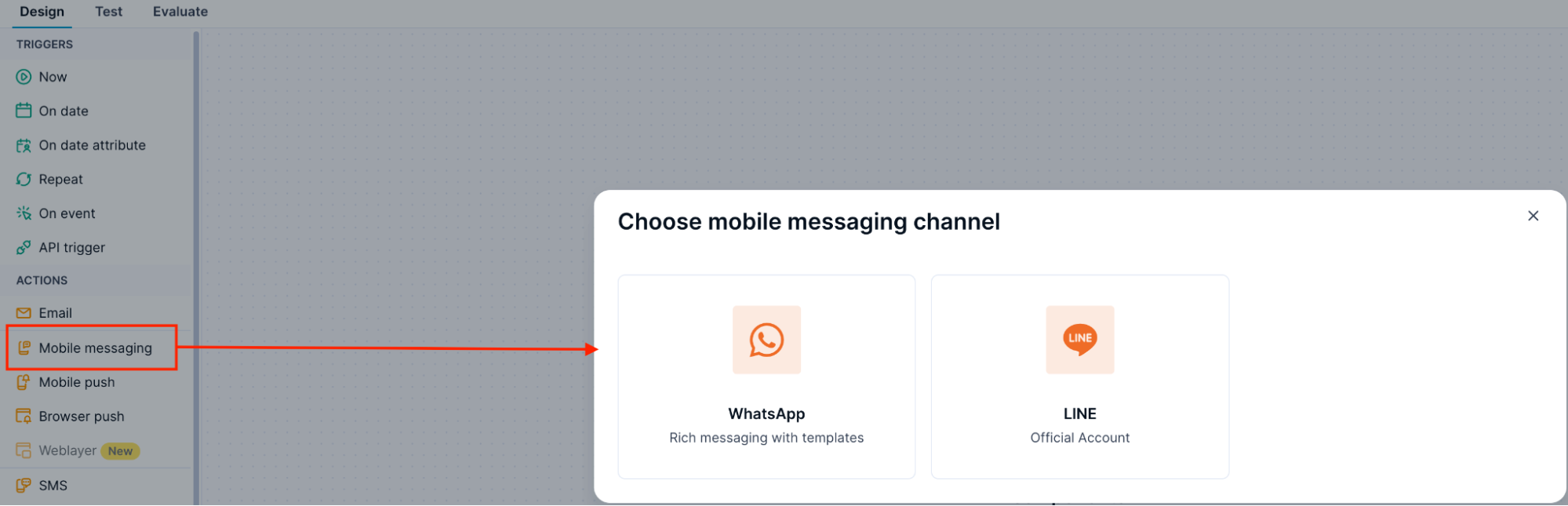
Select Mobile messaging in the scenario designer and choose WhatsApp from the pop-up.
-
A pop-up opens. Select WhatsApp.
-
Double-click the WhatsApp node.
-
Choose the message format in the message format dropdown.
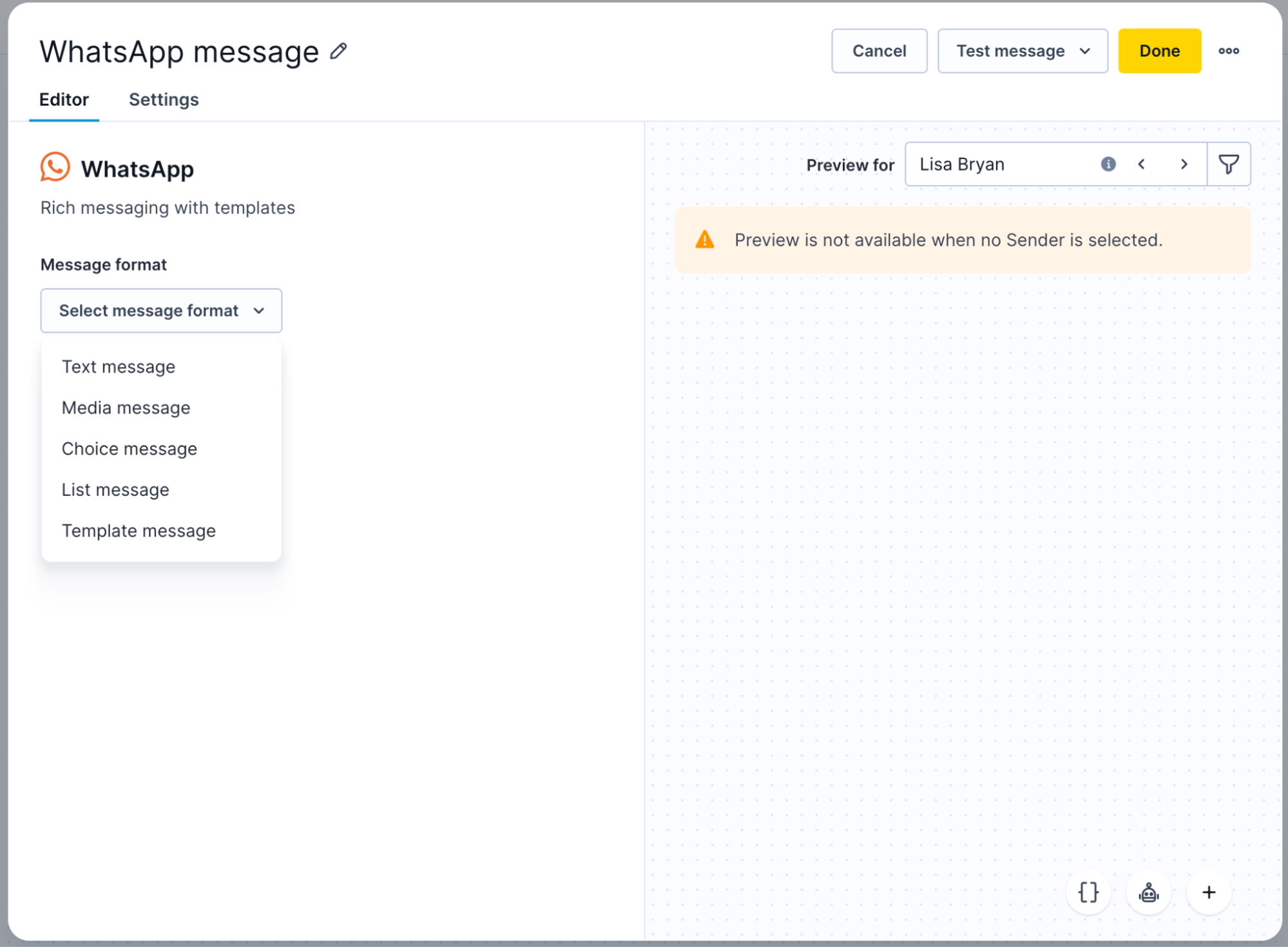
Select your message format from the Message format dropdown.
-
Select a provider in the Sender dropdown if you don't want to use the default.
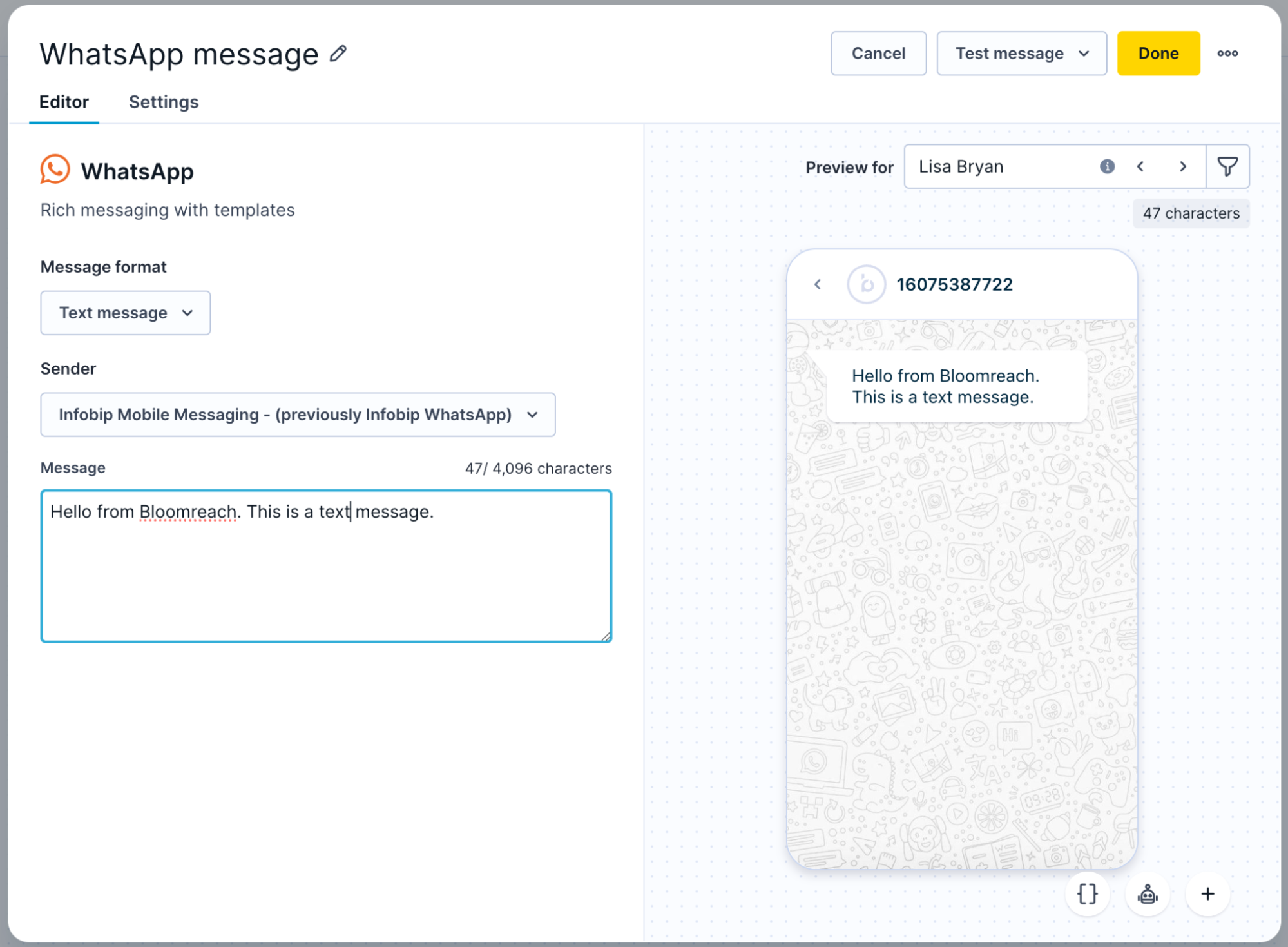
The WhatsApp message editor with Text message selected and a live preview.
-
If you have chosen Template message in step 5, choose your template in the Selected template dropdown menu.
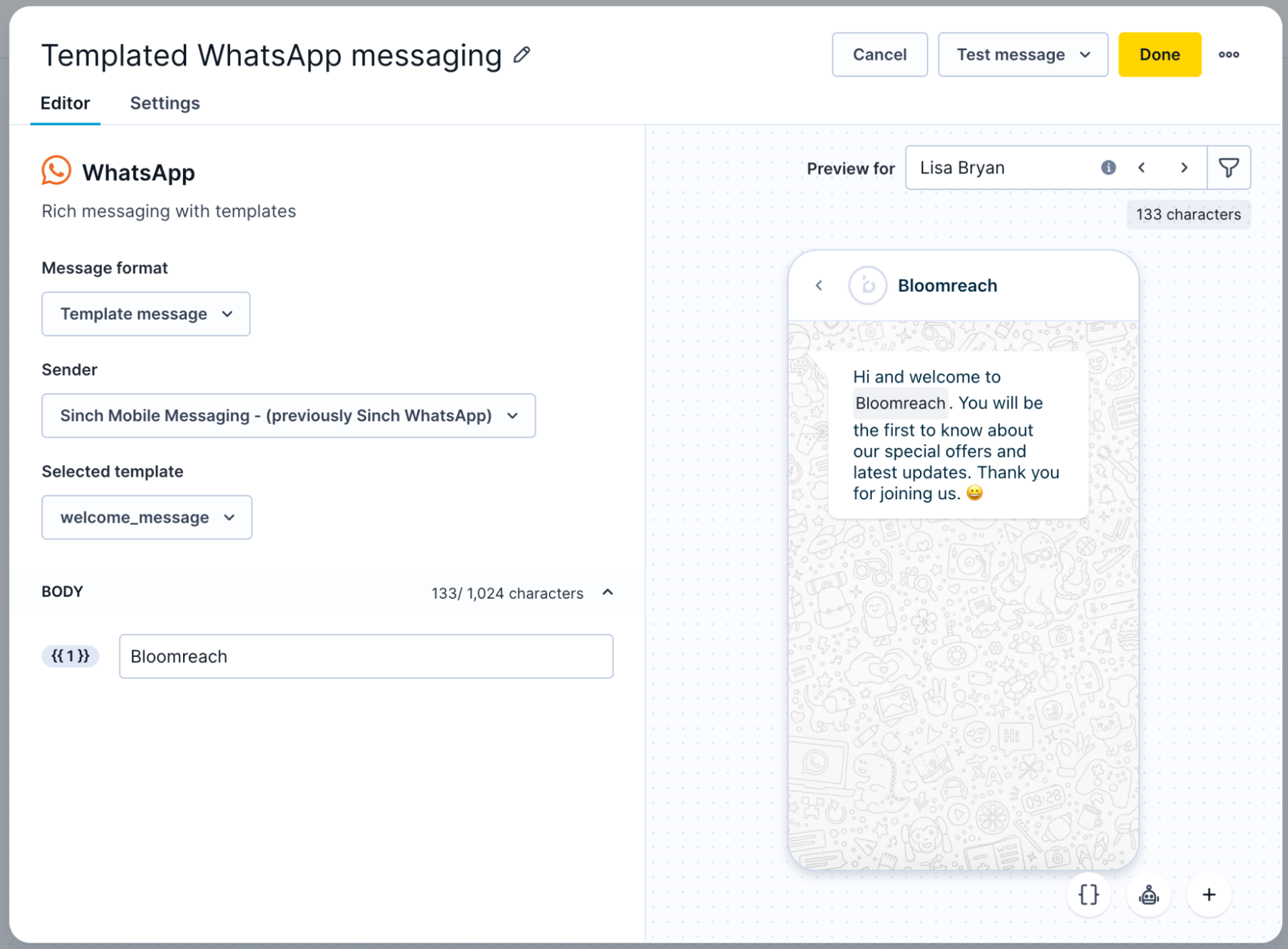
With Template message selected, choose your approved template from the Selected template dropdown and fill in any variable values.
-
Customize the message. You can use Jinja, emojis, and Loomi copy generator. The editor shows a dynamic character counter to help you stay within limits.
The customer's phone attribute is used as the recipient's phone number.
Media file limits
| File type | Formats | Maximum size |
|---|---|---|
| Documents | Any valid MIME type | 100 MB |
| Images | JPEG, PNG | 5 MB |
| Videos | MP4, 3GPP | 16 MB |
Work with templates
Template message
Template messages use pre-approved formats that follow WhatsApp's guidelines and let you initiate conversations with customers.
Template message restrictions for US numbersSince April 1, 2025, template messages are no longer supported for US phone numbers (+1). Use MMS or RCS channels instead or get your customers to message you first.
To use a template message, select from your approved templates in the Selected template field, then customize the content.
Carousel messages
Unlike RCS, where carousel is a separate message type, carousels in WhatsApp are available under the existing Template message format. Carousel messages are available via Sinch and Infobip.
WarningWhatsApp Carousel templates can currently only be created via the Meta Message Templates API.
Each carousel message has:
- Message-level body text above the carousel (max 1,024 characters; supports Jinja).
- Between 2 and 10 cards, each with a media header (image or video), body text (max 160 characters), and up to 2 CTA buttons.
The editor shows a preview of the carousel as you configure it.
| Button type | What's editable in the UI |
|---|---|
| Phone number | Nothing—fully fixed by template |
| Quick reply | Nothing—fully fixed by template |
| URL | Variable suffix only—base URL is fixed. Supports 1 appended variable; total URL length can't exceed 2,000 characters. |
The number of cards and button types are set by the approved template in Meta and can't be changed in Bloomreach. You can edit card media headers (image or video) and placeholder variable values. All static text is fixed.
NoteCarousel messages support approved template types only and per-recipient card ordering isn't supported.
Non-templated carousels, and product catalog carousels aren't supported.
Create and submit templates
All new WhatsApp templates need to be created directly with Meta through their WhatsApp Manager or via their Message Templates API. When a template has been approved by Meta, it will be visible in the list of templates in Bloomreach.
Follow the instructions from Meta when submitting new templates, different languages, or template edits.
Template categories
The template must be from one of the following categories:
- Transactional messages: Personal finance update, account update, alert update, appointment update, issue resolution, payment update, reservation update, shipping update, ticket update, transportation update.
- Non-transactional messages: No predefined categories.
Template requirements
- All parameters
{{ }}need to be filled out before sending the message. - All parameters must match what you submitted. If the example you gave to Meta was a URL, it has to be a URL.
- Meta automatically checks if the parameter type matches what you submitted. If it doesn't recognize it, it goes through automatic review, which takes a couple of days.
Example messages
Dear
{{1}}, You have items in your shopping cart and haven't finished your purchase. If you want us to take you to your shopping cart, type CART as a response to this message.We're down to the last 3 pieces of an item you have saved in your favorites! Get in there before it’s gone. Check it out at bloomreach.com/favorites.
Format your messages
WhatsApp lets you style text within your messages.
ImportantBloomreach doesn't preview the text formatting. You can only see the formatting inside your message after you send the campaign.
| Message formatting | Example |
|---|---|
| Bulleted list |
|
| Numbered list |
|
| | Block quote | > Text |
Inline code | ` symbol at the start and end of the text |
| Bold |
|
| Italic | _ on both sides of the text |
| ~ or ~~ on both sides of the text | |
| Monospace | Three backticks (`) on both sides of the text |
Test your messages
Always test your messages before sending them to customers. This helps you catch issues and see how messages look on real devices.
-
Click Test message in the message editor.
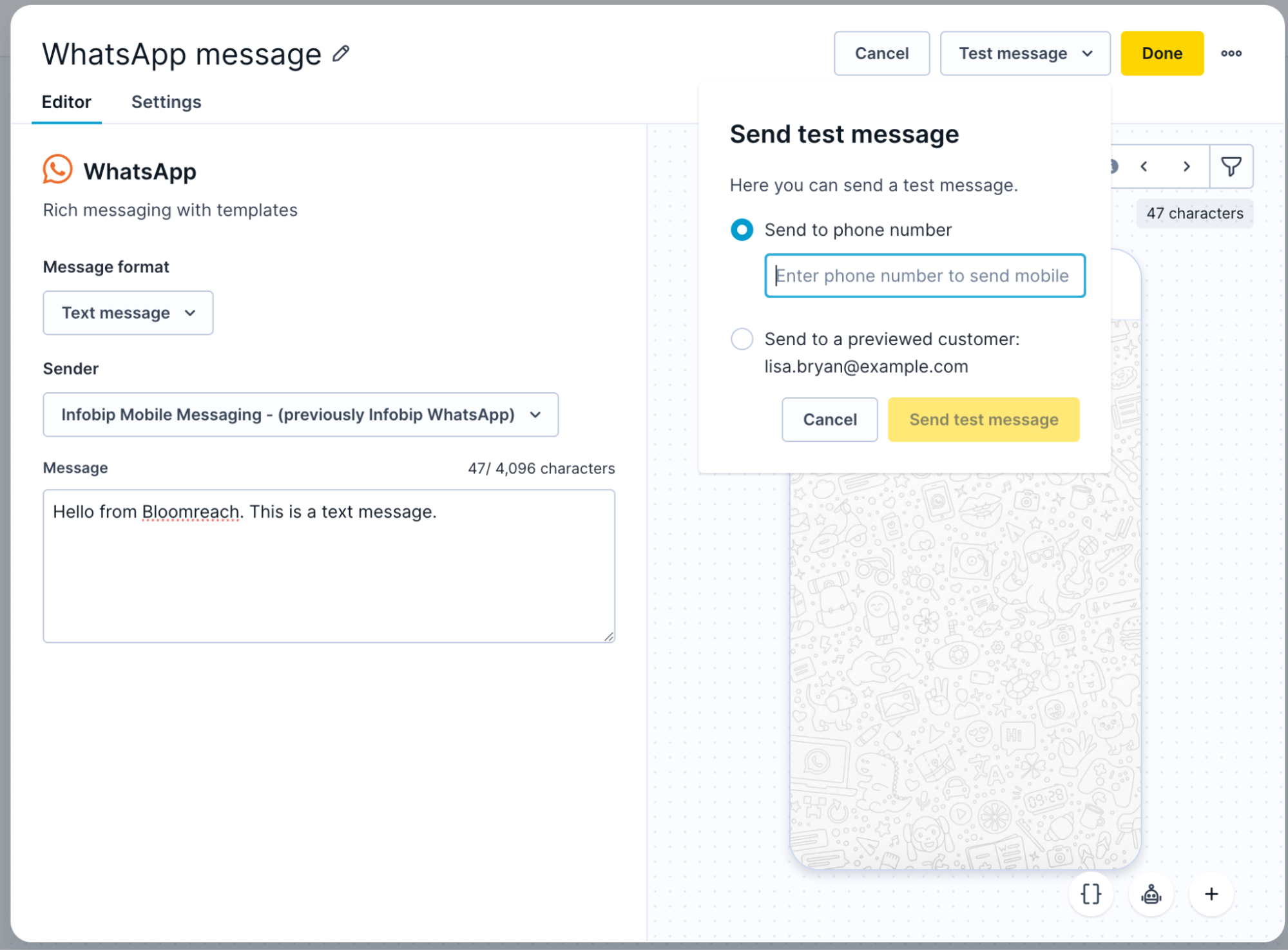
Click Test message to send to a phone number or to the previewed customer.
-
Enter a test phone number (include country code).
-
Check how the message appears on the test device.
-
Make changes if needed and test again.
ImportantYou can only test template messages. Other message types don't support testing, so double-check your content before sending.
Get customer consent
You need permission before sending WhatsApp messages to customers. This protects both you and your customers, plus it's required by law in most places.
Before sending, make sure you have the customer's phone number, your business name clearly stated, an explanation of what messages you'll send, and clear opt-in from the customer. Avoid spam, misleading content, or unexpected messaging.
Your first message to each customer must include opt-out instructions. See Keyword auto-response best practices for guidance.
For subscription messages: Add "To opt out at any time, reply with STOP" to your welcome message.
Use existing consent
Your use of the WhatsApp communication channel must comply with all WhatsApp policies.
You don't need separate WhatsApp consent if you already have SMS or RCS permission. You can use existing consent when you:
- Have the customer's mobile phone number.
- Got permission to send messages through any channel.
- Follow all relevant laws.
- Provide required notices and permissions.
- Offer separate opt-out options for each messaging channel.
Collect consent
Select the method that works best for your business:
- SMS: Text customers asking for WhatsApp permission.
- Website forms: Add WhatsApp checkboxes to sign-up forms.
- Phone calls: Ask during customer service calls.
- In-person: Collect consent at stores or events.
- QR codes: Let customers scan to start conversations.
- wa.me links: Direct customers to chat with your business.
Review WhatsApp's opt-in guidance for more tips.
Set up consent categories
Use Consent management to create specific WhatsApp consent categories so customers can manage their preferences:
- Go to Settings > Project settings.
- Under Campaigns, go to Privacy management > Consents.
- Click + Add consent.
- Select the relevant consent category when creating WhatsApp campaigns.
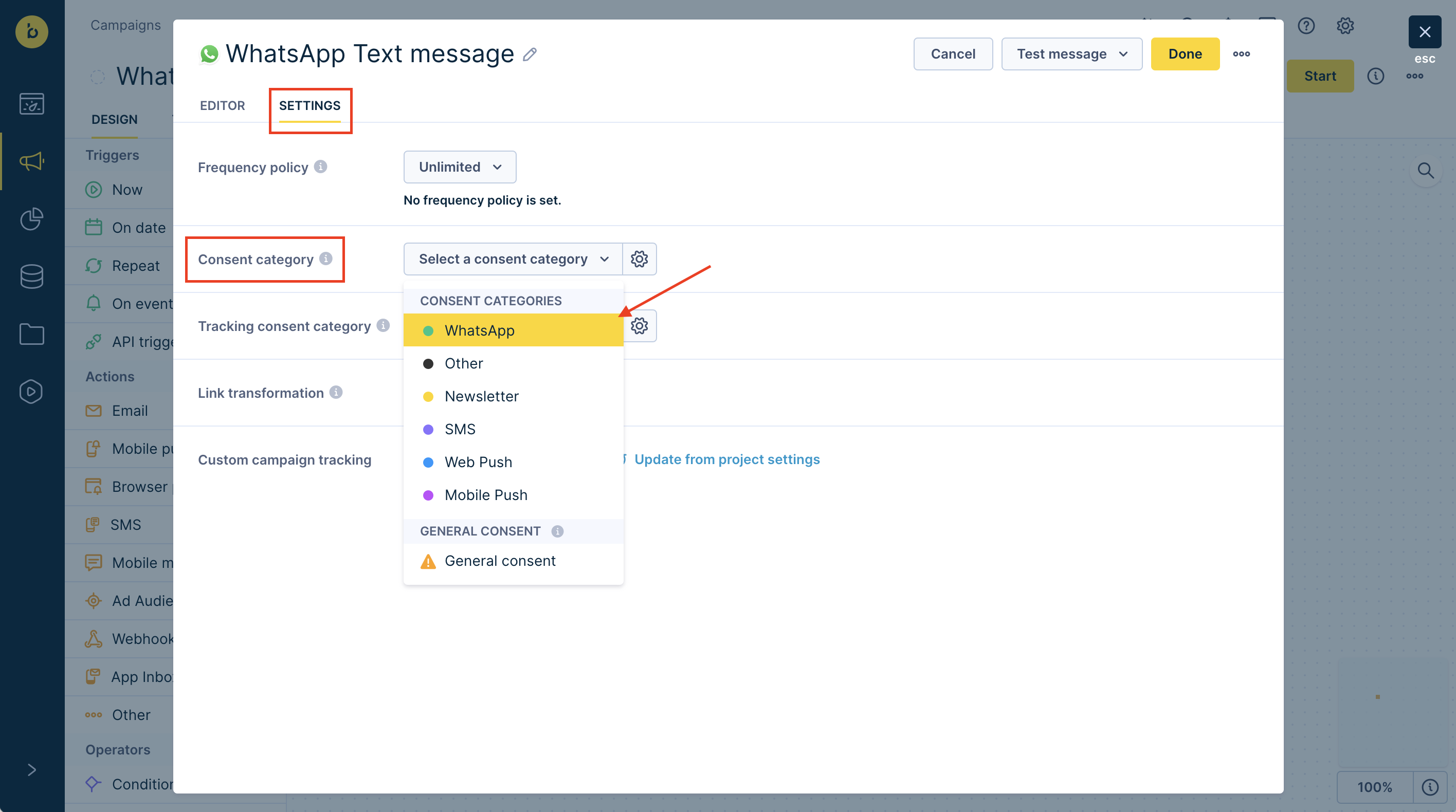
In the Settings tab, select a consent category to control who receives the campaign.
Track engagement
Bloomreach logs events to customer profiles for all WhatsApp messages. For details, review Which status attributes are generated by each channel.
- Clicks on URLs that use the link shortener are tracked.
- Quick reply button clicks are tracked.
Other message CTA button clicks aren't tracked.
Workaround for CTA buttonsAdd UTM parameters to your button links. Then look for matching
session_startevents to identify clicks.
Track button interactions
For messages (like choice messages), button clicks appear in campaign events with status incoming_message and the exact button text as the message value. For example, a "Track order" click logs an event with the message "Track order."
Updated 15 days ago