

Multiple devices push notification
Send push notifications to all of a customer's active devices instead of just their most recently used device, maximizing reach and improving engagement rates.
Benefits
- Maximize reach and engagement: Targeting multiple devices increases the chances customers will see and act on your messages, leading to higher open rates and better conversion.
- Deliver seamless customer experiences: Customers receive important alerts and offers on whichever device they're currently using, eliminating missed messages sent to devices that are out of reach.
- Gain deeper customer insights: Track engagement at the device level to understand which devices customers prefer for different activities and create segments based on device behavior.
- Simplify your workflow: Configure device targeting directly in your push notification campaigns.
Use cases
Time-sensitive promotions
Send flash sales or limited-time offers to all devices to maximize visibility during short promotional windows. When a customer receives the notification on both their phone and tablet, they're more likely to see it in time to take advantage of the offer.
Abandoned cart recovery
Remind customers about abandoned carts on all their devices. If they added items on their tablet but left it at home, they'll still receive the reminder on their phone while they're out.
Cross-device engagement campaigns
Send detailed product catalogs to tablet users (who tend to browse longer) and quick purchase prompts to phone users (who prefer faster transactions). Target users who browse on tablets with follow-up messages on their phones.
Prerequisites
Before using multiple devices push notifications:
- Updated mobile SDK: Minimum mobile SDK versions - iOS: 4.2.0, Android: 5.2.0, React Native: 4.0.0, Flutter: 2.7.0. This update enables tracking of a unique
device_idfor each device, which powers multiple devices targeting and device-level segmentation. - Multiple mobile apps setup: See Multiple mobile apps per project for complete setup instructions. Upgrading from legacy token storage? See Migrate to event-based push notification tokens for migration planning and preparation steps.
- Project permissions: The
notification_stateevent must be allowed at the project level:- In Data & Assets > Data Manager, ensure tracking of events not defined in Data Manager is enabled. If your project restricts this for security or data cleanliness reasons, add
notification_statemanually as an allowed event. - The API key used in your mobile app must have permission to track new events, or
notification_statein particular. See Mobile SDKs API access management for details.
- In Data & Assets > Data Manager, ensure tracking of events not defined in Data Manager is enabled. If your project restricts this for security or data cleanliness reasons, add
- Administrative access: Permissions to create push notification campaigns in scenarios.
How multiple devices push notifications work
When you create a push notification campaign in a scenario, you choose whether to send notifications to only the customer's most recently used device or to all their active devices. The SDK tracks a unique event property (device_id) for each device, allowing the system to identify and target individual devices. This setting allows you to control your reach strategy for each campaign based on your business goals.
Token eligibility for multi-device targeting
Before resolving which device receives a push notification, the system checks whether the customer is eligible for push delivery. A customer is eligible if they have at least one valid=true notification_state event within the configured validity window (default is 90 days). The system then selects the last tracked token from the eligible events, so a single invalid device doesn't block push delivery to a customer's other valid devices.
NoteToken eligibility works together with the
ON_TOKEN_CHANGE30-day re-track behavior. The 30-day re-track keepsnotification_stateevents fresh within the validity window, ensuring customers with stable tokens remain reachable across all their valid devices.
Configure multiple devices push notifications
Configure project settings
Navigate to Project Settings > Campaigns > Channels > Push notifications and configure your mobile app settings:
- Select the appropriate platform integrations (Android-Firebase, Huawei, or iOS).
- Set a distinct Application Name for identification.
- Set a unique Application ID that exactly matches your mobile SDK configuration.
- Configure Push notification validity (days) to control how long devices remain active for receiving notifications. Devices that opened your app within this period will receive push notifications. The default is 90 days, with a maximum of 120 days.
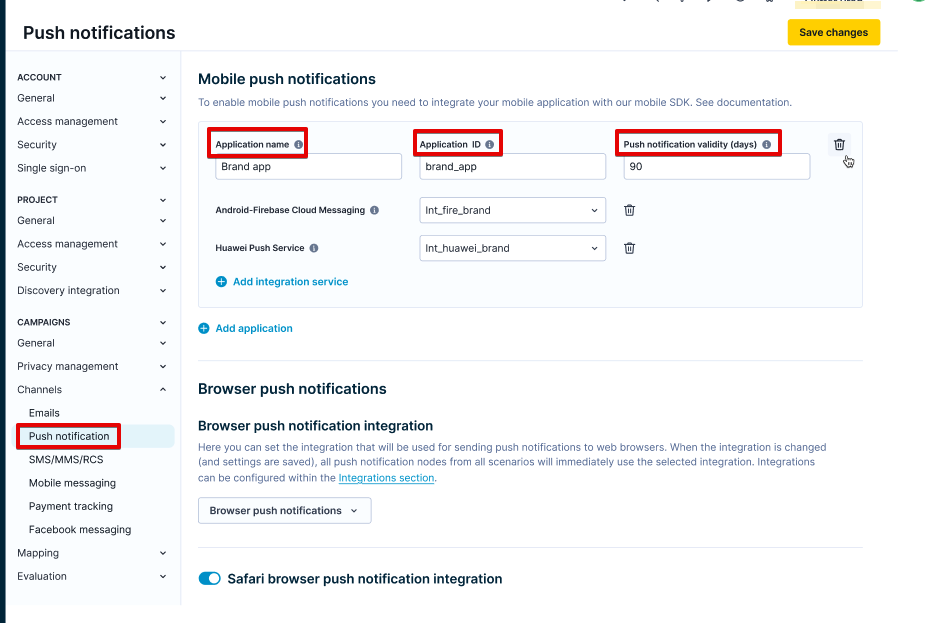
The Application ID is critical - it must match identically in both SDK and dashboard settings.
For detailed configuration instructions, see Multiple mobile apps per project.
Create and configure push notifications in scenarios
- Navigate to Campaigns > Scenarios.
- Open your scenario or create a new one.
- Add a Mobile push notification action.
- In the push notification settings, select which application should receive the notification from the Application dropdown.
- Under Target devices, select one of two options:
- Only the most recently used: Sends to the user's most recent device that can still receive push notifications (default). To ensure the most recently active device is targeted accurately, set
tokenTrackFrequencytoEVERY_LAUNCH— this guarantees a freshnotification_stateevent is tracked on every app open. - All devices: Sends to all active devices the customer used during the validity period (default: 90 days, maximum: 120 days), up to 3 per platform.
- Only the most recently used: Sends to the user's most recent device that can still receive push notifications (default). To ensure the most recently active device is targeted accurately, set

- Complete your notification content using the visual editor or code builder, then launch your campaign.
About device_id
device_id is a randomly generated identifier (UUID) assigned to each app installation — think of it as an installation ID. device_ididentifies a specific app instance on a specific device, which is how the system tells a customer's devices apart and determines which one they used most recently. It's what enables multiple devices targeting: a single customer can have valid push tokens on multiple devices, each identified by a different device_id. It contains no personally identifiable information and is GDPR-compliant by design.
Generation and storage
- The SDK generates
device_idonce, on first initialization after app installation. - It's stored locally on the device and persists across sessions and app updates.
- The ID is a UUID—it's not reused from the system.
When device_id resets
The ID clears and a new one generates on the next app initialization if:
- The user uninstalls the app.
- The user clears app data in device settings.
- Your app calls
stopIntegration()orclearLocalCustomerData().
Consent and data privacyIf a customer revokes push notification consent, call
clearLocalCustomerData()to reset theirdevice_id. This ensures the identifier's no longer stored or associated with that customer. Check with your legal team to confirm this approach meets your privacy obligations (for example, GDPR requirements).
Limitations
- Maximum of 3 devices per platform (iOS, Android, Huawei) per customer.
- Devices must be active within the configured validity period (default: 90 days, maximum: 120 days) to receive notifications.
- Customers must reopen your app after the inactivity to regenerate tokens.
Troubleshooting
Notifications not delivering to all devices
- Verify Application ID matches: Ensure the Application ID in your SDK configuration exactly matches your dashboard settings (case-sensitive).
- Check SDK version: Confirm your app uses the following or higher SDK versions:
- iOS: 4.2.0
- Android: 5.2.0
- React Native: 4.0.0
- Flutter: 2.7.0
- Confirm
notification_stateevents: Verify events are being created in your project. Check that event creation isn't blocked by project settings or schema validation. - Review device activity: Devices must have been active within the validity period (default: 90 days, maximum: 120 days), as defined in your Push notification validity setup. Users who haven't opened your app recently need to reopen it to generate new tokens.
Device count discrepancies
If you see fewer devices receiving notifications than expected, check that customers have granted push notification permissions on all their devices and have opened the app within the configured validity period (default: 90 days, maximum: 120 days).
Updated 2 months ago