

Google BigQuery
Integration
This guide explains how to connect Bloomreach to Google BigQuery as a data source using JSON credentials. Once connected, you can use BigQuery for imports and SQL Reports directly in the app.
For information about Loomi BigQuery—the managed export of your data into BigQuery—see Loomi BigQuery.
When to use this integration
Use the BigQuery integration when you want to:
-
Import data from BigQuery: For example, customers and attributes, offline or warehouse-enriched events, and catalogs and consents from your data warehouse.
-
Run SQL Reports: Query a BigQuery dataset directly from the app, without importing the data back.
The integration uses a GCP service account with JSON credentials and supports any dataset in your own BigQuery project, including the Loomi BigQuery dataset.
Prerequisites
Before you begin, make sure you have:
-
Access to Google Cloud Console with permission to create service accounts and manage IAM roles.
-
Admin or integration permissions in the app.
-
BigQuery dataset you want to connect.
Set up the integration
Setting up the BigQuery integration involves 3 stages.
Create JSON credentials
-
Go to the Credentials page in Google Cloud Console.
-
From the project drop-down, select the GCP project that owns the BigQuery dataset you want to connect.
-
Click Create credentials > Service account key.
-
From the Service account drop-down, select an existing service account or create a new one.
-
Select JSON as the key type and click Create. A
.jsonfile downloads to your computer. -
Open the file in a text editor and copy the entire JSON content.
Enable the BigQuery API
-
In Google Cloud Console, select the same project you used for the service account.
-
Go to APIs & Services > Library.
-
Search for BigQuery API, select it, and click Enable.
If your project already uses BigQuery, the API is likely already enabled.
Assign permissions
The service account needs the right IAM roles to run queries and access your datasets. Assign roles at the project level for broader access, or at the dataset level for more restricted access.
| Role | Purpose | Required? |
|---|---|---|
| BigQuery User | Runs queries and jobs | Yes |
| BigQuery Data Viewer | Reads datasets and tables | Yes |
| BigQuery Data Editor | Writes to destination tables | Optional; only for destination tables |
| Project Owner | Imports jobs from other users; manages project-level settings | Optional |
Configure the connection in the app
-
Go to Integrations.
-
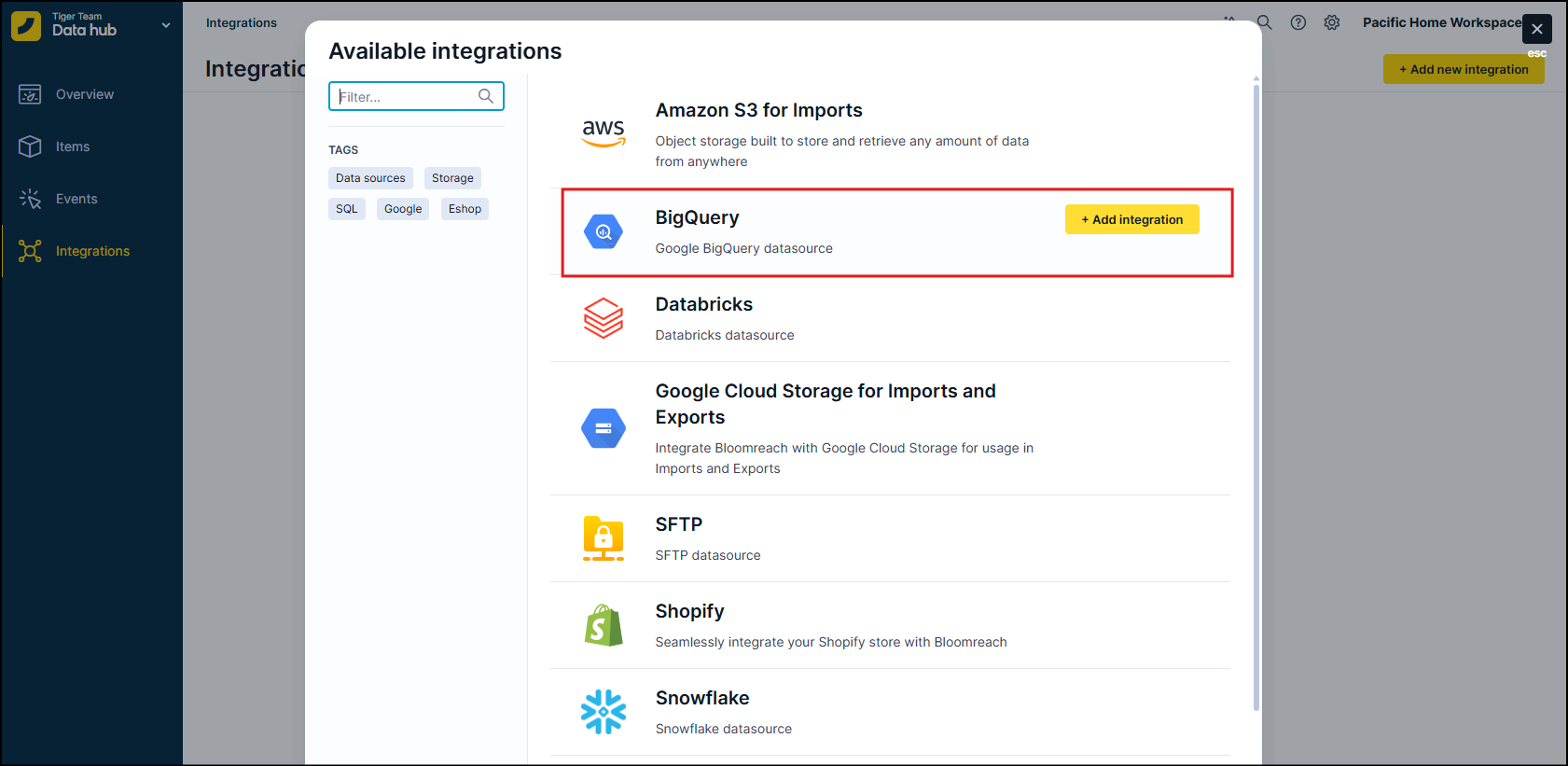
Click + Add new integration.
-
Search for BigQuery and click + Add integration.
-
Enter a name for the integration, for example,
BigQuery – Main DWorEBQ – read only. -
Paste the JSON content from your service account key file into the JSON credentials field.
-
Click Save, then Test connection to confirm that the credentials are valid and that the service account can access your datasets.
NoteStatic IP allowlisting isn't available for Google BigQuery. Bloomreach connects to BigQuery within Google Cloud, so these connections don't use the public outbound IP addresses.
If your BigQuery resources are protected by VPC Service Controls or other GCP network restrictions, contact Bloomreach Support for the Bloomreach project and network details needed to configure access. Use IAM permissions to control which service accounts can access your BigQuery data.
Use BigQuery for imports
-
Go to Imports > New import.
-
Choose BigQuery as the source and select your integration.
-
Choose a table from the list or write a custom SQL query.
-
Map the query columns to the relevant fields:
- Customers: Identifiers and attributes.
- Events: Event name, timestamp, properties, and customer identification fields.
- Catalogs or Items: Fields according to the target schema.
- Vouchers: Voucher code, value and discount details, validity dates, and usage or eligibility rules.
-
Set up a schedule if you want the import to run once or regularly, for example, daily.
Use Loomi BigQuery as an import source (optional)
To import data from Loomi BigQuery back into the app, make sure the service account has access to the GCloudLTDS project with at least BigQuery Job User and BigQuery Data Viewer roles on the Loomi BigQuery dataset.
Point your import query to the relevant Loomi BigQuery tables. For example, session_start or customers_properties—using internal_customer_id and properties/raw_properties as needed.
This is useful when you:
-
Transform data in Loomi BigQuery and want to re-ingest only the curated subset.
-
Need to backfill or repair data using long-retained Loomi BigQuery records.
For full details about Loomi BigQuery data structure, retention, and best practices, see Loomi BigQuery.
Use BigQuery for SQL reports
Use SQL reports to analyze BigQuery data directly in the app without importing it.
-
Go to Marketing > Analytics > SQL Reports > New SQL report.
-
Select your BigQuery integration as the data source.
-
Write your SQL query against the connected dataset. For example, join warehouse tables with Loomi BigQuery exports, or query warehouse-only tables.
-
Click Save and run the report. The data stays in BigQuery and is only queried and visualized through the app.
Updated 20 days ago