

Import events
Events capture what your customers do—purchases, page visits, sign-ups, and more. Importing events lets you bring historical event data into the platform so you can use it in analyses, segmentations, and campaigns.
This guide walks you through each step of the event import process, from choosing a data source to mapping your columns and running the import.
Prerequisites
-
Read the Imports article to understand how imports work, what sources are available, and how to monitor import progress.
-
You can name events as you like, but follow the platform's naming standards for basic events.
-
Each event import requires two columns: a customer ID column and a timestamp column.
-
Import each event type in a separate CSV file.
-
For deduplication and reimport safety, always include explicit timestamps. See Event deduplication for details.
Choose a data source
-
To start an event import, go to Data & Assets > Imports > + New import > Events.
-
Name the import.
-
Select the source your event data is coming from. All standard import sources are supported. For details on each, see Data sources.
-
After selecting your source, click Preview data to confirm the format looks correct. If the preview looks off, check that the right delimiter and encoding are selected.
Map data
Data mapping tells the platform how to interpret each column and which customer profile to pair each event with.
Map columns to attributes
In the dropdown menu for each column, map it to an existing attribute or create a new one by typing a name and clicking +. Set the correct data type for each column—text, number, date, and more. Each data type is explained in the Data manager article.
Assign required tags
Two columns are required for every event import:
-
Customer ID column: Assign the yellow tag to pair each event with the correct customer profile. Don't check the checkbox for this column. Checking it imports the ID as an attribute, which causes data duplication.
-
Timestamp column: Assign the blue tag. The
timestampmust be in datetime format (for example,2020-08-05T10:22:00) or numeric format (for example,1596615705—seconds since January 1, 1970). If only a date is provided, the platform adds midnight as the event time.
You can map multiple ID columns—for example, registered and cookie. The platform uses whichever ID is available for a given customer. The registered hard ID always takes priority.
Use the timezone selector
The timezone selector, located below the data table, adjusts the timezone of datetime values. This feature only applies to ISO 8601 datetime formats—if your datetime doesn't conform to this format, the selector has no effect.
Trigger on-event campaigns (optional)
Check the Trigger on-event campaigns checkbox in the top right to allow imported events to trigger on-event scenarios. This option is turned off by default.

Enable this option to allow imported events to trigger on-event scenarios.
Schedule a repeated import (optional)
If you're importing from a dynamic source—Database, URL, or Bloomreach—you can schedule repeated imports. For details, see Schedule a repeated import.
Run the import
Complete the wizard steps to start the import. Check the status in the import list by clicking Refresh. Large files take more time to process.
You can monitor progress using the two-stage progress bar. Data is available only after both the import and processing stages complete. For details, see Track import progress.
You can use these example CSVs to test a small import before running a large one.
registered;timestamp;purchase_id;price;product_id;title;quantity;total_price
[email protected];1474886373;100001;35.30;29;Colorful bracelet;1;35.30
[email protected];1474886373;100001;9.30;47;Fancy necklace;2;18.60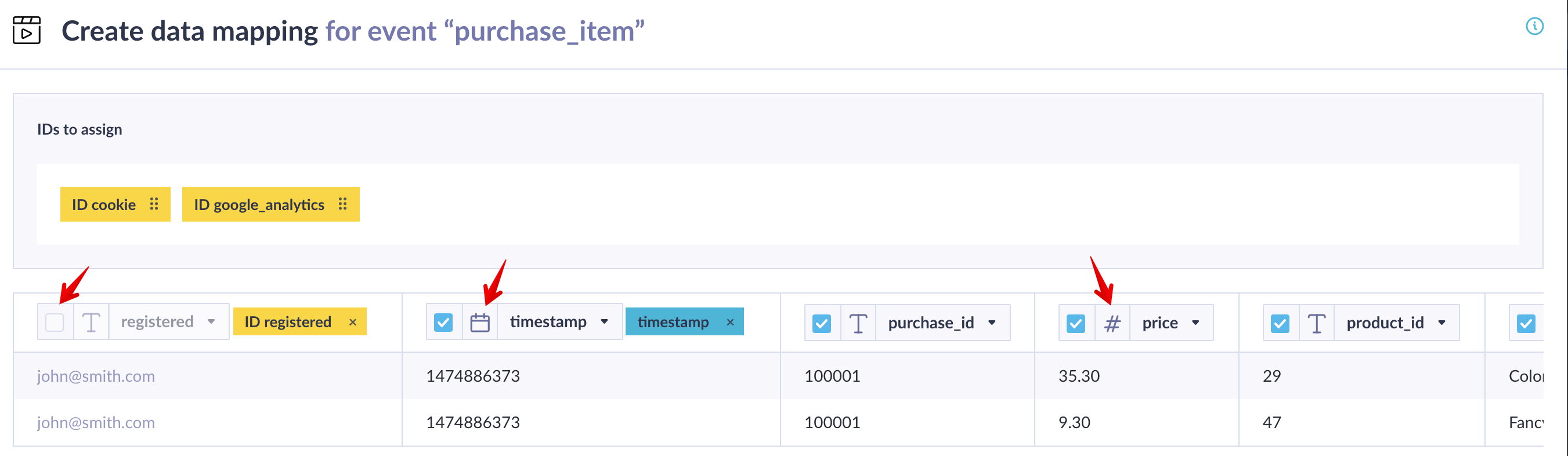
Example of a correctly mapped event import using the purchase_item sample CSV.
registered has no blue color and its checkbox is unchecked. It's used only to match each row to the correct customer profile, not imported as an attribute.
Limitations
-
Imported events can't be selectively altered or deleted.
-
Events with future timestamps are processed, but only become visible after that future time has passed.
Updated 3 months ago