

Azure Storage for imports
Use this integration to import data from Azure Storage into Bloomreach to consolidate your customer and event data in one place.
This integration works with Azure Storage accounts that have Data Lake Gen2 (hierarchical namespace) enabled. Since Data Lake Gen2 is built on top of Blob Storage, your data stored in Blob containers is accessible through this integration once the hierarchical namespace is enabled.
Need to export data instead?This integration is for imports only. To export data to Azure Storage, see Azure Storage Integration for Exports.
Prerequisites
You'll need:
- An Azure Data Lake Gen2 storage account with hierarchical namespace enabled.
- A container with your source data.
- OAuth2 credentials — the only supported authentication method for imports.
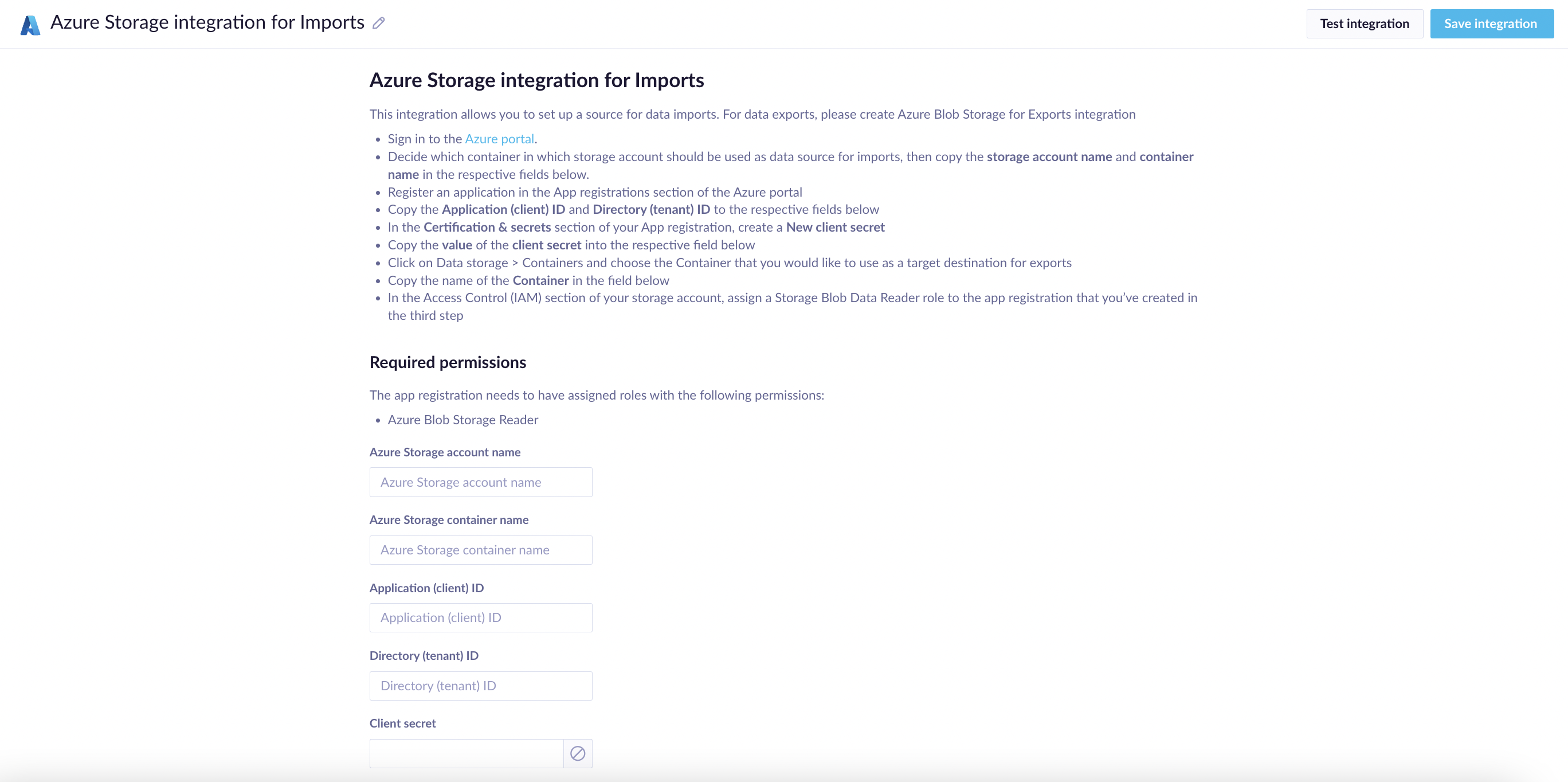
The Azure Storage imports integration setup form in Bloomreach.
NoteIf your Azure storage account uses network rules to restrict access by IP, add Bloomreach's outbound IPs to your allowed IP list in the Azure Portal under Networking > Firewalls and virtual networks. Find your outbound IPs in Project settings > Security or Workspace settings > Security. See Outbound IP addresses for details.
Set up your integration
Get your storage details
- Sign in to the Azure Portal.
- Go to your storage account and open the container that holds your import data.
- Copy the storage account name and container name.
Register your app
- In the Azure Portal, go to App registrations and register a new application.
- Copy the Application (client) ID and Directory (tenant) ID.
- In Certificates & Secrets, create a new client secret, and copy its value.
Set permissions
In your storage account's Access Control (IAM), assign Storage Blob Data Reader role to your registered app.
Connect in Bloomreach
- Go to Data & Assets > Integrations > Add new integration.
- Enter your storage account name, container name, and OAuth2 credentials. You'll find this information in the Azure Portal account.
Good to know
- Client secrets expire. Set a reminder to renew yours before imports stop working.
- All data transfers are encrypted over HTTPS.
Troubleshoot issues
Error: "Endpoint doesn't support BlobStorageEvents or SoftDelete".
This happens when soft delete is enabled on your storage account. To fix it, go to your Azure Storage account settings and disable soft delete.
Updated 6 days ago