

Multiplied Media
Partner integration
Multiplied Media enables brands to enrich campaigns with personalized, data-driven visual content —dynamic images, GIFs, and motion visuals generated for each customer individually.
Multiplied Media connects to Bloomreach's Customer API to read customer attributes and events, creates tailored creative assets (for example, abandoned cart visuals, loyalty summaries, or personalized promotions), and writes the resulting media URLs back into customer properties. Marketers can then merge those URLs into emails, push notifications, or landing pages as personalized image sources.
This integration supports use cases such as:
- Personalized abandoned cart, shipping notification, and back-in-stock content based on recent product interactions.
- Winback emails, onboarding flows, and welcome sequences customized by product or category.
- Year-in-review or "Wrapped" emails with dynamic data visualizations.
- Monthly loyalty and rewards recaps using customer attributes such as tier, status, or points.
- Personalized media within email or rich push notifications generated ahead of send time.
- Rule-based visuals that change dynamically based on customer context and attributes.
Prerequisites
- A Bloomreach project with a private API key. The key requires Get and Set permissions for Customer Property and New Event.
- Your project token and base URL.
- A Multiplied Media account. Multiplied Media creates the media templates for you and assists with scenario setup.
Set up the integration
Generate a Bloomreach API key
-
Go to Project Settings.
-
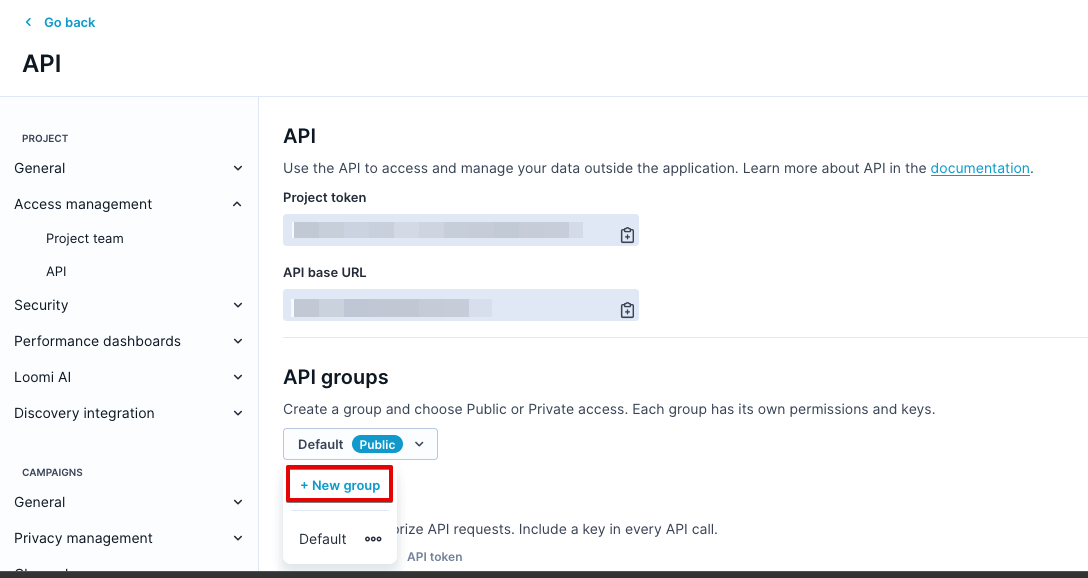
Under Access management, select the API tab.
-
If you don't have a private API group, create one.
-
In your private group, use the default key or create a new private API key.
-
Note your Project Token, Base URL, API Secret, and API Key ID.
-
Ensure the key has Get and Set permissions for Customer Property
and New Event.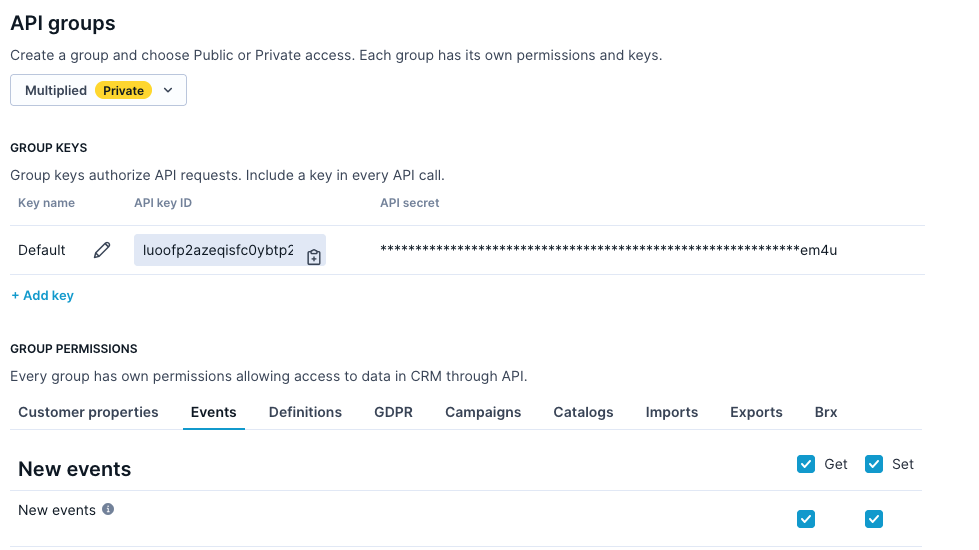
-
Share the following details with Multiplied Media in your shared Slack channel:
- Project Token
- Base URL
- API Secret
- API Key ID
For more details, read the Multiplied Media API key documentation.
Configure the webhook scenario
The basic setup uses a webhook to send customer data to Multiplied Media. Once the media URL is ready, it's written back as a customer property and a second trigger fires the message.
-
In your scenario, add a trigger node for the relevant customer event (for example, cart abandonment or purchase).
-
Connect a Webhook node. Use the custom webhook URL and authorization header provided by Multiplied Media.
-
In the webhook JSON body, include the customer fields required for personalization, for example:
   {
     "registered": "{{ customer_ids.registered }}",
     "email": "{{ customer.email }}",
     "first_name": "{{ customer.first_name }}"
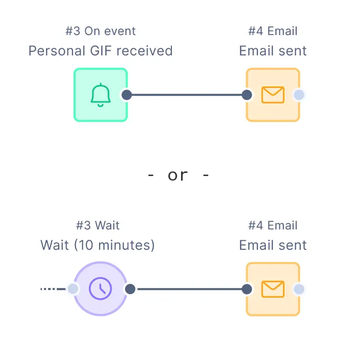
}- Add a second trigger node that fires when the media URL property is set, or add a delay node to allow time for the media to generate.
- Connect your email or push notification node after the second trigger or delay.
- In your email template, add the personalized image source tag in the relevant image block:
<img src="{{ customer.customer_multiplied_url }}" />For more details, read the Multiplied Media webhook documentation.
Support
For setup assistance or questions, contact your Multiplied Media account team. For Bloomreach API reference, see the Customer API overview.
Updated 1 day ago