

Configure template: Optional merchandising fields
After configuring the mandatory fields for a template, you can refine results with optional merchandising. These controls determine what gets excluded, what gets pinned to specific positions, how results adapt per customer, and how they're sorted.
All optional merchandising lives in the same Design tab as the mandatory fields. Use as few or as many as your use case requires. Refer to Ready to use recommendation templates and Loomi recommendation templates for per-template compatibility.
NoteWhen you apply too many or overlapping filters, the system displays a warning that few or no items will be recommended.
Order of operations
When multiple merchandising operations are active on the same recommendation, the engine applies them in this order:
- Block list: narrow the recall set. Block lists are configured per recommendation.
- Identify the product set: the engine selects the top items the algorithm returns.
- Pin by item ID: pinned items go to their assigned positions.
- Pin by attribute filter: fills remaining pinnable slots with items matching the attribute condition.
- Dynamic filters: applied at serve time to the remaining product set.
- Customer preferences: sort the final result by per-customer preference.
NotePinned items take precedence over attribute pins; attribute pins take precedence over dynamic filters.
Block list
Block list excludes items from the recall set tracked event.
When the block list excludes items, the engine fills the result with the next items in the recall set. Positions aren't left empty.
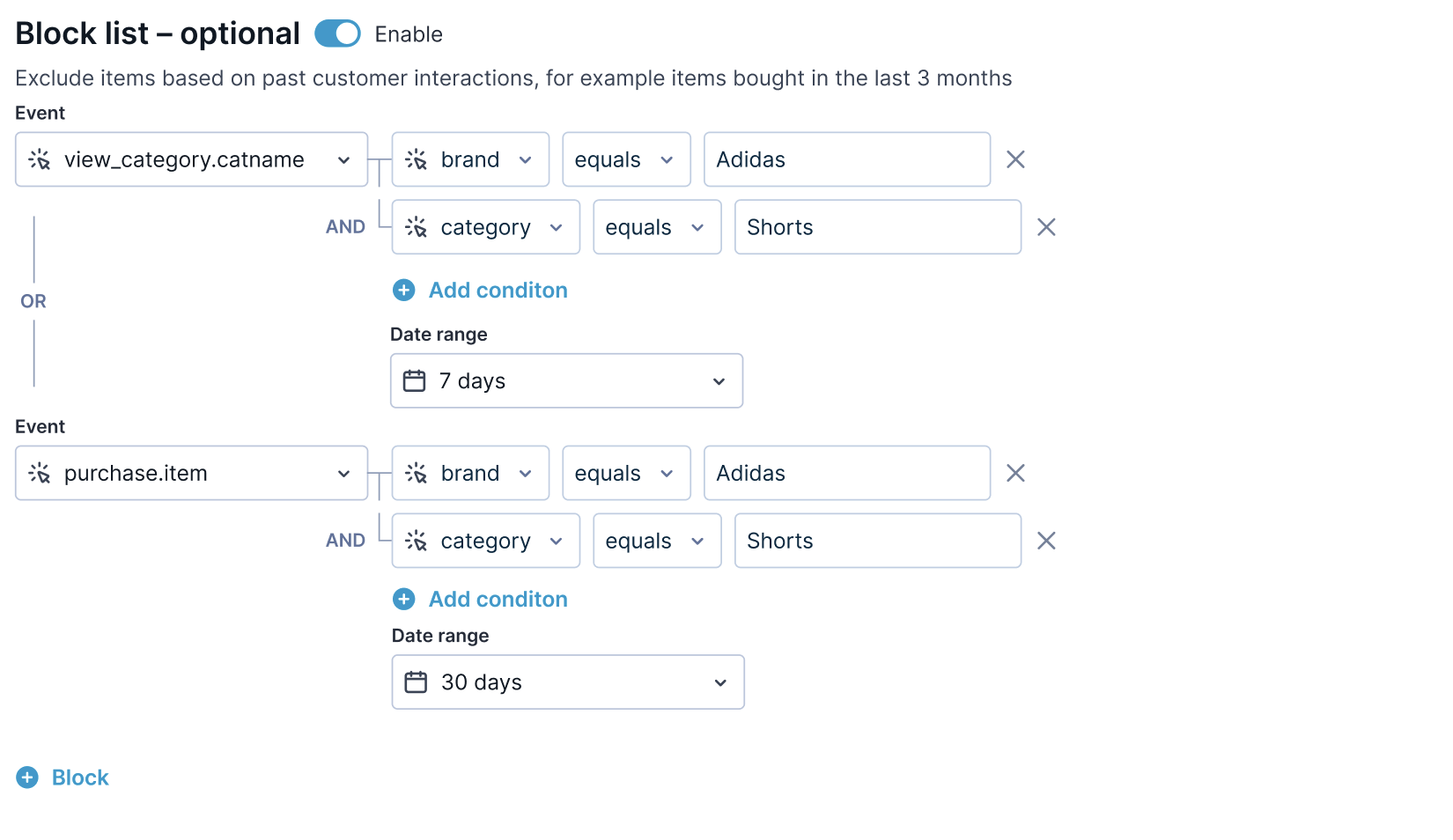
Multi-event blocklisting
Exclude items based on customer events—for example, items the customer purchased recently.
Configure each blocking event by selecting:
- Event: for example,
purchase_item - Event property: the field containing the item ID, for example
item_id - Time window: for example, Last 90 days
You can add up to 3 blocking events per recommendation. Events combine with OR—an item is blocked if it matches any one of them. The item ID in the selected event property must match the item ID in the catalog.
A common pattern is to exclude items the customer purchased in the last 90 days to avoid recommending what they already own.
Note
- If you select an event property that contains a list of item IDs, all items in that list are blocked—not just the first one.
- When filtering by a list property, the entire event is evaluated as a match or a non-match. Individual values within the list aren't evaluated separately
Pin items
Pinning guarantees that specific items or attribute matches appear in fixed positions in the result.
When multiple pin types are active:
- Pin by item ID takes precedence—pinned items stay pinned even if they would otherwise be excluded.
- Pin by attribute filter fills slots not claimed by item ID pins.
- Dynamic filters apply to remaining items only—they can't remove pinned items.
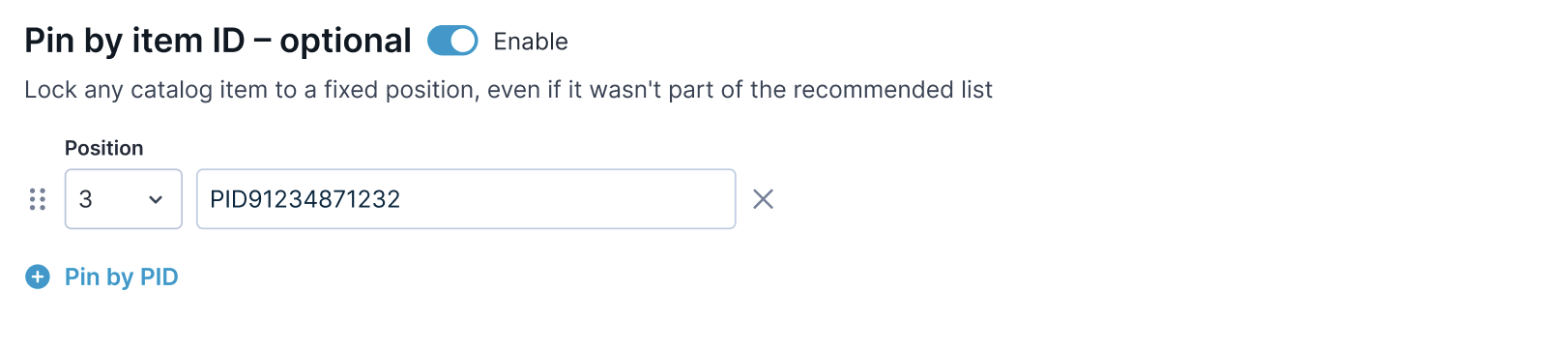
Pin by item ID
Reserve a specific position for a specific item.
Configure each pin by selecting:
- Position: for example,
1 - Item ID: for example,
prod_12345
Limits:
- Up to 5 pinned items per recommendation.
- Positions 1 through 25 available.
- One item per position.
If the pinned item is:
- Out of stock: The position fills from the recall set. The preview shows the pin badge as deactivated until the item returns.
- Removed from catalog: The pin configuration is kept but the position fills from the recall set.
Pin by attribute filter
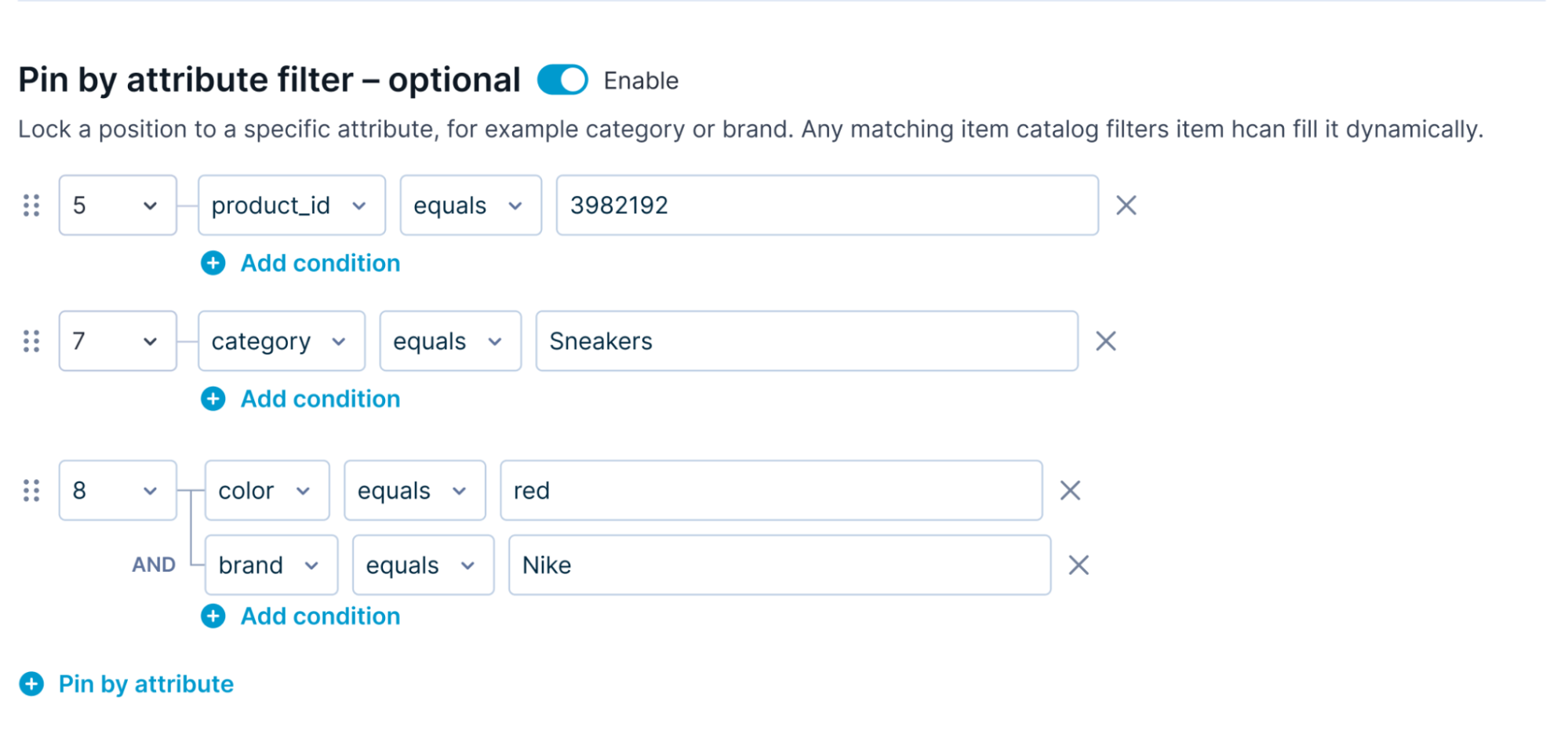
Reserve a position for the next item matching an attribute condition. Use this for promotional slots where you want to feature a brand or category without committing to a specific item.
Configure each attribute pin by selecting:
- Position: for example,
1 - Attribute: for example,
brand_name - Operator: for example,
equals - Value: for example,
Nike
The engine fills the position with the first item from the recall set that matches the condition.
Dynamic filters
Dynamic filters narrow the item set at the moment of each request, using values from the customer's profile or the item being viewed. This lets a single recommendation adapt per customer or per page—so a customer browsing a Nike sneaker can see only Nike items, and a customer with a favorite-brand preference can see only items matching their preference, without configuring separate recommendations for each case.
NoteCustomer-context dynamic filters use values from the customer profile. If you want to filter by a value derived from customer behavior—such as favorite brand or most viewed category—create that field first as a customer aggregate in Data & Assets > Data manager > Definitions. Aggregates are custom customer attributes calculated from existing data.
Customer context filter
Filters items by attribute values from the viewing customer's profile.
Configure by selecting:
- Attribute: the catalog attribute to filter on (for example,
brand) - Customer profile field: the source value (for example,
customer.fav_brand). This field must already exist on the customer profile. If it is based on behavior, create it first as a customer aggregate.
For example, brand=customer.fav_brand returns only items whose brand matches the customer's favorite brand attribute. Each customer sees a different set.
Item context filter
Filters items by attribute values from a reference item—typically the item the customer is currently viewing.
Configure by selecting:
- Attribute: the catalog attribute to filter on (for example,
brand) - Reference item field: the source value (for example,
last_viewed_item.brand)
For example, brand=last_viewed_item.brand returns only items whose brand matches the brand of the last item the customer viewed.
Combine customer and item context
You can apply both at the same time, with one filter of each type. Multiple dynamic filters combine with AND.
Exceptions
- Missing reference item or null property. If the reference item is absent or the property is null, the filter is skipped and the unfiltered set is returned.
- Insufficient matches. If fewer items match than requested, the engine returns matching items first, then fills the rest with the unfiltered fallback. If fallback is disabled, only matching items are returned. The result set may be smaller than expected.
- Pin precedence. Pinned items always take precedence—a pinned item stays pinned even if it doesn't match the filter.
Templates that support dynamic filters
Customer-context filters work with: New items, Recently viewed, Customers who viewed this item also viewed, Personalized for you (History-based), Personalized for you (Journey-based), Personalized homepage, Personalized product page.
Item-context filters work with all of the above plus: Similar attributes, Customers who bought this item also bought, Similar descriptions.
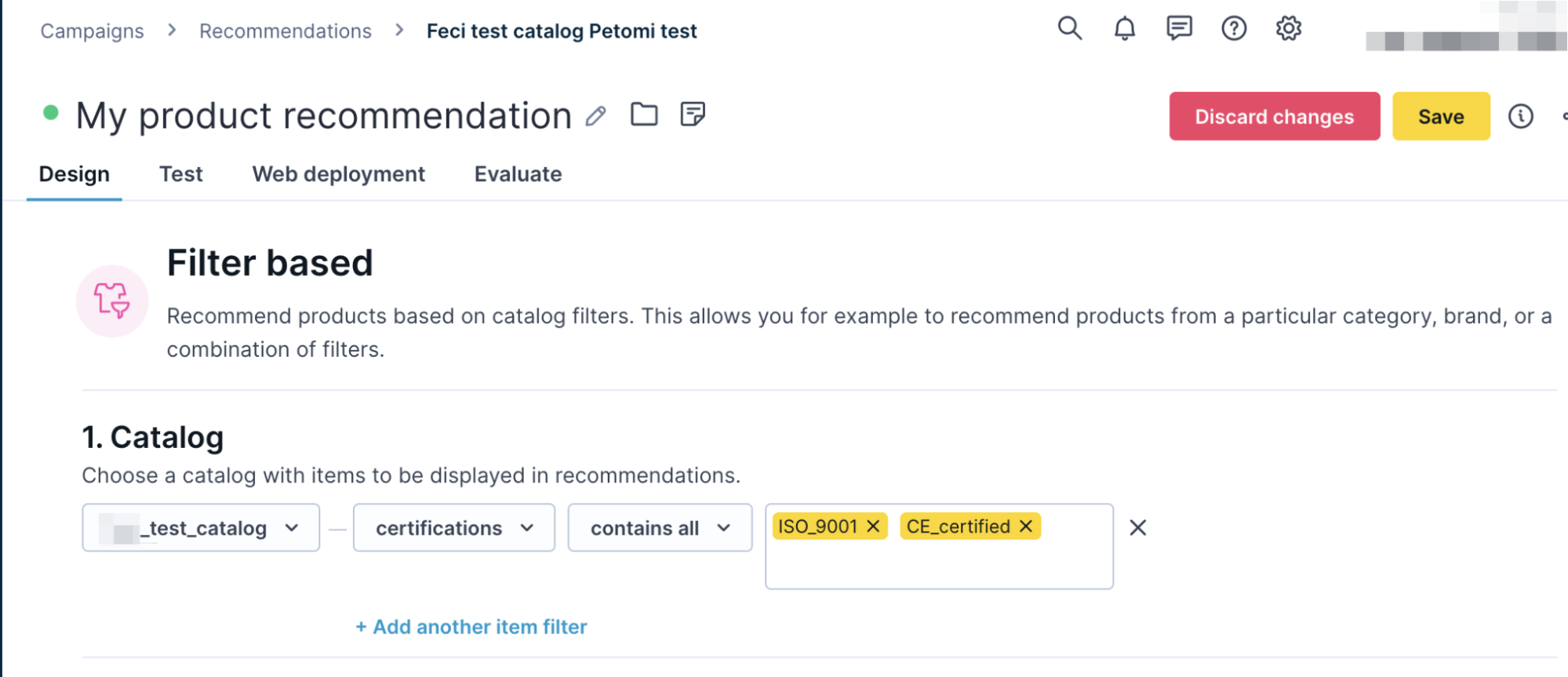
Filter based, Popular right now, and Popular in category don't support dynamic filters. For Combined, support depends on the selected engines.
Customer preferences
Customer preferences re-sorts recommendations so items matching per-customer attributes appear at the top.
Configure each preference by selecting:
- Catalog attribute: for example,
brand - Customer attribute: for example,
fav_brand
If you set multiple preferences, recommendations are sorted by each condition in order, from first to last. Items matching no preferences appear at the end of the result set.
Updated about 2 months ago