

Work with content in Marketing agent
After Marketing agent generates your campaign, it creates one or more email nodes containing your email messages.
Email node overview
Each Email node includes subject lines, message copy, personalization, and consent validation — all generated from your campaign brief. Each node contains:
- Email subject line and message body.
- Personalization logic based on customer data.
- Product recommendations (when applicable).
- Consent validation (automatically added, designed to ensure messages are sent only to customers with valid marketing consent).
WarningAlways review and confirm the message and assigned consent before sending to ensure accuracy, tone, and compliance.
Open an email node
Double-click an Email node on the Canvas to open the content editor. The visual editor displays by default, showing your email design and layout.
Dynamic or personalized content appears as placeholders with descriptions of the underlying logic rather than actual customer values. To see how content looks for specific customers, use preview mode.
Personalization
Product blocks
Product blocks display items based on customer behavior — such as abandoned cart products, browsing history, or AI-powered recommendations. These appear as placeholders because the specific products vary for each customer.
Hover over any product block to see how Marketing agent selects products (for example, "Products from abandoned cart" or "Recommended based on purchase history").
Within each placeholder, you can see:
- Which product attributes display (name, price, image).
- Static text that accompanies products.
- Which product data drives images.
Personalization tags
Text content includes personalization tags that insert customer-specific information — names, loyalty points, or product details.
Hover over any personalization tag to see what customer data it retrieves and any conditional logic it contains. Some tags include conditions that change sentence content based on customer attributes.
To understand the personalization logic behind any block, ask Marketing agent to describe how the block works and what data it uses.
Footer links
Marketing agent automatically adds unsubscribe, manage preferences, and view-in-browser links to your email footer. It uses a standard implementation that works for most setups, but may not match your existing link configuration.
Always check these links before launching. To review how they're set up, click Explain on the footer block or ask Marketing agent directly — for example: "How are the unsubscribe links implemented?"
If the links don't match your setup, tell Marketing agent the URL or expression you want to use. For example:
- "Use
{{ email.unsubscribe }}instead of{{ consent.page }}." - "
Add mode=USAto the unsubscribe link." - "Add
mode=preferencesto the manage preferences link."
If you're using multiple language versions of your consent page, review the multi-language considerations before making changes.
Preview and test
Preview how personalization resolves for actual customers and send test emails to verify that content displays correctly in email clients.
Click the eye icon in the bottom-left corner to access preview and testing options.
Preview
The Preview tab shows how your email looks for a specific customer, with all personalization and dynamic content resolved.
- Select a customer's name.
- Toggle Fully resolved content only to show only customers who meet all personalization requirements for this email.
- Review the email in the visual editor.
Preview different customers to verify that personalization works correctly across your audience — especially customers with minimal data or different segment attributes.
NoteMarketing agent automatically prevents broken emails from sending — for example, when a product can't be found or recommendations aren't available. If this happens, the email won't be sent. Use preview to spot and fix issues before launch.
Send a test email
The Send test email tab lets you check how content appears in actual email clients.
- Click the Send test email tab.
- Select which customer's personalized version to send.
- Enter up to 20 email addresses (comma-separated).
- Toggle Fully resolved content only to send only when all dynamic content resolves correctly.
- Click Send test email.
Edit content
You can modify content conversationally or manually in the visual editor. For comprehensive guidance on editing strategies, structural changes, and when to use each approach, see Edit, refine, and launch in Marketing agent.
To understand what Email node elements can be edited conversationally or manually, see Marketing agent limitations.
Conversational editing
Select a content block in the editor, then describe your desired changes in the conversation panel. Marketing agent updates the content or personalization logic based on your instructions.
Example requests:
- "Mention the customer's loyalty points in the opening paragraph."
- "Make the tone more urgent."
- "Add a sense of scarcity to the call-to-action."
Manual editing
Click content blocks directly in the visual editor to make precise adjustments:
- Add, remove, or reorder blocks.
- Rewrite text.
- Update images.
- Adjust email send and reply-to addresses.
Brand consistency
Brand assets
Marketing agent analyzes your sent emails to recognize reusable blocks — such as a hero section, product display, or header — and saves them for future campaigns.
You can manage your blocks in a few ways:
- Import a full email design from Asset Manager or email templates. This replaces all previously saved blocks.
- Import individual email rows from custom rows. This adds new blocks without replacing existing ones.
- Adjust branding — if imported blocks don't match your colors or fonts, ask Marketing agent to update them and save the changes.
For bigger layout changes, create and import assets from Asset Manager.
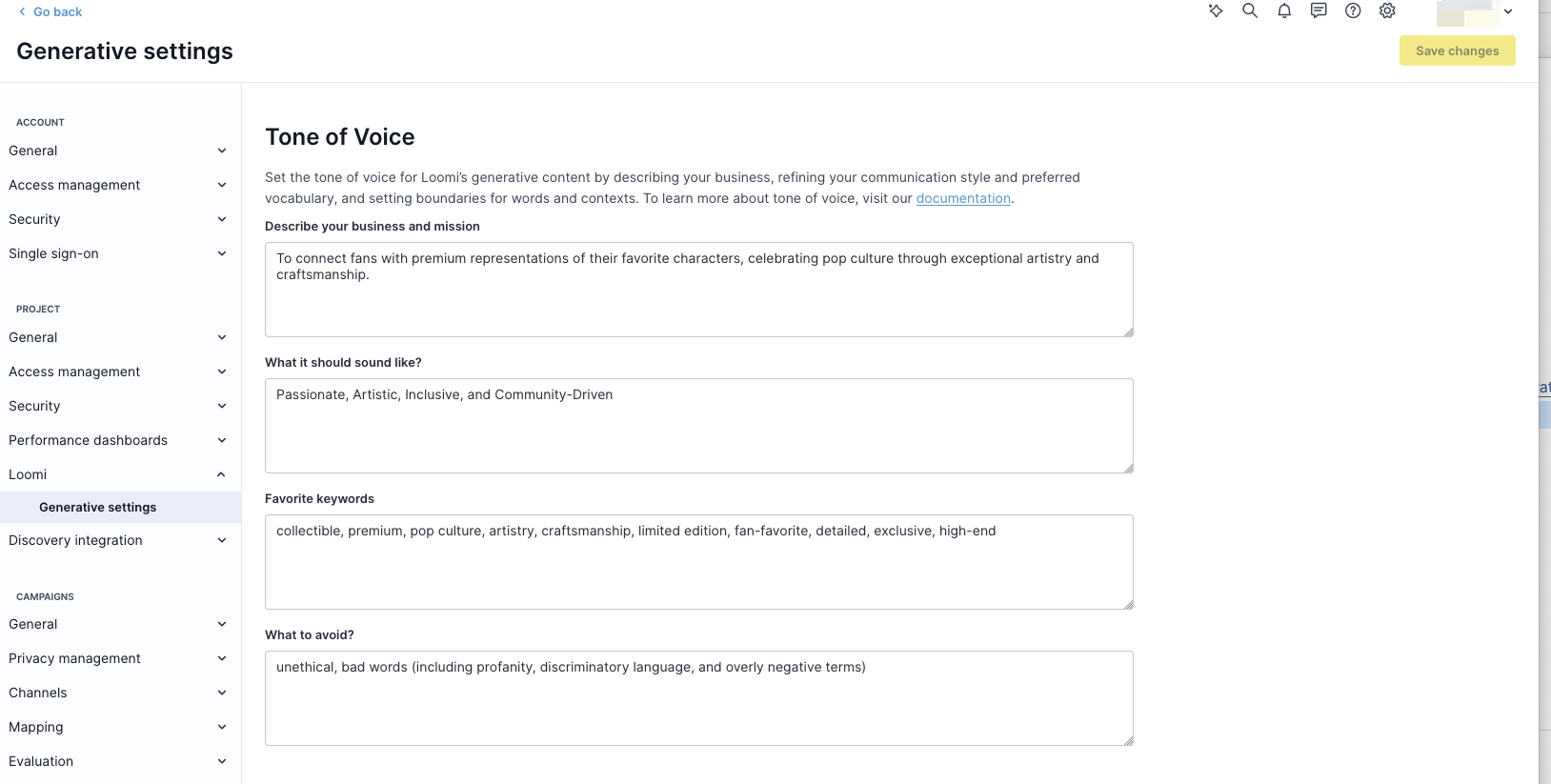
Brand tone
Set your brand's tone of voice in Project Settings:
- Navigate to Project Settings.
- Define your preferred tone and style.
- List phrases to use or avoid.
- Add brand-specific language preferences.
Marketing agent applies these guidelines automatically when generating content, ensuring consistency across all campaigns.
Email settings
Email settings — including email integration and identity transfer for clicks — are inherited from your project settings. You can't adjust these per individual Marketing agent email.
To change email settings, update the default values in your project settings. Changes apply to all new Marketing agent campaigns.
Best practices
Test before launch
Before launching your campaign:
- Preview emails across different customer segments.
- Check customers with minimal data to verify proper handling of missing information.
- Verify product recommendations align with your campaign goals.
- Review all conditional logic variations.
Personalize subject lines
Include relevant customer information to drive higher open rates:
- Mention the most expensive viewed product in the subject line.
- Include the customer's loyalty points balance in the subject line.
- Reference the first product shown in the email in the subject line.
Personalize hero content
Capture attention with personalized hero content:
- Show the most expensive last-viewed product in the hero image.
- Display the first recommended product in the hero image.
- Feature products from the customer's favorite brand in the hero section.
Monitor and iterate
- Test multiple subject line strategies and compare open rates.
- Experiment with hero personalization to improve click-through rates.
- Track performance in the Evaluation dashboard.
- Refine based on campaign data.
Updated about 2 months ago