

Troubleshoot scenarios
Running into unexpected behavior in your scenarios? This guide covers the most common configuration and performance issues, with clear steps to resolve each one.
Too many "On event" triggers
Importing a large number of events at once and allowing them to trigger "On event" scenarios can overwhelm your system, leading to performance issues and processing delays.
To manage this:
- Filter events: Add condition nodes to filter out irrelevant events as soon as possible after the trigger.
- Use batch processing: Split large event imports into smaller batches and schedule them during off-peak hours.
- Review your scenario design: Avoid using multiple "On event" triggers in a single scenario. If you need multiple triggers, distribute them across separate scenarios.
Trigger and action without condition node
Using a Now, Repeat, or On date trigger with action nodes and no condition nodes can cause irrelevant customers to enter the flow and generate a large number of unnecessary events.
Always add condition nodes after a trigger to filter out irrelevant customers before they reach the action nodes.
Too many or too frequent attribute updates
Setting attribute values for too many customers at once, or too frequently, can cause performance issues.
To avoid this:
- Limit the number of customers: Apply attribute changes to smaller, more targeted customer segments, or use a Customer limit node.
- Reduce frequency: Space out attribute updates to prevent system overload. Schedule updates at different times or intervals so the system processes them gradually.
Too many wait nodes in a series
Using more than one dynamic wait time node in a series causes processing delays. Don't place duplicate wait nodes back to back.
Instead:
- Use only one dynamic wait node in a series.
- Make sure the wait time is necessary. Where possible, use an On date trigger set to the desired time rather than adding an extra wait node.
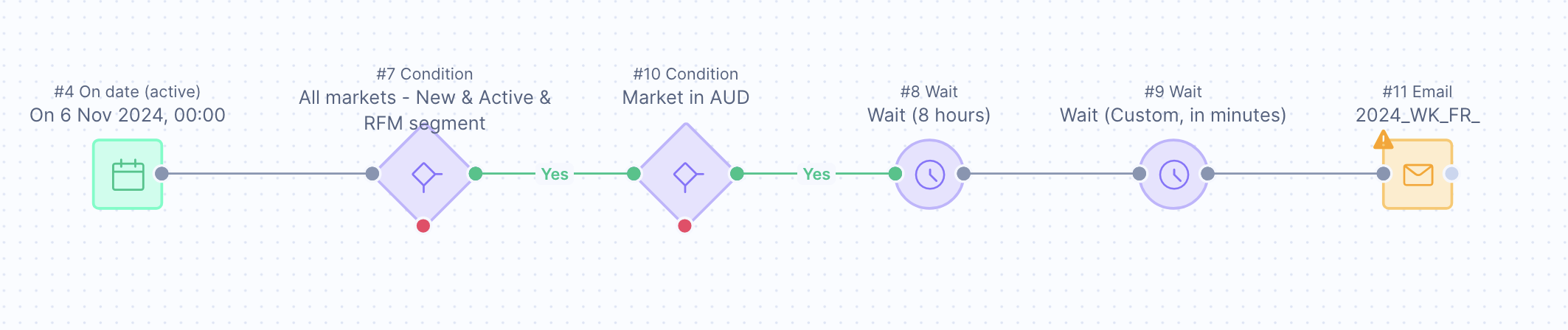
Two dynamic wait nodes in a row — avoid this configuration to prevent processing delays.
Wait node placed directly after the trigger
Don't place a wait node directly after the trigger node. For larger audiences, this can result in an extremely large number of customers held at a single node, which puts unnecessary strain on performance.
Position the wait node near the end of the scenario instead.
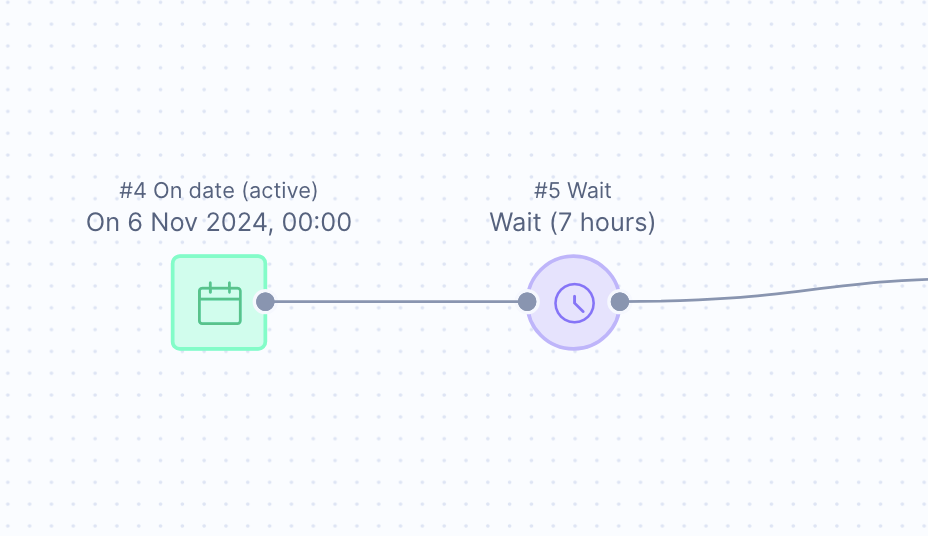
A wait node placed directly after the trigger — this strains performance for large audiences.
Customers disappearing from wait nodes
If customers are unexpectedly leaving your scenario while held in a wait node, the wait time may be set too long. Wait times longer than 7 days increase the risk of customers being removed. For example, if you stop the scenario or a technical error occurs, all customers in the wait node are dropped.
To prevent this, don't set wait times longer than 7 days. Instead, use a Repeat trigger with a condition that checks for events from 7 or more days ago.
Inefficient custom wait nodes
Using the Jinja command {{ range(0,180) | random }} in a custom wait node creates 180 separate streams from one, requiring 180 times the processing resources.
To reduce stream count and improve efficiency, batch dynamic wait times into intervals:
{{ range(0,180,10) | random }}for 10-minute intervals — 10 times more efficient.{{ range(0,180,30) | random }}for 30-minute intervals — 30 times more efficient.
Use dynamic wait nodes only for specific cases such as deliverability or website throttling. Don't use wait nodes for small audiences (under 50,000 customers).
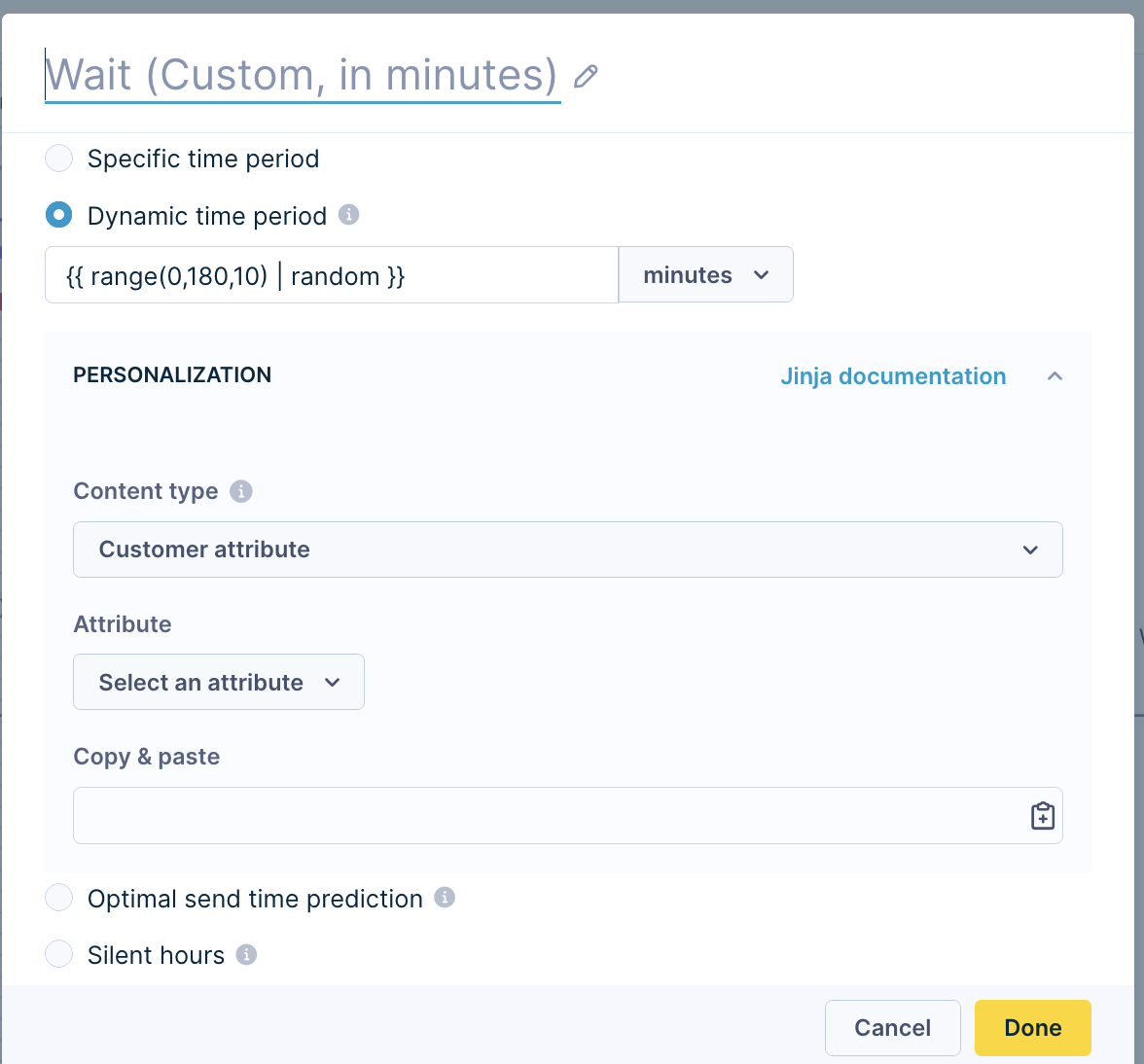
A dynamic wait node using a batched interval expression for efficient stream management.
Ten-minute intervals are 10 times more efficient than a continuous range, and 30-minute intervals are 30 times more efficient.
Updated about 1 month ago