

Vouchers are text codes customers use to redeem discounts or special offers in your online store. You can share these codes through your campaigns — either using the same code for every customer or sending unique codes to each one.

The Vouchers feature lets you load a pool of voucher codes, insert them into campaigns, and track their usage.

📘

Note

The Vouchers feature doesn't replace your voucher system. Your existing system still applies the appropriate discounts when a customer redeems a code.

Import vouchers

You can import vouchers from multiple data sources. Before importing, prepare a pre-generated list of unique voucher codes in a single column with a header row. If a code already exists in the pool, it's ignored during import. You can't import the same code into multiple voucher pools.

Name your vouchers

Group your vouchers into named pools for easy identification— for example, 10%Discount, 100EURoff, or a campaign name. Don't include spaces in the pool name, as this causes errors.

Run a single import

  1. Go to Data & Assets > Imports.
  2. Click + New Import .
  3. Click Vouchers.
  4. Choose an existing voucher pool to add new voucher codes or create a new one.
  5. Select the data source you want to use.
  6. Click Preview to verify the Delimiter and Encoding settings.
  7. Click Next.
  8. Drag the blue box to assign the code ID.
    1. You can only import one column containing the voucher codes
Voucher import screen showing the blue box being dragged to assign the voucher code column

Dragging the blue box to assign the voucher code column during import.

Schedule a repeated import

If you import from a URL, database, or a Bloomreach Engagement analysis, you can schedule a repeated import.

  1. Click Run Import.
  2. Return to Data & Assets > Imports to review the import. Make sure all rows (vouchers) were imported correctly.

You can view all your imported voucher pools in Data & Assets > Vouchers.

Set up voucher tracking

Before using vouchers for the first time, make sure you're tracking voucher usage during purchases — including the voucher code itself.

Track vouchers

Go to Project Settings > Mapping > Vouchers and specify where the voucher code is tracked after use. This lets Bloomreach recognize when a specific voucher is redeemed.

For example, if you track voucher codes as an attribute of a purchase event named voucher_code, your mapping should reflect that.
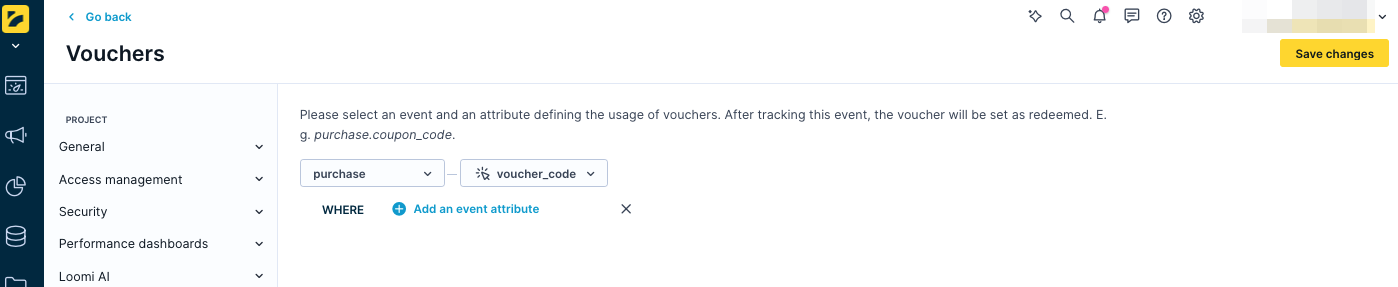
Vouchers mapping screen in Project settings showing voucher_code attribute mapped to a purchase event

Example voucher mapping in Project settings, linking the voucher_code attribute to the purchase event.

The mapped attribute for tracking redeemed vouchers must be a string.

Personalize vouchers

Access vouchers using Jinja. The Personalization wizard can help you generate the correct syntax.
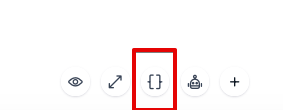
The following Jinja functions are available:

  • Assign available code: Selects an available code from the pool, changes its status from available to assigned, and displays it in the campaign.
  • Count available codes: Returns the number of currently available codes in a voucher pool. Useful for sending automated alerts when stock runs low.
  • Count total codes: Returns the total number of all codes in a voucher pool.

Codes are assigned when the campaign runs. For example, when a weblayer is shown to a customer or an email is sent (including test campaigns). There's no limit to the number of vouchers a customer can be assigned.
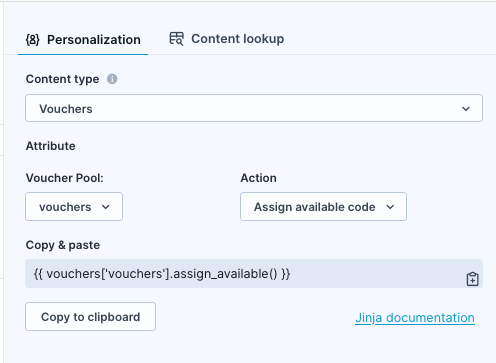
Jinja personalization panel showing assign available code, count available codes, and count total codes options for a voucher pool

Jinja personalization options for vouchers, including assign, count available, and count total.

Assign available voucher codes

Each time you use vouchers['voucher_xy'].assign_available(), it assigns a voucher code from the pool. By default, it reuses the same code within the same email, SMS, or MMS to the same customer if you call it multiple times.

To display different vouchers to the same customer within a single campaign, set the cached parameter to false.

vouchers['voucher_xy'].assign_available(cached = false)

This generates a new voucher for each occurrence within the campaign.

Bloomreach randomly selects voucher codes from the pool. You can't control which codes the algorithm selects.

📘

Note

Setting cached = false doesn't apply in the email preview function. The same voucher appears in the preview regardless. If you use cached = false in the live campaign, the customer receives a different voucher than the one shown in the preview.

To check if and when a voucher was assigned or redeemed, go to Data & Assets > Vouchers and select the voucher pool.
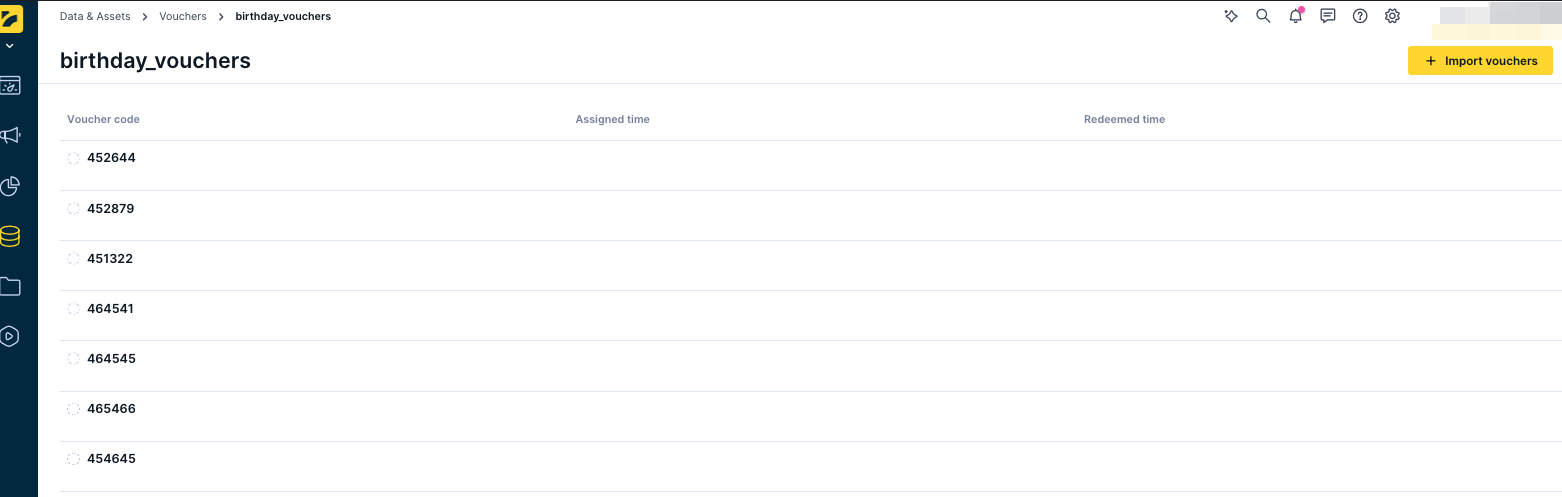
Voucher pool in Data & Assets showing individual voucher codes with assigned and redeemed status

Voucher pool in Data & Assets showing assignment and redemption status for individual codes.

Reuse vouchers

The Jinja code {{vouchers['voucherpool_name'].assign_available()}} randomly selects a code from the pool. By default, Bloomreach doesn't track which code was assigned to which customer, which limits your ability to reuse the same code for the same customer in future campaigns.

You can reuse the same voucher code in 2 ways:

  • Custom customer attribute: Add the code as a customer attribute and retrieve it using {{ customer.attribute_name }}. These codes don't need to be unique.
  • Custom event attribute: Assign the voucher as a custom event attribute and retrieve it through an aggregate. Use this approach if you want to track which voucher a customer received and when.

Reuse vouchers using a custom customer attribute

This is the simpler of the 2 approaches.

  1. Go to Data manager and create a new customer attribute. Give it a name you can identify as a voucher — for example, voucher, temp_voucher, or voucher_assigned.
Data manager showing a new custom customer attribute being created and named for voucher use

Creating a custom customer attribute for voucher assignment in Data manager.

You can populate this attribute in 2 ways:

  • Using the Set attribute node in scenarios: Add a Set attribute node to your scenario and configure it to assign the voucher code to the customer attribute.

    Scenario flow showing the Set attribute node configured to assign a voucher code to a customer attribute

    Set attribute node in a scenario configured to assign a voucher code to a customer attribute.

  • Using a customer attributes import: Import voucher codes as customer attributes using the Customers rather than the Vouchers import.

Import screen showing the Customer attributes import option selected for assigning voucher codes

Importing voucher codes as customer attributes using the Customer attributes import.

Once the attribute is populated, it looks like this:

Customer attribute screen showing a custom voucher attribute populated with an assigned voucher code named testvoucher

Custom customer attribute showing an assigned voucher code.

Use {{ customer.voucher }} to display the voucher code wherever you need it in your campaign.

Email editor showing Jinja code used to display a custom customer voucher attribute in campaign content

Using {{ customer.voucher }} in campaign content to display the assigned voucher code.

📘

Note

This approach works best for smaller customer bases. You'll need to update the attribute each time you assign new vouchers.

Reuse vouchers using a custom event attribute

  1. Create a new event and name it. For example, voucher or voucher_assigned.

  2. Add attributes to the event, such as type, voucher_code, and status. These attributes help you identify specific vouchers in analyses and dashboards.

  3. In your scenario, add an Add event node and place it before the email node.

    Custom event configuration screen showing a voucher event with type, voucher_code, and status attributes

    Custom voucher event configured with type, voucher_code, and status attributes.

  4. Create an aggregate that looks for the voucher_code attribute at the customer's most recent voucher event. Filter by type and status to ensure the aggregate pulls only the latest code for the relevant campaign.

    Scenario flow showing the Add event node positioned before the email node to assign a voucher event

    Add event node placed before the email node in a scenario to assign a voucher code.

  5. Use the Jinja expression for this aggregate to call the voucher_code attribute whenever you need to display the voucher code in a campaign.

Campaign editor showing the Jinja expression for the voucher aggregate used to display the voucher code

Jinja expression for the voucher aggregate used to display the voucher_code in a campaign.

Running out of vouchers

Email campaigns

If no voucher codes are available to assign, the campaign fails to send. This generates campaign events with status = enqueue_failed.

Weblayer campaigns

If no voucher codes are available to assign, the weblayer isn't displayed and no events are generated.

Limitations

You can view only the first 1,000 vouchers in the platform.