

Abandoned browse SMS


Use case description
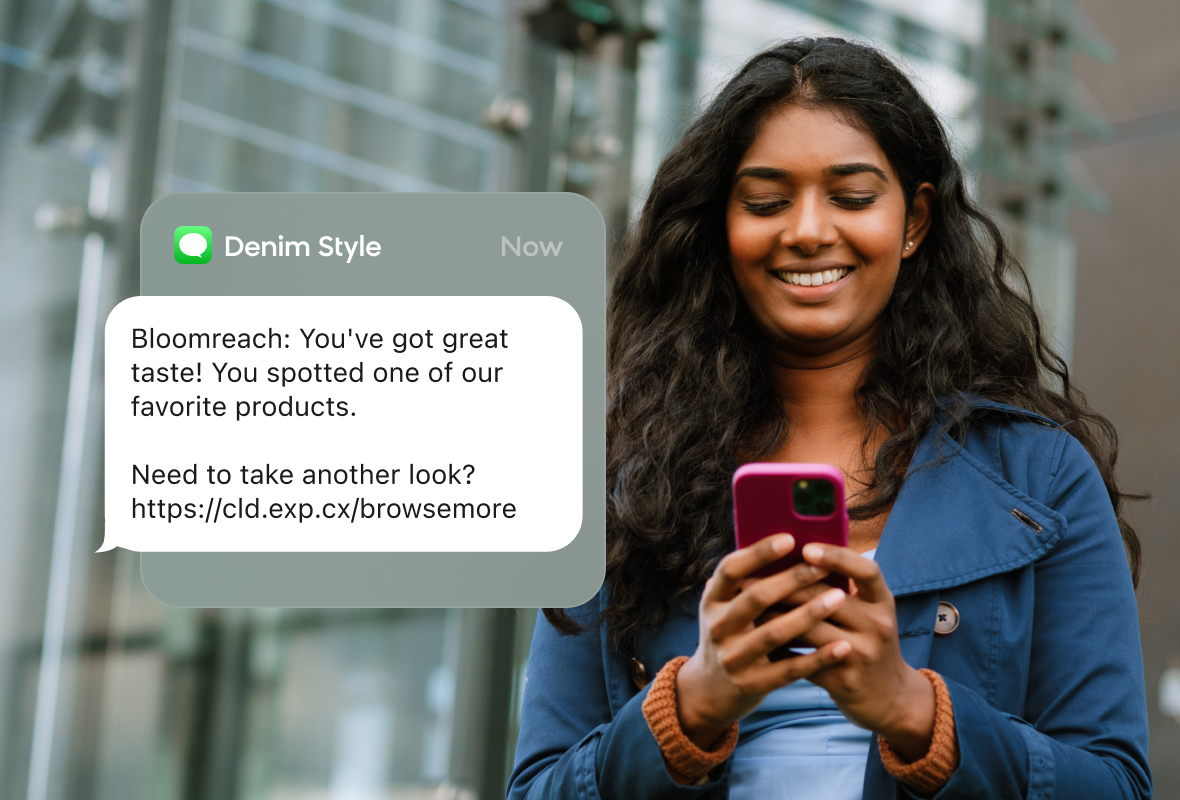
The Abandoned browse SMS use case re-engages customers who browsed your site without completing a purchase. When a customer views at least three products and leaves without buying, they automatically receive a personalized SMS with links to the products they viewed. This targeted follow-up increases conversion rates and revenue per visitor (RPV). You can fully customize the SMS template to match your brand.
Key features
- Automated SMS delivery triggered by session end, with no manual intervention needed.
- A limit on how often a customer receives this campaign to avoid overcommunication.
Use case items
With this use case, you'll get a:
- Ready-to-use abandoned browse SMS scenario.
- Pre-defined evaluation dashboard.
How to deploy the use case
After downloading the use case, follow these steps.
Meet the requirements
Check if the data in your project meets the requirements. The Use Case Center lists requirements for each use case during the deployment process.
Understand the use case logic
When a customer ends their session on your website, the scenario checks whether they are eligible to receive an SMS. To qualify, the customer must have:
- SMS marketing consent.
- A valid phone number.
- Viewed more than 2 products in the last 24 hours.
- Not completed a purchase in the last 7 days.
If the customer meets all conditions, the scenario waits 3 hours, then checks whether the customer still hasn't made a purchase and hasn't received a communication from this use case in the last 30 days. If both conditions are met, and the customer still has a valid SMS consent, they receive the Abandoned Browse SMS.
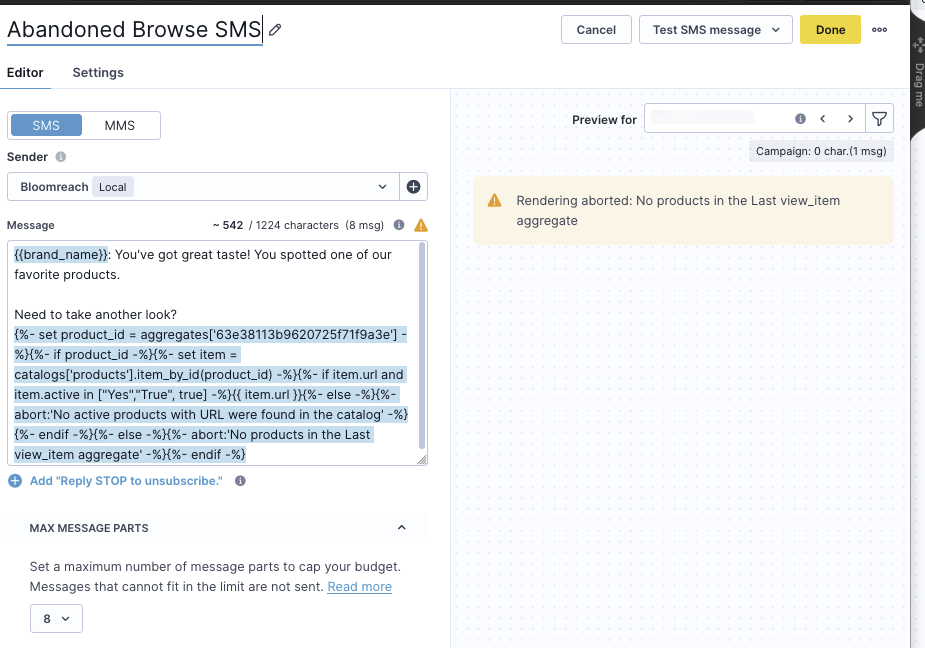
The SMS is personalized using Jinja to display products from the [LSAB] Last viewed items aggregate. Before running the use case, verify two things in the SMS node:
- The aggregate_id in the brackets — for example, ['63e38113b9620725f71f9a3e'] — matches your campaign. Find the correct ID in the URL of the [LSAB] Last viewed items asset within the use case initiative.
- The catalog name in the brackets — for example, catalogs['products'] — matches the name of your product catalog.
Adjust the use case
Now that you understand the use case logic, you can set up the use case according to your needs.
SMS settings
Access the SMS node and go to the Settings tab to configure the following:
- Consent category: Select the SMS consent category for your project.
- Frequency policy (optional): Select the corresponding frequency policy based on your project settings.
- UTM parameters (optional): Go to Link Transformation > Manual to set up UTM values manually.
- Campaign link shortener (optional): Enable to shorten links and automatically track clicks as campaign events.
If your project uses a different brand_name variable, update it in Project settings > Channels > SMS.
For more details on SMS configuration, read the SMS campaigns documentation.
Design and copy
Go to Design > Editor and customize the content of the SMS nodes — Abandoned Browse SMS 1 — to reflect your brand voice and messaging.
Test and run the use case
Test the use case before deploying it. Testing ensures you don't send unfinished or imperfect campaigns to your customers.
Once the testing is over, run the use case. Open the use case and click Start to launch the scenario.
Evaluate the results
Run the use case for a few days before drawing conclusions.
After this initial period, use the prebuilt evaluation dashboard to measure and analyze relevant data.
1. Open the evaluation dashboard.
2. Enter the campaign name. For example, Abandoned browse SMS.
3. Set the attribution window for revenue in hours, for example, 24.
4. Click Refresh to see the results.
5. Check campaign results regularly to optimize performance.
Updated 4 months ago