

Configure a catalog trigger
Catalog triggers start a scenario when the selected catalog changes, and reach only the customers who showed interest in the affected item. Every trigger shares three parts, plus fields specific to each trigger type. For background on the feature, see Catalog triggers.
Prerequisites
Catalogs managed through Data hub: Catalog triggers need a catalog linked to a Data hub item type: a product catalog from a product item type, or a general catalog from a custom item type. Catalog triggers don't support general catalogs that you create directly in Marketing.
Catalog trigger structure
Every catalog trigger is configured using the following settings and filters.
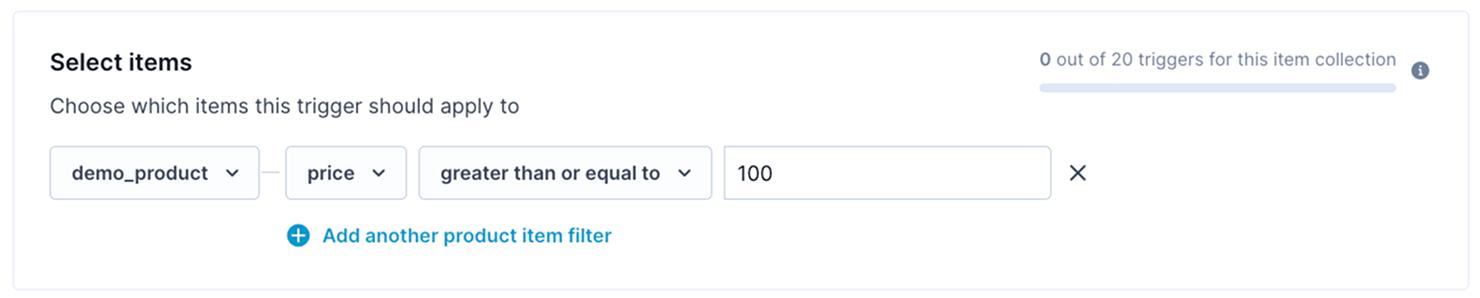
Select items
- Choose the catalog to monitor. If several item types publish to the same Marketing project, choose the catalog by the name you set for that item type's destination.
- Optionally, choose the attribute and add item filters that decide which items qualify, independent of customer behavior.
For example:
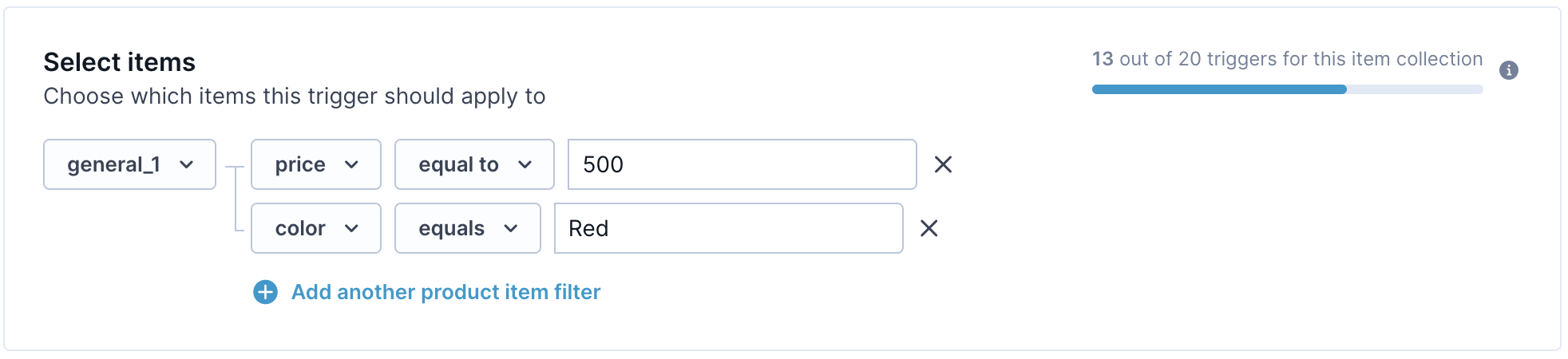
For a product item type with separate product and variant catalogs, choose which catalog to monitor. Custom item types have one general catalog. You can use up to 10 attributes per item filter.
Trigger when
Triggers are configured based on the trigger type. Some types let you configure a threshold or percentage; others are fixed — a new arrival, for example, activates whenever a new item is added. For more information, see Trigger types and their fields.
Available operators depend on the selected column’s data type and the trigger type.
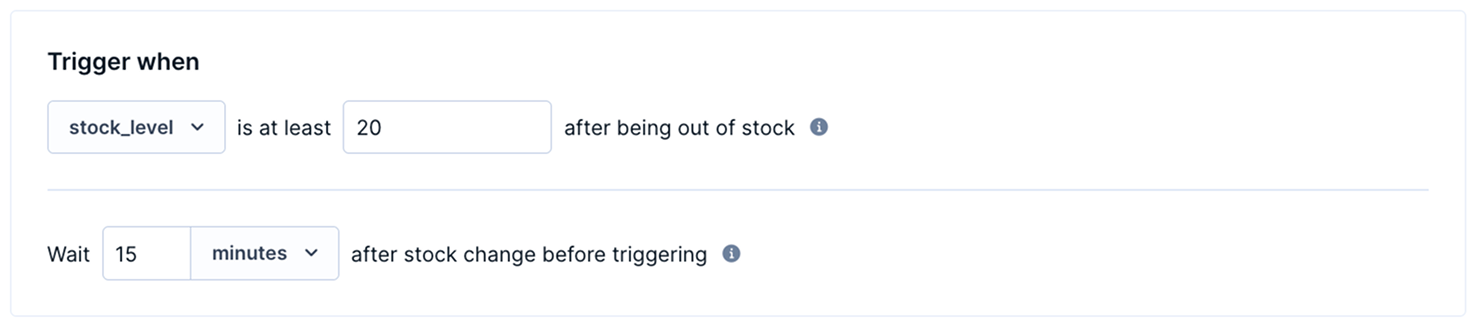
Safety wait
All catalog triggers require a safety wait. It waits the time you set after the change, then rechecks the item and continues only if the condition still holds — for example, the price is still reduced, or the stock is still at or above the threshold.
You can set the duration between 1 minute and 24 hours. To make full use of the system's batching capabilities, set the safety wait to at least 15 minutes.
ImportantA safety wait shorter than 15 minutes combined with a large catalog update may result in the scenario running more times than expected.
Audience matching filters
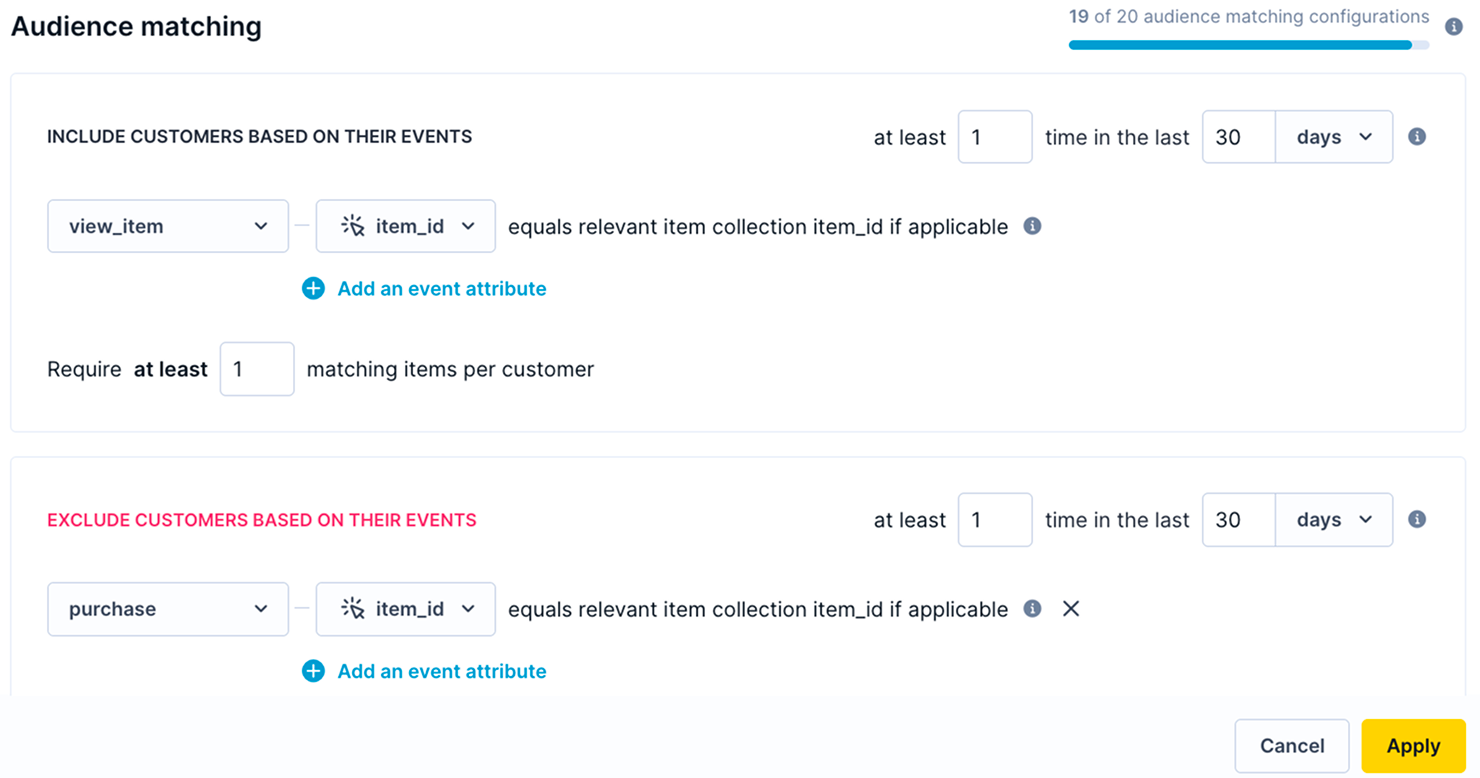
Audience matching filters define who counts as interested in an item, and so qualifies for the trigger. The scenario runs for a customer only if they have shown interest in that specific item, based on the events and lookback windows you configure. You can also explicitly exclude customers based on event conditions.
NoteThe audience matching filter uses the same interest system as API triggers. The interest setups you build here count toward that shared limit.
Set the qualifying event, a minimum number of occurrences, and a lookback window—for example, viewed this item at least 1 time in the last 30 days. To exclude, add a second condition—for instance, exclude anyone who purchased that item in the same period.
NoteOnce the scenario starts, you can adjust only the frequency—the minimum number of occurrences and the lookback window. The other audience matching conditions are locked.
Item limits
Two limits apply each time the scenario runs for a customer.
- Minimum: the number of items in the batch a customer must have shown interest in. If fewer items match, the scenario is skipped for that customer.
- The default is
1and can be adjusted using Require at least [x] matching items per customer at the bottom of the Audience matching filters section
- The default is
- Maximum: the number of matched items available for personalization, prioritized by customer interest.
- The maximum is fixed at
10.
- The maximum is fixed at
The limit applies per batch, not to a customer's total interest across all batches. If a customer's matched items span multiple batches, each batch is checked on its own. Items from other batches don't count toward it.
NoteWith a minimum of 1, a customer can qualify from every batch that contains at least one matching item. Use a frequency policy to control how often the same customer receives communications across multiple batches.
Example
If the minimum you set is 4 and a customer is interested in 6 items on sale:
| Batch split | Outcome |
|---|---|
All 6 items land in one batch | The batch meets the minimum, and the scenario runs. |
The 6 items split evenly across two batches (3 each) | Neither batch meets the minimum, so the scenario is skipped for both. |
The items split as 2 and 4 across two batches | Only the second batch meets the minimum. The scenario runs for that batch alone. |
Custom data example
The field and event names in this example are illustrative; use the names from your setup.
An article announcing an event has item ID NEWS-42 and an event_date attribute. Configure an Item date trigger for one day before that date. Match customers who viewed the article in the past 30 days, using the article_id property on an article_view event. That property must contain the catalog item ID, NEWS-42, even if the source record has a different ID.
Reference catalog trigger data in messages
Each time a catalog trigger is evoked, the scenario has access to a catalog_triggers object—a list of dictionaries, one for each item that qualifies for the trigger. Use these objects in Jinja to pull item data into your message templates.
It stays available for personalization for 7 days after the trigger activates, then it's no longer accessible for that batch.
NoteThis data is also available in the Personalization Wizard, where you can select fields through the UI.
The catalog_triggers object
catalog_triggers objectEach item in catalog_triggers has the following fields:
| Field | Description |
|---|---|
current | All catalog properties for the item at the time the trigger fired — for example, brand, price, stock_level, title, url. |
old | The watched attribute before the change. Which field appears here depends on the trigger condition you configured — for example, a price reduction trigger includes the previous price. |
item_id | The item's ID in the catalog. |
catalog_id | The ID of the catalog the trigger is watching. |
Items are ordered by overall customer interest, with the highest-interest item first.
Access trigger data
{# Current value of the first (highest-interest) item #}
{{ catalog_triggers[0].current.price }}

{# Old value of the first item — for example, the price before a drop #}
{{ catalog_triggers[0].old.price }}

{# Item ID of the first item #}
{{ catalog_triggers[0].item_id }}

{# Last item in the batch #}
{{ catalog_triggers[-1].current.brand }}

{# Loop over all items #}
{% for item in catalog_triggers %}
  {{ item.current.title }} — {{ item.current.price }}
{% endfor %}

{# Number of items in this trigger batch #}
{{ catalog_triggers | length }}
Updated 15 days ago