

Time zone segmentation


Use case description
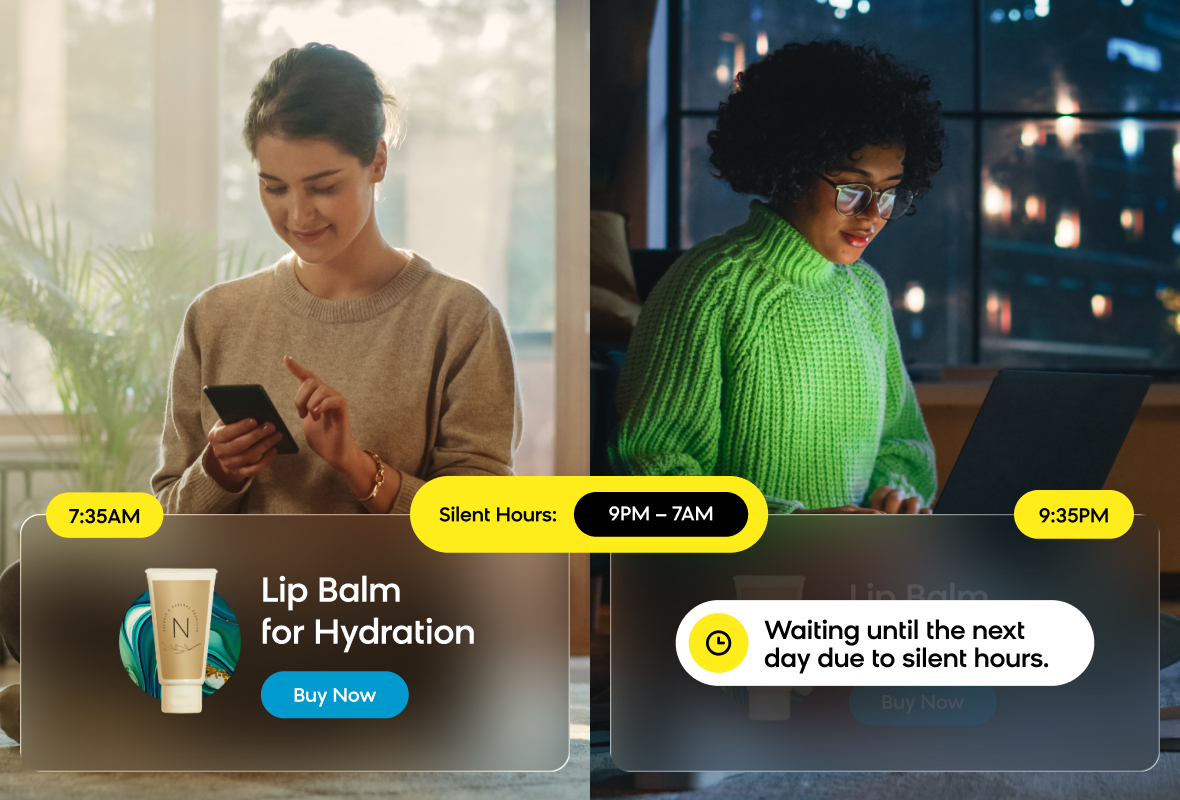
Sending messages at the right time matters. A campaign sent at 9 AM works great for your customers in New York, but wakes up those in Los Angeles at 6 AM. Time zone segmentation use case automatically group your customers by their local time zones based on geographic location data, allowing you to send messages at appropriate times for each customer's location.
Key features
- Personalized message timing: Schedule campaigns that reach each customer at the most appropriate hour in their time zone.
- Reduced opt-outs: Avoid frustrating customers with poorly timed messages that arrive at inconvenient hours.
- Automatic time zone grouping: Segments customers by time zone using location data from customer attributes and behavioral events.
- Works with existing features: Integrates with Time zones feature, Silent hours, scenarios, and campaigns for precise audience targeting.
- Ready to use: Three pre-built segmentations covering US, EU, or combined regions.
- Customizable: Add new time zones or adjust existing segments to match your customer distribution.
Use case items
This use case includes three pre-configured time zone segmentations:
- US time zone segmentation
- EU time zone segmentation
- US + EU time zone segmentation
How the segmentations work
Each time zone in this use case is built using two segments with identical names. This structure enables cascading logic, where the segmentation checks multiple data sources in a priority order to determine each customer's time zone. The system starts with the most reliable information and moves to alternatives when the preferred data isn't available.
The segmentation follows this priority order:
- Primary data source - Customer attribute: The segmentation first checks the customer's
countryattribute (for EU segmentations) orstateattribute (for US segmentations). If this attribute exists, the system assigns the customer to the corresponding time zone. - Secondary data source - Behavioral data: If the customer doesn't have a country or state attribute, the segmentation looks at
session_startevents to find the most common country (EU) or state (US) across the customer's sessions. The system then assigns the time zone based on this data.
Time zone precedence for multi-time zone regions: When a state or country spans multiple time zones, the segmentation assigns customers to the earliest time zone. For example, if a customer's location could be either EST or CST, they're placed in EST.
How to deploy the use case
Meet the requirements
Check if the data in your project meets the requirements. The Use Case Center lists requirements for each use case during the deployment process.
Adjust time zone segmentations
You can customize the pre-built segmentations by editing existing segments or adding new time zones to match your specific customer distribution.
Edit an existing segment
- Go to Analysis > Segmentations.
- Select the segmentation you want to adjust (US, EU, or US+EU).
- Click Edit.
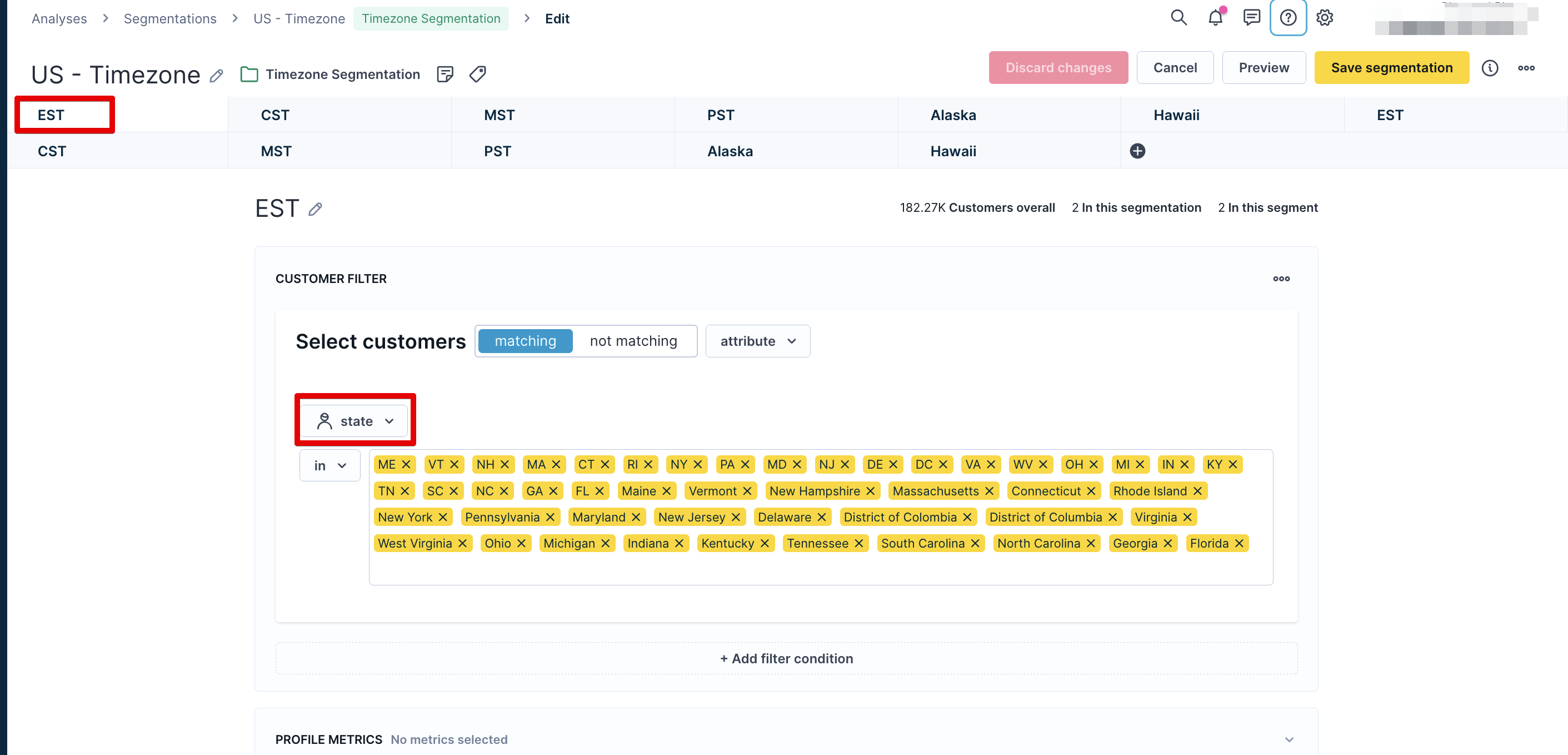
- Select the specific segment to view its current logic. You'll see:
- Customer attribute filter: Contains either
countryorstatewith the full name or 2-letter code.
- Customer attribute filter: Contains either
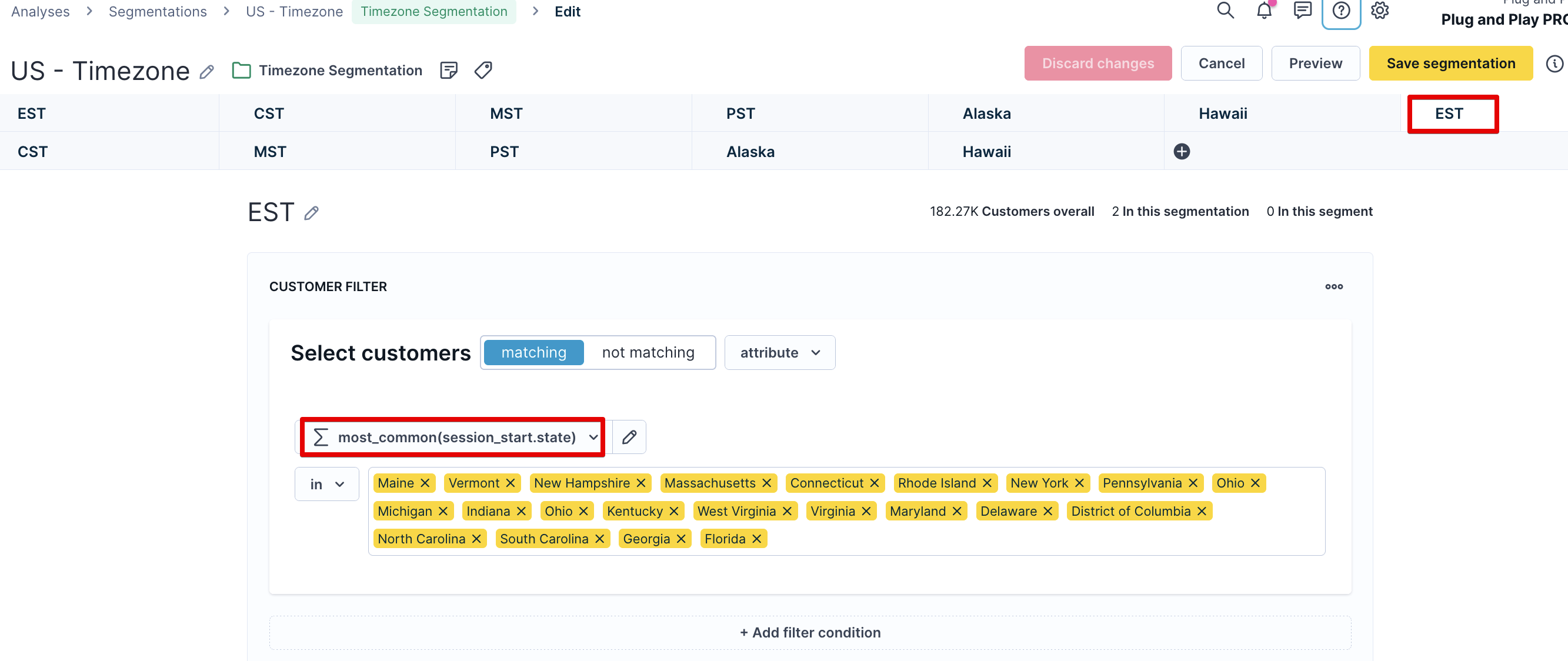
- Aggregate filter: Contains
most_common.session_start.countryormost_common.session_start.statewith the full name.
- Make your adjustments to the filters as needed.
ImportantIf you're editing logic for a specific time zone (such as EST), remember to edit all segments for that time zone. Each time zone has multiple segments that work together.
- Click Save segmentation.
Add a new time zone segment
- Navigate to Analysis > Segmentations.
- Select the segmentation you want to expand.
- Click Edit.
- Click the + icon to add a segment.
- Name the segment using the time zone abbreviation (for example, "JST" for Japan Standard Time).
- Add the logic for this segment:
- Include customer attribute filters for countries or states in this time zone.
- Include aggregate filters for behavioral data fallback.
- Position the segment correctly in the order. Segments are arranged from latest to earliest time zones (for example, PST before EST).
- Click Save segmentation.
Add additional cascading steps
If you want to extend the cascading logic beyond the default two steps (customer attribute and behavioral data), you can add a third or more fallback data sources:
- Go to Analysis > Segmentations.
- Select the segmentation you want to extend.
- Click Edit.
- Click the + icon to add a segment.
- Name the segment with the exact same time zone abbreviation as existing segments (for example, "EST" if you're adding to existing EST segments).
- Add your additional fallback logic.
- Position the segment in the correct order within the cascading sequence.
- Click Save segmentation.
Segmentation rules
Keep these rules in mind when customizing time zone segmentations:
- Segment order matters: The segmentation evaluates segments in order from top to bottom. The first matching criteria assigns the customer to that time zone. Ensure that your customer attribute filters appear before aggregate filters for the same time zone.
- Naming consistency is required: All segments for the same time zone must have identical names. For example, all segments for EST must be named exactly "EST" for the cascading logic to work correctly.
Other resources
Updated 6 months ago