

Add and manage records
After creating your catalog, add new records through imports. This guide covers how to add records to your general catalog using imports or manual entry. To add records to your product catalog, use Item collections.
Add records with imports
1. Create a new import
- Go to Data & Assets > Catalogs.
- Find the catalog and click View.
- Click the + Record, then choose Set up a new import.
- Name the import.
2. Select the import type
- Full feed: Replaces all existing records with the imported data.
- Delta feed (Replace items/rows): Replaces existing records based on matching IDs or adds new records.
- Delta feed (Partial): Updates specific columns without overwriting existing data. If no matching column exists, it adds new records.
3. Choose a data source
Choose the source to import your data:
- URL: Download using an HTTPS URL.
- Data warehouses: Import from BigQuery, Snowflake, and Databricks.
- File storage locations:
- SFTP: Import data via SFTP.
- Amazon S3: Connect to Amazon S3 to import data files.
- Google Cloud Storage: Connect to Google Cloud Storage (GCS) to import data files.
4. Map data and schedule import
-
Click Next.
-
In the Data mapping step, validate that the data source is correct by previewing its columns. Optionally, use the timezone selector to modify the timezone of DateTime values.
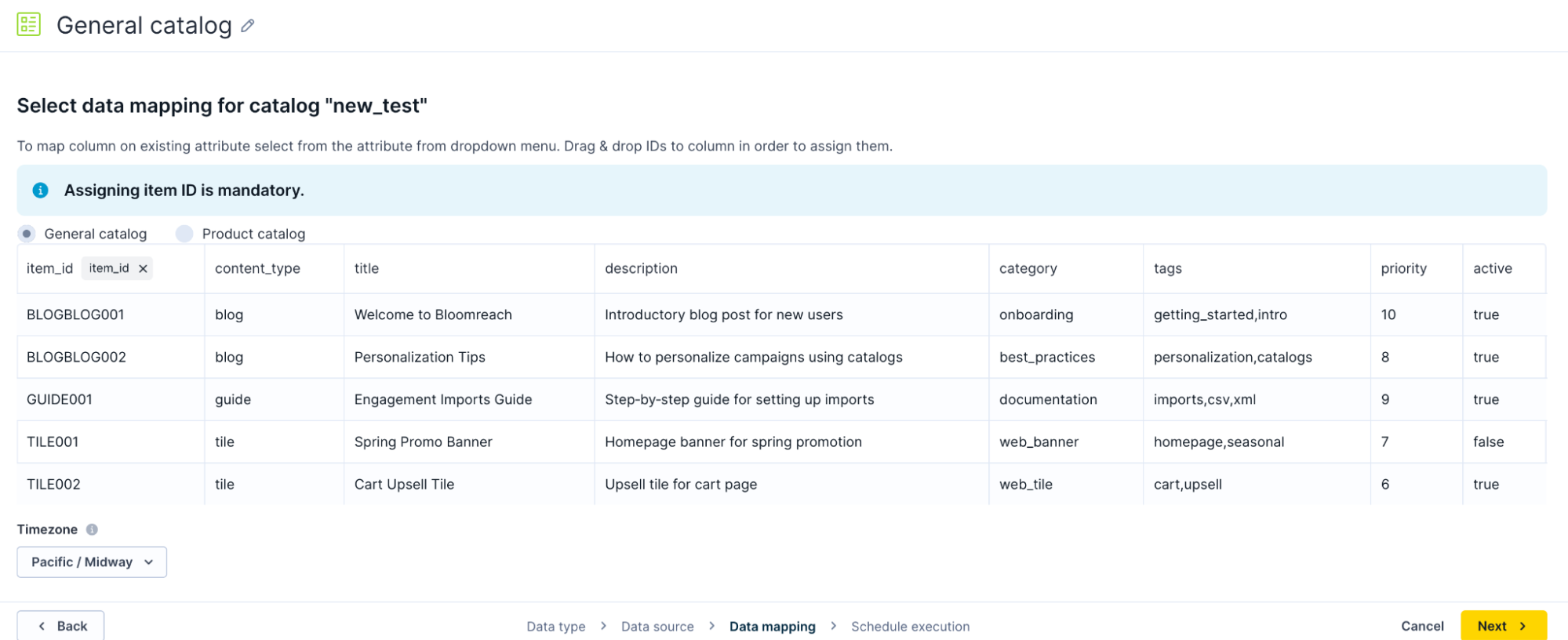
Validate the data
-
Assigning an item ID is mandatory. Drag the
item_idfield bubble to the column that contains your item ID. This also becomes the record identifier. -
Click Next.
-
Choose an import type: single or repeated. Save and run the import.
Auto-add schema with new imports and configuration updates
For General catalogs with Data hub integrations, Bloomreach automatically adds missing schema attributes based on the columns in the imported data. This applies to first-time imports and to import configuration updates that introduce new columns. New attributes are created as string fields.
This creation is additive. The import preserves the existing schema attributes and doesn’t remove, rename, or overwrite them.
Adjust attributes later in the catalog schema settings. The required item_id field isn't added as a custom attribute because it is a reserved attribute and is already available by default.
5. Monitor and manage imports
After setting up the import, monitor its status in the Imports tab. Use this tab to manage and view import definitions for your catalog, including their names and statuses. You can choose to edit an import, delete an existing import definition, or re-run an import.
After the import completes, an items update job starts, transforming the records into items. Depending on the size of the imported data, the import job and items update job may take some time to complete. Once complete, the Feed tab of the catalog displays the records.
Add individual records
To manually add individual records:
- In the Feed tab, click the + Record button.
- Choose Manually add record.
- Enter a unique Record ID (also the item ID).
- Add fields to the record by using existing attributes or creating new ones, and assign each a data type and a value.
- Click + Record.
View and manage records
In the Feed tab, view all of your records. Search for specific records using their identifier. Click a record to view its fields, types, and values. You can perform the following actions:
-
Click Edit record to edit records directly in the feed view.
-
Duplicate a record with the Clone record option, ensuring the new one has a unique identifier.
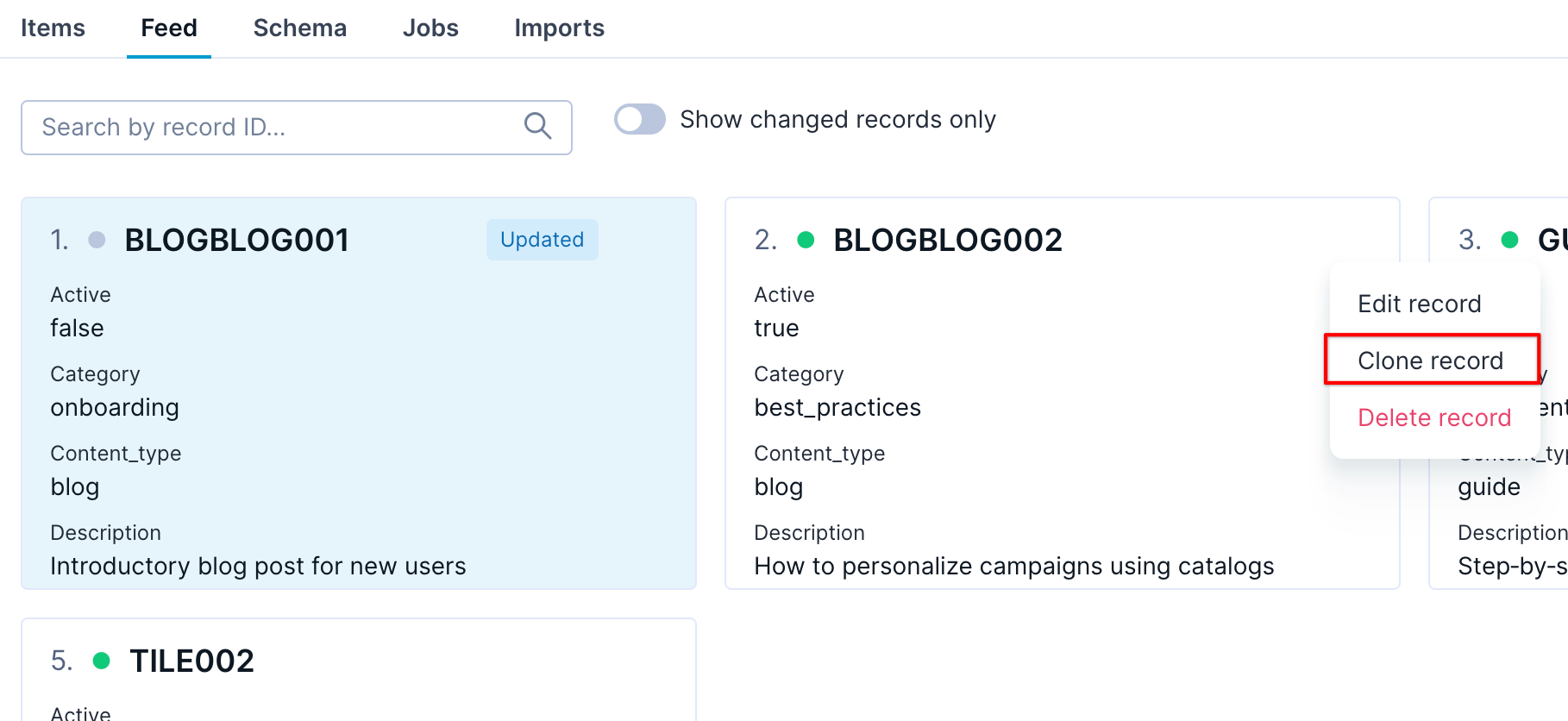
Clone a record
-
Click Delete record to remove a record.
-
Toggle ON Show changed records to display only modified records.
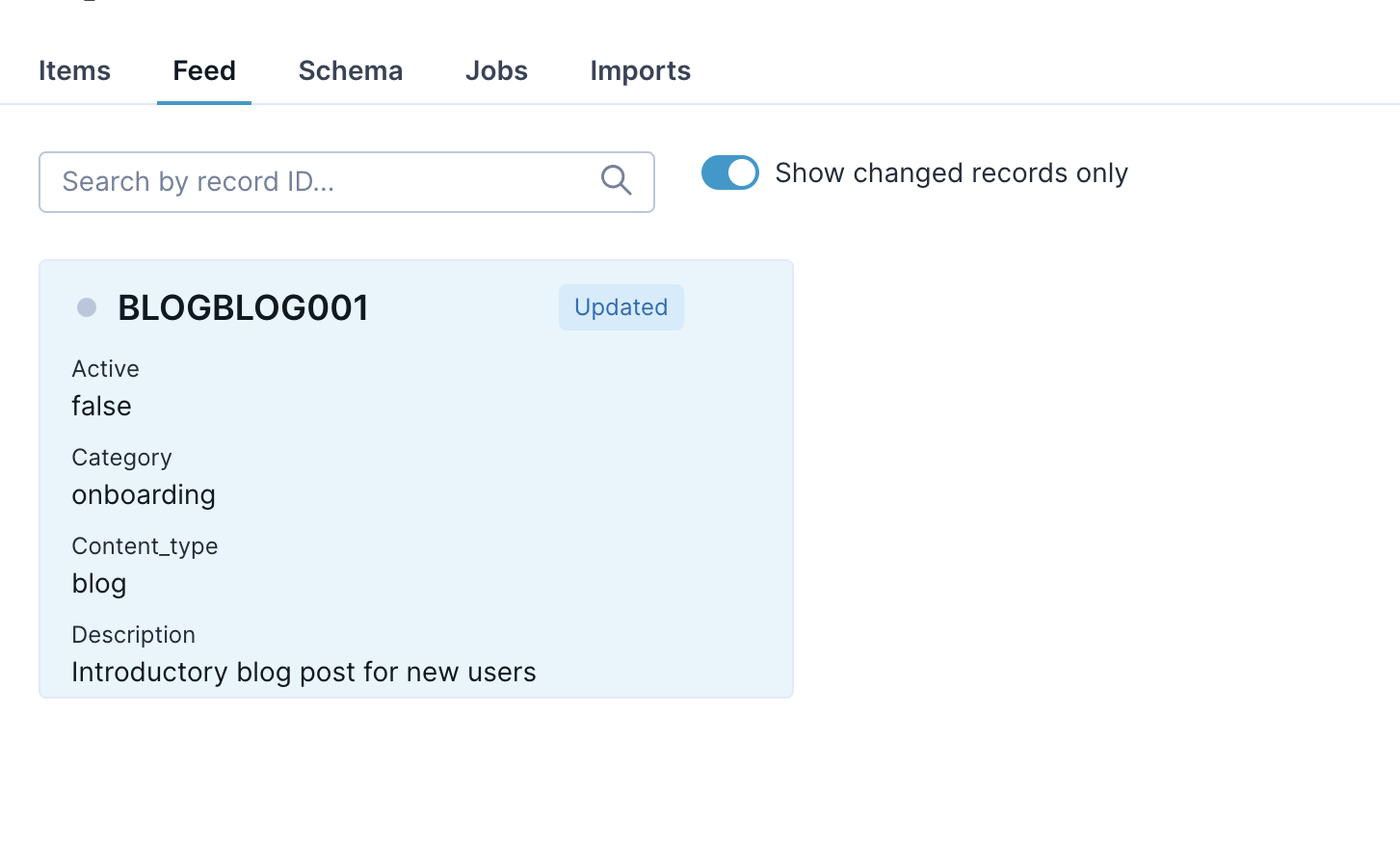
Display changed records
Click the Save changes to apply updates.
Updated 17 days ago