

Create LINE messages
Send LINE messages using the LINE node in Scenarios. Use it in automated flows—such as post-purchase sequences or re-engagement journeys—or in one-off campaigns triggered by a specific event.
You can only send messages to customers who have opted in by following your LINE Official Account.
Add the LINE node to a scenario
- Go to Campaigns > Scenarios and open an existing scenario or add a new one.
- Under Actions, click Mobile Messaging, then click LINE to add the LINE node.
- Double-click the node to configure it.
Compose your message
In the Editor tab:
- Select a message format: Text, Media (image or video), Choice, Card, or Carousel. Other formats such as Locations or Stickers are currently not supported.
- Fill in the content fields for the selected format. For more information, see LINE message types.
- Select the sender profile that matches the region or brand you're targeting.
Each message format has specific character limits and media requirements. See LINE message types for the full specs.
Configure node settings
In the Settings tab, configure frequency policy, consent setting, and more.
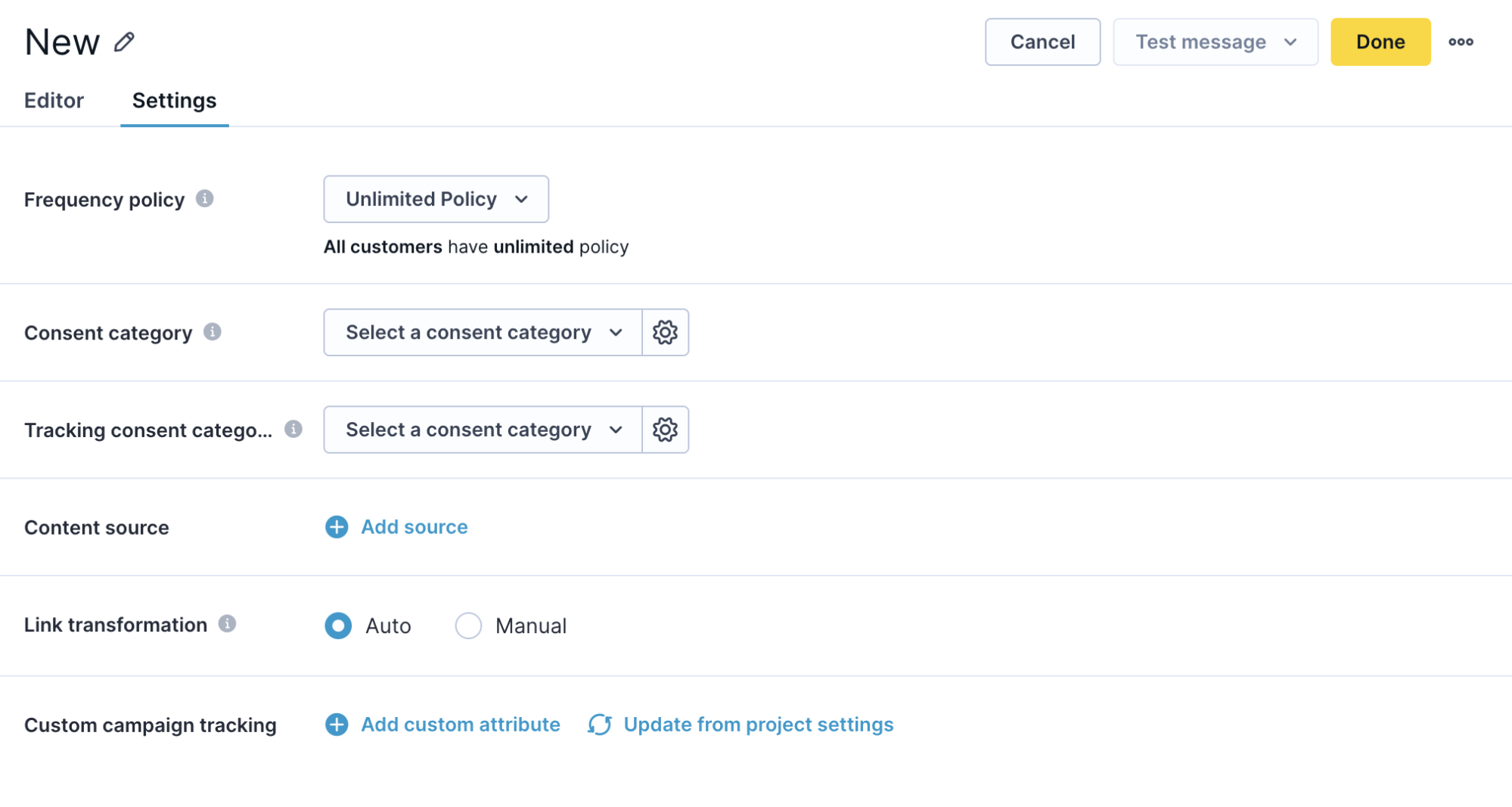
Frequency policy
Control how many messages a customer can receive. Choose
- Unlimited policy: the default setting, no frequency limitations are set.
- Smart newsletter policy: policy that balances engagement with deliverability. For more information, see Use smart newsletter policy.
- Custom: custom frequency policy configured in Project Settings > Privacy management > Frequency policy. For example, customers can receive max 1 message every 12 hours.
Consent
Consent category: Set the communication purpose. Customers without consent for this category are automatically excluded and won't receive the message. Customers can unsubscribe from a specific consent category.
Tracking consent category: Track opens and clicks only for customers who gave permission.
Content source
Use a Google Sheets spreadsheet as a content source or lookup table. A content source can't exceed 1 MB or 1,000 rows, and a project can have at most 50 content sources.
NoteA content source can't exceed 1 MB or 1,000 rows, and a project can have at most 50 content sources.
For more information, see Content source.
Link transformation
Add missing URL parameters to links—existing parameters are not replaced. Choose a mode:
- Auto: adds the default project parameters, including:
utm_campaign: name of the campaign—for example,line_dec_campaignutm_medium: constant value—for example,lineutm_source: set in project settings—for example,bloomreach
- Manual: provide custom parameter names and values. Leave a field empty to omit that parameter.
Custom campaign tracking
Manually add attribute names and values to capture campaign-specific data. Links in LINE messages are automatically shortened and tracked, letting you measure click-through rates and attribute conversions in your analytics.
Send a test message
Before activating your scenario, send a test message to verify the content and formatting:
In the LINE node, select Send test message to:
- Send to a specified phone number
- Send to a previewed customer
Updated 8 days ago