

Connect Google Postmaster Tools
Connect Google Postmaster Tools to bring its sender reputation and inbox-placement data into the email deliverability dashboard. First, you verify your sending domains in Google Postmaster Tools. Then you add the integration in your project.
Prerequisites
Before you start, check the general prerequisites for external deliverability data integrations.
You also need a Google account that manages your Google Postmaster Tools profile.
Verify sending domains
Before connecting, verify your sending domains in Google Postmaster Tools. You only need to do this once per organization.
TipUse a separate subdomain for each type of email. For example, keep transactional and marketing sends on different subdomains. This makes it easier to spot delivery issues by stream.
- Open Google Postmaster Tools and log in using your Google account.
- Add your main sending domain first—for example,
your-brand.com. Verifying this domain means you won't need a separate verification step for each subdomain. - Copy the TXT record Google generates and add it to your domain's DNS settings, or share it with your IT team. Google's domain verification guide covers the steps for different DNS providers.
- Once the TXT record is live, return to Google Postmaster Tools and click Verify.
- Add any sending subdomains you use—for example,
mail.your-brand.com. They're verified automatically once the main domain is verified.
NoteIf a subdomain doesn't appear in the dropdown later, add it in Google Postmaster Tools. It'll show up in the dashboard at the next data sync.
Add the integration
-
Go to Data & Assets > Integrations > Add integration.
-
Select Google Postmaster Tools.
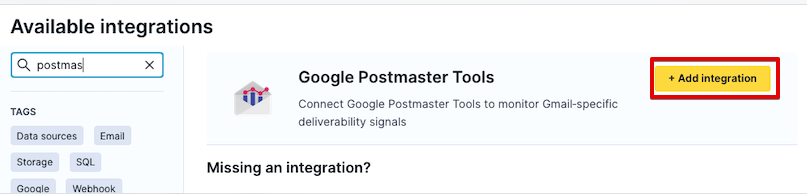
-
Click Connect with Google and sign in with the Google account that manages your Google Postmaster Tools profile.
-
Select the domains you want to monitor.
-
Click Save.
Data doesn't appear right away—it fills in at the next scheduled sync.
- Sync window: 02:00–06:00 UTC. Google typically publishes data 1–3 hours after midnight UTC.
- Historical data: Up to 120 days available when you first connect.
- Project limit: 50 domains and IPs combined, shared across all external data integrations.
Change domains or Google account
You can update your selected domains at any time. To use a different Google account, create a new integration–you can't update the account on an existing one. If the same domain appears in more than one Postmaster integration, it only shows once in the dashboard.
Reconnect after your access expires
If the connection to Google expires—for example, because the account owner removed access—only the external deliverability data section stops updating. Email sending isn't affected.
To reconnect:
- Go to Data & Assets > Integrations, open the Google Postmaster Tools integration, and click Disconnect.
- Follow the steps in Set up external deliverability data integrations.
Next steps
- Learn what to look for in Monitor email deliverability dashboard.
- Fix connection or data issues with Troubleshoot email deliverability dashboard.
Updated 20 days ago