

WhatsApp sender settings
WhatsApp sender profiles use phone numbers and Business-Scoped User IDs (BSUID) to identify customers. Bloomreach sender profiles store both identifiers on the same customer profile, so you can keep reaching a WhatsApp customer whether or not they've set up a username.
Prerequisites
- A WhatsApp Business Account (WABA) connected through Infobip or Sinch Mobile Messaging. See Set up your WhatsApp Business Account if you don't have one yet.
- Access to Mobile Messaging.
phoneset up as a customer attribute, needed for the specified identity states.- Valid customer phone numbers in standard MSISDN format
+441234556789or0044123456789). - If you are using a different phone number format (for example, without leading zeros), modify the format using Jinja.
- Valid customer phone numbers in standard MSISDN format
Set up soft and external IDs
A sender's external ID and a phone soft ID solve two different problems. Set up both.
A sender's external ID stores each customer's BSUID and matches BSUID messages to the right profile. This matters once a customer stops sharing a phone number.
Phone soft ID stops duplicate profiles when several events or channels share the same phone number. Set phone as a soft_id using one of these methods:
- Import method: export your customer list, clean the data, and re-import with
phoneset as asoft_id. Use+44or0044formatting. - Scenario method: use a scenario to convert existing
phoneattributes intosoft_id. Contact a technical consultant for help with this approach.
Set up sender profiles
Each sender profile links one integration to one external ID field. Use several sender profiles to run more than one sender from one or more WABAs, for example one per country or brand, in the same project.
- Go to Settings > Project settings > Channels > Mobile Messaging and find WhatsApp.
- Click + Add sender profile.
- Select the integration from a dropdown list of available integrations. This is the Sinch or Infobip integration that delivers messages for this sender.
- Review the channel ID. Bloomreach fills it in for you: the Sinch
APP_IDor the Infobip sender phone number. - Select the external ID. This is the field that stores the BSUID for this sender. Pick an existing field, Bloomreach doesn't create one for you.
- Optional: Select the default sender, which becomes preselected for all new scenarios.
- Click Save changes.
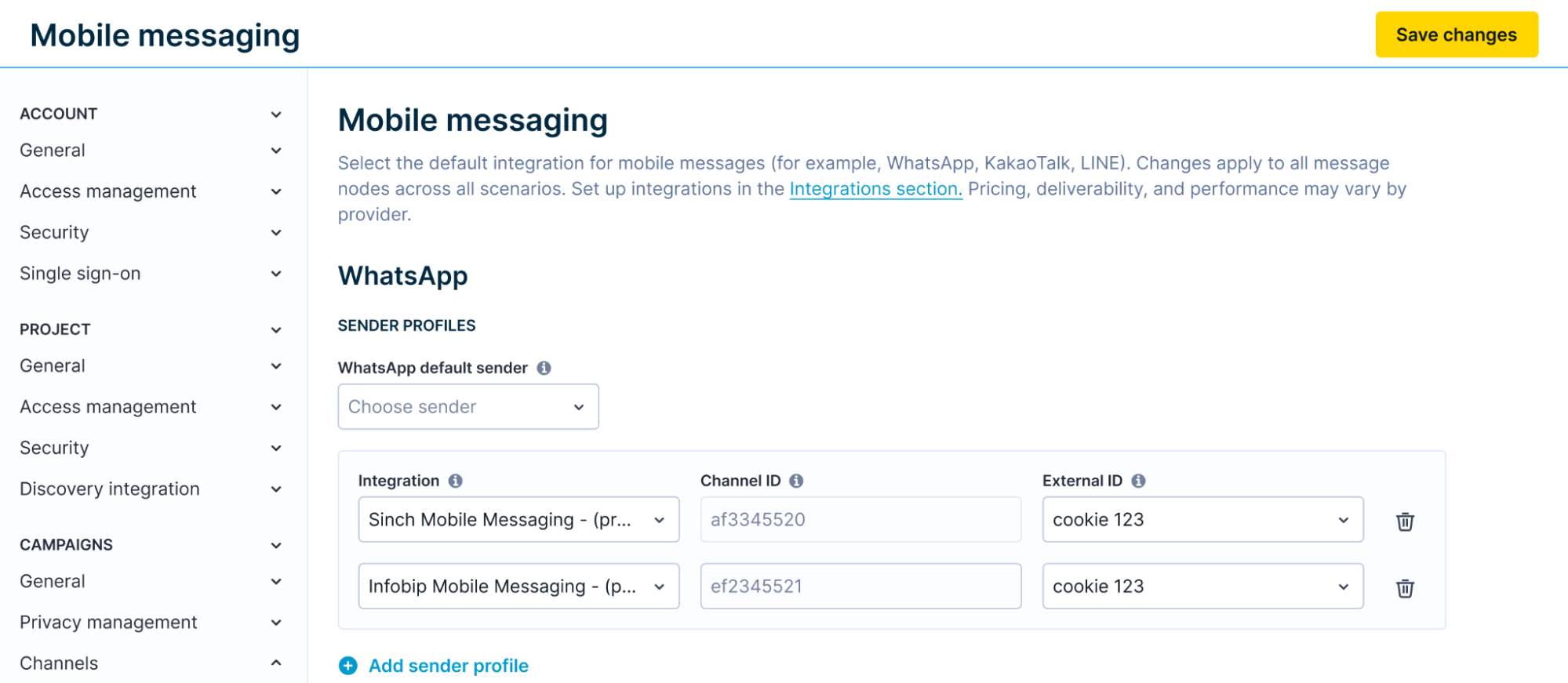
ImportantEvery sender profile requires an external ID to save it. Don't change a sender's external ID once it's live. This can split one customer into two profiles and cause duplicate messages.
Migrate existing senders
If you already send WhatsApp messages, your existing senders need an external ID. Set one for each sender to keep it working under the sender profile model.
- When used in scenarios, Bloomreach shows a warning in the WhatsApp node for any sender profile that's missing an external ID.
- Set a default sender under sender profiles. This replaces the previous default sender dropdown.
NoteBloomreach runs your migration on a date that you set with your Customer Success Manager (CSM). Before that date, ask your CSM to confirm every WhatsApp integration has a sender profile. An integration without one will stop sending until it gets mapped.
Configure two-way messaging
WhatsApp uses its own keyword auto-responses, separate from SMS, MMS, and RCS. For a Grant consent keyword, you now choose new-profile creation per consent category, not through one shared setting.
- Go to Settings > Project settings > Channels > Mobile Messaging and select WhatsApp.
- Under Two-way mobile messaging, choose + Add keyword response Provide your keywords that will trigger the auto-replies.
- Choose your Consent action.
- Select your consent categories.
- Optionally, if you selected Grant consent, you can enable Create a new customer profile to add a profile for each new sender who uses this keyword. Leave it disabled to update only existing customer profiles.
- Save your changes.
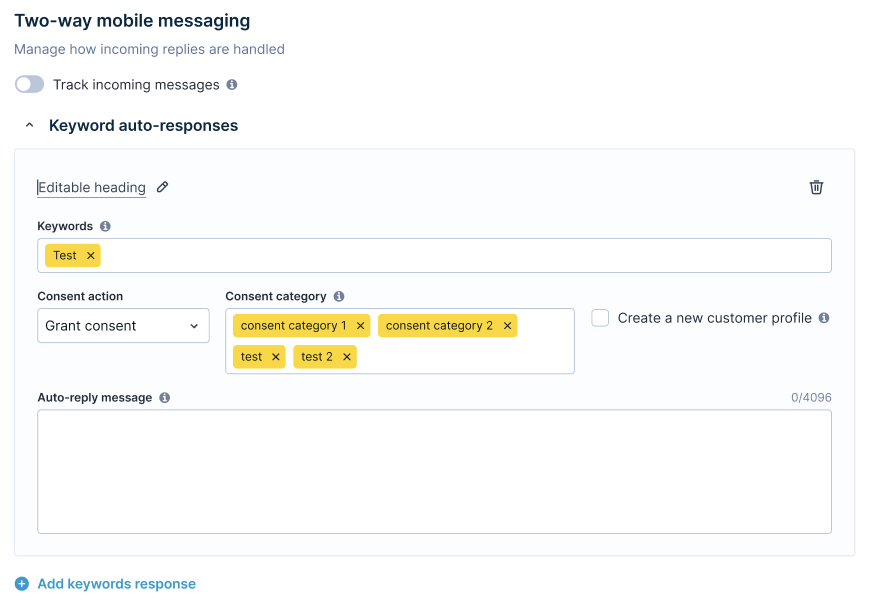
Create a new customer profile
Create a new customer profile only creates a profile when the Consent Action is set to Grant consent and a message matches this exact keyword. Bloomreach never creates a profile from any other message, including opt-outs. The new profile uses the external ID tied to that sender.
NoteThis setting replaces the previous Map new subscriber ID setting for WhatsApp only. SMS, MMS, RCS, and LINE keep their existing behavior, including the Map new subscriber ID setting. The Two-way messaging and Keyword auto-responses articles explain the general behavior, but they don't describe the WhatsApp-specific behavior above.
What's next
- Create WhatsApp messages
- Background on the shared, cross-channel concepts: Two-way messaging and Keyword auto-responses
Updated 10 days ago