

External assets
Browse and insert external assets directly in your campaign builder without re-uploading files or copy-pasting URLs. The external system stays the source of truth: Marketing captures the asset's public URL when you insert it, instead of storing a copy of the file.
For the list of supported providers and setup steps, see External assets integrations.
How the integration works
First, connect the external asset manager:
- Go to Data & Assets > Integrations to add it. You need a Bloomreach role with permission to manage project integrations in Marketing.
- Integrations are connected per project. You can connect more than one integration of the same vendor — for example, two separate Contentful organizations — if you need to pull assets from both.
NoteAfter inserting the external asset, Marketing doesn't recheck its availability before the campaign sends. If someone removes the asset from the external provider afterward, the campaign still goes out linking to it.
Browse assets in Asset Manager
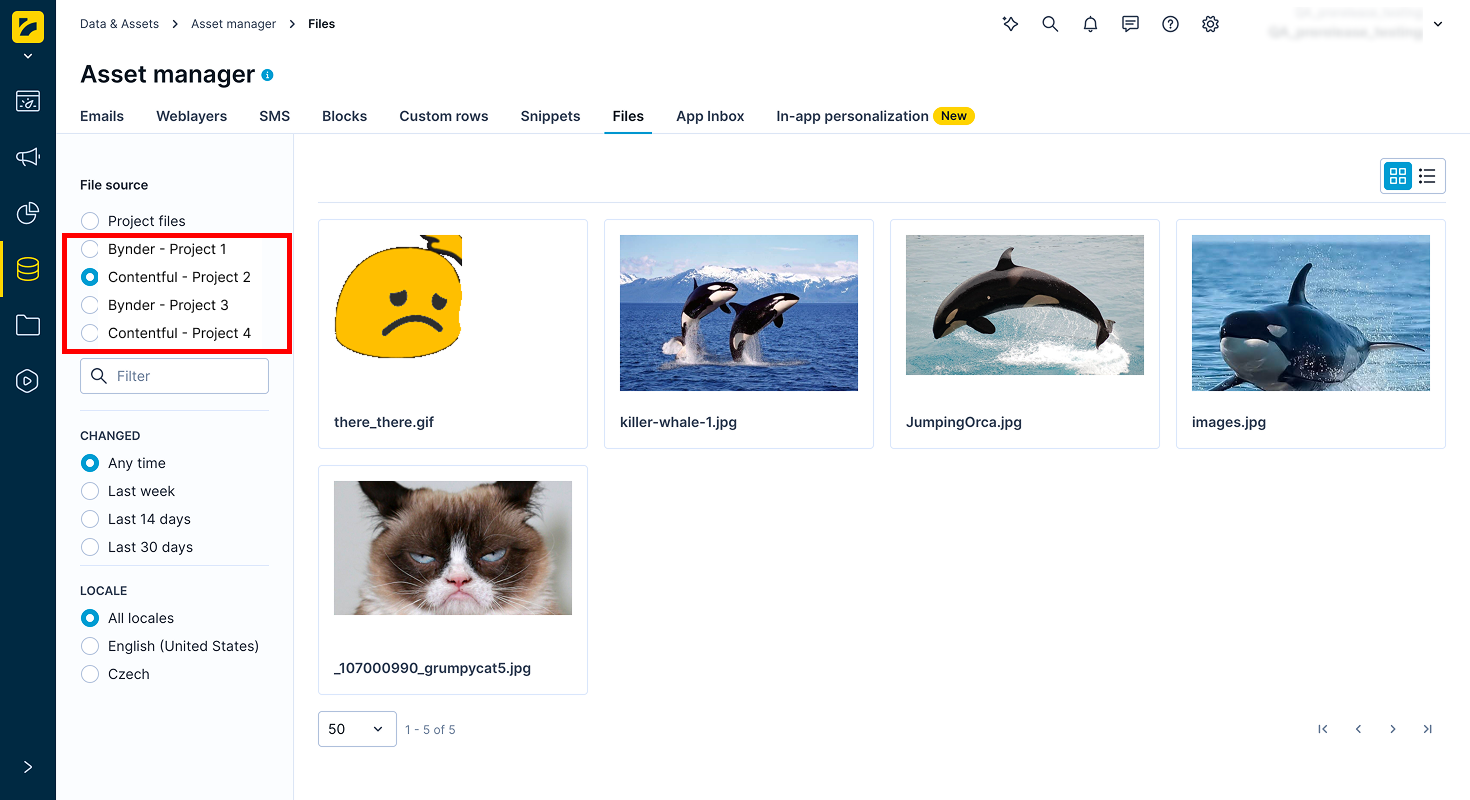
- Go to Asset Manager > Files.
- Under File source, select your integration.
- Browse your assets. They're shown in read-only mode.
- Copy an asset's URL to use it in your campaigns.
Double-click an asset to open a preview with its URL. The preview is read-only — you can't edit it here.
Grid view and list view work the same way here as for your other files. For more information, see File management.
Insert assets in a campaign
You can open the asset picker the same way you would for any other file — see Use files in campaigns. For example, when editing an email campaign:
- Add an External asset node and click Browse.
- Under File source, select your external assets integration. The picker defaults to list view — switch to grid view if you prefer.
- Optionally, filter the images.
- Click an image to insert it. Marketing adds its URL to the campaign.
Click Change image to reopen the picker and select a different image from the same source.
Limitations
- Currently, only images are supported.
- Browsing is read-only. You can't edit, import, or bulk-upload assets from the external system.
- Editing or removing an integration doesn't break existing campaigns. Assets already inserted keep working with their saved URL. New inserts stop working until you reconnect the integration.
- Marketing doesn't verify an inserted asset still exists before a campaign sends. If it's removed from the source system, the campaign sends with a broken link.
Updated 20 days ago