

Report views
Display your report as a table, a chart, or both. Customize the chart, set a timeframe and axis limits, and use modifiers to change how the table displays in the platform.
Chart
Customize the chart by clicking on it. Options include:
- Series type: Choose your preferred chart type.
- Series color: Choose your preferred color for the chart.
- Y-axis: Set the y-axis as your primary or secondary one.
- Format: Format your data to your liking. For example, round results to 3 decimal points.
- Show customers: Preview the customers behind a data point. Clicking this takes you to Data & Assets > Customers with the relevant customer filter applied.
- Send campaign: Set up a campaign for the relevant customers. Clicking this opens a scenario with pre-filtered conditions.
NoteThe count in the Customers view may differ from your report cell. This is expected behavior caused by how different filter layers apply across the platform. For details, see Filtering data.
Series types
There are 8 chart types:
- Column: A classic column chart.
- Stacked column: Available when you use a field in columns.
- Bar: Limits to 15 values.
- Line: Adjusts the y-axis based on the values (can start from negative values).
- Area: Doesn't adjust the y-axis (starts from 0).
- Pie: Shows additional information on hover (percentage of the whole).
- Percentage area
- Bubble: A more complex scatter plot. For best results, build a report with:
- One row: Each value of this attribute is a separate bubble.
- One column: Each value of this attribute sets the color of the bubble (overrides the fourth metric).
- Up to 4 metrics: The first sets the size of the bubble, the second its position on the x-axis, the third its position on the y-axis, and the fourth its color.
Timeframe
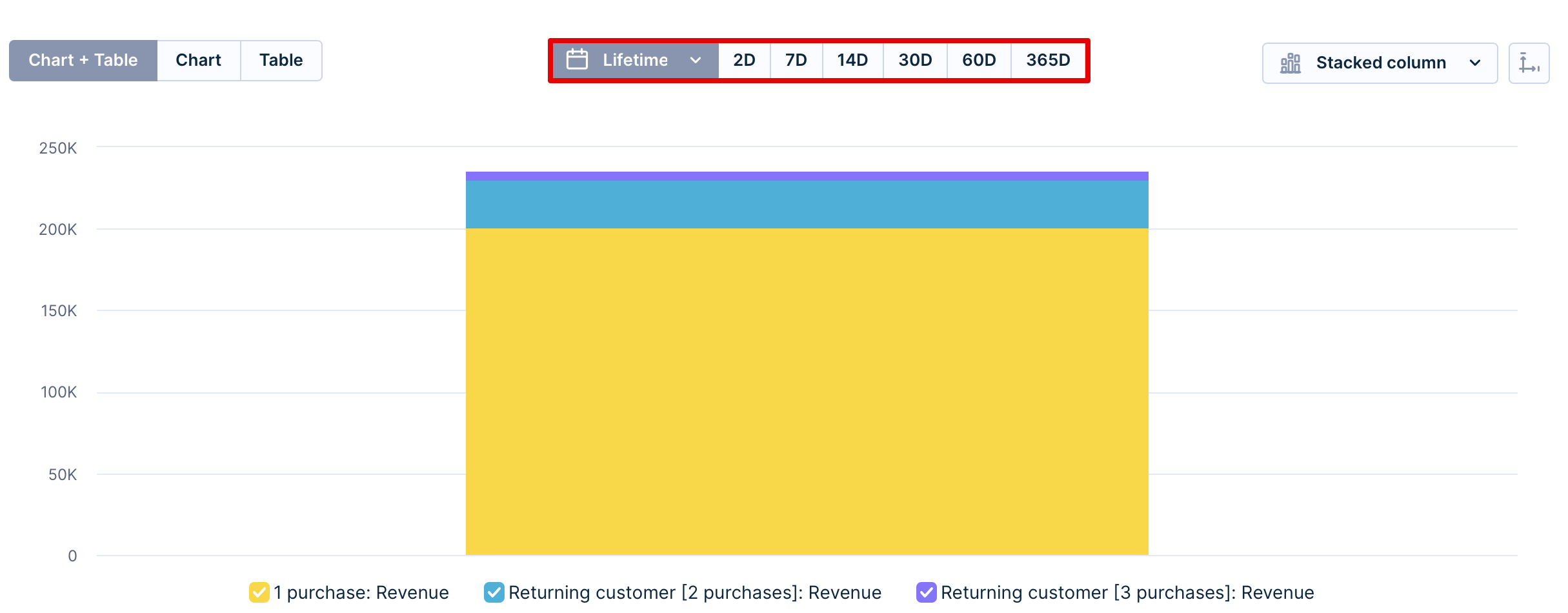
Above the chart, set the timeframe you want: Lifetime, Last 2 days, Last 7 days, Last 14 days, Last 30 days, Last 60 days, or Last 365 days. This doesn't override the metric date but finds an intersecting time period.
Axis limits
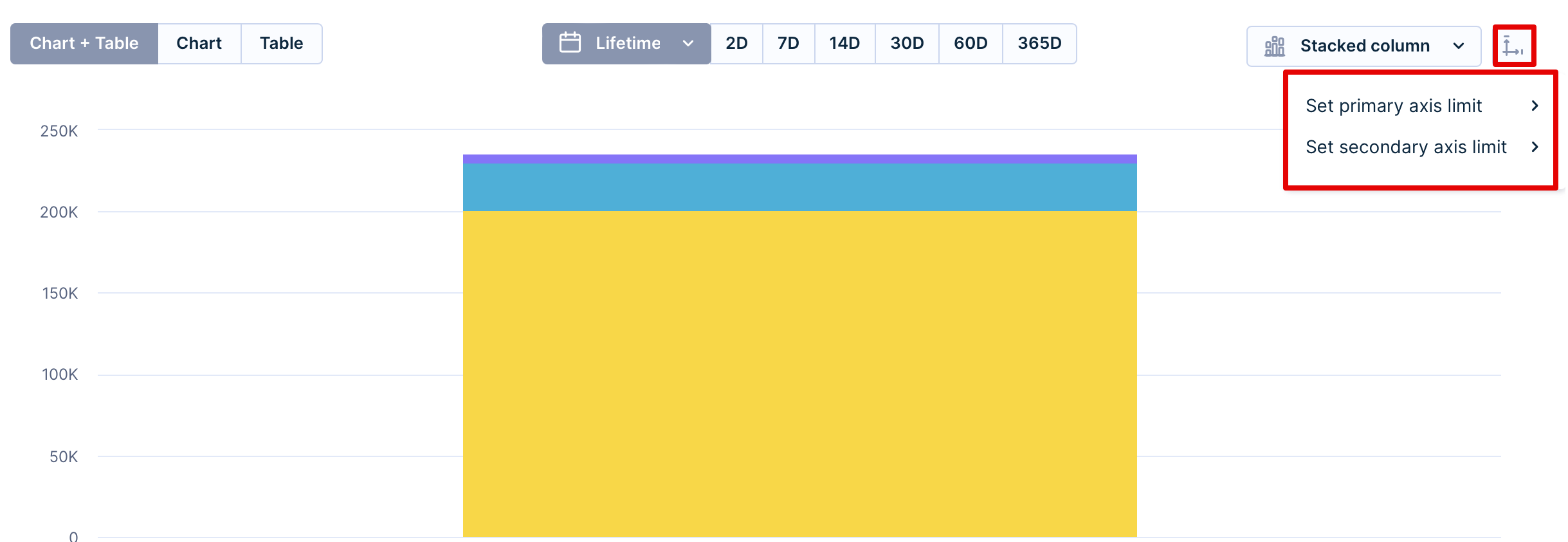
Set minimum and maximum values for either axis to focus on relevant data and remove outliers. Consistent axis limits across multiple charts make it easier to compare metrics across segments. If data exists outside the visible range, a warning icon appears.
For example, to compare average order value (AOV) across new, regular, and VIP customer segments, set the same axis limits, such as $0 to $1,000, for each report. This removes outliers and helps you spot patterns. VIP customers might consistently fall in the $800–$1,000 range, while regular customers fall in $300–$500.
To set axis limits, click the icon on the far right of the chart.
Table
For large reports, the header row and first column stay frozen while you scroll.
Modifiers
Modifiers change how the table displays in the platform. Hover over the table and click the View options icon (top-right corner) to access them. There are 3 categories:
- Aggregation: Shows statistical data at the bottom of rows: sum, average, maximum, minimum, standard deviation, or variance.
- Show value as
- Column total %: Shows the percentage distribution within the column.
- Grand total %: Shows the percentage distribution across all columns.
- Running total: Counts values from all previous rows up to the current one, which is effective in year-to-date (YTD) revenue reporting.
- Running total %: Counts percentages from all previous rows up to the current one, so the last row is always 100%.
- Visualize
- Heatmap: Changes the background of the cells based on their value in the selected color scale.
- Highlight: Changes the background of the cells based on the selected condition.
NoteModifiers apply only to the table you see in the platform. They aren't part of the underlying report data, so they aren't applied to reports you send via email or download as CSV. Emailed reports and CSV files contain the underlying report data without the modifiers you applied in View options.
Updated about 1 hour ago