

Quickstart
Follow these steps to write your first Marketing agent prompt, review the generated brief, and launch your campaign.
Prerequisites
To complete this walkthrough, you need:
- Access to Marketing agent in your Bloomreach platform.
- A basic understanding of campaign concepts (target audience, timing, and messaging).
- Familiarity with your customer data and typical campaign goals.
Welcome screen
The welcome screen opens first. Describe what you want to do in the input field, or pick one of the suggestions under Today's picks to get started.
Write your prompt
-
Click the text field in the chat.
-
Describe your campaign goal in everyday language. You don't need to specify technical details. Marketing agent infers the campaign type, channel, audience, timing, and send mode from your description. If you're not sure where to start, ask Marketing agent what campaign would best achieve your goal.
Example prompt:
Create an abandoned cart campaign with two follow-ups sent 24 hours and 72 hours after abandonment. -
Press Enter or click the send button.
-
Wait while Marketing agent processes your request and generates a campaign brief.
The clearer and more specific your prompt, the better Marketing agent's initial campaign brief will be. Learn more in the prompt guidelines, or start from the prompt library.
Review the campaign brief
Before building, Marketing agent shows a campaign brief in the chat. Click See details to open the full brief beside the chat. If it doesn't match your needs, ask for changes in the chat. For example:
Change the first follow-up timing to 12 hours instead of 24 hours.Learn more about reviewing the brief.
Approve and generate campaign
- Review the brief, then click Approve and build.
- Marketing agent generates a campaign with all components in the background. How long it takes depends on the complexity of the campaign. To get notified when Marketing agent finishes, allow browser push notifications.
- The canvas appears on the right, showing your complete campaign flow.
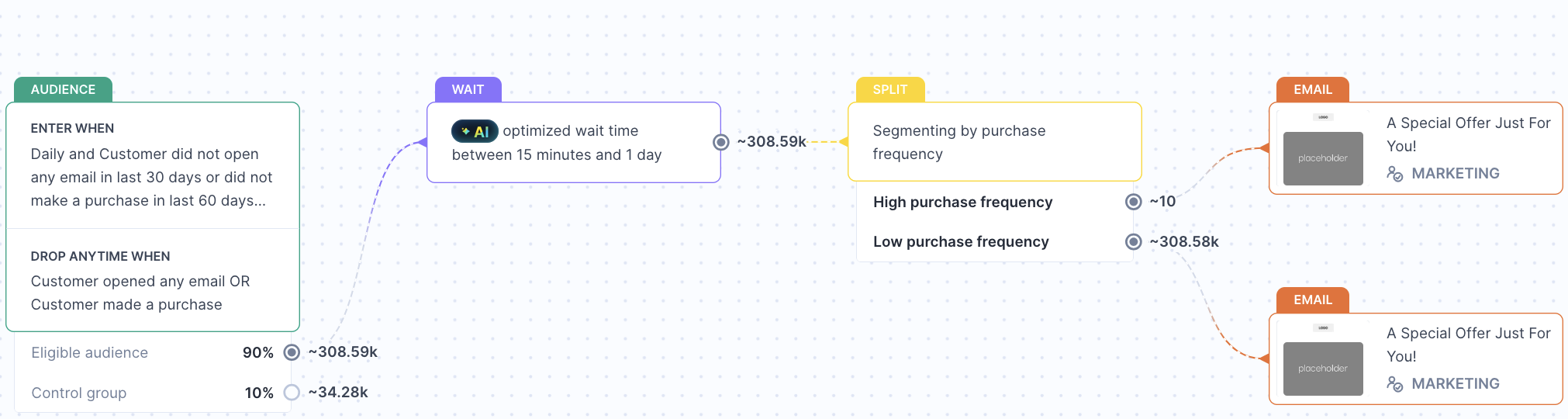
To understand what Marketing agent built, see Campaign structure.
Review and refine
Check on the canvas how customers are routed, and review the content of each touchpoint. Ask Marketing agent for changes in the chat, or open a touchpoint to edit the email or SMS directly in the content editor. For example:
Add a fourth email for customers who opened but didn't click.Learn more in edit, refine, and launch your campaign.
Preview and test
Preview your messages as real customers see them, and send tests before you launch. See Preview and test.
Launch and monitor
- Resolve any open items with Marketing agent. They're listed in the review list in the canvas footer.
- Click Start in the canvas header, or ask Marketing agent to activate the campaign.
- Marketing agent lists any remaining gaps and asks you to confirm before anything goes live.
What happens next depends on your send mode. To save a campaign as inactive without starting it, or to change a running campaign, see Edit, refine, and launch.
Evaluation dashboards aren't available. Monitor campaign performance in Marketing.
SMS and omnichannel campaigns
Marketing agent proposes SMS touchpoints only when SMS is available in your workspace. When it is, you can build SMS-only or omnichannel (email and SMS) campaigns with the same flow. See SMS and omnichannel campaigns.
Updated 1 day ago