

Optimize Loomi BigQuery usage and costs
To maximize Loomi BigQuery's cost efficiency, it's important to apply a two-pronged optimization approach. First, follow the general best practices recommended for Google BigQuery. These foundational techniques remain relevant and effective in Loomi BigQuery.
Second, use Loomi BigQuery-specific recommendations tailored to our platform. Both types of optimization work together and should be used in tandem to ensure you're getting the most out of your Loomi BigQuery environment.
Monitor your Loomi BigQuery usage
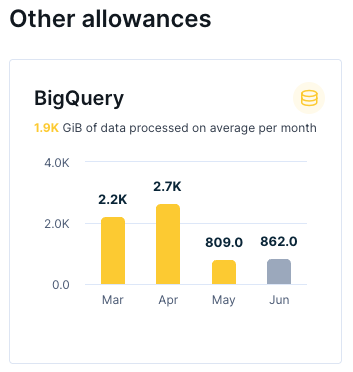
Check your Loomi BigQuery usage in the Bloomreach usage dashboard under BigQuery allowance. Your contract usually includes the prepaid allowance. If your usage is over the allowance, you may be charged for overuse. Check your contract for more details.
Loomi BigQuery-specific tips
Use table partitioning and timestamp filtering
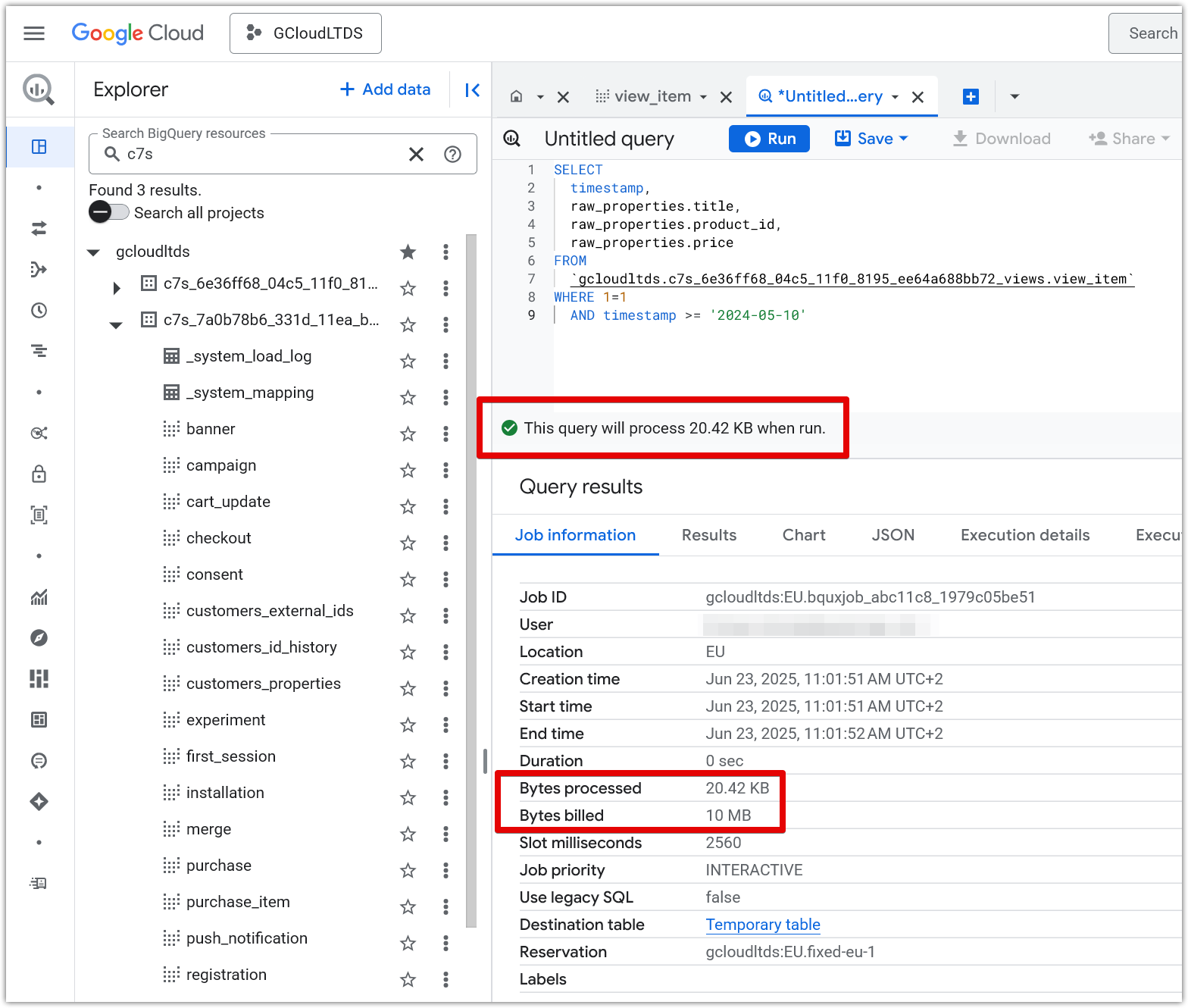
Always structure your SQL queries to leverage partitioned tables in BigQuery. Your Loomi BigQuery tables are partitioned on the timestamp column. Apply filters on the timestamp partition column (the business timestamp for events) so only the relevant partitions are scanned. Filtering by timestamp drastically reduces the volume of data scanned, which is the primary driver of query cost in BigQuery.
Example with partition filter::

A filter on the partitioned column has been used
Example without partition filter::

A filter on the partitioned column hasn't been used
Notice the difference in the volume of data to be processed (indicated in the bottom right part of the screenshots).
Optimize query design
Query only necessary fields and columns, especially when dealing with nested records like the properties field. Avoid SELECT * unless required. Where possible, work directly with the raw_properties fields for scheduled exports, as they have a consistent data type and are independent of schema changes.
Monitor data freshness before querying
Use the _system_load_log table to check when new data updates have completed before running dependent or scheduled queries. This prevents queries from running on incomplete or empty datasets, saving unnecessary costs. Learn how to monitor data loads.
Estimate query costs before running
Before executing a query, check how much data it will process to avoid unexpected costs.
- In the BigQuery Console: The query editor displays the estimated volume of data to be processed in the bottom right corner before you run the query. Use this as a quick check, especially for large datasets.
- From a script: Use the
dry_rundirective when calling the BigQuery API. A dry run validates the query and returns the estimated bytes to be processed without executing the query or returning results. See Google's dry run documentation for implementation details.
Automate and schedule processing outside Loomi BigQuery
For resource-intensive queries or recurring calculations, use scheduled queries in your own BigQuery project (not on Loomi BigQuery directly). Copy aggregated data from Loomi BigQuery to your BigQuery first. You can persist heavy computation results in your tables, and then run lighter queries over smaller result sets. Learn how to set up scheduled queries.
Manage data retention and filtering
Since event deletions in Bloomreach aren't propagated to Loomi BigQuery, manually filter out invalid, bugged, or redundant data during analysis. This keeps your result sets relevant and can help reduce processed data volumes. Learn how to handle deleted events.
Campaign event tables can also contain duplicate status events. Learn how to deduplicate campaign status events.
Minimize unnecessary data processing
- Avoid joining large tables unless absolutely necessary.
- Use
ARRAY_AGGand similar BigQuery aggregation functions judiciously to minimize data shuffling. - Where applicable, pre-filter or aggregate at the earliest stage of your query pipeline to restrict the downstream data footprint.
More tips
- Star or bookmark datasets and tables you use frequently for quick access (prevents accidental querying of the wrong datasets).
- Review your usage regularly and optimize queries based on the BigQuery query execution details, adjusting for data scanned and execution time.
After making changes, you can always verify if the optimized query is more efficient than the previous one before running it using the preview message displayed in the query editor window.
Updated 21 days ago