

Build a campaign with a custom action
You don't create a custom action on its own. You describe a campaign, and Marketing agent adds a custom action when the logic needs one. For more information about custom actions, see Custom actions.
Prerequisites
To use custom actions, you need:
- Access to Marketing agent: The Marketing agent module enabled for your project, and the Loomi Agentic User role assigned to your user account. See Get started with Marketing agent.
- Permissions: The same permissions you need to build scenarios yourself. Marketing agent works within your existing permissions, so a custom action can only use data and features you already have access to.
- Integrations for external data: If your logic uses data from outside Bloomreach, the external system must already be connected as an integration in Marketing. Ask your developer or administrator to set it up before you build. See Webhooks integration setup and Webhook authentication.
NoteFor security, custom actions never accept API keys, tokens, or passwords in the conversation. All credentials stay in the integration. If you paste credentials into a prompt, Marketing agent asks you to set up an integration instead.
TipIf you only use data that's already in Bloomreach (customer properties, events, catalogs, or recommendations) you don't need an integration or a developer.
Build the campaign
- Check your data sources. Decide which data your logic needs and where it lives. If it comes from an external system, confirm an integration for it exists.
- Describe the campaign and its logic. Start a conversation with Marketing agent and explain what should happen for each customer. Be explicit about:
- The data to use. Marketing agent finds it in your project, but if you know the exact attribute, event, or catalog name, especially a non-standard one, include it to avoid ambiguity.
- Any external data you need, described in plain terms. For example, "the weather forecast" or "their loyalty tier."
- What should happen when data is missing. For example, "if the forecast isn't available, send the standard version."
- Review the brief. Marketing agent summarizes the audience, content, and logic in the campaign brief. Logic that needs a custom action is listed under Additional context, tagged Custom action, with a short description of what it decides. Adjust the brief until it matches what you want, then approve it.
- Let Marketing agent build the campaign. The agent builds the scenario. On the canvas, custom actions don't appear as separate steps. Instead, each message card lists the custom actions that affect it under Additional context.
- Inspect the logic. Select a custom action's name in the brief or on the canvas to see a plain-language explanation of what it does: the data it reads, how it decides, and which path or content each type of customer gets. You can also ask follow-up questions about how it handles specific customers or situations. See Test and troubleshoot custom actions.
- Optional: Share the logic for technical review. Ask Marketing agent for the code if a technical colleague wants to review it.
- Test before you launch. Test the scenario on yourself or a small internal audience. Email previews and test sends don't run custom actions, so a test run is the only way to see real results. See Test and troubleshoot custom actions.
- Launch. When you're satisfied, approve and launch the campaign as usual. See Edit, refine, and launch in Marketing agent.
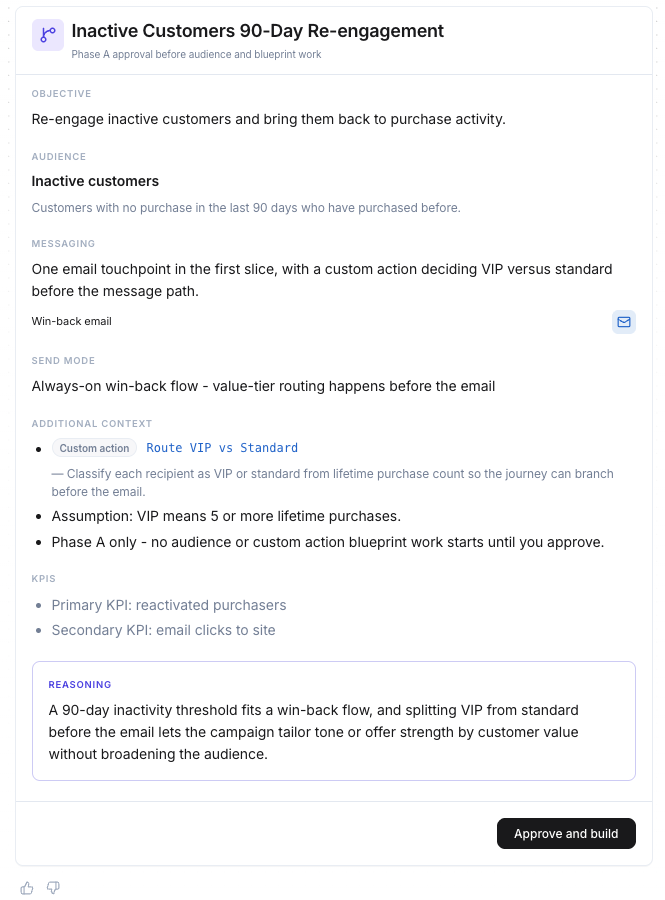
The campaign brief before you approve it. The custom action "Route VIP vs Standard" is listed under Additional context, with a short description of what it decides.
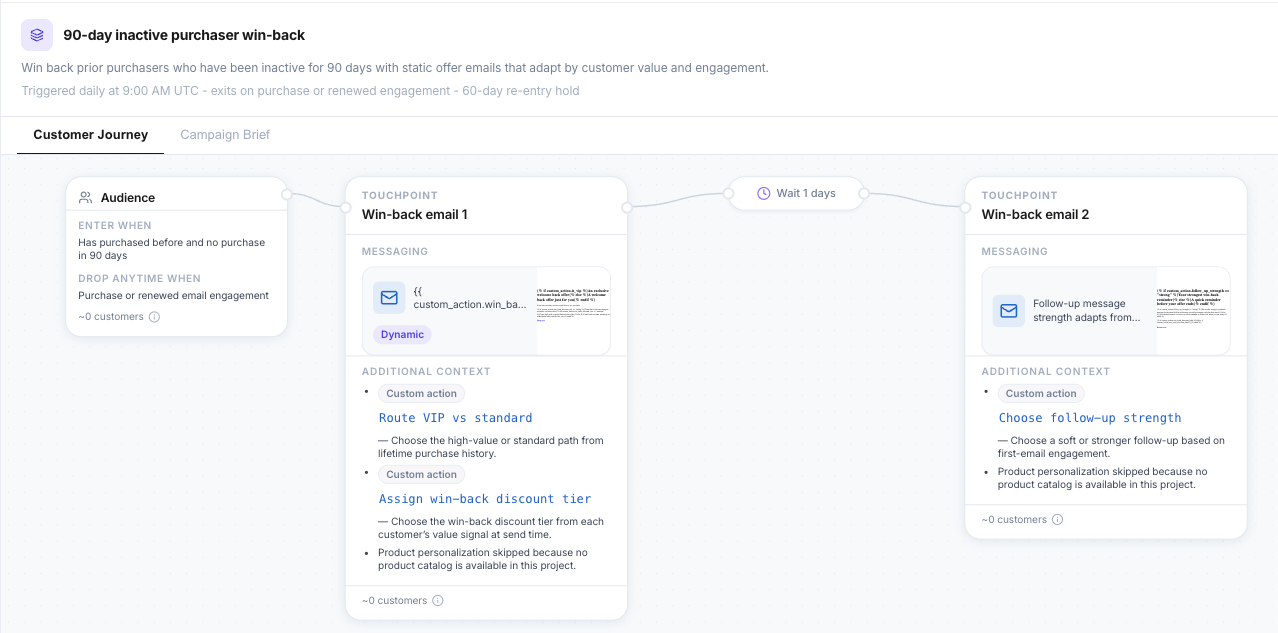
The built campaign on the canvas. Each message card lists the custom actions that affect it under Additional context. Select a custom action's name to see how it works.
NoteBuilding a campaign with a custom action can take longer than a standard campaign, because Marketing agent generates and checks the logic before it adds it to your scenario.
Example prompts
Use these prompts as starting points. Replace the attribute, event, and catalog names with the ones in your project.
Bring in external data
Use a connected integration to add live data to each message.
Create a reminder email for customers with a confirmed stay starting next month. Include the current weather forecast for their destination from a weather provider's API. If the forecast isn't available, send the email without it.Branch on external data
Route customers based on data held in another system.
Pull each customer's loyalty tier from your loyalty provider's API. Send Gold and Platinum members an early-access email, and send everyone else the standard launch email.Filter recommendations
Narrow product recommendations to what's most relevant for each customer.
Build an email with product recommendations. Look at what each customer bought in the last 2 months, find the colors they buy most, and only recommend accessories in those colors.Calculate values
Calculate a value for each customer and branch on the result.
Add up the nights each customer has stayed this year. If they're within 3 nights of the next loyalty tier, show how many more nights they need; otherwise send the standard newsletter.Look up items
Look up related items across catalogs.
For each item in the customer's last order, find the matching accessory in our accessories catalog and show it in a 'complete the look' block.
TipYou don't need exact data names, but they help when your project has non-standard names or several similar fields. For example, "use the
bookingevent wherebooking_stageisconfirmed" works better than "use their bookings." See Write effective prompts.
Change or remove a custom action
To change or remove a custom action, say what you want in your conversation with Marketing agent. For example, "only send the indoor-activities path if heavy rain is forecast" or "remove the weather forecast from the reminder email." Marketing agent updates the logic for you.
After a change, inspect the logic and test the scenario again before you launch. If the campaign is already live, the change takes effect only after you republish it.
Best practices
- Start with one decision. Build a campaign with a single custom action first, such as one data lookup or one branch. Add complexity once you trust the result.
- Plan for missing data. Tell Marketing agent what to do when a value is empty or an external system doesn't respond, so no customer gets a broken message. If you don't, Marketing agent chooses a default behavior. Inspect the logic to see what it chose, and change it if it isn't what you want.
- Name non-standard data. Marketing agent finds the data it needs on its own. If an attribute, event, or catalog has an unusual name, or several fields could fit, name the one you mean.
Next steps
- Test and troubleshoot custom actions: check the logic and the output before launch, and fix common issues.
- Custom action limitations: what custom actions can't do, so you can plan your logic around them.
Updated about 1 hour ago