

Bynder
Connect Bynder to Marketing. Browse and insert your brand's images right from your campaign builder. Create credentials in Bynder and connect the integration in Marketing.
NoteTo understand how you can use external assets in your campaigns and scenarios, see External assets.
Prerequisites
- Bynder account with access to advanced settings.
- Bynder user whose access the integration will use.
- Bloomreach role with permission to manage project integrations in Marketing.
Get your Bynder API credentials
- In Bynder, go to Settings > Advanced settings > select Portal Settings.
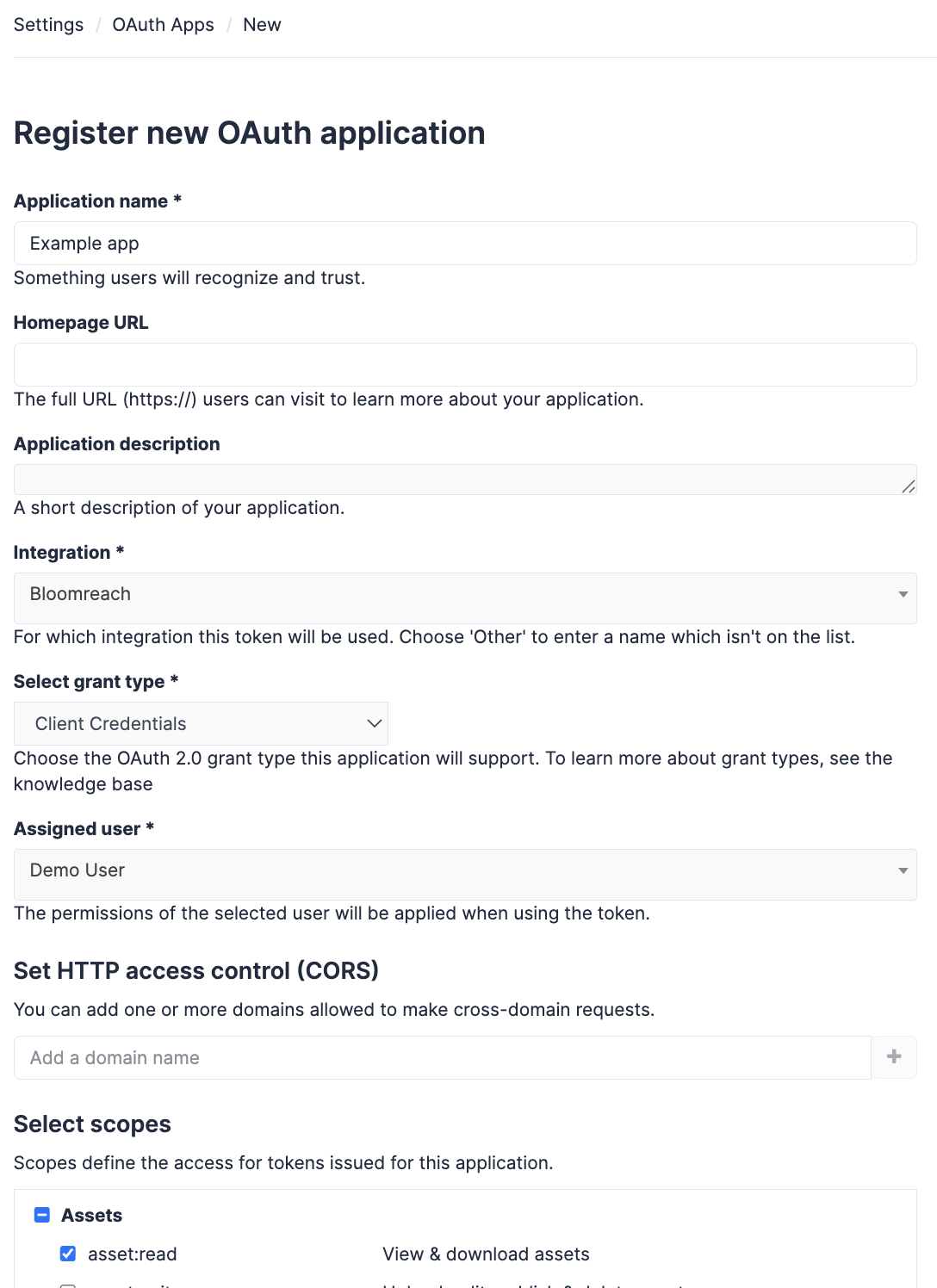
- Navigate to OAuth Apps and click Add new app.
- Configure the following settings:
- Name the app.
- Under Integration, select Bloomreach.
- Under Grant type, select Client Credentials.
- Select the assigned user. This is the user whose access the integration uses.
- Under Scopes, select
asset:read. This scope lets Marketing view and download assets.
- Click Register application.
- Copy the client ID and client secret. Store them securely. You need both to connect the integration in Marketing.
Connect Bynder to Marketing
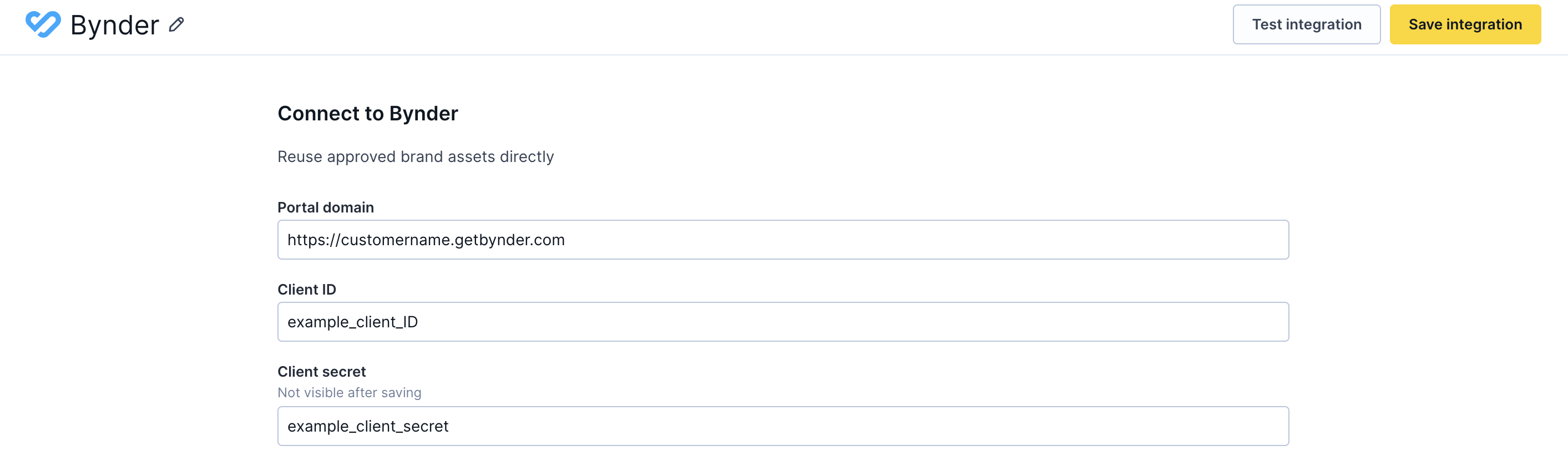
- In Marketing, go to Data & Assets > Integrations. Click + Add new integration.
- Search for Bynder and click + Add integration.
- Enter your Bynder portal domain (for example,
https://customername.getbynder.com), client ID, and client secret. - Test the integration to verify the credentials.
- Save the integration.
Editing or removing this integration
Editing it doesn't affect existing campaigns. Removing it blocks new access to your Bynder Asset Library. Assets already added to campaigns via URL keep working.
Updated 11 days ago
Did this page help you?