

User profile
User profile is where you manage your personal account details: name, email, time zone, locale, password, two-step verification, and notification preferences. These settings are personal to you and don't affect other users or projects.
How to open your account settings
In a unified setup, your account settings aren't accessible directly from the project. Instead:
- Click the Bloomreach icon in the top-left corner of the interface.
- Click your organization or workspace name.
This opens the My account page directly. From there, click Edit profile to open User profile > Basic settings.
What you can do settings
Basic settings has 3 tabs: General details, Change password, and Security.
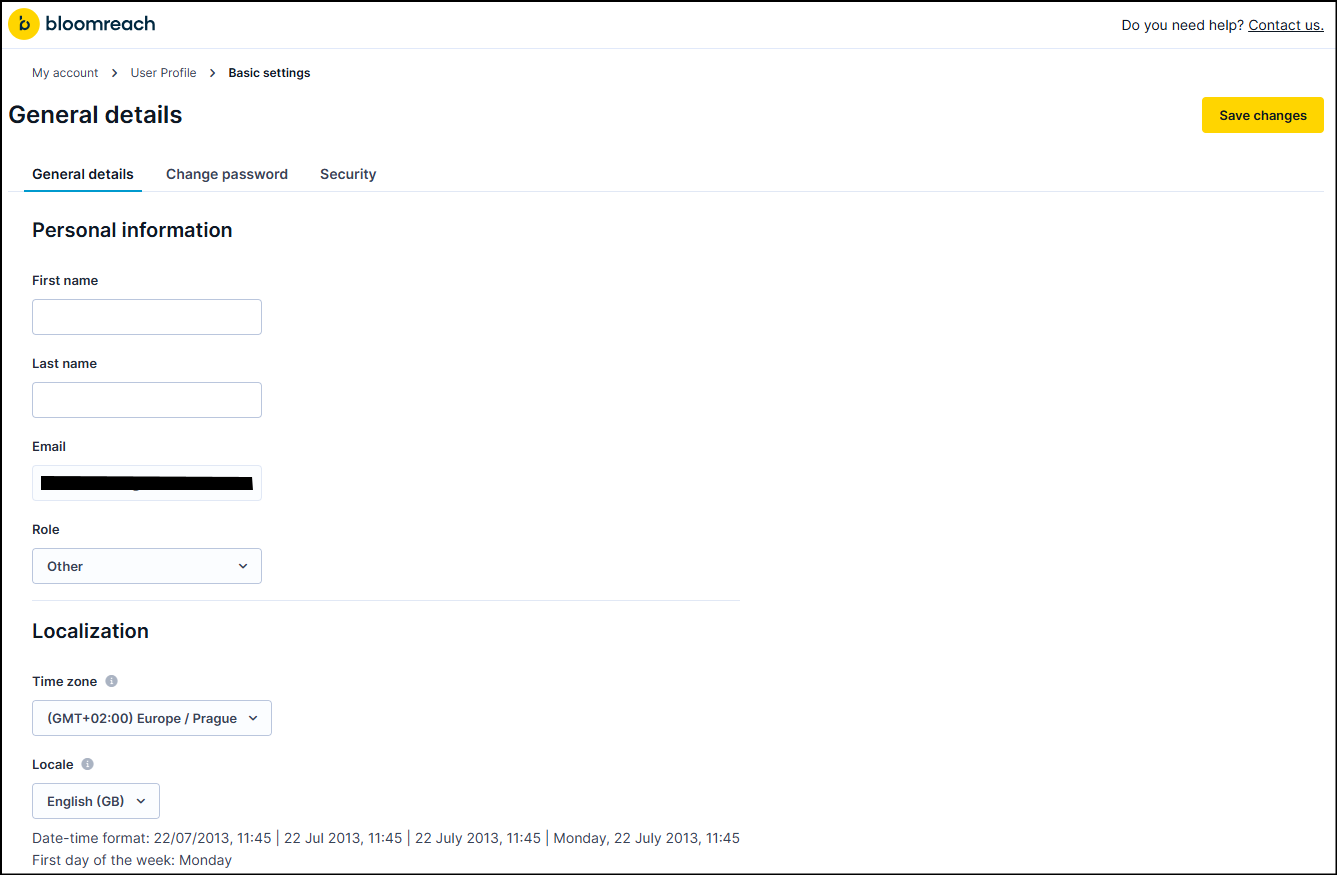
General details
Edit your personal details and display preferences:
- First name and last name
- Role
- Time zone: Affects how dates and times display in the app and how time-based data is calculated in analyses and reports.
- Locale: Also determines your date-time format and first day of the week.
For information on customer profile time zones, read Time zones.
Change password
Use the Change password tab to update your account password.
NoteIf your organization uses SSO (single sign-on), password management may be handled by your identity provider rather than directly in Bloomreach.
Security
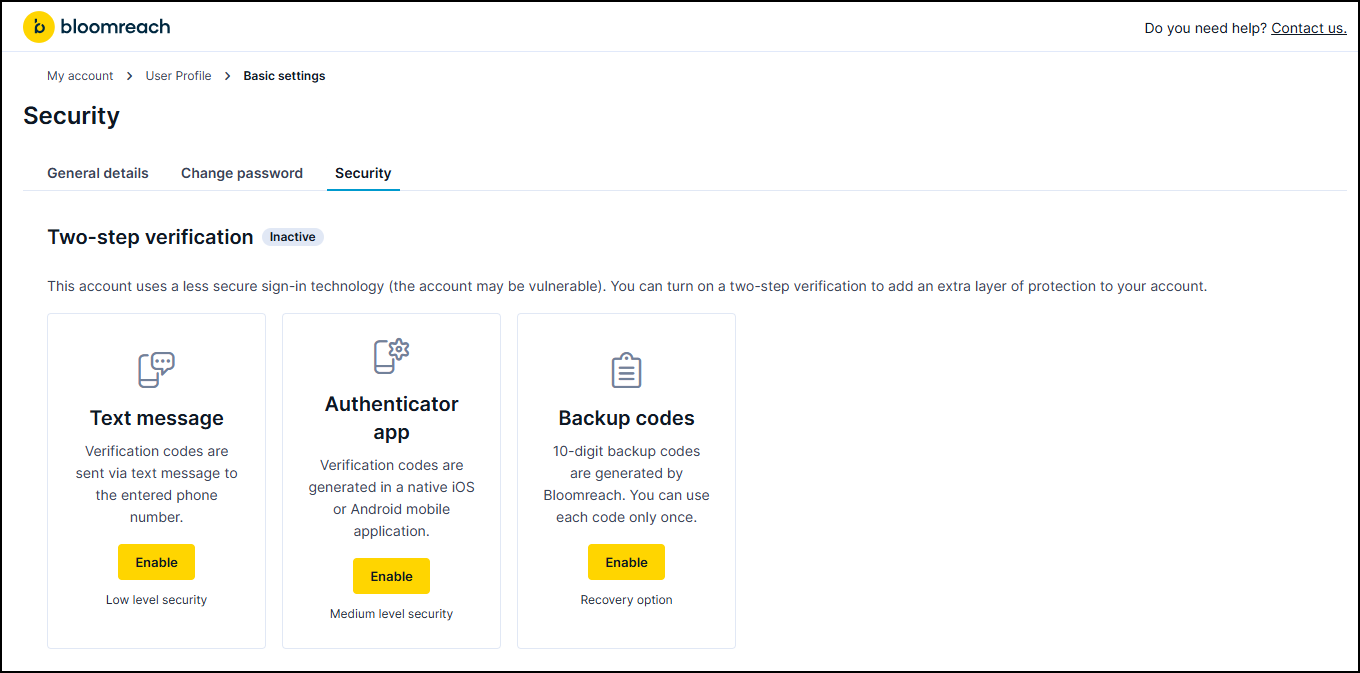
Set up and manage two-step verification for your account. You can choose from three methods:
- Text message: Verification codes sent by text message. Low level security.
- Authenticator app: Verification codes generated in a native iOS or Android app. Medium level security.
- Backup codes: 10-digit codes generated by Bloomreach for one-time use. Recovery option.
Troubleshooting and FAQ
I can't find User settings
With unified login, User settings moved out of the project and into Administration > My account. If you don't have access to Administration, open the top-left menu and click your organization or workspace name to reach My account directly.
I'm locked out after losing access to my authenticator app
Contact Support to reset two-step verification on your account. Support confirms your identity by email before resetting.
Can admin switch my two-step verification method for me?
No. Switching between text message, authenticator app, and backup codes must be done by the individual user, not an admin on their behalf.
I changed my time zone, but it didn't take effect
In a unified setup, a time zone change doesn't apply until you log out and log back in.
My new role or permissions aren't showing up in the product
Role and permission changes made in Administration typically take effect almost immediately. If you don't see the update, log out of the product and back in through the unified login URL as a troubleshooting step.
New user never received their invitation email
This is usually a bounce or a firewall issue on the recipient's mail server, not a delivery failure on Bloomreach's side. Ask the user to check their spam folder and confirm their mail server allows email from Bloomreach.
What moved elsewhere
With unified login, some settings that previously lived in User settings or Account settings moved to centralized locations.
| Setting | New location |
|---|---|
| User and role management | Administration > Users |
| Two-step verification | Administration > Settings > Security |
| SSO configuration | Administration > Settings > Single sign-on |
| User groups | Workspace settings > Access management > Groups |
For tasks like adding users, assigning roles, blocking access, or exporting user lists, see Unified user management: Common tasks.
Related resources
Updated 2 months ago