

File upload imports
This guide covers how to import product or variant records by uploading a local CSV or XML file directly in the Data hub Imports UI. This method is suited for one-time or infrequent imports where no remote connection is required.
Prerequisites
-
Data hub permissions: Ensure you have the required permissions.
-
File preparation: Prepare your data file in CSV or XML format.
Import limits
Maximum columns: 260 columns per file.
Performance recommendations:
-
File size: Maximum of 1 GB per file.
-
Row count: For best performance, keep imports to 1,000,000 rows or fewer.
NoteIf your file size exceeds the recommended limit, use the Item collections API to upload the product data as records.
Configure a file upload import
-
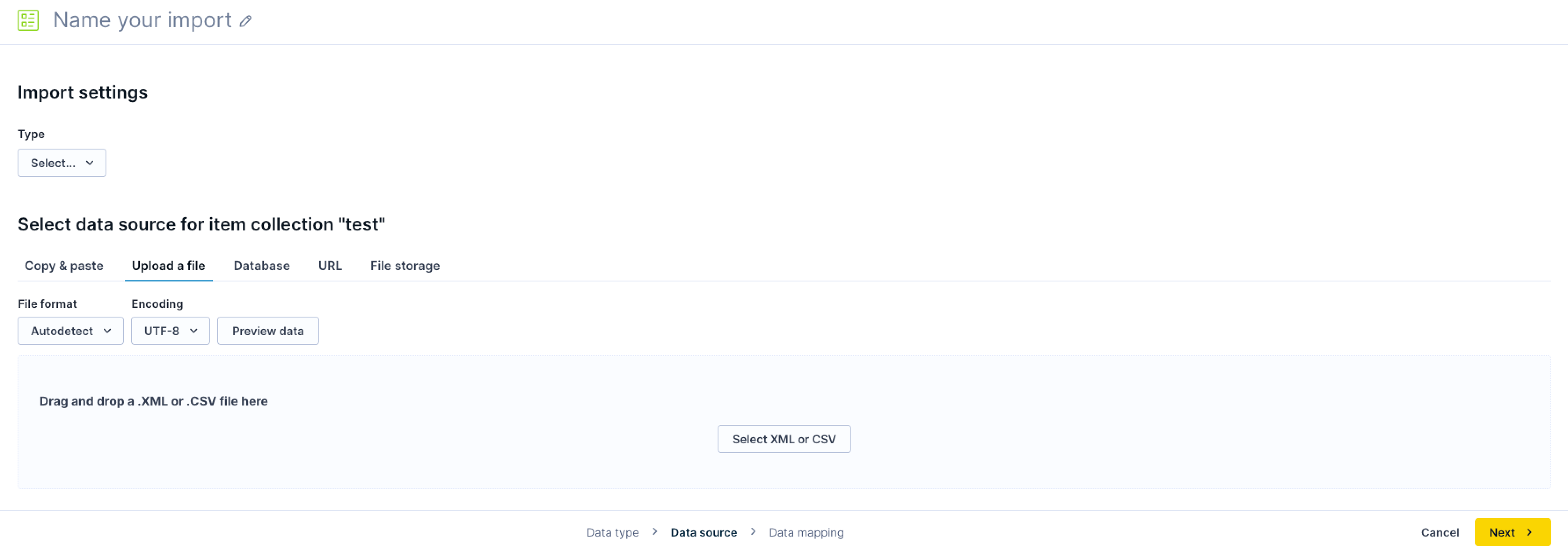
After creating a new import and selecting the import type, click the Upload a file tab.
-
Select your file using one of these methods:
-
Click Select XML or CSV to open the system file picker and choose a file from your local machine.
-
Drag and drop your file onto the upload area.
-
-
Once selected, the UI displays the file name and the detected or chosen file format.
-
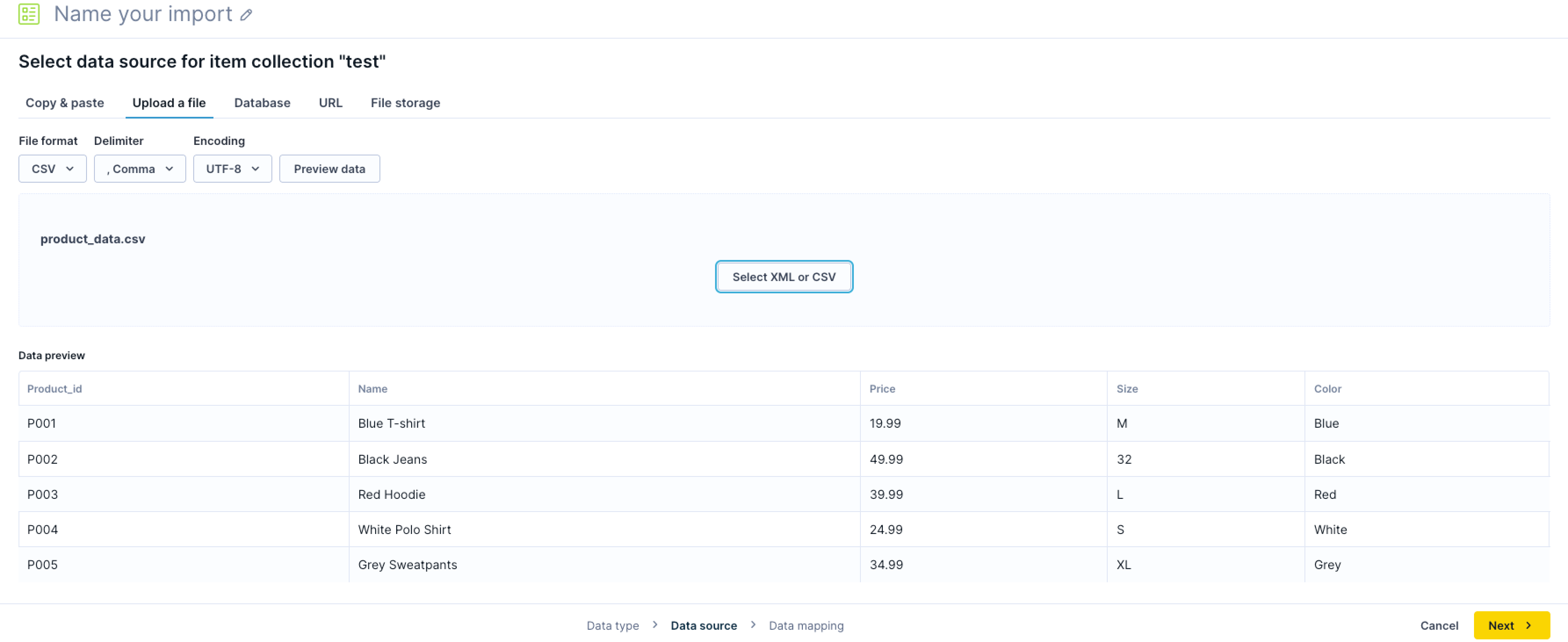
Optionally, select the File format and Encoding. This is useful when the system can't detect these automatically. For CSV files, you can also override the Delimiter. The system autodetects the delimiter by default. Supported delimiters include space, tab (
\t), comma (,), period (.), semicolon (;), colon (:), hyphen (-), pipe (|), and tilde (~). Supported encodings include UTF-8 (default), UTF-16, Latin-1, ISO-8859-2, and Windows-1250 through Windows-1258. -
Click Preview data. The preview loads the first 5 rows of your file with column headers detected from the first row. Validate that the data appears correctly before continuing. If the preview fails, for example, due to an unsupported encoding, incorrect delimiter, or a file that exceeds the size limit, the system displays an error message with the root cause. Adjust the settings and re-preview before proceeding.
-
Click Next and proceed to specify the data mapping.
NoteFile upload imports are one-time manual imports. Repeated or scheduled imports are not supported for this source type. To automate recurring imports, use URL imports, file storage imports, or data warehouse imports.
Updated 2 days ago