

Set up contexts
Data hub rolloutData hub provides new unified API integration methods for sending data to multiple Bloomreach products. Access is being rolled out in phases. For new implementations, we recommend using Data hub where available. Existing product-specific integrations remain fully supported for Marketing, Search, and Conversational agent.
This guide outlines how to set up a context for a product item type in Data hub. It covers adding the context, sending override data, mapping schema attributes, checking your records and items, and connecting destinations.
Prerequisites
- Item Collections Admin permissions to change the item type's configuration, including contexts, schema mappings, and destinations. Viewers can view and explore contexts, override data, and items.
- An item collection with a product item type. Contexts are available only for product item types.
- API credentials for the Records Update API.
- For Search destinations: a Search catalog set up for multi-view. To enable it, contact your Customer Success Manager (CSM).
- An understanding of contexts.
NoteThe standard limits are up to 100 context values per context and up to 10 schema attributes mapped to override data. Override data can be no more than 25% of base data. To raise a limit, contact your Customer Success Manager (CSM).
Add a context
Add the context after you set up the product item type.
- In Data hub, go to Items and open the product item type.
- Click the Settings tab.
- Under Contexts, click + Add context.
- In Details, enter:
- Context name: The key that identifies this context in queries and override records, such as
store. It's 1 to 64 characters long, starts with a letter, and contains only letters, digits, underscores, or hyphens. It's case-sensitive and must match the context key in your records exactly. If the key differs, for exampleStoreinstead ofstore, override data shows in your records but never reaches your items. You can't change the context name after you save. To change it, delete the context and add a new one. - Display name (optional): The name shown in the Data hub UI, such as
Store. - Description (optional): The purpose of the context.
- Context name: The key that identifies this context in queries and override records, such as
- Click Review and save changes, check the change in Review changes, and click Save changes.
Adding a context turns on contexts for the item type. Each item type can have one context. Data hub rebuilds the items, and the item type shows a badge with the context name, such as store context, in the item collections list.
NoteTo see an example record for your context, click View payload structure in the Set up override data panel.
Send override data with your records
Send override data through the Records Update API, the same way you send base records.
Each record carries its override data in a contexts object, keyed by your Context name and then by context value. For the record structure, patch paths, examples, and the supported ways to send it, see Send context data in records.
Key points
- For where Data hub takes membership and values from, see Send context data in records.
- Each context value must exactly match the
view_idyou use in Search. A context value can be up to 48 Unicode code points long. Use ASCII characters where possible. Values can contain/and~. - If you send override data before you add the context, Data hub stores it without a warning. The data applies once you add the context and map the override fields.
- Data hub ignores an override for a variant that has no variant record until that variant exists. Removing a product record also removes its variants and all of its override data.
Best practices
In Search, override values for a context value can create additional documents, which count toward your document count. Empty entries don't. To keep your document count low:
- Use override attributes with few distinct values, such as
in_stock,low_stock, andout_of_stockinstead of exact stock counts. - Use empty entries (
{}) for context values that only change the assortment. For example, ifstore_017carries a product at its normal price, send"store_017": {}instead of repeating the base values. - Keep values that change with every export, such as timestamps, out of override data.
Map schema attributes to override data
Override fields don't become item attributes until you map them in the schema. This task adds override mappings to attributes you've already configured.
-
Click the Schema tab.
-
Find the attribute that changes for each context value, such as
title, and click Edit. -
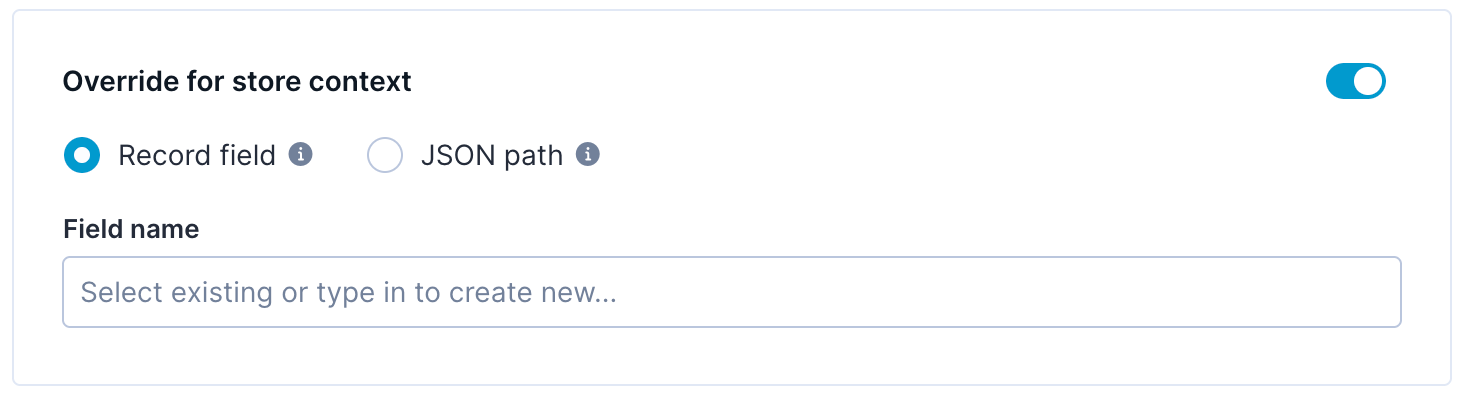
In Edit schema attribute, turn on Override for <display name> context, for example Override for store context.
-
Select how to find the override value:
- Record field: The field name inside the override data's
fields, such aslocalized_title. Override field names don't need to match base field names. For example, thepriceattribute can map its base value topriceand its override tostore_price. - JSON path: A path to a nested value, such as
delivery.promise.days.
- Record field: The field name inside the override data's
-
Click Save changes.
-
Repeat for each attribute with override values. Then click Review and save changes, and Save changes.
Data hub rebuilds your items.
NoteMap override fields one attribute at a time. Map fields to attributes, suggested mappings, and the override Field name list show only base record fields, so type the name of a field that exists only in override data. If no record has the field you map, items use the base value, and the Schema tab marks the field as missing.
Map variant attributes
To map a variant attribute, open the Variant subtab in Schema, and follow the steps above.
Variants take values in a set order: a variant's own values take priority over the product's override values. For example, if a variant has its own base price and only the product has an override price, the variant keeps its own base price for that context value. To change the variant's price, send an override value for the variant and map the variant attribute.
Add attributes that have only override values
To add an attribute that has values only for context values, turn off Base value in Edit schema attribute, and keep the override mapping on.
Override category paths
To override category_paths, the override field must contain the complete value in the category paths format. Map it with Record field or JSON path. Compound fields and Custom expression aren't available for override mappings. To set up the base value, map category paths.
Check records and items
Records update jobs don't warn about override data that doesn't match a context, so view your records and verify your items after you send override data.
- In the Records tab, open a record. In Override for context value, select a context value to see its override data. Override fields that aren't mapped to an attribute show a yellow dot.
- To check a variant, select it in the left panel. Variants excluded from a context value show an Excluded badge in the context value list.
- In the item type's items tab, for example Product items, open an item, and in Context, select a context value to check its attribute values.
- To compare with base data, select None (base data) in Context.
Item collection APIs and Marketing catalog APIs don't return override data. Check it in the Data hub and Marketing UI.
Connect destinations
Connect Search and Marketing destinations.
- Search: Data hub doesn't check that the catalog is set up for multi-view when you connect it. If it isn't, the sync job fails. The first sync overwrites any existing data in the catalog.
- Marketing: Before you connect, discuss your use case with your Customer Success Manager (CSM). Only the catalog view uses context data. Other Marketing features use base items.
To check the sync, monitor the Destination items update job.
Edit or delete a context
In the Settings tab, you can edit the context's display name and description, or delete the context. When you delete the context:
- Data hub deletes its override mappings from all schema attributes. If you add the same context back, map the override fields again and wait for the items update to finish. Data hub then uses the override data in your records without a resend.
- Data hub rebuilds items without the context.
- Override data stays in your records until your source system deletes it.
Before you delete the context, check which attributes use it in the Schema tab. When you delete the context, contexts turn off for the item type. Changing the display name also rebuilds items.
Related articles
Updated about 1 hour ago