

URL imports
Data hub rolloutData hub provides new unified API integration methods for sending data to multiple Bloomreach products. Access is being rolled out in phases. For new implementations, we recommend using Data hub where available. Existing product-specific integrations remain fully supported for Marketing, Search, and Conversational agent.
This guide covers how to import product or variant records directly from files hosted at a specified web address. This method supports integration with cloud storage providers and private servers, provides flexibility for scheduled or manual imports, and includes advanced security options.
Prerequisites
- Data hub permissions: Ensure you have the required permissions.
- File preparation: Prepare your data file in CSV or XML format.
Configure a URL import
-
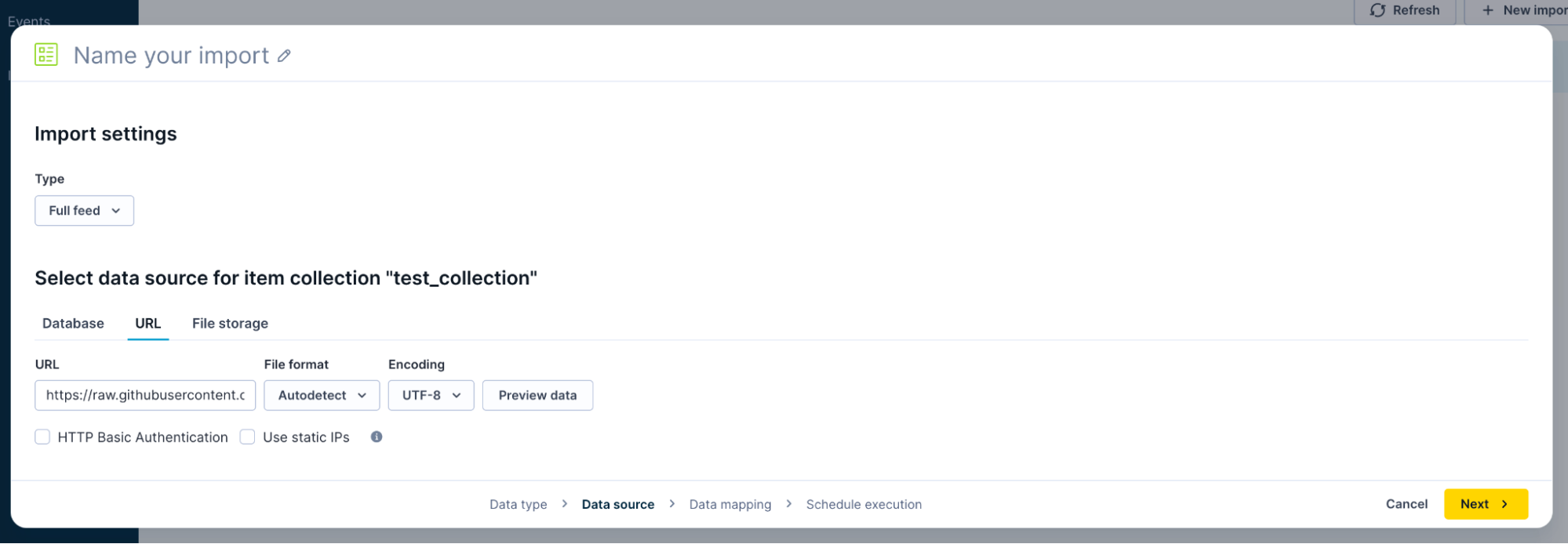
After creating a new import and selecting the import type, click the URL tab.
-
Enter the file URL where your data is hosted.
-
Configure security and network options.
HTTP Basic Authentication
If your data file is hosted behind a password-protected HTTP endpoint, check this option and enter the required username and password.
Data hub will use these credentials to authenticate and retrieve your file securely.
Use static IPs
Check this option if your hosting server/firewall requires that only requests originating from allowlisted, static IP addresses can access files.
Data hub will use fixed IPs for the import job. Copy the IPs from the tooltip and share them with your IT for allowlisting. This strengthens compliance for organizations with strict data access controls.
-
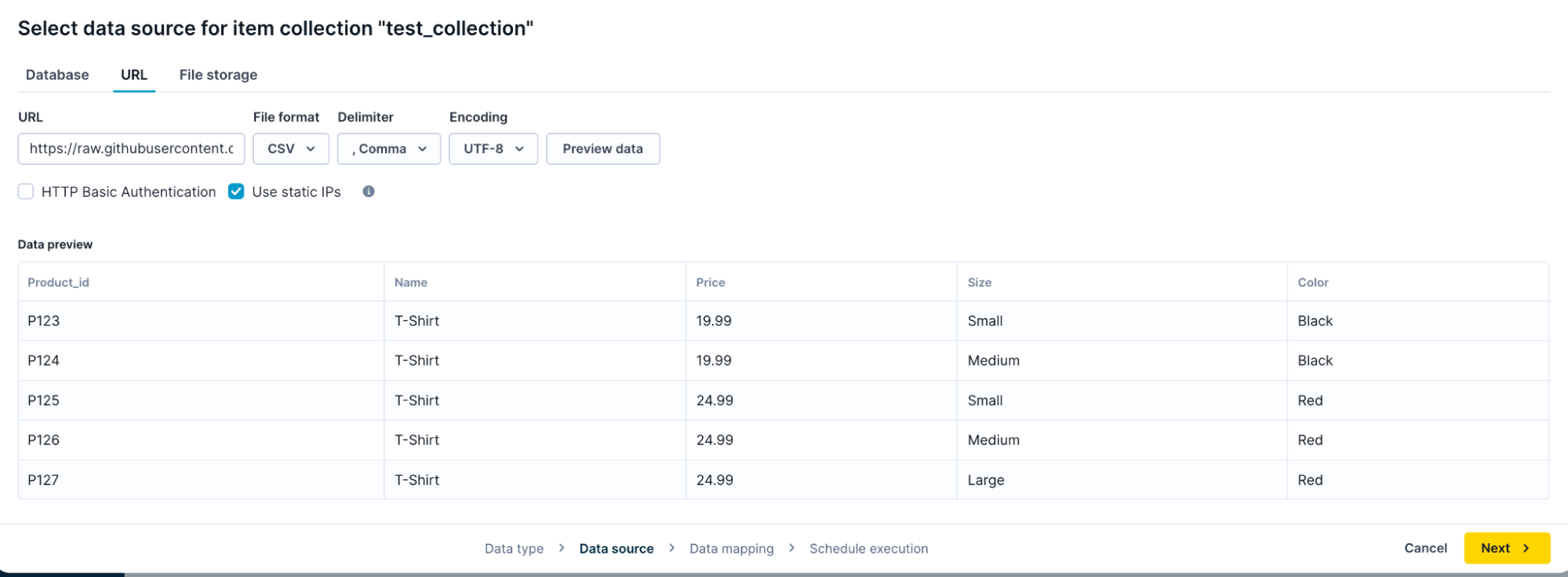
You can also select the File format and the Encoding. This is useful when the system can’t detect these automatically.
-
Click Preview data. Validate the imported data.
-
Click Next and proceed to specify the data mapping.
Updated about 2 months ago