

Loomi AI for Shopify: HTML and EJS reference
Loomi AI for Shopify widgets lets you replace their default HTML using Experience customization. This article lists mandatory data attributes, supported EJS variables, and a working example per component.
Customer responsibilityCustom HTML overrides are the customer's responsibility. Test all customization on your storefront before publishing and verify that they preserve the requirements in this article.
Examples show the structural markup and data hooks — add your own CSS to match your design system.
Access Experience customization
Prerequisites
- An active Loomi AI for Shopify application installed on your storefront.
- At least one of Search, Autosuggest, or Collections active on the storefront.
- Working knowledge of HTML and EJS templating for hands-on editing.
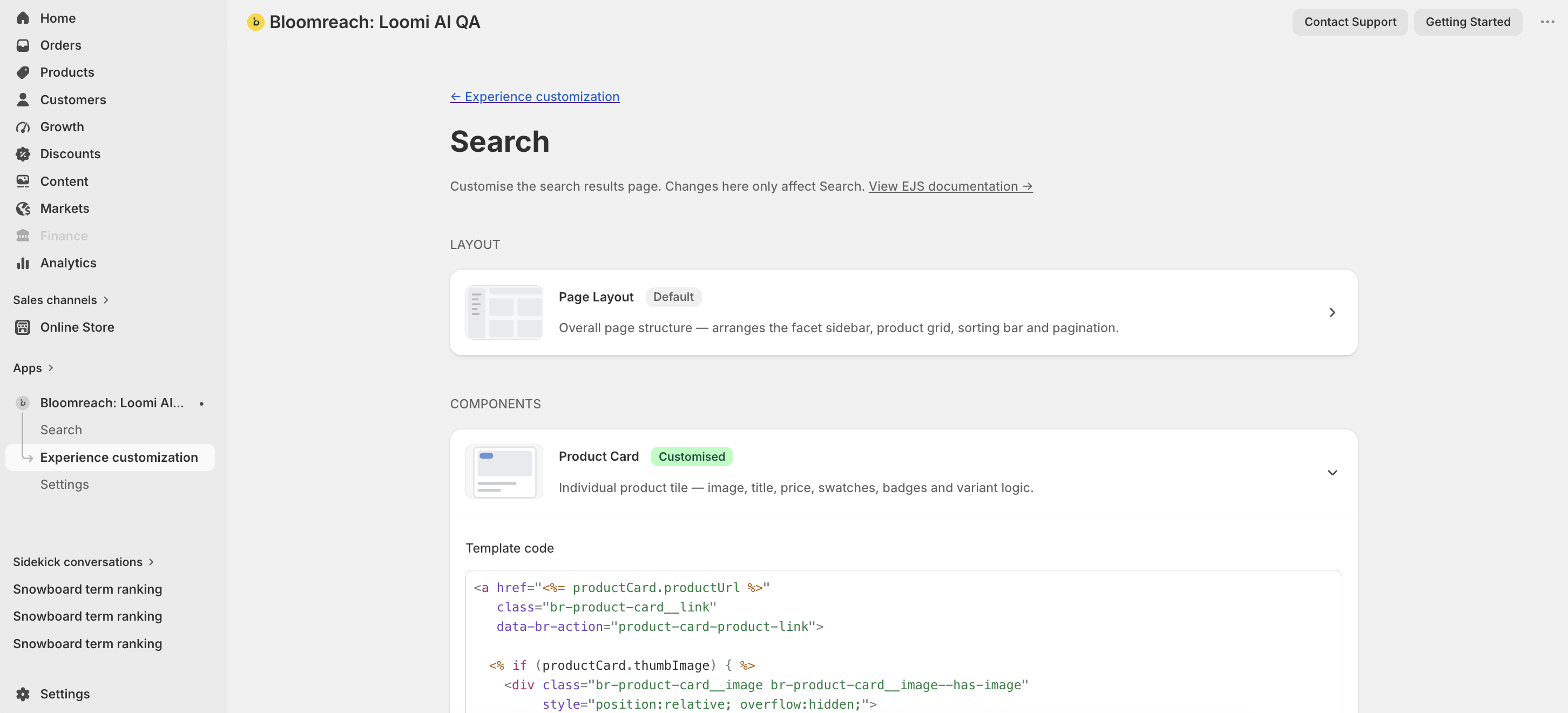
Navigate to the editor
-
Open the Loomi AI for Shopify app from your Shopify admin.
-
Click Experience customization in the app navigation.
-
Select the template you want to edit: Search, Collections, or Autosuggest.
-
Choose a component to expand the editor — Layout, Product card, Text facet, Slider facet, or Selected facet.
-
Edit the HTML and EJS, then save. Use Revert to Bloomreach template to clear any custom configuration.
Page layout anchors
Every widget renders inside a layout root that depends on four anchor elements. Define each anchor as a single element using the exact class name shown. You can add other classes to the same element (for example, class="br-facets-container custom-sidebar-style").
Mandatory anchorsThe four class names below must exist in your markup. If an anchor is missing, Loomi AI generates an empty
divwith the corresponding class and attaches it to the layout root in this sequence: facets, sorting, grid, pagination.
| Class | Hosts | UI role |
|---|---|---|
br-facets-container | Facet toolbar when includeFacets is true. Loomi AI adds br-toolbar and renders facet groups, the mobile filters drawer, and related controls. | Filter sidebar or top toolbar. |
br-sorting | The br-sorting web component when sort options are configured. If there are no facets but sorting is enabled, br-toolbar attaches here instead. | Sort by control. |
br-products-grid | The product grid. Loomi AI appends a child div.br-products__grid containing br-product-card elements. | Product listing. |
br-pagination | The br-pagination web component when pagination is enabled and totalPages > 1. | Page controls. |
Example
<div>
<aside class="br-facets-container"></aside>
<div>
<header>
<div class="br-sorting"></div>
</header>
<div class="br-products-grid"></div>
<footer>
<div class="br-pagination"></div>
</footer>
</div>
</div>Product card component

Data attributes
| Attribute | Element | Value | Behavior |
|---|---|---|---|
data-br-action | Product link, image link | product-card-product-link | href navigation still works. Click additionally fires br-product-link-clicked for tracking in search or autosuggest. Doesn't change card content. |
data-br-action | Variant swatch | product-card-select-swatch | Click selects that variant on the card. No navigation. Updates swatch styling, product image, title, prices, product link URL, and add-to-cart link to match the variant. |
data-br-swatch-index | Variant swatch | 0..n-1 (number) | Index in the visible swatch list. Must be the loop index over visibleSwatchItems. |
data-br-action | Overflow +N or − button | product-card-toggle-variants-expand | When showOverflowButton is true, click toggles between collapsed and expanded swatch rows. Collapsed shows only swatches that fit plus a +N button. Expanded shows all swatches and a − control. |
EJS variables
The productCard object exposes these fields:
| Field | Description | Data type |
|---|---|---|
product | Raw full product payload from Discovery. See ProductData below. | ProductData |
pid | Product ID. | string |
brand | Brand name. | string or undefined |
title | Effective title. The selected variant overrides this when variants are enabled. | string |
thumbImage | Effective image URL. | string or undefined |
price | Effective list price. | number or undefined |
salePrice | Effective sale price. | number or undefined |
formattedPrice | Pre-formatted list price. | string or undefined |
formattedSalePrice | Pre-formatted sale price. | string or undefined |
hasDiscount | true when both prices exist and salePrice < price. | boolean |
productUrl | Product detail page URL. Includes a variant query when applicable. | string |
addToCartHref | /cart/add?id=… for the selected or first variant. | string or undefined |
displayVariants | Whether variant UI is enabled. | boolean |
swatchItems | All swatches. See VariantSwatchItem below. | VariantSwatchItem[] |
visibleSwatchItems | Subset shown in the current collapsed or expanded state. | VariantSwatchItem[] |
selectedSwatchIndex | Index of the selected swatch. | number |
variantsExpanded | Whether the overflow list is expanded. | boolean |
hiddenCount | Number of swatches hidden behind +N. | number |
showOverflowButton | Whether to render the overflow toggle. | boolean |
ProductData
ProductData is the raw product payload from Discovery, passed through as productCard.product. Discovery returns only the attributes you request in the widget's fl_fields parameter, so a field appears only when you include it (pid is always returned).
| Field | Description | Data type |
|---|---|---|
pid | Product ID. | string |
title | Product title. | string |
brand | Brand name. | string |
description | Product description. | string |
price | List price. | number |
price_range | Price range for products with variants. | number[] |
promotions | Active promotions. | string[] |
sale_price | Sale price. | number |
sale_price_range | Sale price range for products with variants. | number[] |
score | Discovery relevance score. | number |
thumb_image | Thumbnail image URL. | string or undefined |
url | Product detail page URL. | string |
variants | Product variants. | Variant[] |
ProductData also accepts custom Discovery attributes. Define them in the widget's fl_fields parameter to make them available to your template.
VariantSwatchItem
VariantSwatchItem is a union type. Color swatches and image swatches use different shapes.
Color swatch (type: "color"):
| Field | Description | Data type |
|---|---|---|
type | Always "color". | string |
hex | Hex color value. | string |
label | Swatch label for accessibility and tooltips. | string |
Image swatch (type: "image"):
| Field | Description | Data type |
|---|---|---|
type | Always "image". | string |
url | Swatch image URL. | string |
label | Swatch label for accessibility and tooltips. | string |
fallbackHex | Background color shown while the image loads. | string or undefined |
Autosuggest product card limitations
Autosuggest renders product cards from its own Discovery API endpoint, which returns a reduced field set. When you template a product card for the Autosuggest dropdown, only these fields are available:
| Field | Description | Data type |
|---|---|---|
pid | Product ID. | string |
title | Product title. | string |
sale_price | Sale price. | number or undefined |
thumb_image | Thumbnail image URL. | string or undefined |
url | Product detail page URL. | string |
References to any other productCard.* field render as empty in this context.
Example
<a
href="<%= productCard.productUrl %>"
data-br-action="product-card-product-link"
>
<div>
<% if (productCard.thumbImage) { %>
<img src="<%= productCard.thumbImage %>" alt="<%= productCard.title %>" loading="lazy" />
<% } else { %>
<span>No image</span>
<% } %>
</div>
<div>
<% if (productCard.brand) { %>
<div><%= productCard.brand %></div>
<% } %>
<h3><%= productCard.title %></h3>
<% if (productCard.hasDiscount) { %>
<div>
<span><%= productCard.formattedSalePrice %></span>
<span><%= productCard.formattedPrice %></span>
</div>
<% } else if (productCard.formattedSalePrice || productCard.formattedPrice) { %>
<div>
<span><%= productCard.formattedSalePrice || productCard.formattedPrice %></span>
</div>
<% } %>
</div>
</a>
<% if (productCard.displayVariants && productCard.visibleSwatchItems.length) { %>
<div>
<% productCard.visibleSwatchItems.forEach(function(item, idx) {
let selected = idx === productCard.selectedSwatchIndex;
let label = item.label || '';
%>
<% if (item.type === 'image') { %>
<span
title="<%= label %>"
data-tooltip="<%= label %>"
data-br-action="product-card-select-swatch"
data-br-swatch-index="<%= idx %>"
<% if (item.fallbackHex) { %>style="background-color: <%= item.fallbackHex %>"<% } %>
>
<img src="<%= item.url %>" alt="" loading="lazy" />
</span>
<% } else { %>
<span
style="background-color: <%= item.hex %>"
title="<%= label %>"
data-tooltip="<%= label %>"
data-br-action="product-card-select-swatch"
data-br-swatch-index="<%= idx %>"
></span>
<% } %>
<% }); %>
<% if (productCard.showOverflowButton) { %>
<button
type="button"
data-br-action="product-card-toggle-variants-expand"
aria-label="<%= productCard.variantsExpanded ? 'Show fewer variants' : 'Show ' + productCard.hiddenCount + ' more' %>"
>
<%= productCard.variantsExpanded ? '−' : '+' + productCard.hiddenCount %>
</button>
<% } %>
</div>
<% } %>
<% if (productCard.addToCartHref) { %>
<a href="<%= productCard.addToCartHref %>">
Add to cart
</a>
<% } %>Facet component

Data attributes
| Attribute | Element | Value | Behavior |
|---|---|---|---|
data-br-action | Header or toggle control | facet-toggle-dropdown | Opens or closes the option list. When another facet is open, it closes first — only one facet dropdown stays open at a time. |
data-br-action | Each selectable option | facet-select-option | Toggles the filter on or off. Fires br-facet-change. The parent widget refetches or filters results, then updates the product grid, pagination, and selected facet chips. |
data-filter-value | Each selectable option | option.filterValue | Identifies which filter value to add or remove. |
data-br-action | Show more button | facet-show-more | Reveals the next batch of facet options in the dropdown. |
data-br-action | Show less button | facet-show-less | Collapses the list back to the initial visible limit. Selected options stay selected and remain visible. |
EJS variables
The facet object exposes these fields:
| Field | Description | Data type |
|---|---|---|
facet | Raw facet data: { name: string, options: array of {name: string, filterValue: string, count: number}, initialOptionsLimit: number or undefined } | object |
name | Facet display name. Same as facet.name. | string |
isOpen | Whether the dropdown is open. | boolean |
selectedCount | Number of selected options. | number |
selectedOptions | Selected filterValue strings. | string[] |
visibleOptions | Options currently shown. Respects the limit and expansion state, and always includes selected options. Each item has an isSelected boolean. | array |
showMore | State for the show-more control: { visible: boolean, expanded: boolean, nextBatchSize: number } | object |
actions | Data attribute constants for event delegation: { toggleDropdown: "facet-toggle-dropdown", selectOption: "facet-select-option", showMore: "facet-show-more", showLess: "facet-show-less" }. | object |
Example
<div data-br-action="<%= facet.actions.toggleDropdown %>">
<span>
<%= facet.name %><% if (facet.selectedCount > 0) { %> (<%= facet.selectedCount %>)<% } %>
</span>
<span aria-hidden="true"></span>
</div>
<% if (facet.isOpen) { %>
<div>
<% facet.visibleOptions.forEach(function(option) {%>
<div
data-br-action="<%= facet.actions.selectOption %>"
data-filter-value="<%= option.filterValue %>"
data-test-option-filter-value="<%= option.filterValue %>"
>
<input
type="checkbox"
<%= option.isSelected ? 'checked' : '' %>
/>
<div>
<span><%= option.name %></span>
<span>(<%= option.count %>)</span>
</div>
</div>
<% }); %>
<% if (facet.showMore.visible) { %>
<% if (facet.showMore.expanded) { %>
<button
type="button"
data-br-action="<%= facet.actions.showLess %>"
>
Show less
</button>
<% } else { %>
<button
type="button"
data-br-action="<%= facet.actions.showMore %>"
>
+ Show <%= facet.showMore.nextBatchSize %> more
</button>
<% } %>
<% } %>
</div>
<% } %>Slider facet component

Data attributes
| Attribute | Element | Value | Behavior |
|---|---|---|---|
data-br-action | Lower range input (type="range") | slider-facet-min-input | Dragging the lower thumb updates formattedMinValue and, after a short debounce, fires br-facet-change with a range filter. The product grid and counts refresh. If the user drags above the upper thumb, the input snaps back. |
data-br-action | Upper range input (type="range") | slider-facet-max-input | Dragging the upper thumb updates formattedMaxValue and, after debounce, fires br-facet-change. Same grid refresh as the min input. Dragging below the lower thumb snaps back. |
Both inputs must be real HTMLInputElement instances (not divs). The component listens to the input event and reads input.value.
Set min, max, and step from sliderFacet.start and sliderFacet.end. Bind current values from sliderFacet.minValue and sliderFacet.maxValue.
EJS variables
The sliderFacet object exposes these fields:
| Field | Description | Data type |
|---|---|---|
name | Facet title. | string |
minValue | Current lower handle value. | number |
maxValue | Current upper handle value. | number |
start | Facet minimum bound from the API. | number |
end | Facet maximum bound from the API. | number |
count | Result count in range, from the API. | number |
formattedMinValue | Display string for minValue. | string |
formattedMaxValue | Display string for maxValue. | string |
formattedStart | Display string for start. | string |
formattedEnd | Display string for end. | string |
selectedRange | Pre-selected range from the parent, if any: { start: number, end: number } | object or undefined |
actions | Data attribute constants for event delegation: { minInput: “slider-facet-min-input”, maxInput: “slider-facet-max-input” } | object |
Example
<div><%= sliderFacet.name %></div>
<div>
<input
type="range"
value="<%= sliderFacet.minValue %>"
min="<%= sliderFacet.start %>"
max="<%= sliderFacet.end %>"
step="1"
data-br-action="<%= sliderFacet.actions.minInput %>"
/>
<span aria-hidden="true"></span>
<input
type="range"
value="<%= sliderFacet.maxValue %>"
min="<%= sliderFacet.start %>"
max="<%= sliderFacet.end %>"
step="1"
data-br-action="<%= sliderFacet.actions.maxInput %>"
/>
</div>
<div>
<span><%= sliderFacet.formattedMinValue %></span>
<span><%= sliderFacet.formattedMaxValue %></span>
</div>
<p aria-hidden="true">
<%= sliderFacet.formattedStart %> – <%= sliderFacet.formattedEnd %>
<% if (sliderFacet.count != null) { %>
(<%= sliderFacet.count %>)
<% } %>
</p>Selected facet pill component
The active filter pill that appears in the selected-filters row above the product grid.

Data attributes
| Attribute | Element | Value | Behavior |
|---|---|---|---|
data-br-action | Remove control | facet-chip-remove | Click removes the chip from the active-filters row and clears the filter value from the facet selection. Fires br-facet-change. The parent unchecks the matching facet option, updates other chips, and refreshes the product grid. The chip disappears on the next render. |
EJS variables
The facetChip object exposes these fields:
| Field | Description | Data type |
|---|---|---|
facetName | Facet group name. | string |
optionName | Human-readable option label. | string |
filterValue | Value removed when the chip is cleared. | string |
displayText | Default label: facetName: optionName. | string |
allSelectedOptions | Full selection for this facet after removal. | string[] |
actions | Data attribute constants for event delegation: { remove }. | object |
Example
<div>
<span><%= facetChip.displayText %></span>
<button
type="button"
data-br-action="<%= facetChip.actions.remove %>"
aria-label="Remove <%= facetChip.displayText %>"
>
X
</button>
</div>Sorting component

Data attributes
| Attribute | Element | Value | Behavior |
|---|---|---|---|
data-br-action | Trigger button | sorting-trigger | Click toggles the sort dropdown open and closed. |
data-br-action | Each sorting option | sorting-option | Click selects the sort option, closes the dropdown, updates the displayed label, and fires br-sort-change. The parent widget reloads results in the new sort order — the product grid and pagination update. |
data-value | Each option | encodeURIComponent(option.value) | Tells the component which sort key was chosen so the correct option becomes selected and the parent receives the right value in br-sort-change. Wrong or missing values prevent selection. |
EJS variables
The sorting object exposes these fields:
| Field | Description | Data type |
|---|---|---|
options | All sort options. | { label, value }[] |
selectedValue | Currently selected value from the parent. | string |
selectedLabel | Label of the effective selection. | string |
effectiveSelectedValue | Resolved value. Falls back to the first option if selectedValue is invalid. | string |
label | Desktop or static label. Default "Sort by". | string |
mobileLabel | Short label for mobile. Default "Sort". | string |
displayLabel | mobileLabel when viewport width is <= 768px, otherwise label. | string |
isOpen | Whether the dropdown is open. | boolean |
isMobile | true when matchMedia('(max-width: 768px)') matches. | boolean |
Example
<button type="button" data-br-action="sorting-trigger">
<%= sorting.displayLabel %>: <%= sorting.selectedLabel %>
</button>
<ul>
<% sorting.options.forEach(function(option) { %>
<li
data-br-action="sorting-option"
data-value="<%= encodeURIComponent(option.value) %>"
aria-selected="<%= option.value === sorting.effectiveSelectedValue %>"
><%= option.label %></li>
<% }); %>
</ul>Pagination component

Data attributes
| Attribute | Element | Value | Behavior |
|---|---|---|---|
data-br-action | Previous button | pagination-prev | Click goes to the previous page when not on page 1. Fires br-page-change. The parent loads the prior result set, updates the active page styling, and refreshes the product grid. |
data-br-action | Next button | pagination-next | Click goes to the next page when not on the last page. Same refresh as prev. |
data-br-action | Page number button | pagination-page | Click jumps to that page number. Fires br-page-change and reloads results for the page. |
data-br-page | Page number button | Page number (for example, 1) | Supplies the target page index for pagination-page clicks. Wrong values navigate to the wrong page or no-op. |
EJS variables
The pagination object exposes these fields:
| Field | Description | Data type | |
|---|---|---|---|
currentPage | Active page. | number | |
totalPages | Total page count. | number | |
pageNumbers | Sequence to render. Uses "ellipsis" for gaps. | `(number | "ellipsis")[]` |
isPrevDisabled | true on the first page. | boolean | |
isNextDisabled | true on the last page. | boolean | |
actions | Data attribute constants for event delegation: { prev: “pagination-prev”, next: “pagination-next”, page: “pagination-page” } | object |
Example
<button data-br-action="<%= pagination.actions.prev %>" <%= pagination.isPrevDisabled ? 'disabled' : '' %>>Prev</button>
<% pagination.pageNumbers.forEach(function(page) { %>
<% if (page === 'ellipsis') { %>
<span>…</span>
<% } else { %>
<button
data-br-action="<%= pagination.actions.page %>"
data-br-page="<%= page %>"
><%= page %></button>
<% } %>
<% }); %>
<button data-br-action="<%= pagination.actions.next %>" <%= pagination.isNextDisabled ? 'disabled' : '' %>>Next</button>Related articles
- Integrate Loomi AI for Shopify
- Set up web tracking for Loomi AI for Shopify
- Loomi AI for Shopify personalization features
- Loomi AI for Shopify: CSS class reference
Updated 36 minutes ago
