

Monitor jobs
Data hub rolloutData hub provides new unified API integration methods for sending data to multiple Bloomreach products. Access is being rolled out in phases. For new implementations, we recommend using Data hub where available. Existing product-specific integrations remain fully supported for Marketing, Search, and Conversational agent.
Throughout the setup process, various jobs run in the background to process your data. Understanding these job types helps you track progress and troubleshoot issues.
Prerequisites
Knowledge
Understanding of item collection concepts.
Process
Perform the actions that trigger a job.
Steps to monitor jobs
Access the jobs interface to track all background operations:
-
Go to Data hub > Items in your Bloomreach workspace.
-
Locate and open the existing item collection from the item collections listing page.
-
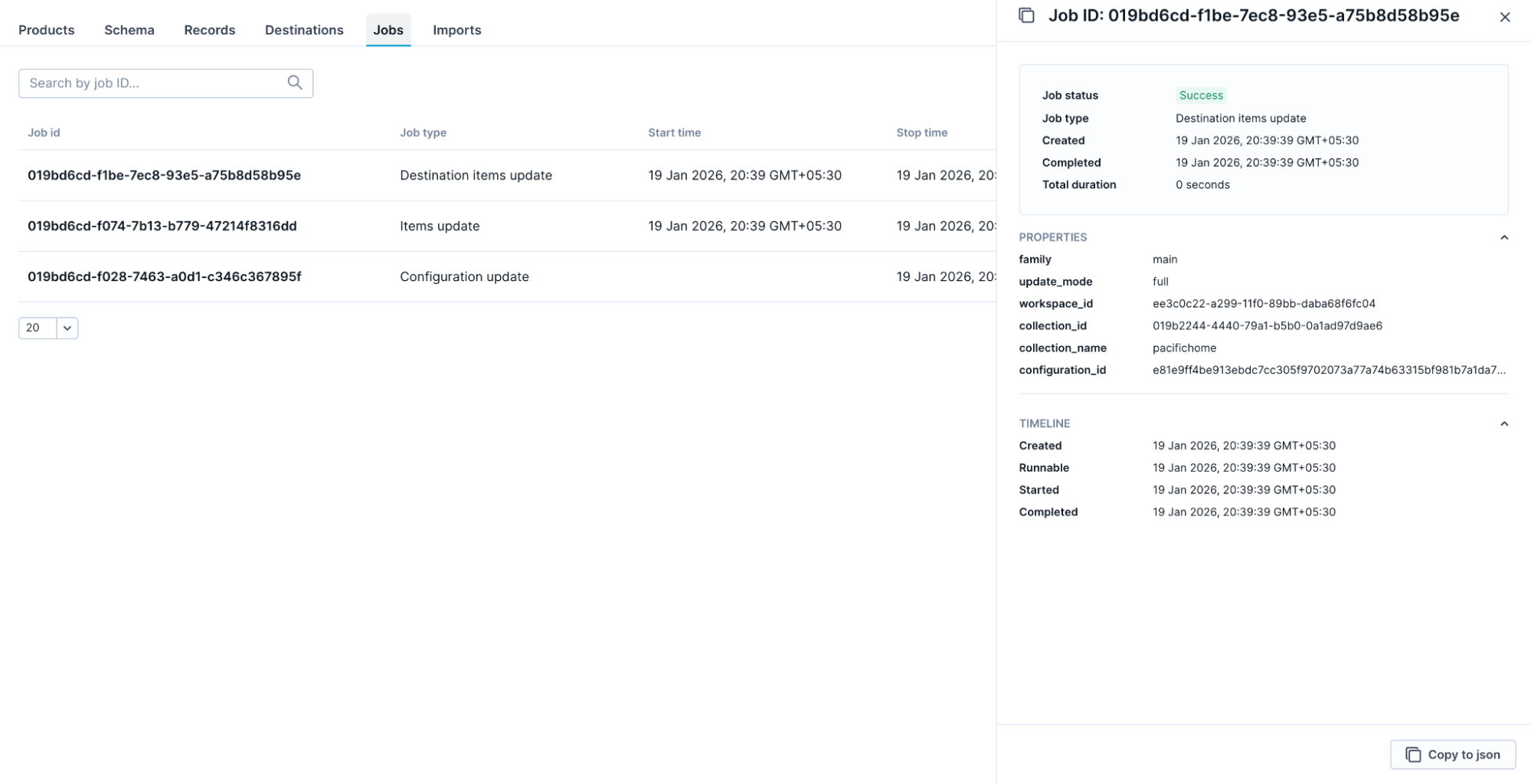
Click the Jobs tab. Review the list of jobs showing the Job ID, type, start time, stop time, status, and the job initiator.
-
Click the View button next to any job to see detailed information, such as processing statistics and error messages. Use the copy options to copy the job details to JSON. This helps provide specific debug information when contacting Support.
Each job displays its current state:
-
Pending: Job is queued and waiting to start.
-
Running: Job is actively processing.
-
Success: Job completed without errors.
-
Fail: Job encountered errors that prevented completion.
-
Canceled: Job was manually stopped before completion.
Revert configuration
If a job has a configuration, you can revert to it using the Revert to this configuration option. This helps return to the configuration used for a specific job.

You can also check the job status via the API.
Updated about 2 months ago