

Configure schema
Data hub rolloutData hub provides new unified API integration methods for sending data to multiple Bloomreach products. Access is being rolled out in phases. For new implementations, we recommend using Data hub where available. Existing product-specific integrations remain fully supported for Marketing, Search, and Conversational agent.
Map your raw record fields to meaningful attributes so the system can create items from them.
Prerequisites
Knowledge
- Understanding of item collection concepts.
- Understanding of which record fields should map to product-level and variant-level attributes.
- Knowledge of appropriate data types for your attributes (string, number, boolean, array).
- Knowledge of schema mapping.
Process
-
Created an item collection.
-
Ingested data via full update via API or with Imports.
-
Reviewed the records.
Steps to configure schema
Product item types support system and custom attributes. The following steps apply to both product and variant attribute mappings.
Custom item types support custom attributes only. For example, an Articles item type can have custom attributes named title and publish_date.
Navigation
- Go to Data hub > Items in your Bloomreach workspace.
- Click the item type you want to configure. Item types are listed under their collection.
- Click the Schema tab. Changes apply only to that item type.
Import and export configurations
Click the more options (...) menu in the item type header to access the import and export options.
- Export configuration: Export the selected item type's configuration, including attributes, identifiers, and destinations, as a JSON file.
- Import configuration: Import attribute settings into the selected item type from a JSON file or from a compatible item type in another collection. To get started, you can use an export as an example and then create your own JSON file with valid configurations.
Set item identifier
This defaults to Record ID. Alternatively, you can choose a Record field or JSON path as the item ID. For example, in an Articles custom item type, set the item ID to the article_id record field.
Record field
- Field name: Enter the name of your source field.
- Record level: Select which level (product or variant) of your data hierarchy contains this field.
JSON path
Specify the path to nested objects and arrays using JMESPath syntax. A few common patterns include:
product.name: nested field selection.attributes.dimensions.height: deeper nesting inside objects.images[0].url: pick a specific array element.variants[].sku: project all values from an array.variants[?available==`true`].sku: filter by Boolean flag before projection. This returns an array. If you expect a single result from the filter and select the first value, usevariants[?available==`true`].sku | [0].variants[?size=='XL'].price: filter by string and return matching prices.
Examples that use variants apply only to product item types with variants.
Validate expressions with a JMESPath tool to ensure the syntax matches your record structure.
ImportantFor JSON Path, if the path is invalid, can't be found, or the path results in a literal null value, it is treated as a
nullvalue.
Fallback behavior
Choose the fallback behavior and define what happens when the specified field value is missing:
- Fallback to record ID (default): Uses the record ID if your custom field is empty.
- Skip updates for related item: Ignores records without the custom field value.
- Stop job execution (job failure): Fails the job if any record is missing the field value.
Add attributes
Click + Add attribute. You can add either system or custom attributes.
System attributes
Add individual system attributes
Enter or select a system attribute from the Attribute name dropdown. Only product item types need system attributes.
Bulk add system attributes
-
Click the dropdown next to the + Add attribute button and click Bulk add system attributes.
-
Bulk select and map system attributes to source fields from your records (like
title,price,url). Click Apply selection.
Proceed with mapping. Review the guide on mapping category data.
Custom attributes
- Enter or select a custom attribute for any fields unique to your business (like
color_familyorcustom_level). - Choose a Data type, and proceed with mapping.
Search destinationsFor custom attributes, Search uses one effective configuration for each attribute name. If the same custom attribute name is defined at both product and variant levels, Search uses the variant-level configuration for that custom attribute. To make both product-level and variant-level custom values available in Search, use distinct custom attribute names. System attributes follow their own Search destination behavior.
Custom attributes namespacing
When custom attributes have the same name as system attributes, they receive a namespace prefix to prevent collisions when they sync with destinations.
Example
Schema: Custom attribute named color
Marketing catalog: Appears as main.color
Search catalog: Appears as main.color
The main namespace ensures your custom color attribute doesn't conflict with any system color attribute. System attributes map directly without the namespace prefix. This applies to product item types. Custom item types have no system attributes, so their custom attributes keep their names.
Configure attribute mapping
Choose one of the three mapping options: Record field, JSON path, or Custom expression. For example, in an Articles custom item type, map the headline and published record fields to the custom attributes title and publish_date.
Record field
Enter the exact field name in the source record. Set the source value from the product or variant source level.
JSON Path
Specify the path to nested objects and arrays using JMESPath syntax. For example, get dimension.height or image[0].url. Set the source value from the product or variant source level.
Custom expression
Write custom expressions in Python-like syntax to combine fields and apply transformations.
Apply aggregation methods
When mapping a product-level attribute from variant-level fields, you can specify how to aggregate these values based on the business need:
- Apply RANDOM value: Collects all variant values, then picks one at random. Fails if no values exist. Supports all data types.
- Apply MAX value: Converts variant values to numbers and returns the largest. Fails if values can't be converted to numbers or none are found.
- Apply MIN value: Converts variant values to numbers and returns the smallest. Fails if values can't be converted to numbers or none are found.
- Apply SUM of all values: Converts each variant value to a number (or list of numbers), adds them together, and returns the total as a float. Fails if any value can't be converted.
- Apply AVERAGE of all values: Converts values to numbers, sums them, and divides by the total count. Requires at least one numeric value.
- Apply COUNT of all values: Counts distinct values across all variants (ignoring duplicates). Supports all data types.
- AGGREGATE all values: Collects every successful variant value into a single list. Use this when the parent attribute expects a list aggregated from variant lists or scalars. Fails if no variant produces a value.
Apply value transformation (optional)
After mapping, optionally apply transformations to the value.
-
String split: Splits a string into a list using your specified delimiter. Example: with delimiter
|, the inputred|green|bluebecomes["red", "green", "blue"]. Fails if the delimiter is missing or not a string, or if the input isn't a string. -
Trim whitespace: Removes leading and trailing whitespace from a string or from every element in a list of strings. Example:
[" red ", "blue"]becomes["red", "blue"]. Fails if the input isn't a string or a list of strings. -
Uppercase: Converts a string or all strings in a list to uppercase. Case conversion is locale-insensitive. Example:
sku-1becomesSKU-1. -
Lowercase: Converts a string or all strings in a list to lowercase. Example:
["ABC", "Def"]becomes["abc", "def"].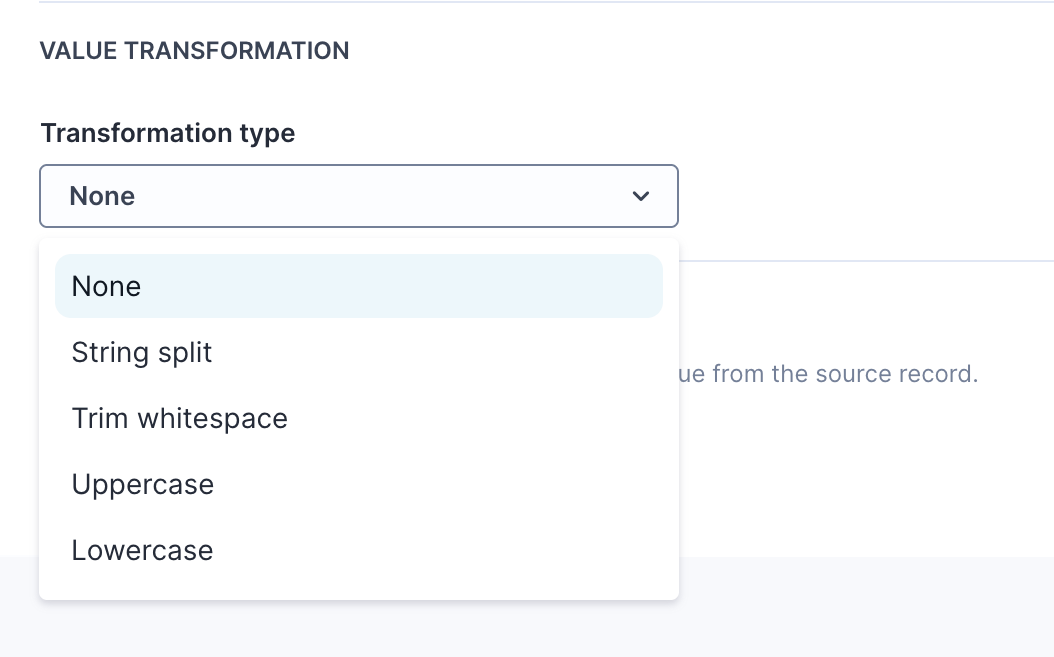
Handle exceptional scenarios
If the mapping returns a null, empty, or missing value, specify how to handle the exception:
-
Fall back to value: Specify a constant default value to use if mapping fails.
-
Fall back to field: Define a secondary mapping to try if the first fails. For example, if a variant price is missing, look for a product-level price.
-
Skip updates for this attribute: Don't create or update the attribute for the item if mapping fails.
-
Skip updates for related item: Don't create or update the entire item if mapping fails for this attribute.
-
Stop job execution: Immediately fail the job if mapping fails. You must fix the data and rerun.
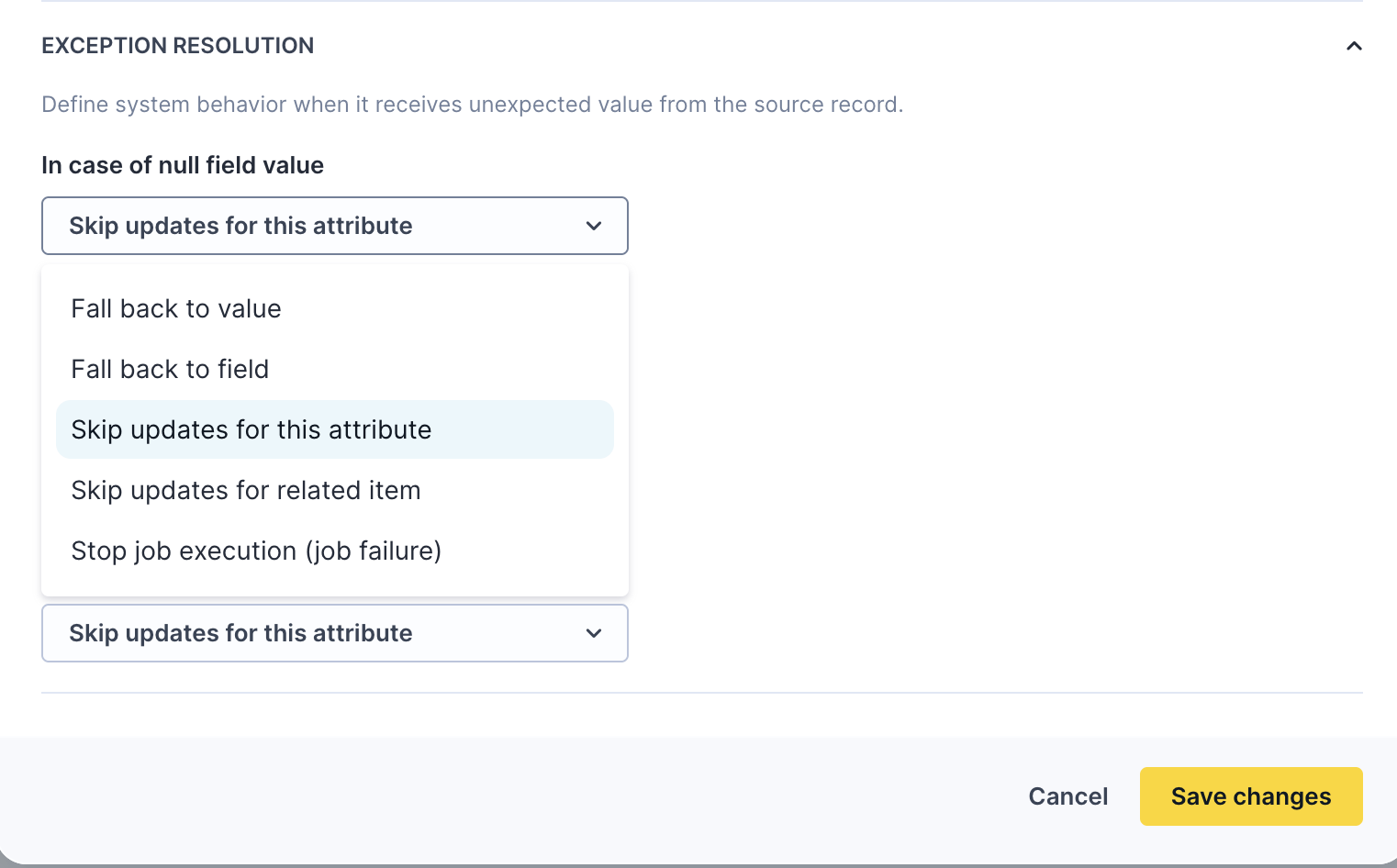
Not all mapping types support all five options. For example, fallback to another field mapping isn't always available to prevent infinite loops. These mapping and failure handling options apply to both custom and system attributes, and to both products and variants.
Attribute status
Check the attribute status using the colored indicators:
- Green: Attribute mapped and published.
- Orange: Attribute locally drafted but not saved.
- Yellow: Attribute isn't mapped.
Review and save changes
Click Review and save configuration. Review the modifications, deselect specific changes you don't want to save, and view the difference between changes. Click Save configuration.
Exclude or include destination changes
When copying or importing configurations, you may want to copy all changes except the destinations. Copying destinations can disrupt your existing data flow setup.
During the review stage, ensure that you exclude destination changes by deselecting them. You can't apply settings that only product item types support, such as system attributes, variant mappings, and category paths, to a custom item type.
Repeat the same process for variant attributes by clicking the Variant tab.
Data hub reprocesses your data to generate items based on the new mappings. Wait for the Items update job to complete.
Next step
Updated about 14 hours ago