

Schedule import execution
Data hub rolloutData hub provides new unified API integration methods for sending data to multiple Bloomreach products. Access is being rolled out in phases. For new implementations, we recommend using Data hub where available. Existing product-specific integrations remain fully supported for Marketing, Search, and Conversational agent.
This guide covers how to schedule when your item collection data imports run. Choose between a single import that runs immediately or scheduled recurring imports that run automatically at specified intervals.
Prerequisites
Data hub permissions: Ensure you have the required permissions.
Steps to schedule imports
After completing the data type, data source, and data mapping configuration steps, go to Schedule execution.
Schedule a single import
A single import runs once and immediately after you save it.
-
Select Single import.
-
Click Save and run now to run the import immediately.
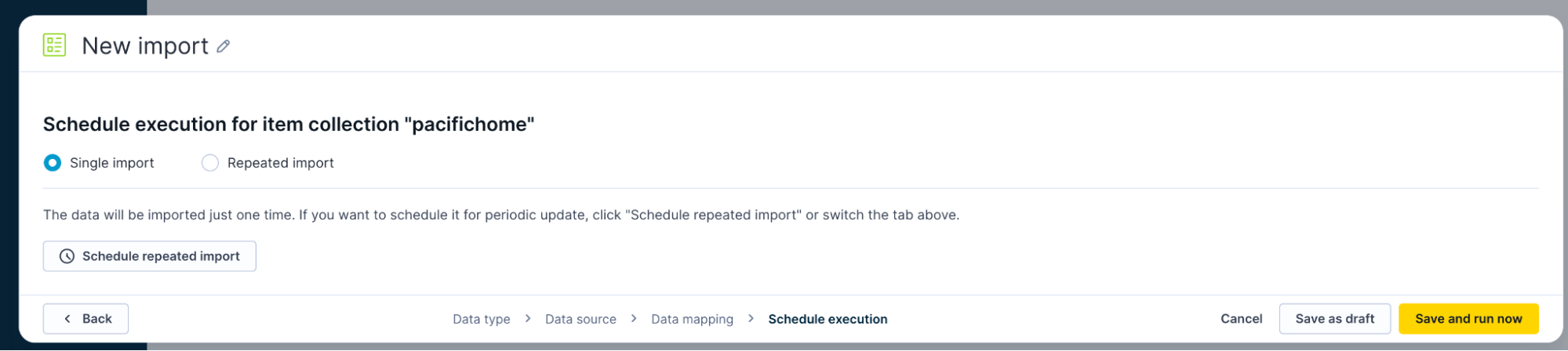
The import begins processing your records data according to the mapping you set up in the previous step.
Schedule repeated imports
Repeated imports run automatically based on the schedule you configure. This option works best when you need to keep your Item collection data synchronized with regular updates from your data source, but your source doesn't support the Sync updates option.
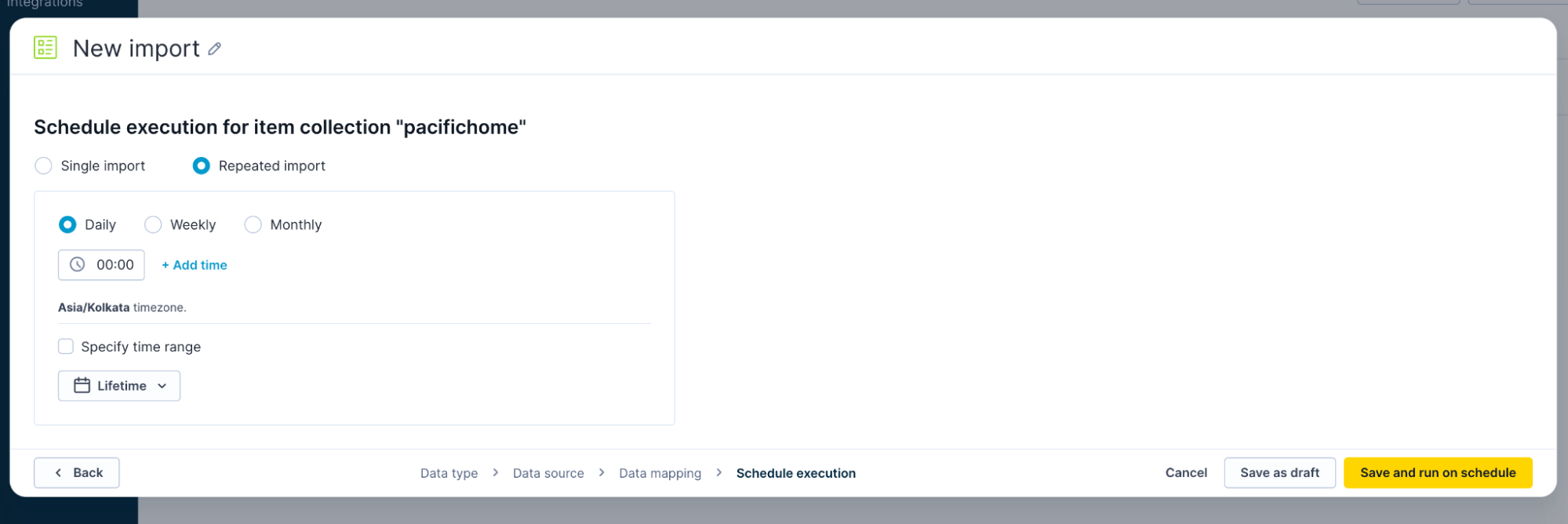
Configure the import frequency
-
Select Repeated import.
-
Choose your preferred frequency:
- Daily: Runs every day at the specified time.
- Weekly: Runs once per week on a specific day and time.
- Monthly: Runs once per month on a specific date and time.
-
Set the execution time.
- Enter or select your time range.
- Click + Add time to schedule multiple execution times within the same day (applies to daily frequency only). The system displays your time zone below the time field to help you confirm the correct schedule.
-
After configuring your import schedule:
- Click Save as draft to save your configuration without starting the import.
- Click Save and run on schedule. The import remains in a pending state until the scheduler initiates it at the right time.
Sync updates
For some integrations, such as Databricks and Snowflake, you can set up a recurring delta import of changes since the last import using the Sync updates option.
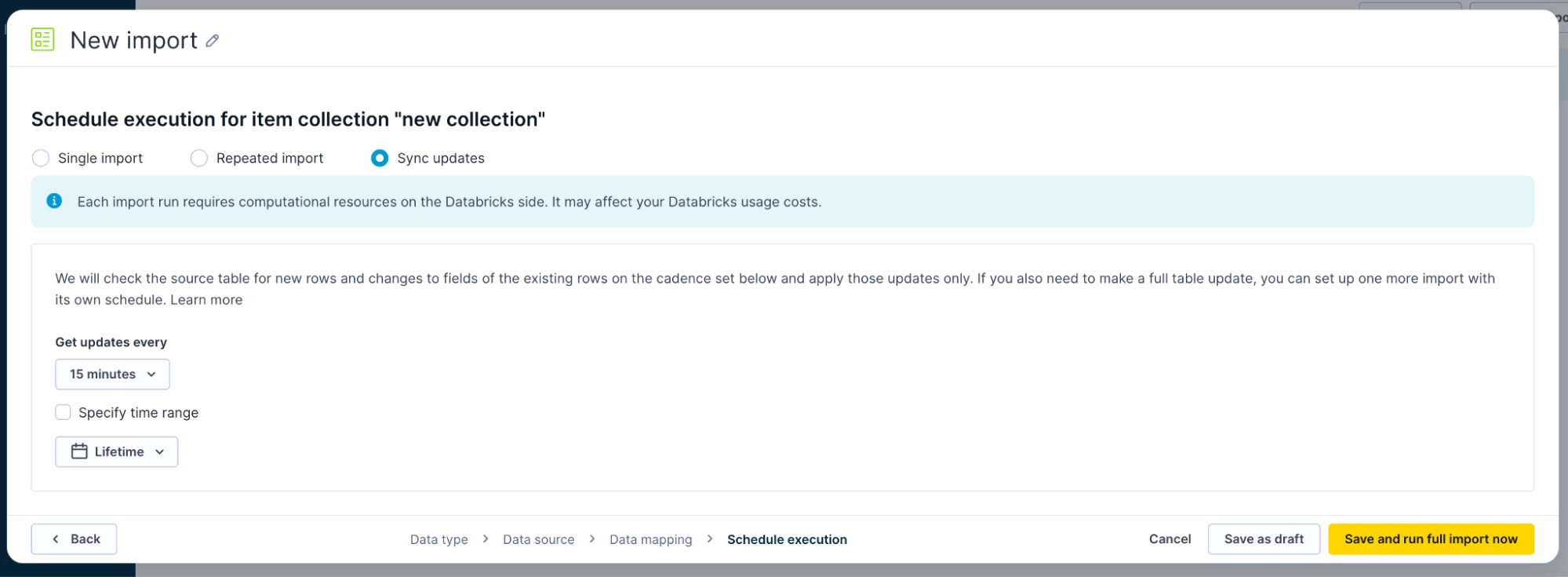
Set the schedule (every 15, 30, or 45 minutes; every 1 or 2 hours) and, optionally, specify the start and end dates for the time range.
Monitor import jobs
The import transforms raw data into items. Go to the Jobs tab to monitor the Items update job status.
Updated about 2 months ago