

Data warehouse imports
Data hub rolloutData hub provides new unified API integration methods for sending data to multiple Bloomreach products. Access is being rolled out in phases. For new implementations, we recommend using Data hub where available. Existing product-specific integrations remain fully supported for Marketing, Search, and Conversational agent.
This guide covers how to import item collection data directly from data warehouses: BigQuery, Snowflake, or Databricks. This type of import uses a direct connection to your data warehouse database and can execute SQL queries and read tables or (materialized) views directly.
Prerequisites
- Data hub permissions: Ensure you have the required permissions.
- Source preparation: Prepare your SQL query to read from existing tables or prepare a dedicated data table or (materialized) view. Grant read permissions to the account that you want Bloomreach to use when reading from the database.
- Integration: Under Data hub > Integrations, configure your BigQuery, PostgreSQL / Redshift, Snowflake, or Databricks integration before you can select it as a database SQL integration option.
ImportantThe PostgreSQL / Redshift import source:
- Supports PostgreSQL 14 and later. Earlier versions reached end of life and aren't compatible.
- Requires SSL encryption to be enabled (without any files) in the integration settings for Redshift imports.
Configure data warehouse import
After creating a new import and selecting the import type, follow the steps below.
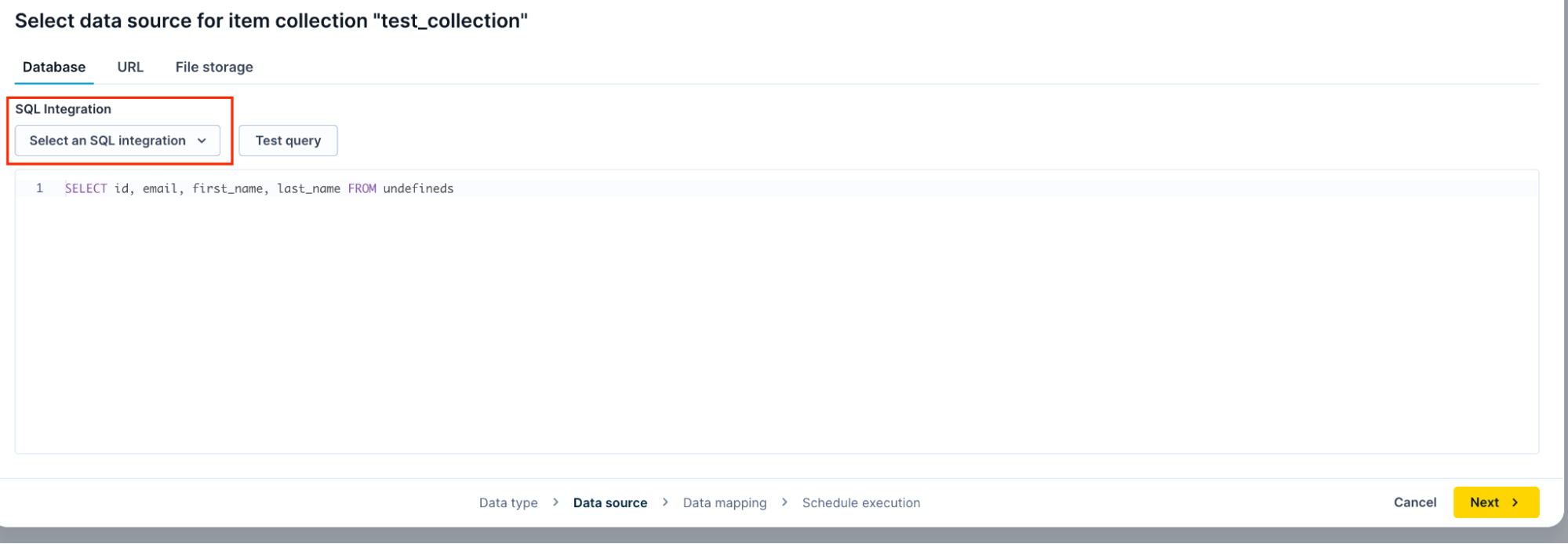
Select your SQL integration
Under the Database tab, click the SQL Integration dropdown and choose your data warehouse platform: BigQuery, Databricks, or Snowflake. If the options don’t appear, configure the integration first before proceeding.
Set up your source query
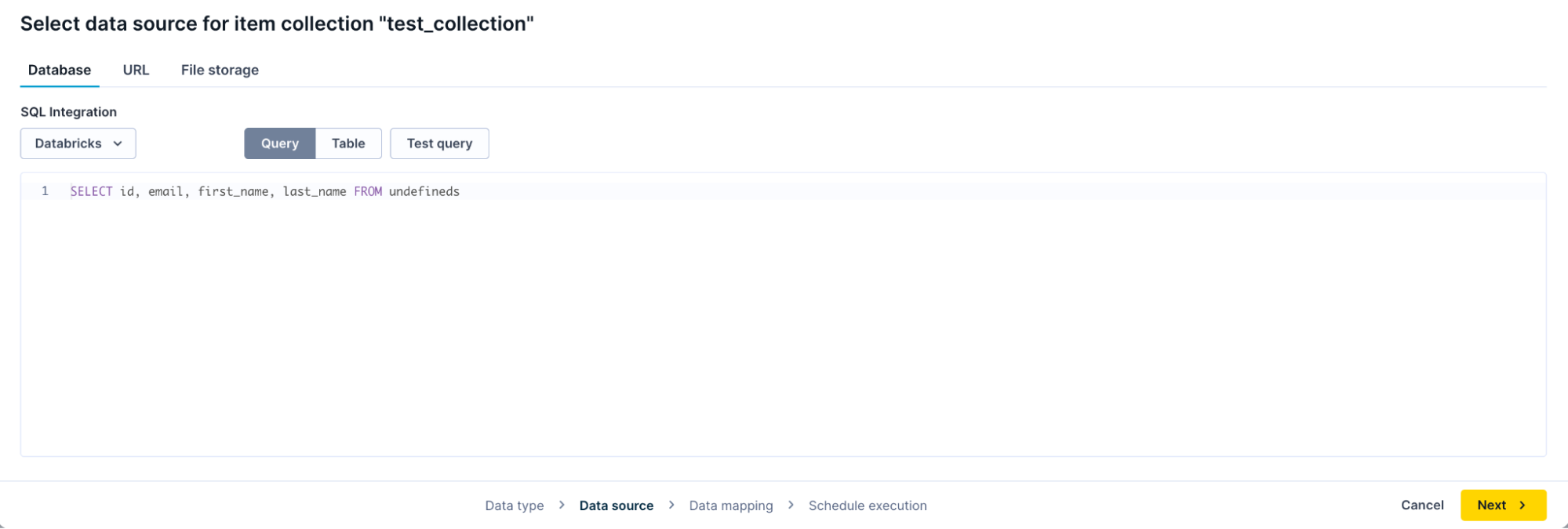
After selecting your SQL integration, the interface displays configuration options. Toggle between the Query and Table tabs to choose how you want to specify your data source:
-
Query: Enter an SQL query request to retrieve specific data from your database. Ensure the query includes all necessary fields for your Item collection. This option is good for users who have the skills to write and modify the query from the Bloomreach user interface.
-
Table: Select an existing table or (materialized) view directly from your database. This option is suitable for less technical users who have had their BI team or data engineers prepare the right datasets.
Test query
Click the Test query/Preview data button to verify your connection and the data.
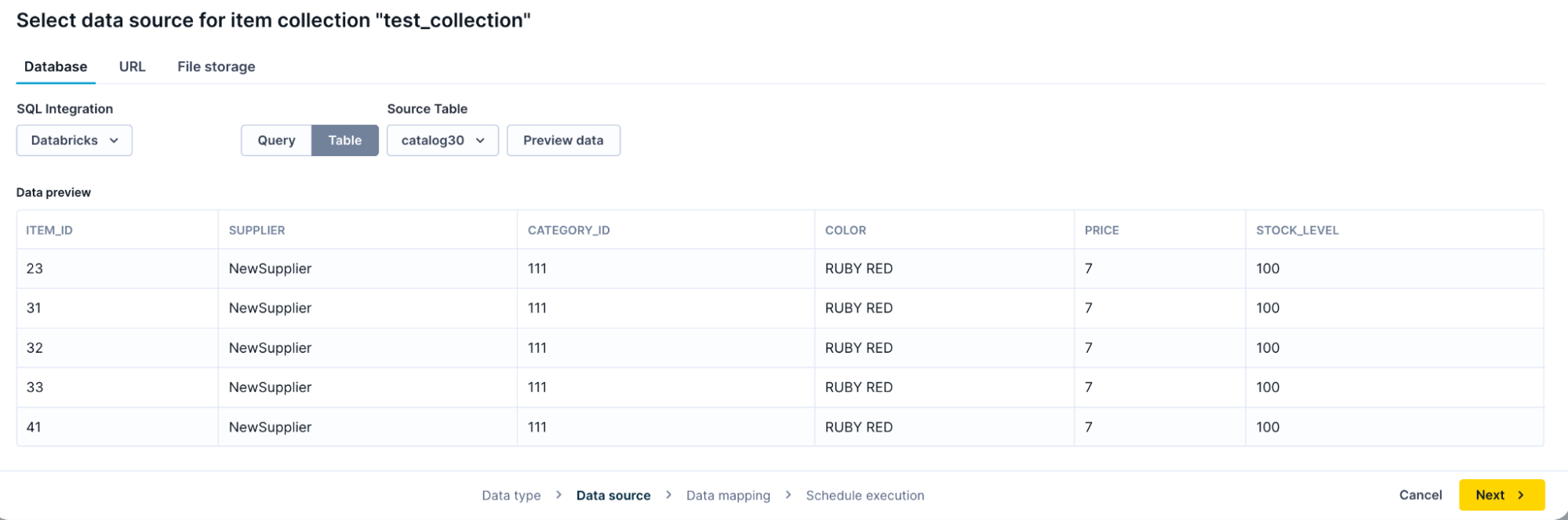
Click Next and specify the data mapping.
Preview timeout
The preview wraps your query in LIMIT 5 and is capped at 60 seconds. The cap applies to the preview only—the scheduled import run can take hours.
The LIMIT 5 wrap doesn't speed up complex queries. With GROUP BY, window functions, multi-table joins, repeated CTEs, or ORDER BY without an inner LIMIT, your warehouse computes the full inner result before trimming it to 5 rows. Simplifying the query helps because it removes operations that block LIMIT pushdown.
If your preview times out:
- Import from a view. Create a pre-computed view or materialized view in your warehouse, then point the import at it in Table mode. This is the recommended approach for any scheduled import, since it moves the heavy work to your warehouse.
- Preview on a smaller sample. Test with a reduced dataset, then swap the full SQL back in before saving.
- Simplify the preview SQL. Remove
ORDER BY(or add an innerLIMIT), reduce joins, narrow the columns, or tighten the time window. The scheduled import can still use the full query.
Query shape and warehouse sizing are specific to your warehouse platform. Your warehouse administrator controls the warehouse size and statement timeout settings.
Updated about 2 months ago