

Bloomreach Tracking Console - Chrome extension
The Bloomreach Tracking Console is a free Chrome extension that gives you a real-time view of tracking events, customer IDs, SDK configuration, and metadata as they flow from your website to Bloomreach. It's the primary tool for validating your Web SDK implementation, debugging tracking issues, and confirming that events are reaching Marketing and Search correctly.
Install the Bloomreach Tracking Console from the Chrome Web Store
NoteThe Tracking Console doesn't include the pixel validation capabilities of the Bloomreach Pixel Validator Chrome extension. For Search-specific pixel validation, use the Pixel Validator alongside this extension.
Install the extension
- Open the Bloomreach Tracking Console Chrome Web Store page.
- Click Add to Chrome.
- Confirm the installation when prompted.
Once installed, the extension icon appears in the top-right corner of your browser. The extension connects directly to the Bloomreach Web SDK. No API credentials or additional configuration are required.
NoteThe extension requires Bloomreach Web SDK v2.13.1 or later.
Open the console
The Tracking Console runs as a tab inside Chrome Developer Tools. To open it:
- Navigate to your website in Chrome.
- Open DevTools using one of these methods:
- Right-click anywhere on the page and select Inspect.
- Press Ctrl+Shift+I (Windows/Linux) or Cmd+Option+I (Mac).
- Go to Menu > More tools > Developer tools.
- In DevTools, find and click the Bloomreach Tracking tab in the top menu.
What the console shows
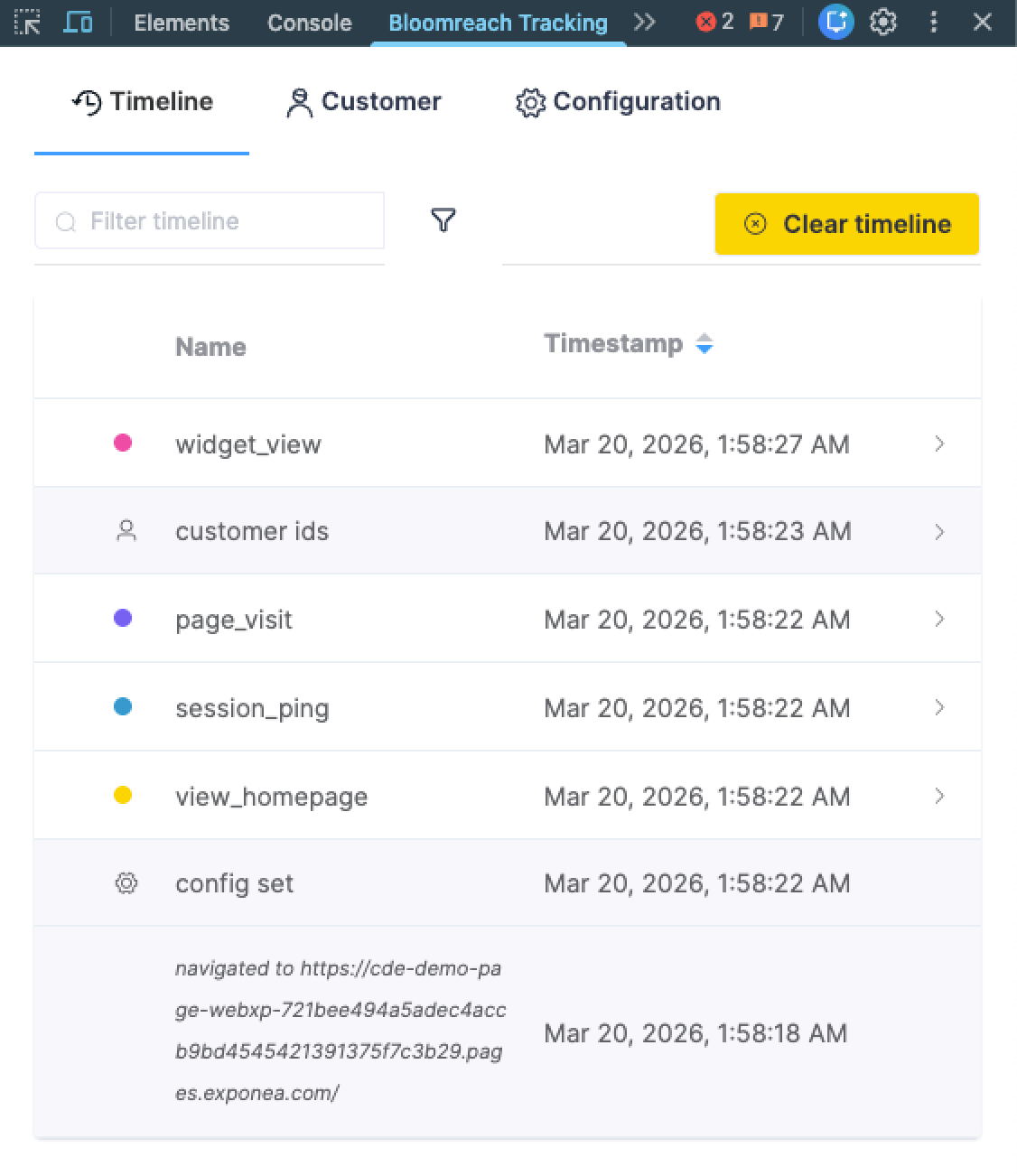
The console has three tabs, each showing a different aspect of your SDK integration.
Timeline
Displays all events fired on the current page in real time, including their event type, properties, metadata, and timestamps. Use this tab to confirm that tracking calls are firing at the right moments. For example, check that view_item fires when a product detail page loads, or that cart_update fires when a visitor adds an item to the cart.
Each event entry shows its full property payload, so you can verify that required properties (such as product_id, search_term, or catalogs) are included and correctly formatted.
Customer
Shows the current visitor's identifiers as the SDK sees them, including the anonymous cookie ID and any identified IDs set via brweb.identify(). Use this tab to confirm that visitor identification is working correctly after a login event, and to copy the cookie value for looking up the visitor profile in Marketing.
Configuration
Displays the active SDK configuration, including your stream_id, target URL, and any other options passed to brweb.start(). Use this tab to confirm the correct credentials are in use, especially after deploying a new snippet or switching between environments.
What to check during implementation
Use the following checklist when validating a new implementation or troubleshooting an issue:
- Events firing: Open the Timeline tab and navigate your website. Confirm that the correct page view event fires on each page type —
view_homepage,view_category,view_item,view_search_results, and so on. - Event properties: Expand each event and verify that the required properties are present. Cross-reference against the Required events reference to confirm property names and values match the expected schema.
- Metadata: cCheck the metadata object and its properties. Confirm that
domain_keyandview_idare correct for the current page. If you're testing on production, confirmtest_data: trueordebug: trueis set to avoid polluting live data. - Customer identification: Trigger a login on your website and open the Customer tab. Confirm that the identified customer ID, such as
email_idappears alongside the cookie ID afterbrweb.identify()is called. _br_uid_2cookie: Check that_br_uid_2is present in the event properties. This cookie is required for Search to recognize returning visitors. If it's missing, check your cookie configuration and browser settings.exponeaalias: If you've set up the backwards compatibility alias, open your browser console and runexponea === brweb. It should returntrue. See Migrate from the Marketing JavaScript SDK for more details.
For a full SDK integration testing guide, see Testing the JS SDK integration.
Limitations
- HTTPS only: The extension only works on HTTPS pages. It can't inspect tracking on HTTP pages. If your local development environment uses HTTP, use the Network tab in Chrome DevTools to inspect API calls to the Bloomreach tracking endpoint directly.
- No Search pixel validation: The extension validates Bloomreach Web SDK tracking calls but doesn't validate Search pixel parameters in the way the Bloomreach Pixel Validator Chrome extension does. Use both extensions together if you need to validate both SDK events and Search pixel parameters.
- Some custom configurations not supported: Advanced or custom SDK configurations may not be fully visible in the console. In these cases, supplement the console with direct inspection of network requests in Chrome DevTools.
Updated 3 months ago