

Loomi for Shopify Search
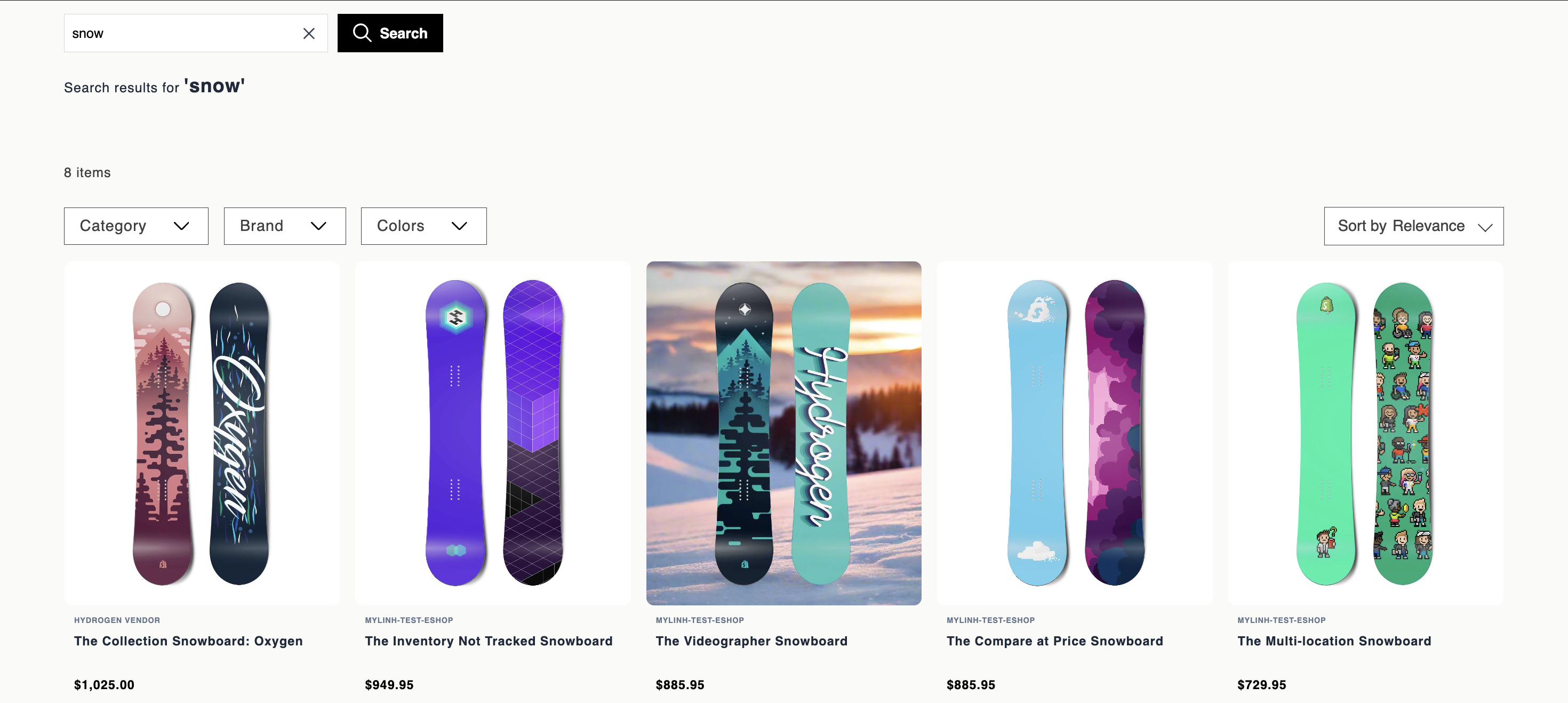
Search replaces the default Shopify search with Bloomreach-powered results. Search uses a unified catalog and relevance engine — including ranking, synonyms, spell correction, redirects, and faceted filtering — to deliver more relevant results.
This guide walks you through enabling Search in the Shopify theme editor and configuring its settings.
Prerequisites
Before you set up Search:
- Have an active Search subscription.
- Install Loomi for Shopify from the Shopify App Store.
- Complete the integration and sync your data with Bloomreach.
- Enable the Bloomreach Web SDK.
Enable search
- In your Shopify admin, go to Online Store > Themes > Edit theme.
- Choose a section, click + Add Block and from the Apps tab, add Bloomreach Search to your theme.
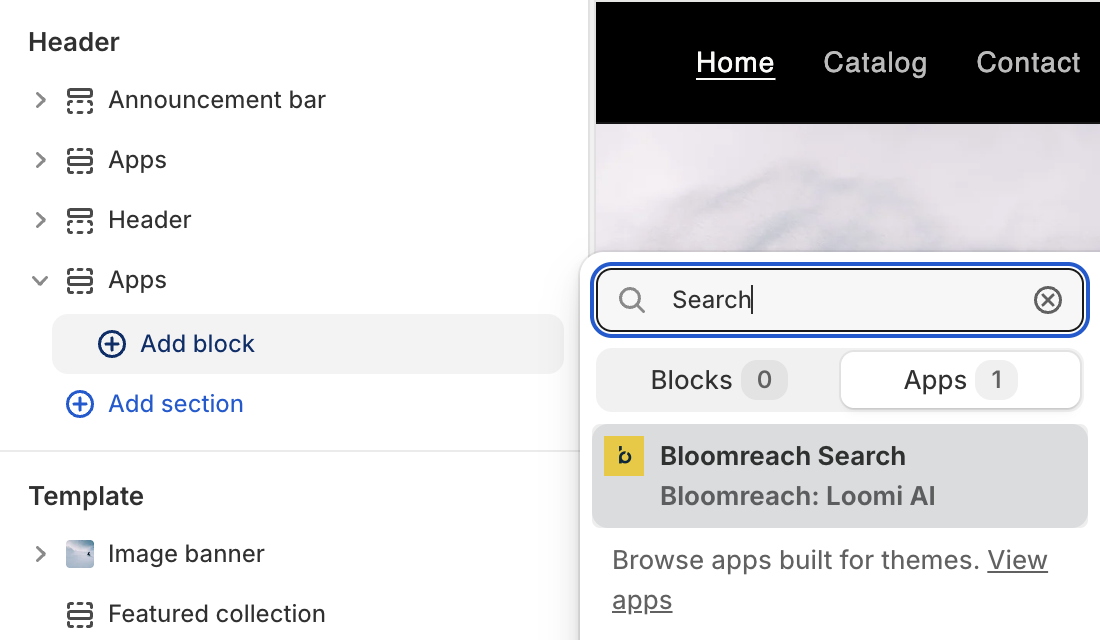
- In the left panel, configure the search settings.
- Click Save.
Configure search settings
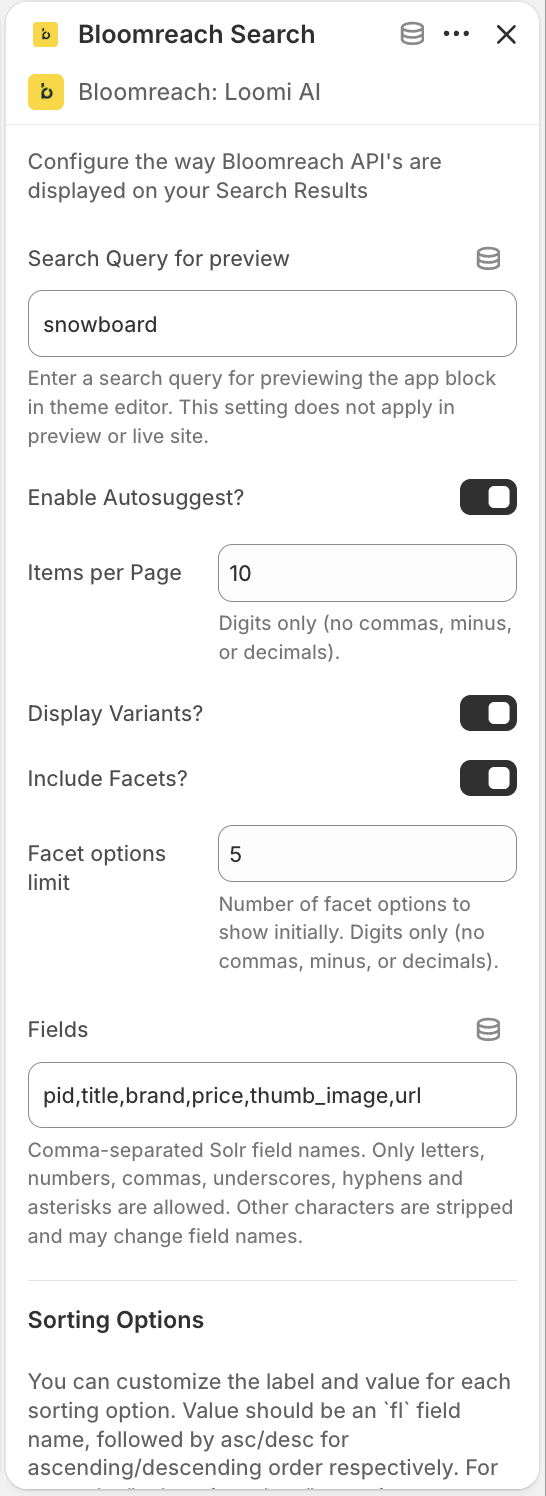
After adding Search to your template, configure the following settings in the Loomi for Shopify app:
| Setting | Description |
|---|---|
| Search query preview | Set a sample search term for the theme editor preview. This only affects what you see in the editor and doesn't change results on your live site. |
| Enable Autosuggest | Enable or disable the autosuggest dropdown for the search input. To enable autosuggest for the Shopify default search feature, see Loomi for Shopify Autosuggest. |
| Items per page | Define how many products appear per results page. Enter a whole number (for example, 10). Decimals and special characters aren’t supported. |
| Display variants | Choose whether each product variant (for example, size or color) appears as a separate result or is grouped under a single product. |
| Include facets | Enable or disable filter facets (for example, brand, color, price) on search results pages. |
| Facet options limit | Set how many values per facet trigger the "show more" option. |
| Fields | Specify which product attributes the API returns, using comma-separated Solr field names. See Supported fields. |
| Sorting options | Configure the "Sort by" dropdown by mapping user-friendly labels to sort expressions (for example, sale_price+desc for descending price order). |
| Additional parameters | Append extra query parameters to every search API call for advanced behaviors such as views, segments, or experiments. |
| Custom CSS | Apply custom CSS to style the search bar, panels, and result components without modifying your theme's core code. |
Click Save to apply your settings.
Supported fields
The following Solr field names are available for the Fields setting:
pidtitlesku_titlevariant_titlebrandpricethumb_imagevariantsskuidsku_color_groupsku_colorsku_swatch_imagessku_thumb_imagesurlsale_pricesku_sale_price
Variant slicing
Variant slicing displays variants as separate listings, sliced by an attribute such as color. You can boost, bury, block, and position-lock each listing as if it were a separate product.
Loomi for Shopify search results are compatible with Variant slicing — no additional setup is needed on the Shopify side. Variant slicing is configured and managed entirely through the Search dashboard.
Limitations
Media in a grid isn't supported by the Shopify integration and require custom implementation.
Group merchandising isn't available through the Shopify integration. It's a feature of the Search platform.
Related articles
Updated 5 days ago