

File storage imports
Data hub rolloutData hub provides new unified API integration methods for sending data to multiple Bloomreach products. Access is being rolled out in phases. For new implementations, we recommend using Data hub where available. Existing product-specific integrations remain fully supported for Marketing, Search, and Conversational agent.
This guide covers how to connect to SFTP, Amazon S3, or Google Cloud Storage to import data files.
Prerequisites
- Configured connection: Under Data hub > Integrations, set up your SFTP, Amazon S3, or Google Cloud Storage connection before you can select it as a file storage option.
- Storage access permissions: Ensure you have the appropriate permissions to access the storage location and read files from the specified directories.
- Data hub permissions: Ensure you have the required permissions.
- File preparation: Prepare your data file in CSV or XML format.
Configure file storage import
After creating a new import and selecting the import type:
Select file storage option
-
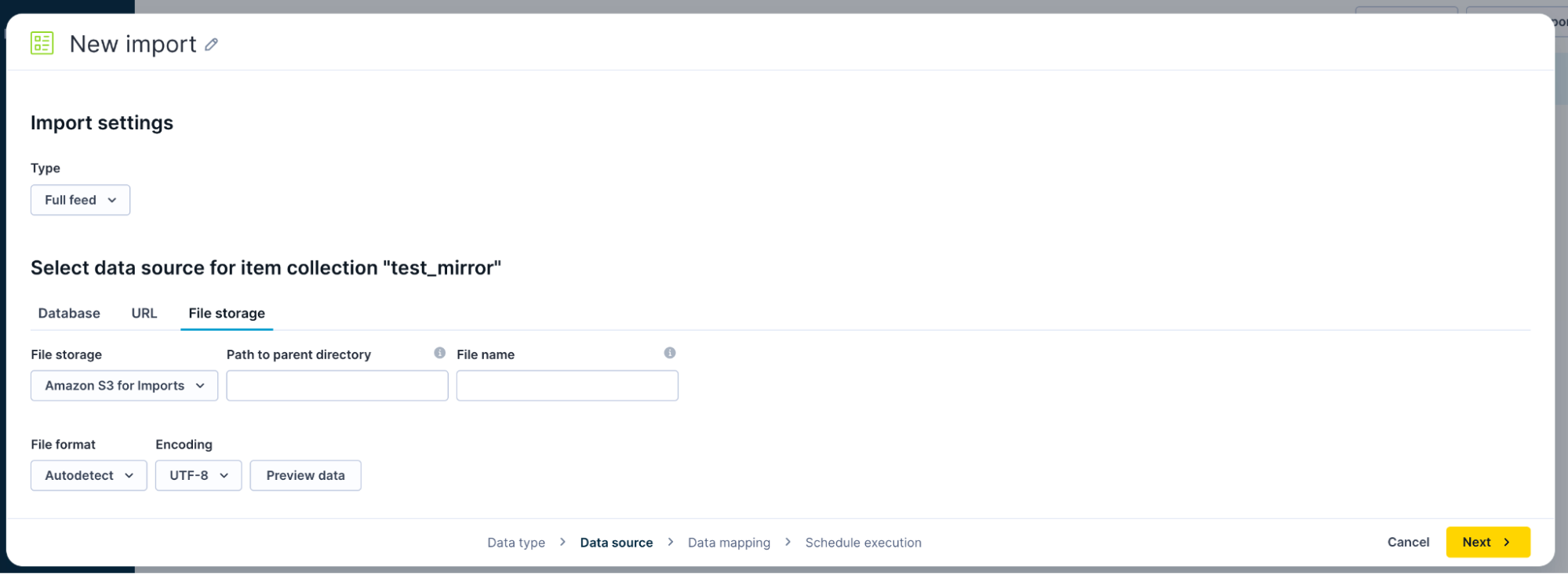
Navigate to the File storage tab.
-
Click the File storage dropdown menu.
-
Select your preferred storage option (SFTP, Amazon S3, or Google Cloud Storage). If your storage option doesn't appear, configure the connection first before proceeding.
Configure connection details
Specify exactly where your data file lives and how the system should read it:
- Path to parent directory: Enter the exact static path to the folder in your storage location that contains your data file.
- File name: Enter the exact name of your data file, including the extension. For example, product-catalog.xml. Specify the complete filename. Avoid using wildcards or regular expressions.
- File format: Select your file format (CSV or XML) from the dropdown, or choose Autodetect to let the system identify the format automatically.
- Encoding: Select the character encoding used in your file. Use UTF-8, or select a different encoding if your source system uses another format.
Import limits
Maximum columns: 260 columns per file.
Performance recommendations
- File size: Maximum of 1 GB per file.
- Row count: Maximum 1,000,000 rows per import file.
NoteTo import bigger files to the Item collection, use the Item collections API and the upload file feature.
Preview and validate data
- Click Preview data to validate that your file appears correctly and the system can read it as expected.
- Click Next and specify the data mapping.
Updated about 2 months ago