

Before you can start using Data hub APIs, configure your workspace with the right credentials and permissions. This guide walks you through setting up API groups, generating API keys, and configuring permissions.
Prerequisites
You need the Workspace Admin or Workspace IAM Admin role to create and manage API groups.
Set up API access
Locate workspace credentials
Your workspace has unique identifiers you'll need for all API calls.
-
Click the Workspace settings icon in Data hub.

-
Select Access management > API from the left navigation menu.
-
Note the following values:
- Workspace token: A unique identifier for your workspace.
- API Base URL: Your workspace's API endpoint.
Keep these values secure and include them in every API request.
Create and configure API groups
API groups control access permissions and organize your API keys. You can create up to 50 API groups.
NoteEvent streams automatically create a private API group when set up. This group is scoped to event stream operations only—it won't show permissions for other purposes such as item collections.
To create a new API group:
-
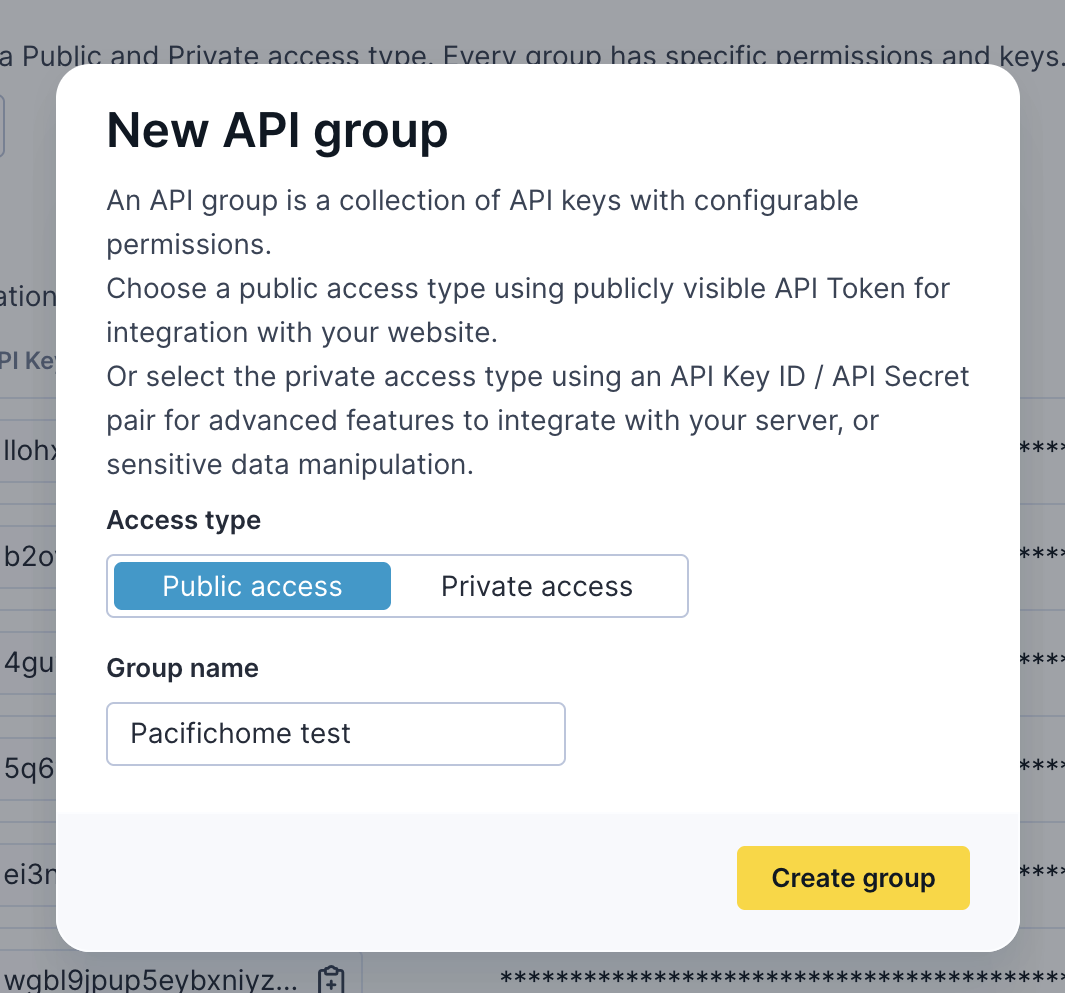
Under API groups, click the dropdown menu and select + New group.
-
Select an access type:
- Public: Access to publicly available data only. Use for read-only access to non-sensitive catalog data.
- Private: Access to both public and restricted data. Use for item collections, event streams, and any integration that reads or writes customer or product data.
-
Name your group.
-
Click Create group.
For a Private group, copy your new secret API key to authorize API requests.
Generate API group keys
Create a separate private API group for each integration purpose. For example, one group for event streams and a different group for item collections. Item collections permissions only appear in a newly created private group and won't be available in groups created for other purposes.
API keys authenticate your requests to Data hub. Each key belongs to a specific group and inherits that group's permissions. You can generate up to 20 API keys per group.
To generate new API keys:
- Under the Group Keys section, click + Add key.
- Enter a key name and click Create.
For the Public groups, you'll see the key name and API token. For Private groups, you'll see the key name, key ID, and API secret. You can rotate the API secret at any time—the old secret remains valid for 24 hours after rotation or until you revoke it.
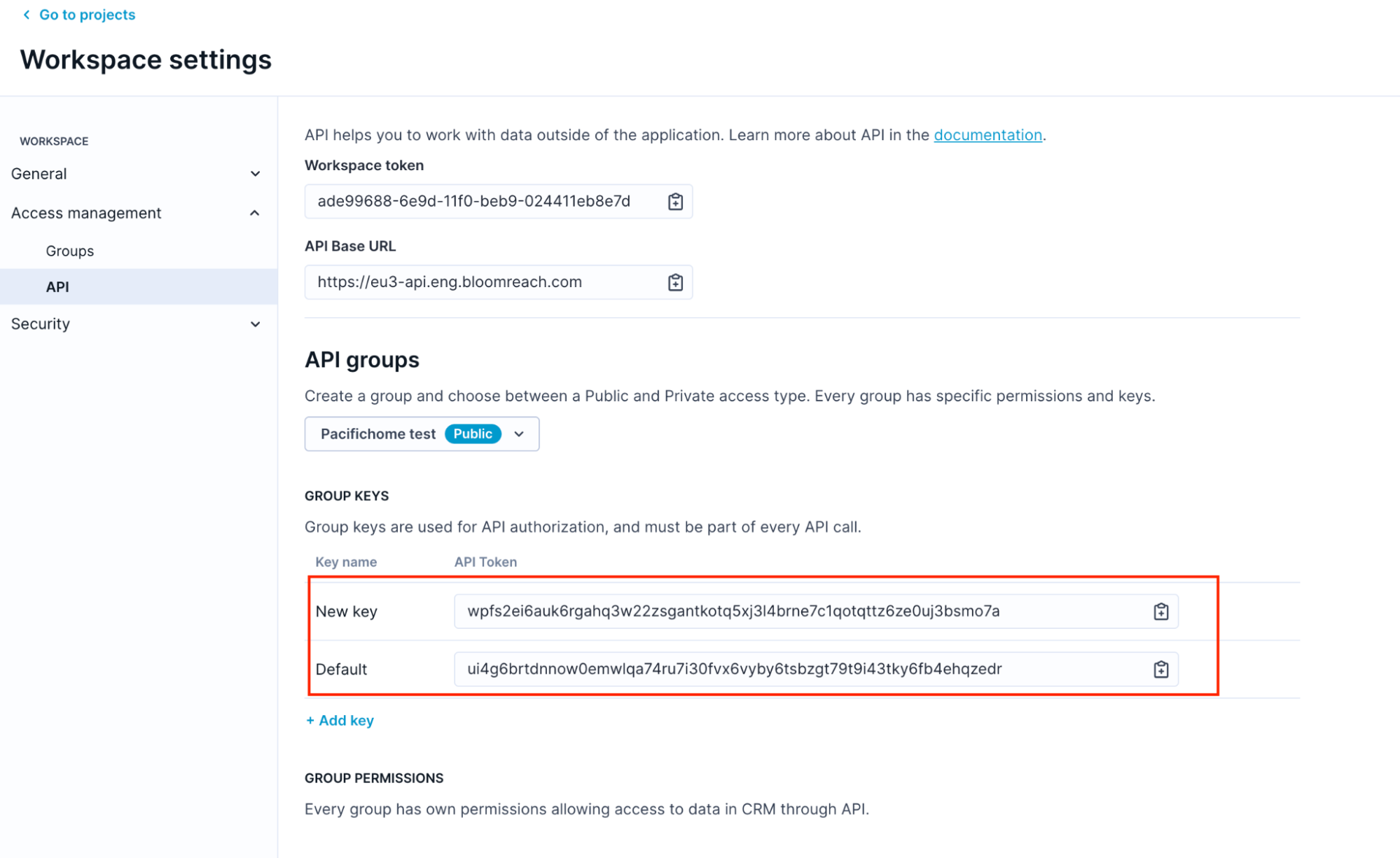
Creating multiple keys within a single group allows you to:
- Rotate keys without service interruption.
- Track usage by different systems or environments.
- Revoke access to specific integrations without affecting others.
Configure permissions
API group permissions determine what actions your API keys can perform on Data hub Item collections. Every group has its own permission set that applies to all keys within that group.
-
In the Group Permissions section, review the available actions.
-
Select each permission your integration requires:
- To update records, select Update records.
- To get job details, select Get job details.
-
Click Save changes to apply the permission configuration.
Permissions map one-to-one with available API operations. Only grant the permissions your integration needs.
API changes and versioning
Bloomreach may update, enhance, or replace APIs over time, including introducing new versions and deprecating older ones. Bloomreach won't materially reduce core functionality during your contract term without providing a reasonably equivalent alternative or transition support, and will give reasonable advance notice of any deprecation that removes an API. Bloomreach may make changes without advance notice to address security vulnerabilities, comply with applicable law, or respond to changes in third-party dependencies.
Next steps
- Use the Item collections API documentation to manage collections programmatically.
- Use the Tracking API to manage event tracking operations.