

Understand import data structures
When you import products into Bloomreach, the way your source data organizes products and variants determines how you configure and map the import. Identifying your data structure upfront ensures accurate mapping and prevents import errors.
This guide helps you understand how your data structure affects configuration options that appear during import setup and how the system interprets each row in your file.
Data structure types
Imports support the following types of row-based structures.
Product data only (no variants)
Each row represents a complete product without variant information. All products in your file have the same structure, and none include variant-specific details like sizes or colors. Every row must include a unique record ID.
Example: An import of unique items where each row of the import has only product-level columns and no variant-level columns.
Variant data only (no parent products)
Each row represents a variant with variant-specific details. Your file contains no standalone product rows; every row includes information for a specific product variant, its variant ID, and parent product ID, as well as parent product columns.
Example: A feed where every row of the import represents a single variant with columns representing both variant-level details and the product-level details of its parent product.
Product and variant data (mixed)
Your file contains both product rows and variant rows. Some rows represent complete products, while other rows represent variants that belong to those products.
Example: An import where some rows represent a variant while other rows represent a variant's parent product.
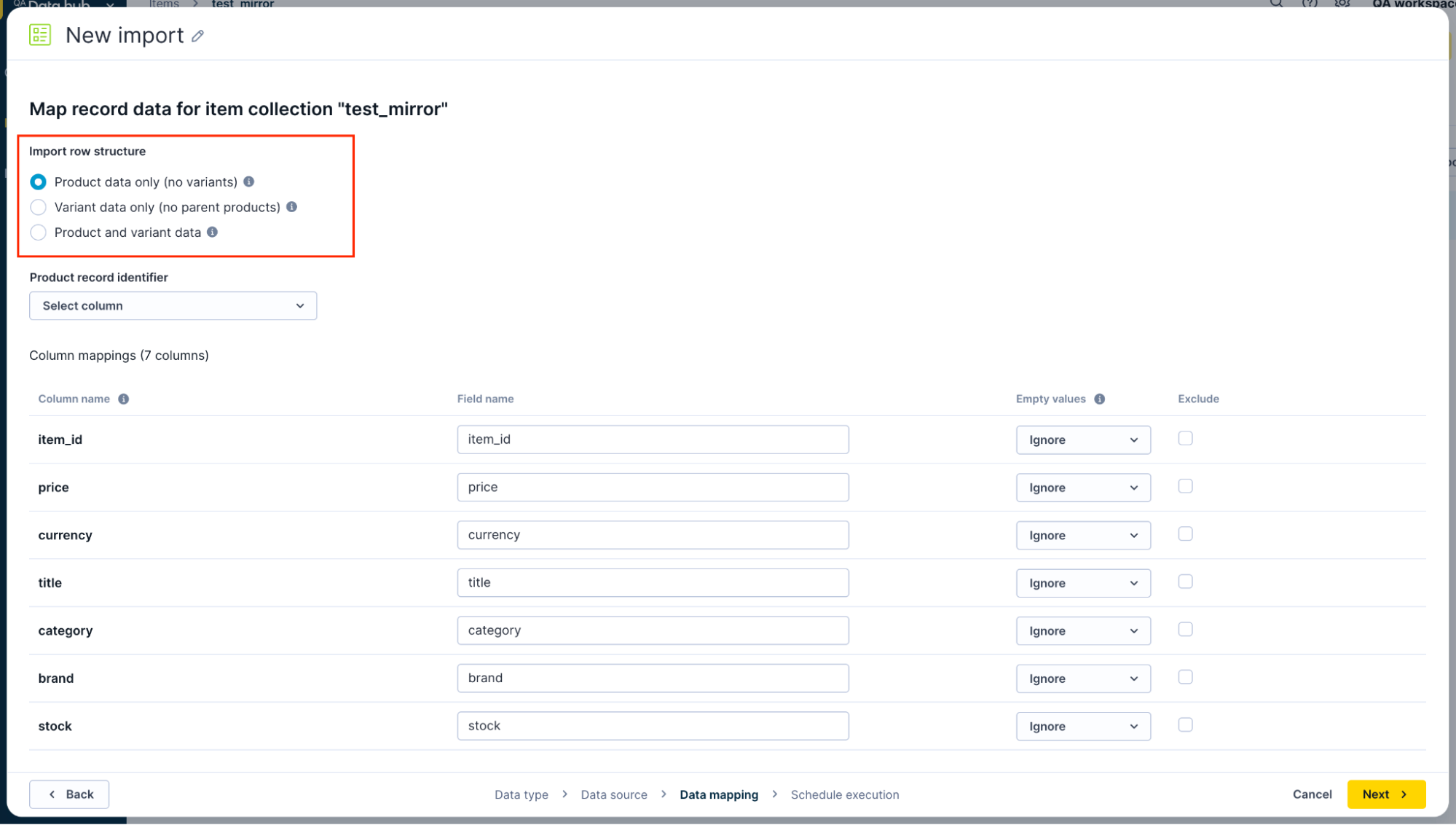
Import row structure options.
Common variant structures
When your data includes variants, one of three common structures can exist. Understanding which structure matches your data helps you configure the import correctly.
Parent-child with explicit IDs (mixed row structure)
Each row can represent either a product or a variant. Product rows and variant rows appear mixed together in the same file, typically with the product row appearing first, followed by its variant rows.
Characteristics
- Product rows have a product ID, but leave the variant ID empty.
- Variant rows include both product ID and variant ID.
- Product-level information appears once on the product row.
- Variant-specific information appears only on variant rows.
Example structure
| product_id | variant_id | name | price | size | color |
| P123 | Basic T-Shirt | 19.99 | |||
| P123 | V001 | Basic T-Shirt | 19.99 | Small | Black |
| P123 | V002 | Basic T-Shirt | 19.99 | Medium | Black |
In this example, the first row represents the product, while rows 2 and 3 represent variants of that product.
Variant-only with both IDs
Every row includes both a product ID and a variant ID. Product information repeats on each variant row rather than appearing on separate product rows.
Characteristics
- All rows contain both product ID and variant ID.
- Product information duplicates across variant rows.
- No standalone product rows exist.
- Common when source systems don't separate products from variants.
Example structure
| product_id | variant_id | name | price | size | color |
| P123 | V001 | Basic T-Shirt | 19.99 | Small | Black |
| P123 | V002 | Basic T-Shirt | 19.99 | Medium | Black |
Both rows repeat the product name and price because there's no separate product row.
Product-only with variants in columns
Product rows contain variant information spread across multiple columns. Variant details appear as additional columns on the product row rather than as separate rows.
Characteristics
- Each row represents one product.
- Variant attributes appear as separate columns.
- Less common for feeds with many variants.
- Works best for products with limited variant options.
Example structure
| product_id | name | price | size_1 | color_1 | size_2 | color_2 |
| P123 | Basic T-Shirt | 19.99 | Small | Black | Medium | Black |
The product's variants appear as column combinations rather than separate rows.
Identifying your data structure
Use this decision framework to determine your data structure:
Step 1: Check for variant information
- If your file contains no variant-specific columns like size or color, you have product data only.
- If variant information exists, proceed to Step 2.
Step 2: Look for empty identifier fields
- Open your source file and examine the identifier columns.
- If some rows have empty variant IDs while others don't, you have parent-child with explicit IDs.
- If all rows contain both product and variant IDs, you have variant-only with both IDs.
- If variant information appears in multiple columns rather than rows, you have product-only with variants in columns.
Step 3: Verify with a small sample
- Select 5-10 rows from your file.
- Confirm each row matches the pattern you identified.
- Check for any exceptions that might require special handling.
Understanding your data structure before starting the import process helps you select the correct configuration options and map your fields accurately.
Updated about 2 months ago