

Approval workflow setup
This guide walks you through configuring approval workflow for your project, assigning approver roles, and managing user groups.
For an overview of how approval workflow works, see Approval workflow.
Once configured, editors can request approval from within the scenario editor. Approvers are notified in-app and can approve or request changes. Depending on your enforcement mode, scenarios can be blocked from launching until all required steps are complete.
Prerequisites
Different tasks require different roles.
| Task | Required role |
|---|---|
| Configure approval workflows | Project Admin or Workspace Admin |
| Assign the Campaigns Approver role | Project Admin (within their project) or Workspace Admin (across all projects) |
| Set up and manage user groups | Workspace Admin |
| Request approvals | Scenario Editor |
| Approve or decline approval steps | Campaigns Approver role. If a step has a designated user group, membership in that group is also required. |
Configure the approval workflow
-
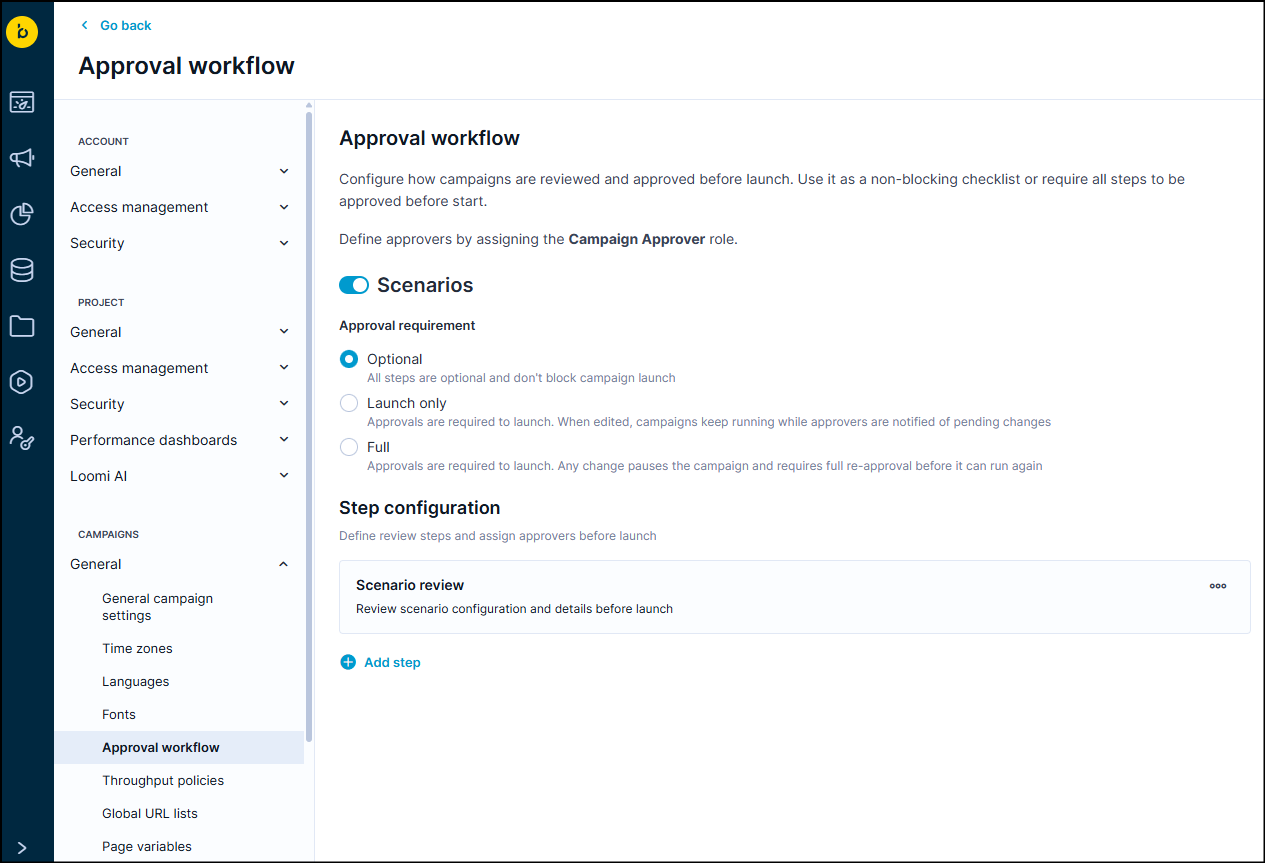
In Project settings, go to Campaigns > General > Approval workflow.
-
Select an enforcement mode. For a description of each mode, see Approval workflow.
-
Define your approval steps (up to 20). For each step, add:
- A name (emojis are supported).
- An optional description.
- Optional: One or more approver user groups.
-
Click Save to apply the configuration to new scenarios.
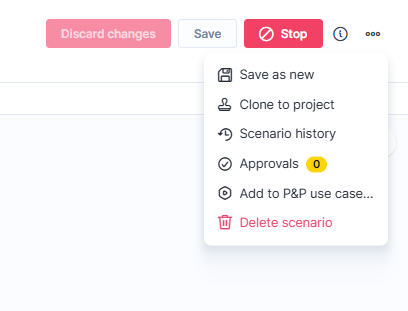
When you update your workflow settings, existing scenarios aren't affected. The new configuration applies the next time you edit a scenario. Updating segmentations, expressions, or blocks linked to a scenario doesn't automatically invalidate approvals. If your team requires re-approval after dependency changes, request approval again manually.
Assign the Campaigns Approver role
- Go to Administration.
- Find the users who should approve campaigns within your project.
- Assign the Campaigns Approver role at the project level for that project, or at the workspace level to cover all projects.
As a Project Admin, you can assign this role within the scope of your own project.
NoteIf a user has both the Scenario Editor and Campaigns Approver roles, they can request and grant approval on the same scenario.
Manage user groups
User groups control which approvers are assigned to each approval step. To set up or change user groups, you need Workspace Admin access. Contact your Workspace Admin for help.
If no user group is assigned to a step, any user with the Campaigns Approver role can approve it.
Known limitations
If multiple users edit a scenario simultaneously, approval state conflicts can occur. The platform uses optimistic locking and prompts you to reload if it detects a conflict.
Updated 5 months ago