

Clone to division
Clone items from the global scope into one or more divisions. Each division gets its own editable version that it can adapt for its region or brand, so you don't have to rebuild the item in every division. You can clone items such as scenarios, campaigns, segmentations, aggregates, templates, and blocks.
ImportantCloning to division is available only in projects where divisions are enabled. Divisions is currently available to select customers only.
Prerequisites
- Divisions enabled for your project, with at least one division created. For more information, see Create a division.
- Access to the global scope. Clone to division appears only in the global scope, on items created at the global level.
Clone an item to a division
-
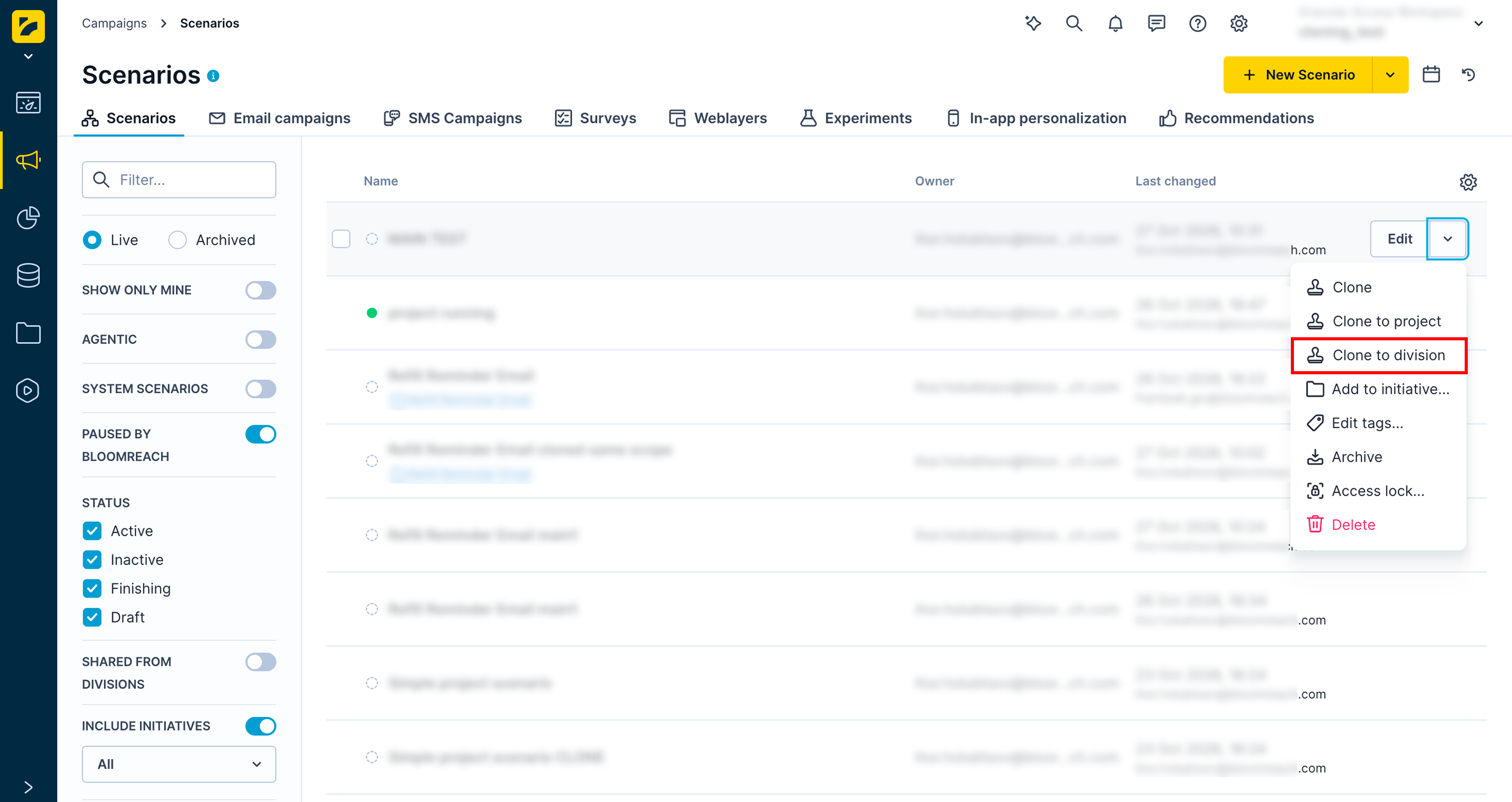
Choose an item, click the arrow on the right, and select Clone to division.
-
Select the division or divisions you want to clone the item to.
-
Optionally, enter a suffix for each division. The suffix is added to the end of the name of every item the clone creates in that division. For example, the suffix
UK01turnsExample scenariointoExample scenario UK01. Use the link icon to apply the same suffix to all selected divisions. Leave the suffix empty so that the copies keep their original names.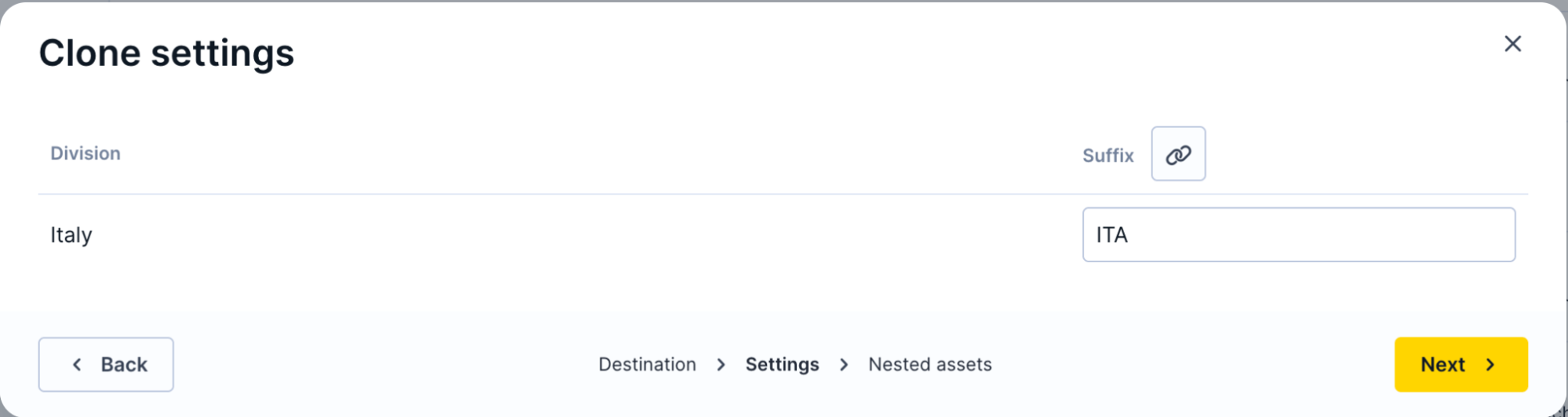
-
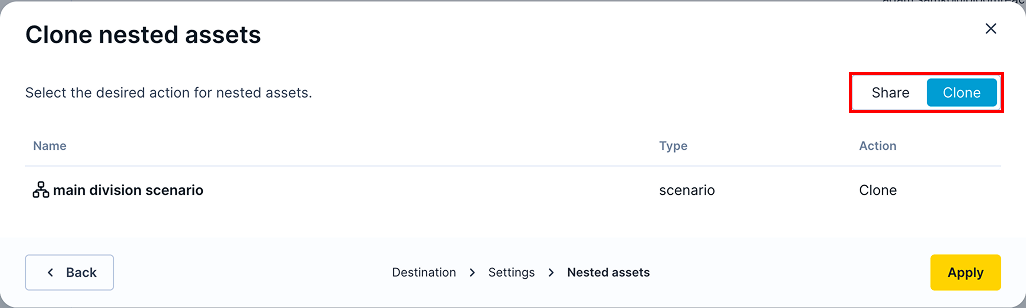
Review the list of nested assets, then choose whether to share or clone them. For more information, see Share or clone nested assets.
-
Click Apply.
-
Confirm the cloning by clicking Start cloning.
-
Review the results. The summary shows how many divisions the item was cloned to successfully and how many failed. Click Done.
Share or clone nested assets
Most items depend on other assets. For example, a scenario can use segmentations, aggregates, and catalogs. These are called nested assets. The nested assets step lists each one with its name, type, and the action that will be applied to it.
Choose whether to share or clone the nested assets. The choice applies to all of them, and you can't choose per asset.
| Share | Clone | |
|---|---|---|
| What is copied | Only the item itself | The item and all its nested assets |
| Nested assets in the division | Stay in the global scope, and the copy keeps using them | Recreated in the division as new assets |
| Editing nested assets | Division users can use them but can't edit them | Division users can edit them |
| Changes made to nested assets in the global scope | Reach the copy | Don't reach the copy |
| Best for | Keeping one maintained version of the nested assets | Adapting the item and everything it depends on |
What changes in a cloned item
The following settings reset in the cloned item:
- Scenarios, email campaigns, in-app messages, experiments, surveys, and managed tags: The clone is created as a draft.
- Weblayers: The clone is disabled.
- Segmentations: Settings that expose the segmentation to Content, Search, or merchandising are removed.
- Predictions and autosegments: Previous results are removed.
Limitations
- Clone to division is available only in the global scope. Items created in a division, or shared from one, don't offer it.
- You can clone items from the global scope to divisions only. You can't clone an item from one division to another, or from a division to the global scope.
- The cloned item is independent. It doesn't follow later changes made to the original in the global scope.
- Clone to division always creates new copies. It doesn't detect duplicates or replace existing items, so cloning the same item twice creates two copies. Use a suffix to tell them apart.
- The initiative and data mapping options from Clone to project aren't available. Initiatives aren't supported in divisions yet.
- You can't choose between sharing and cloning for individual nested assets.
Updated 29 minutes ago